
Automation in RevukCRM: a complete overview
A salesperson forgets to follow up on an overdue invoice. A Telegram lead arrives at 2 a.m. — and no one sees it until morning. A new deal lands, but it sits there for hours with no owner. None of this is about a bad team. It's about people doing work a system could be doing instead.
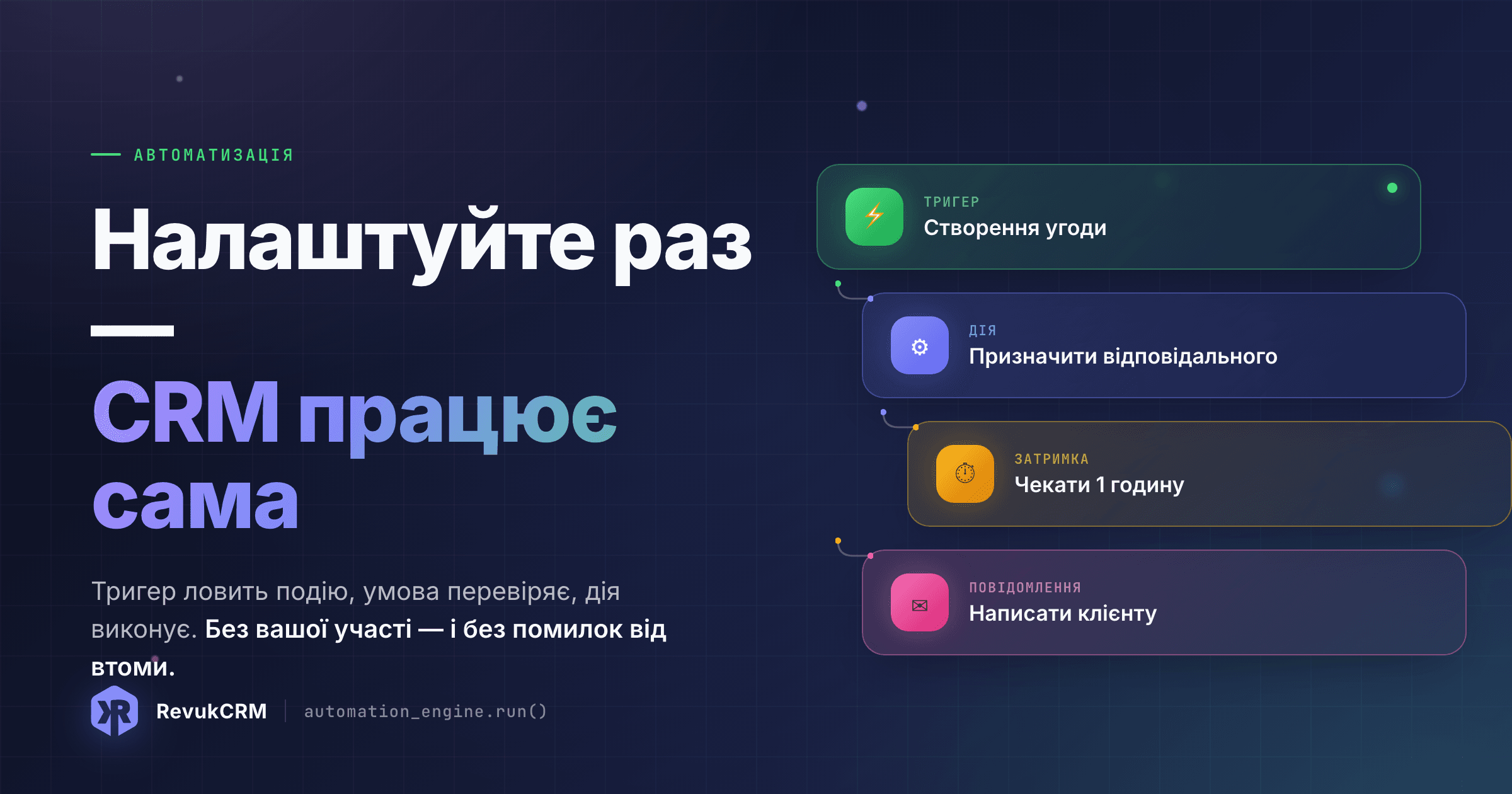
The Automation module in RevukCRM catches the event, checks the condition and runs the action — with zero clicks from you. Build it once, and it just runs. Here's how it's built and what you can actually hand over to it.
The anatomy of a scenario
Any scenario is three pieces in this order:
- Trigger — the event that fires the scenario. For example: "a new deal was created", "an invoice went overdue", "a Telegram message arrived", "it's Saturday 9 a.m.".
- Condition (optional) — a filter that decides whether to continue. For example: "deal amount above $500" or "contact has the VIP tag".
- Action — what the CRM does. Create a task, assign an owner, message the client, update a field, push data to an external service.
Between them you can put delays — "wait 2 hours", "wait until tomorrow 10 a.m.", "wait until the client replies". That's how a real workflow gets built, not just a single reflex.
Building your first scenario
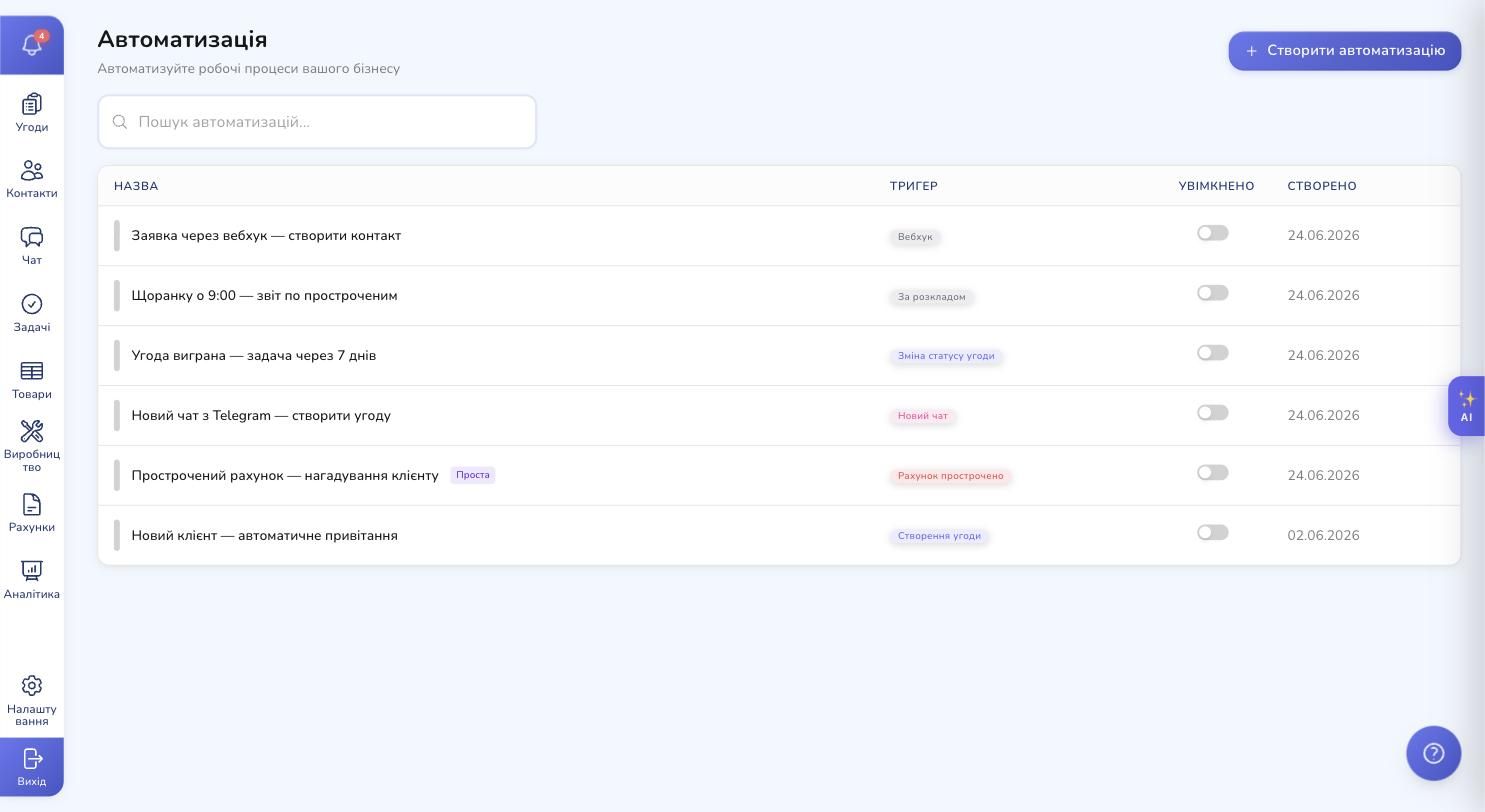
Go to Settings → Automation. You see all your scenarios: name, trigger, an on/off toggle, creation date. The "Create automation" button is at the top.
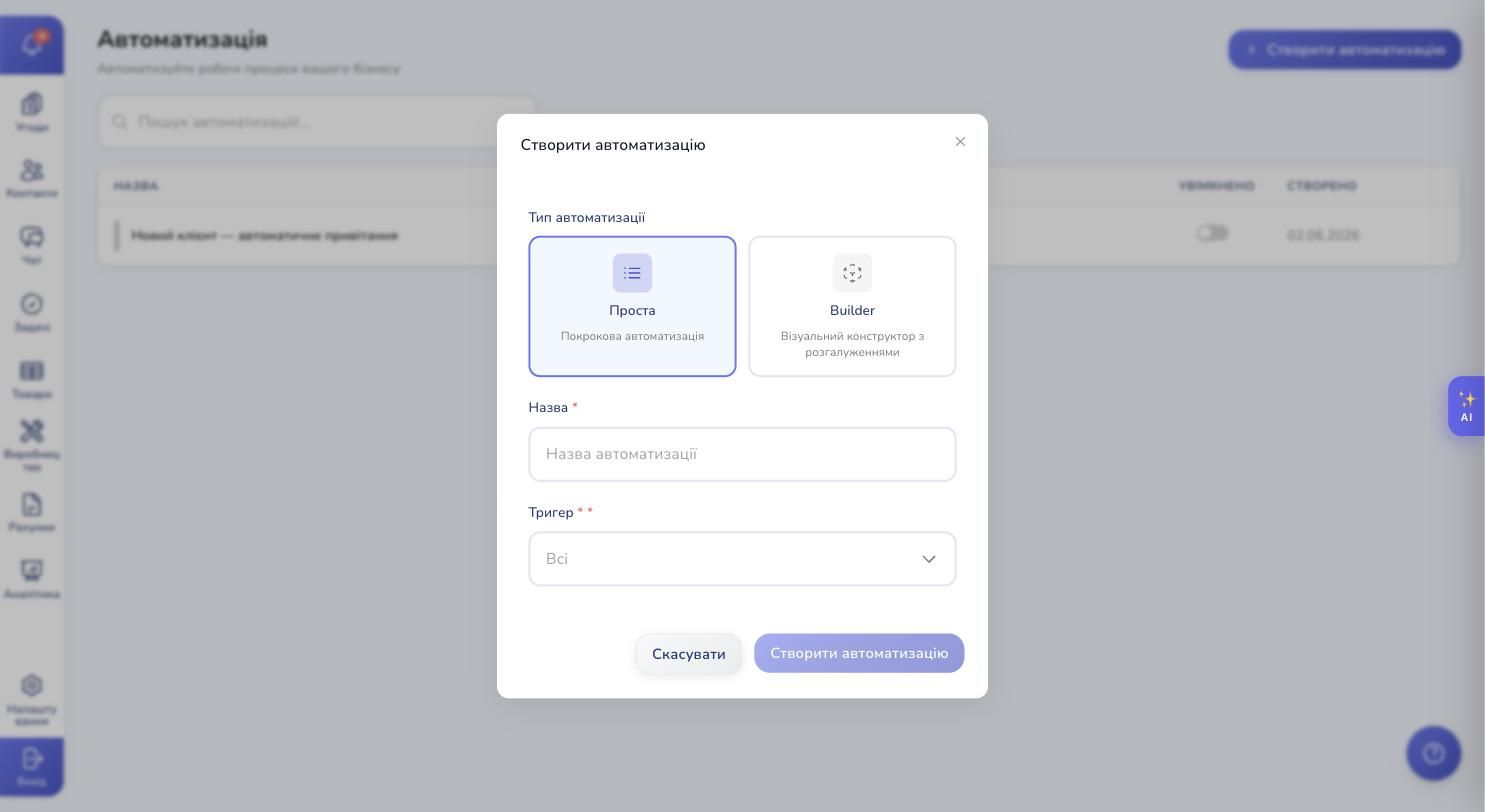
Click it — a short form opens. The CRM asks for only three things:
- Type: "Simple" (a linear sequence of steps) or "Builder" (a full visual editor with branching).
- Name: how you'll refer to it internally. For example: "Telegram lead → deal + welcome message".
- Trigger: what exactly has to happen to start the scenario.
The type isn't permanent. You can open any Simple scenario in Builder if it turns out you need branching. One click.
Triggers — what fires a scenario
Triggers are grouped by entity. Each group offers several event types.
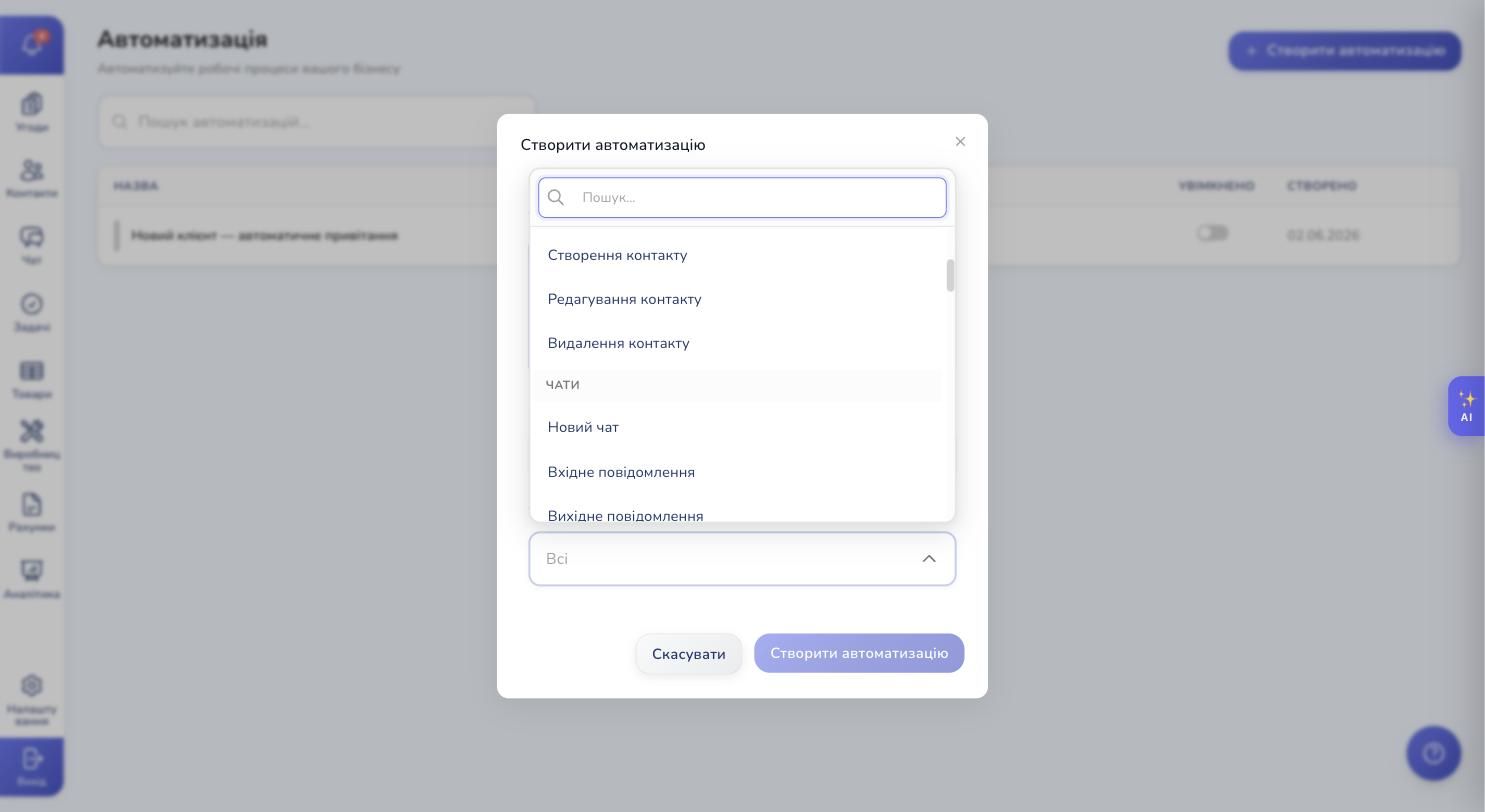
- Deals — created, edited, status changed, closed. This is the most common entry point: "new lead", "deal moved to invoicing", "deal won".
- Contacts — created, edited, deleted.
- Chats and messages — new chat, incoming message, outgoing message. Works across every channel you've connected: Telegram, Viber, WhatsApp, Instagram, Facebook, web chat.
- Tasks — created, completed, assigned, due soon, overdue, priority changed. This is where "remind me 2 hours before the deadline" and "alert the manager when a task is missed" live.
- Products and inventory — new products, price changes, stock movements, new batches, write-offs.
- Invoices and payments — invoice created, status changed, fully paid, overdue, payment received.
- Production — for teams running production orders: order created, stage started, stage completed, defect logged, returned from a subcontractor.
There are also system triggers that don't depend on CRM events:
- Scheduled — every day, every half hour, weekdays at 9 a.m., the 1st of every month. Any cron expression you want.
- Manual — a "Run" button in the UI. Great for bulk actions a manager fires off by hand.
- Webhook — a unique URL that any external system (a landing-page form, a partner integration) can hit to trigger the scenario. No human in the middle.
- Widget event — any integration can emit its own events.
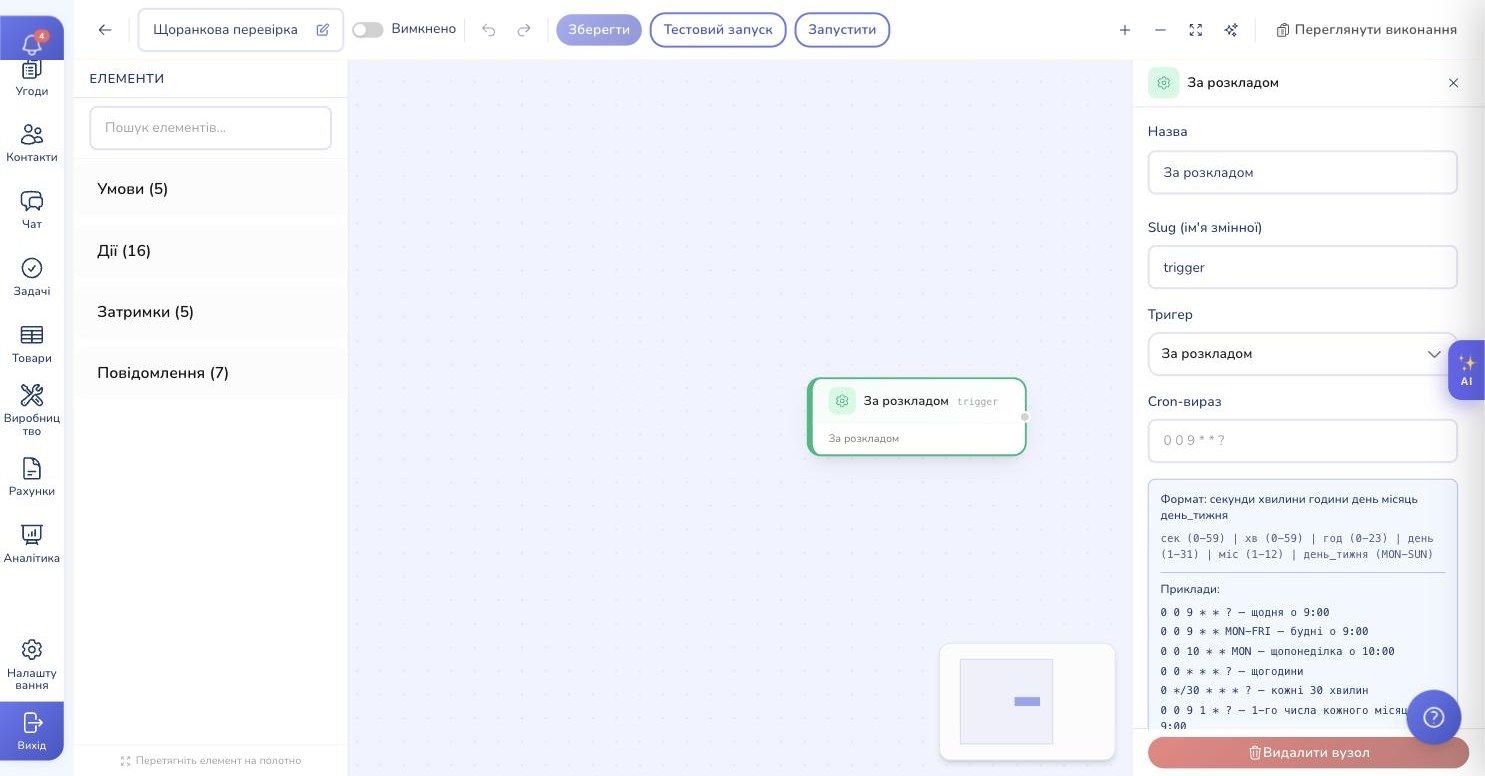
For scheduled scenarios, RevukCRM ships a built-in cheat sheet: "every day at 9", "weekdays at 9", "every hour", "every 30 minutes". You don't need to memorize cron syntax.
Actions — what the CRM does for you
Actions split into two broad groups: CRM data work and external communication.
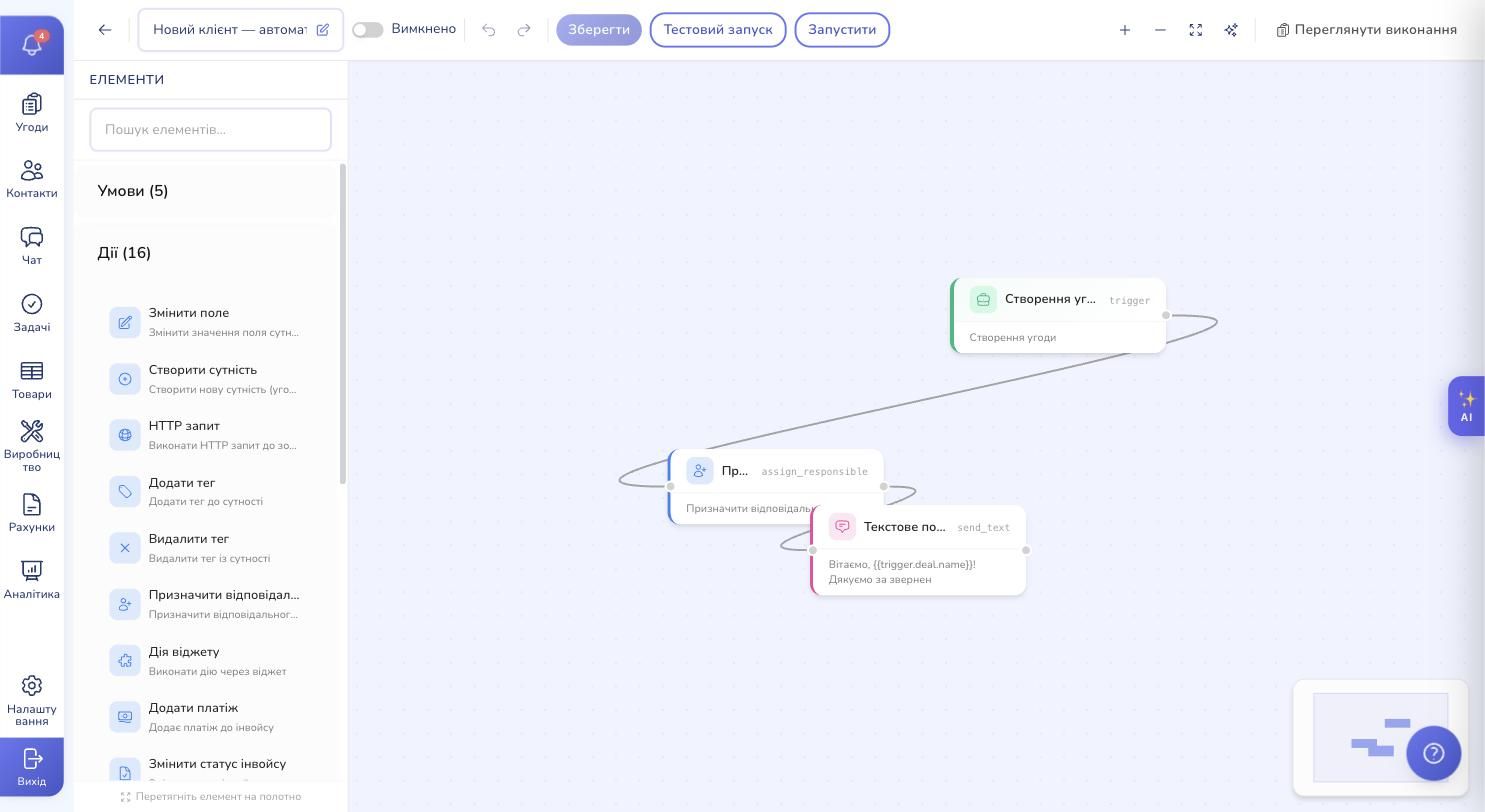
CRM data work:
- Create entity — a new deal, contact, task, invoice. With prefilled fields.
- Change field — update any standard or custom field on an entity.
- Complete entity — close a task, deal or invoice.
- Delete or clone an entity.
- Add / remove tag — the same tagging system you use by hand.
- Assign responsible — make someone on your team the owner.
- Add watcher — subscribe someone to updates.
- Add comment or reminder — useful for keeping a paper trail.
- Add payment to an invoice, change invoice status — for financial automation.
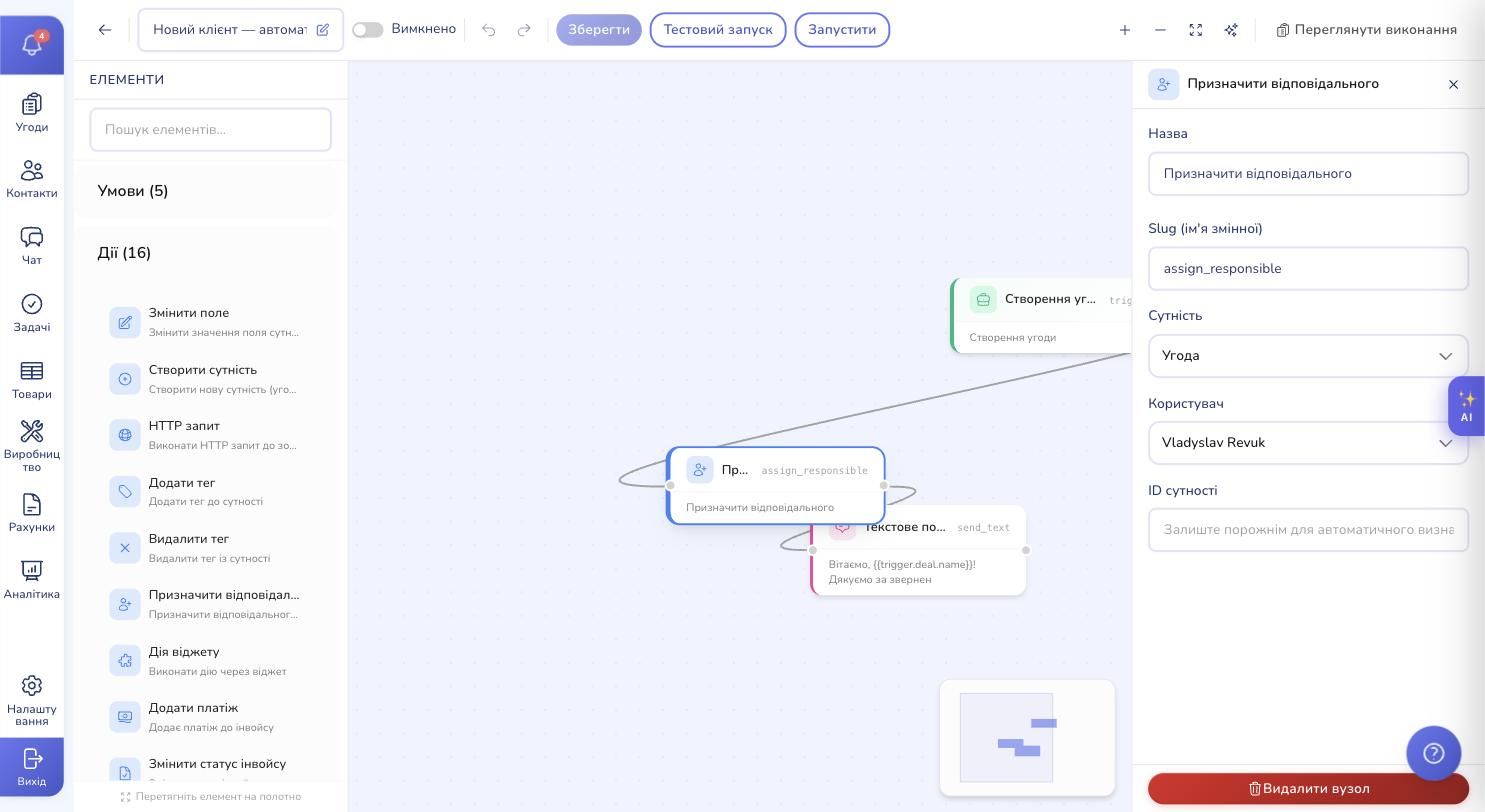
External communication — messages:
- Text message — plain text with variable substitution.
- Buttons and quick replies — let the client tap, not type.
- Carousels — multiple swipeable cards with images.
- Media / file — photo, video, document.
- Ask for input — prompt the client and capture the reply for the next step.
- Edit message — update a message you already sent.
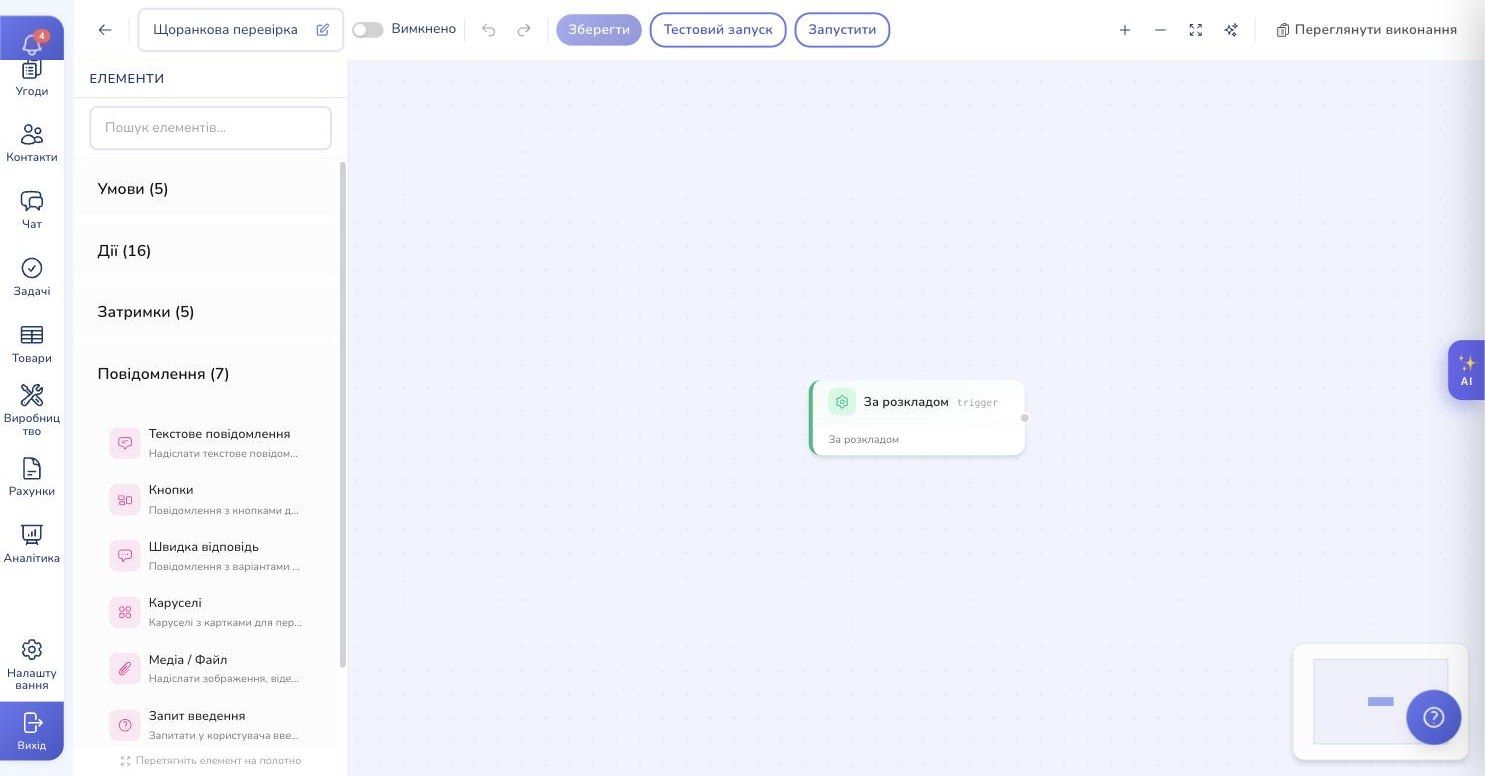
Any text supports variables — values pulled from the trigger or earlier steps. Instead of "Hi there!", you can write "Hi Olena! Thanks for reaching out about the birthday party". The CRM fills in the name and topic from the deal card.
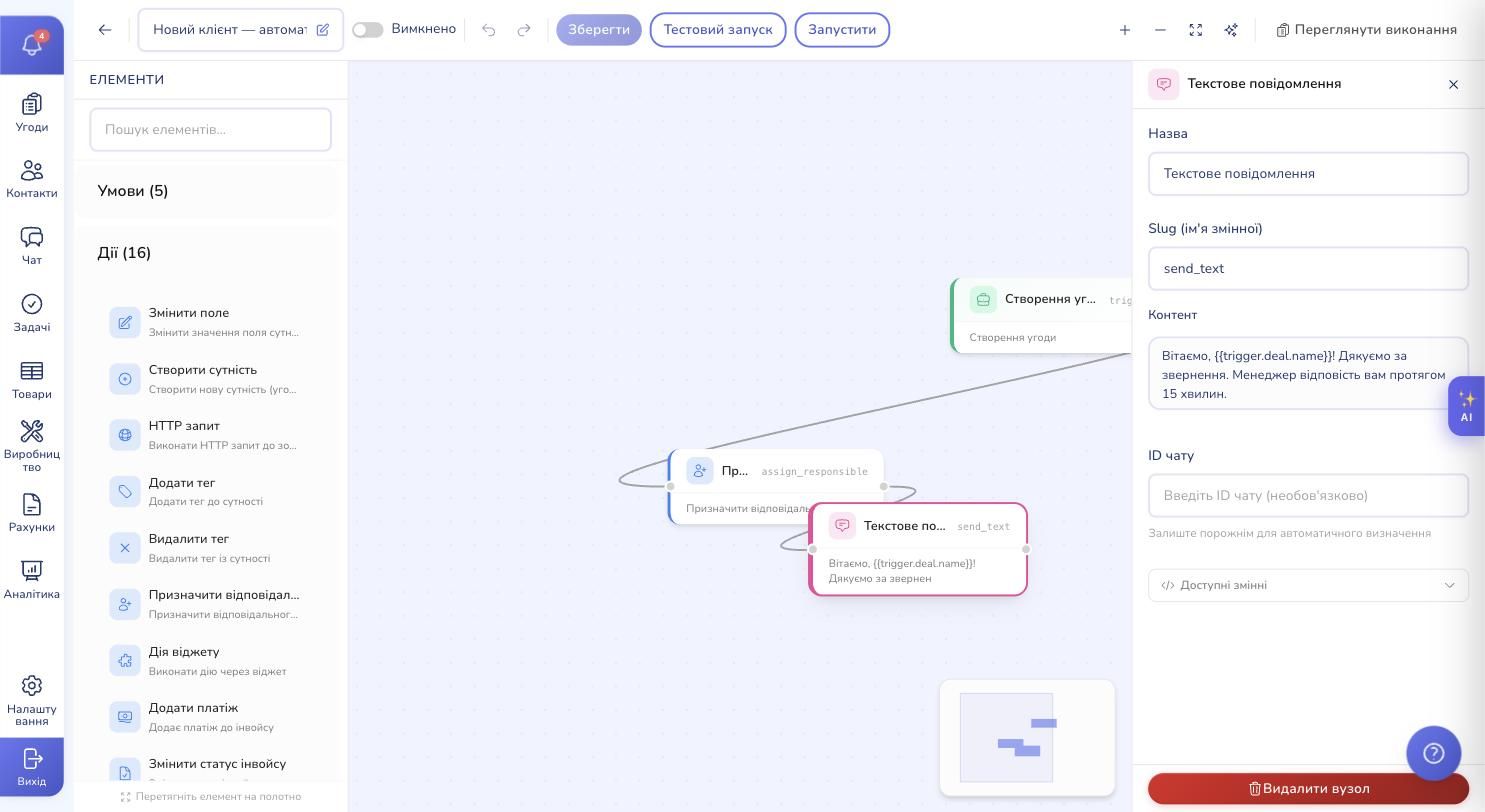
HTTP request is a separate action that lets you reach out to any external service. Push data to Google Sheets, your accounting app, a partner's messenger, your legacy database. It supports GET, POST, PUT, DELETE, variables in the URL and body, custom headers. If your web service can do it, the automation can call it.
Conditions, loops and delays
Scenarios without branching are just the warm-up. Serious automation needs logic.
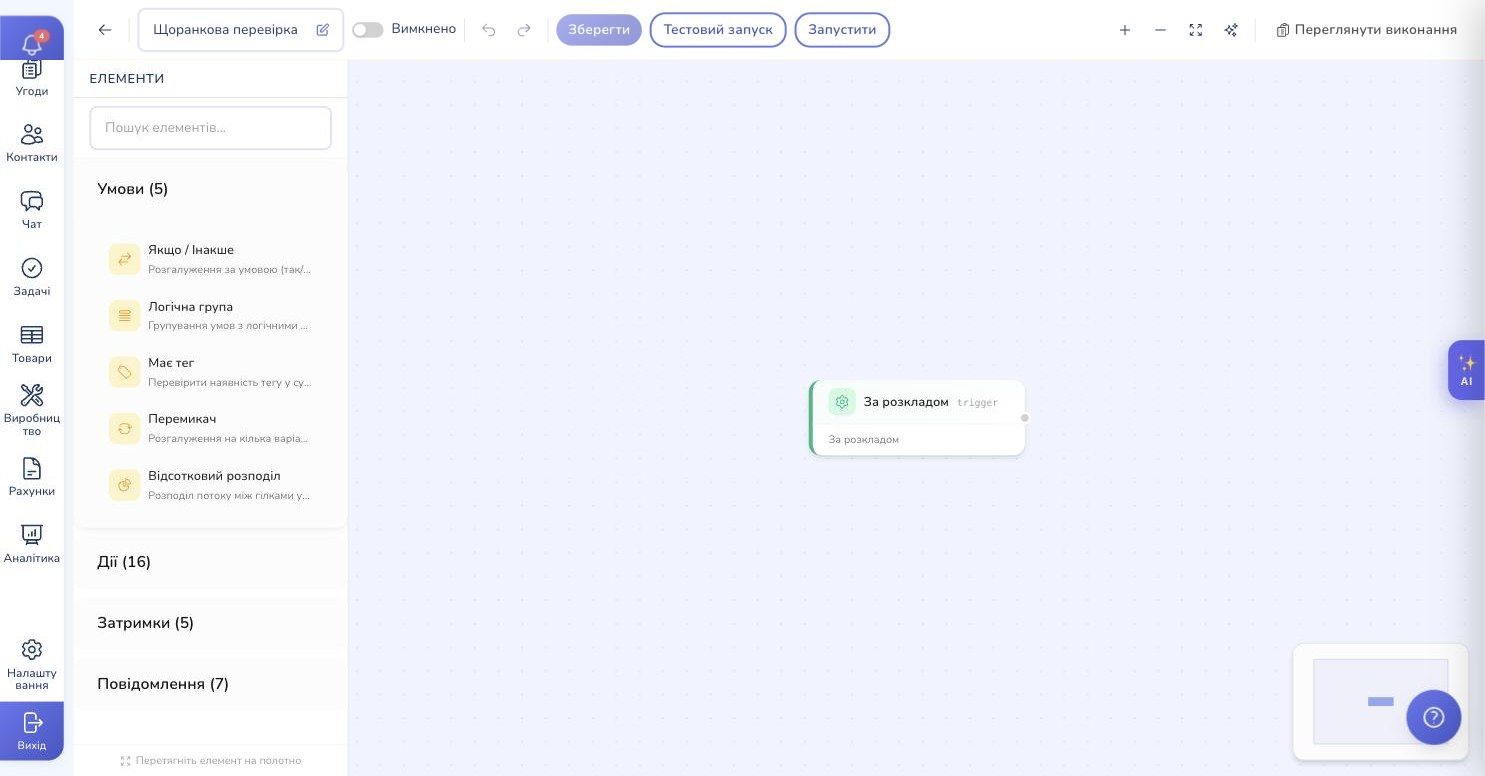
- If / else — the classic two-way branch. "If the amount is over $1,000 — assign a senior account manager. Otherwise — the default queue."
- Logical group — combine multiple conditions with AND / OR.
- Has tag — a quick check for a specific tag on the entity.
- Switch — multi-way branching by value. "Depending on the city: Kyiv → one path, Lviv → another, Odesa → a third."
- Percentage split — A/B testing right in the scenario: "half the clients get welcome variant A, half get B".
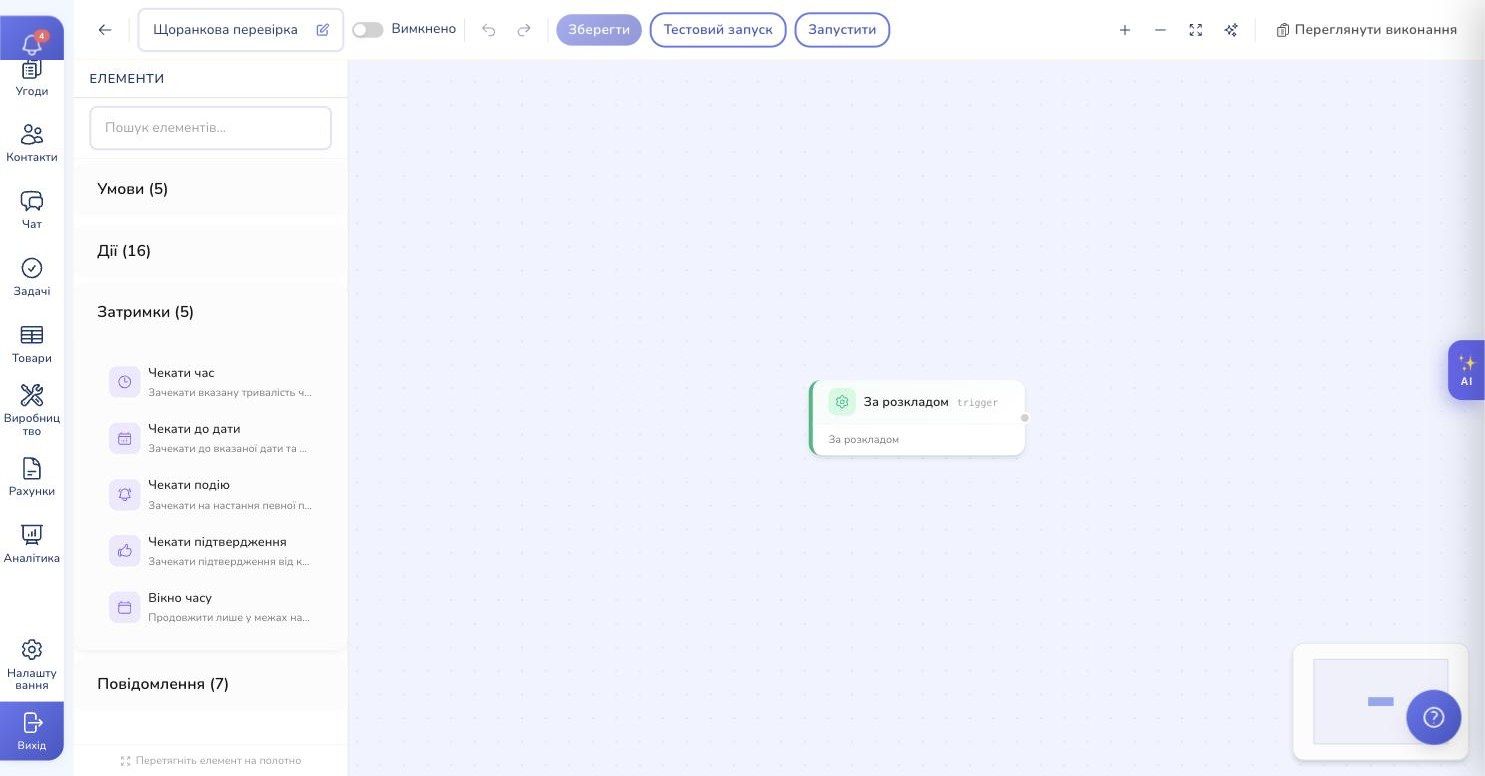
Delays make a scenario actually live in time — it can wait:
- Wait time — a fixed duration (5 minutes, 2 hours, 3 days).
- Wait until — a specific date and time. You can pull it from fields: "one day before the task deadline".
- Wait for event — pause until something else happens. "Wait for the client's reply; if no answer in 24 hours — send a nudge."
- Wait for approval — gate the next step on a human OK. Until the owner clicks the button, the scenario doesn't move.
- Time window — only proceed during business hours. "Don't message at 11 p.m. — hold until 9 a.m."
Two editing modes
The automation editor comes in two flavors — Simple and Builder.
Simple is a top-to-bottom list of steps. Great when the scenario is linear: "event → send message → create task → done". Less clicking, easier for the first time.
Builder is a full visual canvas with nodes and connections. Each step is a card; you drag them in from the palette on the left and draw the connections yourself. Branches show up right on the graph.
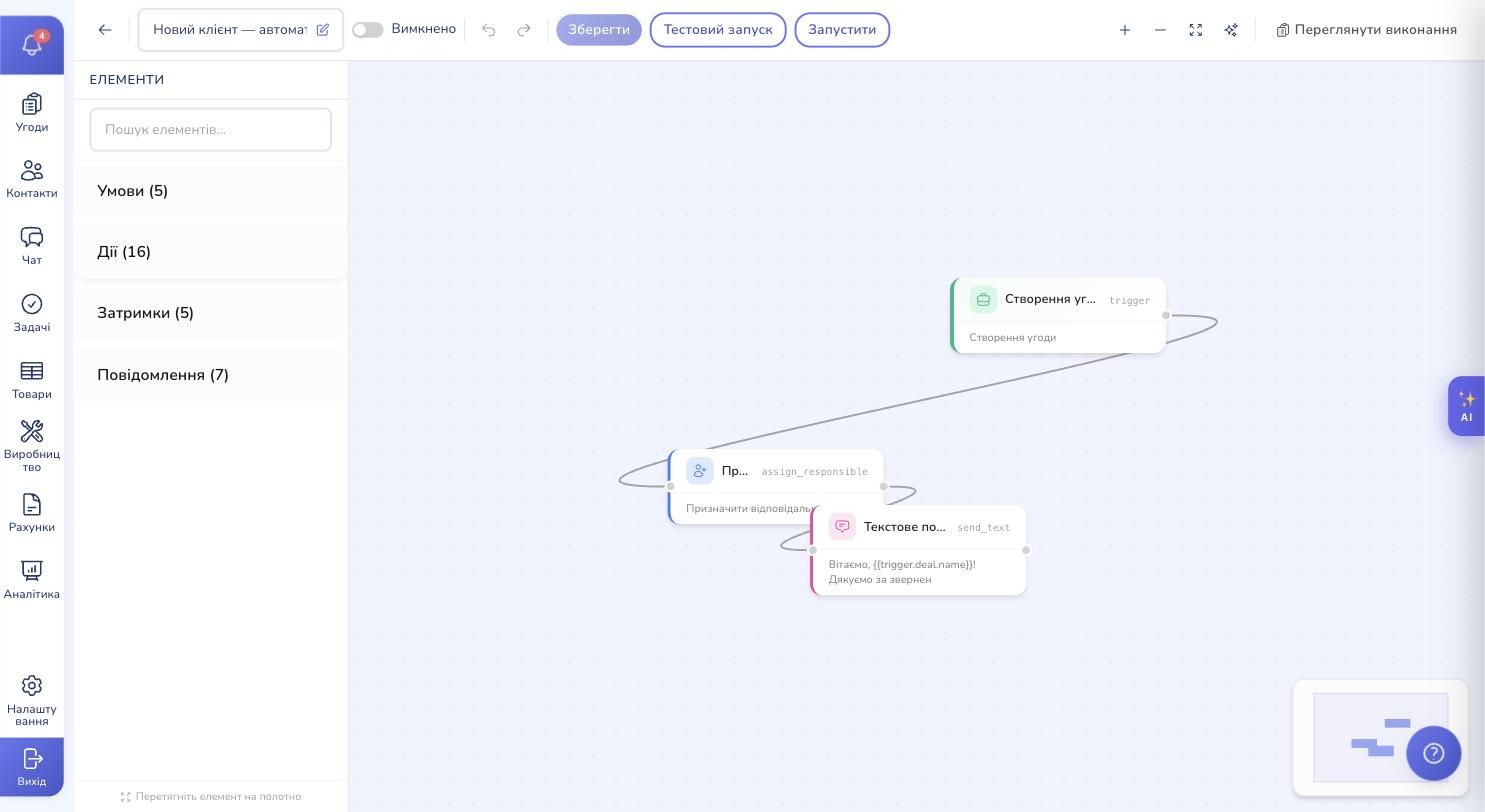
Switching modes is one click. Started with Simple, realized you need branching — open in Builder and all your steps are already there, ready to be expanded.
Testing and the execution log
Before flipping a scenario on in production, you'll want to test it. The CRM gives you two tools.
Test run — a button at the top of the editor. The scenario runs on test data, walks through every step and shows you what it would have done for real. No client messages get sent, no CRM data is changed — just a rehearsal.
Execution history — a full log of how the scenario actually behaves in production. Every run, what step it's on, how much time has passed, what went wrong.
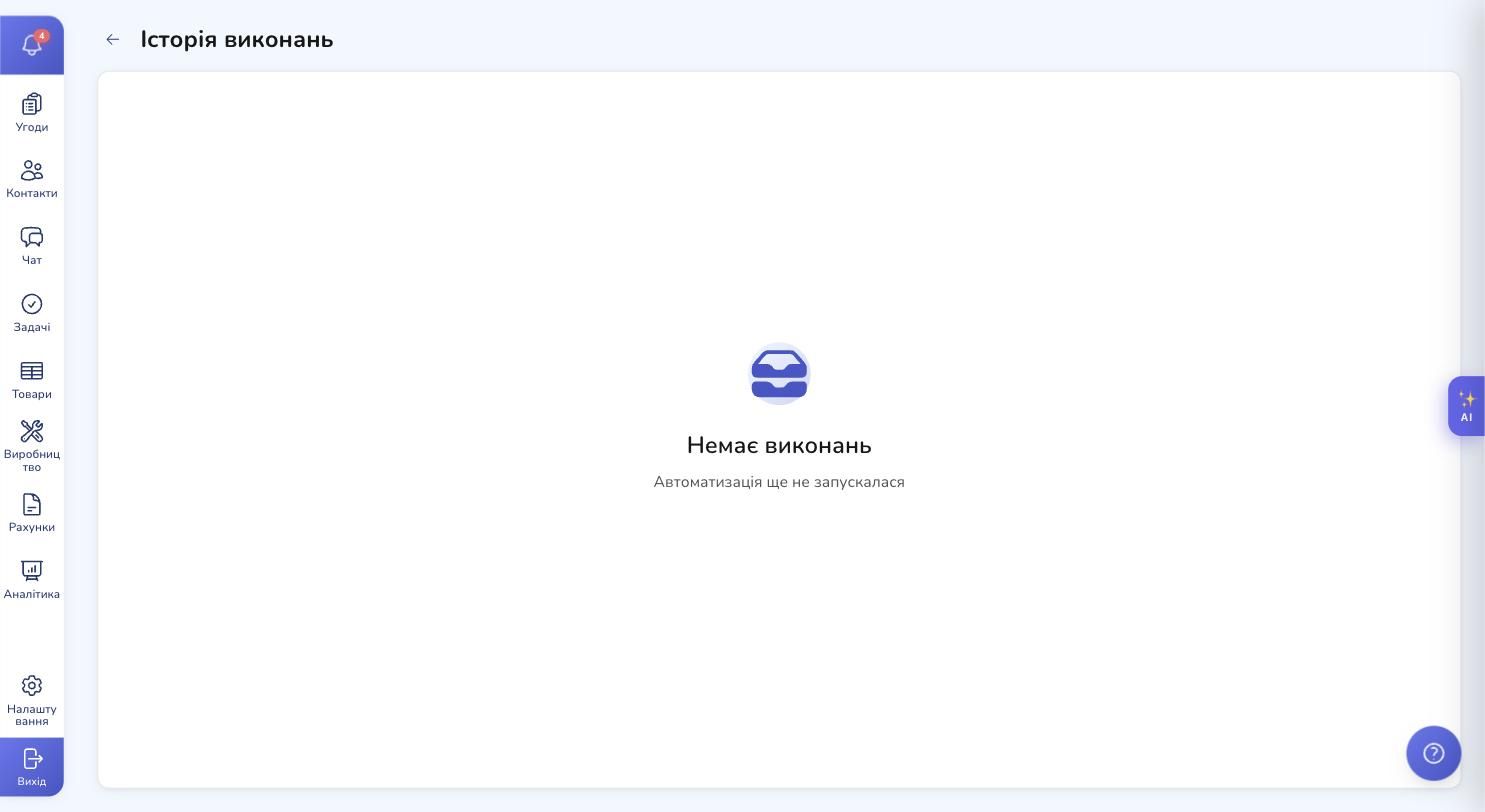
Each run carries a status — "Running", "Paused", "Completed", "Failed", "Cancelled". If something broke, you see exactly which step failed, and you can retry from there. Nothing falls through the cracks.
Real-world scenarios
To make it concrete — a few workflows teams set up first.
Telegram lead → deal + welcome. Trigger: "New chat". Action: create a deal with source "Telegram" and the name from the chat profile. Action: assign an owner from the queue. Action: message the client — "Hi! Thanks for getting in touch. A manager will reply within 15 minutes". All of it runs 3 seconds after the client hits Send.
Overdue invoice → reminder + manager task. Trigger: "Invoice overdue". Delay of 1 hour (maybe it's just a slow payment, not bad intent). Action: text the client — "Hi! A quick reminder about invoice #[number]". Action: create a task for the account manager — "Call the client about the overdue invoice", due next business day.
Deal won → follow-up task in 7 days. Trigger: "Deal status changed" with a filter of "new status = Won". Delay of 7 days. Action: create a task — "Call the client, check on their experience, pitch related services". A small habit that quietly grows repeat business.
Important CRM event → instant Telegram alert to the team. Trigger: any event the team needs to know about right away. Action: an HTTP request to Telegram with a short summary of what happened. The team chat gets pinged in a second — no one has to keep the CRM open just to not miss something.
Variable substitution. Any text field supports expressions like {{trigger.deal.name}} or {{trigger.invoice.number}}. The CRM swaps them for real values at runtime. Works in message bodies, in task titles, in HTTP request payloads.
Custom fields. If you've added your own fields to a deal or contact card, automation handles them just like standard ones. You can read them in triggers and write them in actions.
Multiple automations per event. You can stack as many scenarios as you like on the same event. They run independently: one alerts a manager, one messages the client, one syncs an external system. They don't block each other.
Where to start
Don't try to automate everything at once. Pick one workflow that drains the team's time today and set up only that. Watch it for a week. Then add the next one.
The most common first three:
- a welcome message for messenger leads,
- auto-assigning owners to new deals,
- reminders for overdue invoices.
These are the three things almost every business either does manually or quietly forgets. The CRM doesn't forget.
Ready to take the routine off your team's plate?
Try RevukCRM free — your first automation can be live in 15 minutes.
Tags