
Deal Pipeline in RevukCRM: The Complete Guide from Lead to Payment
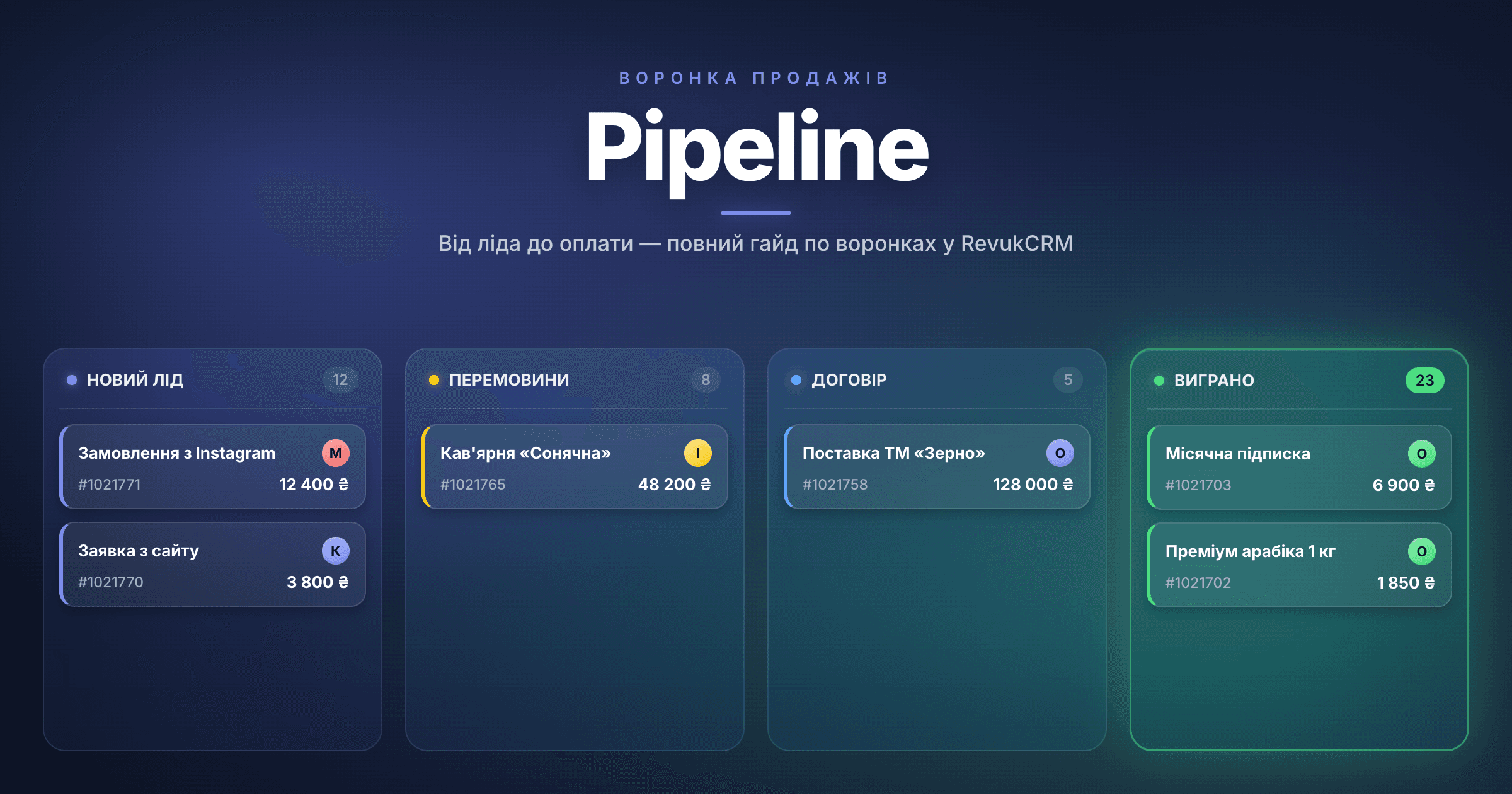
If your "Leads" spreadsheet has 200 rows and you're losing track — that's not a spreadsheet problem. That's a pipeline problem. A sales pipeline gives every deal a specific place on a board, lets you see its status at a glance, and tells you exactly what to do next.
In this guide, we walk through the entire pipeline functionality in RevukCRM: from creating your first pipeline to nested pipelines, filters, custom fields, and batch operations.
What a Pipeline Is in RevukCRM
Picture three levels of nesting:
- Pipeline — a separate business process. For example "Sales," "Service," or "B2B clients." You can have one pipeline or dozens.
- Stage — a step inside the pipeline. "New lead" → "Qualified" → "Negotiations" → "Contract" → "Won."
- Deal — a specific card with a client's name, amount, and assigned manager. Deals live inside stages and move between them.
Four Stage Types
When you create a pipeline, RevukCRM offers four stage types:
- Unsorted — where raw leads land before first contact. One per pipeline.
- Regular — working stages. As many as you need.
- Successfully completed — "Won." Deal closed, money received.
- Unsuccessfully completed — "Lost" with a reason (too expensive, chose a competitor, lost interest).
Closing stages are fixed at the right edge of the pipeline. Regular ones can be reordered via drag-and-drop.
Creating Your First Pipeline
Your account already has a default pipeline named "Main." Let's create our own — for example, "Sales."
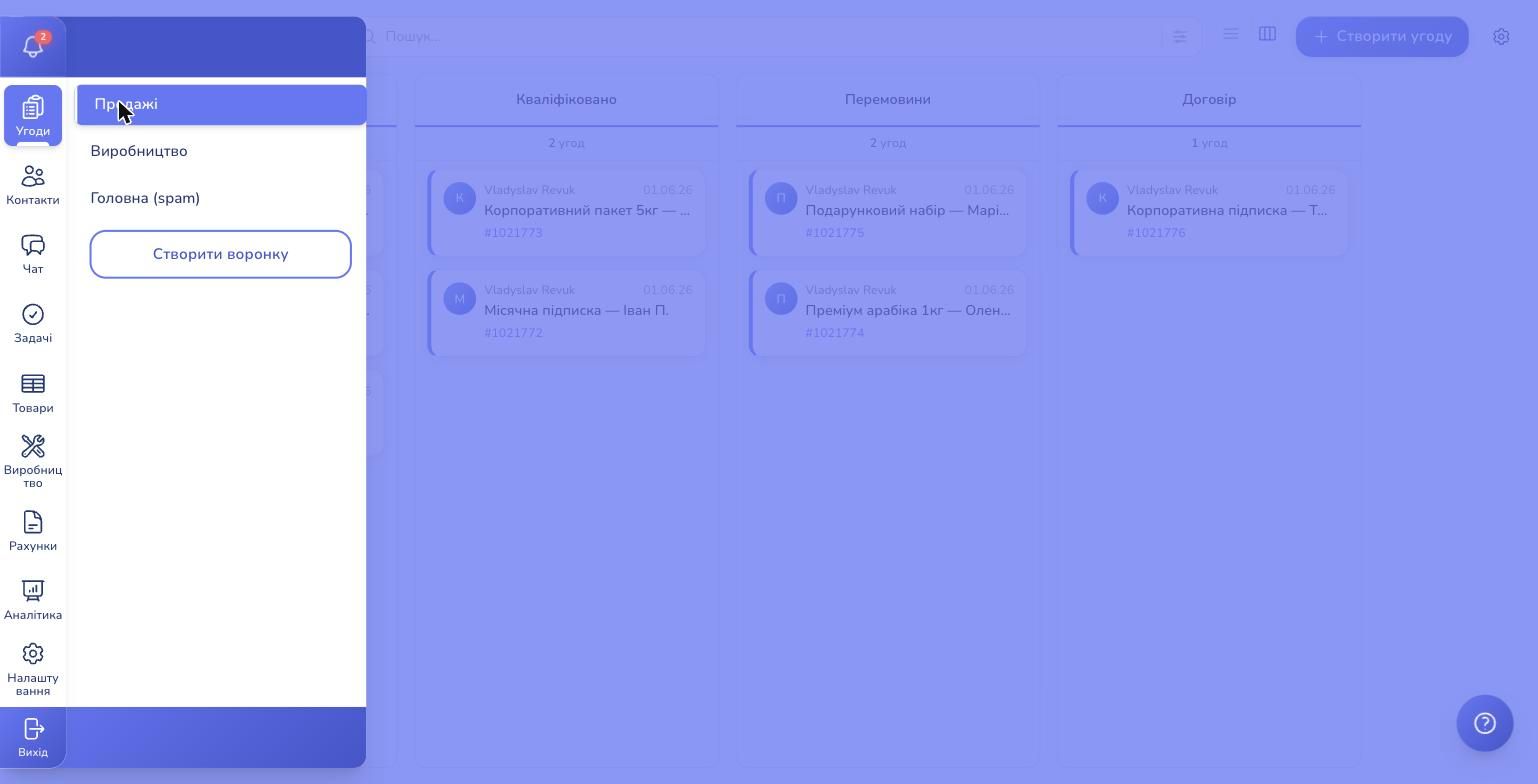
In the left menu, hover over Deals — a dropdown with your pipelines and a Create pipeline button appears. Type the name and click the checkmark.
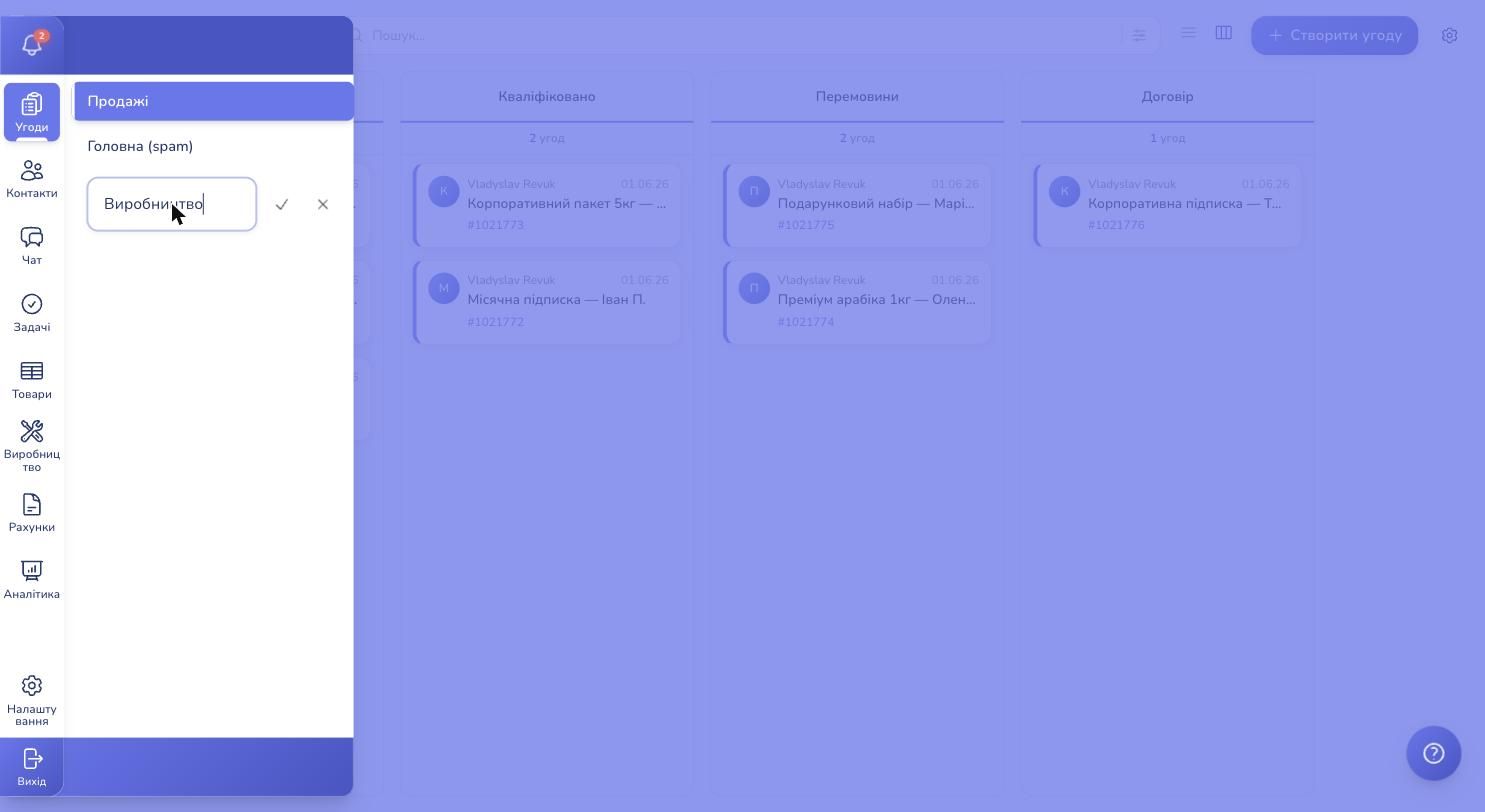
The pipeline appears immediately in the list. Switching between pipelines is a single click in the same dropdown.
Customizing Stages for Your Sales Process
Click the cog icon in the top right — the Pipeline Settings modal opens. Here you can see every stage of the pipeline and edit, add, or remove them.
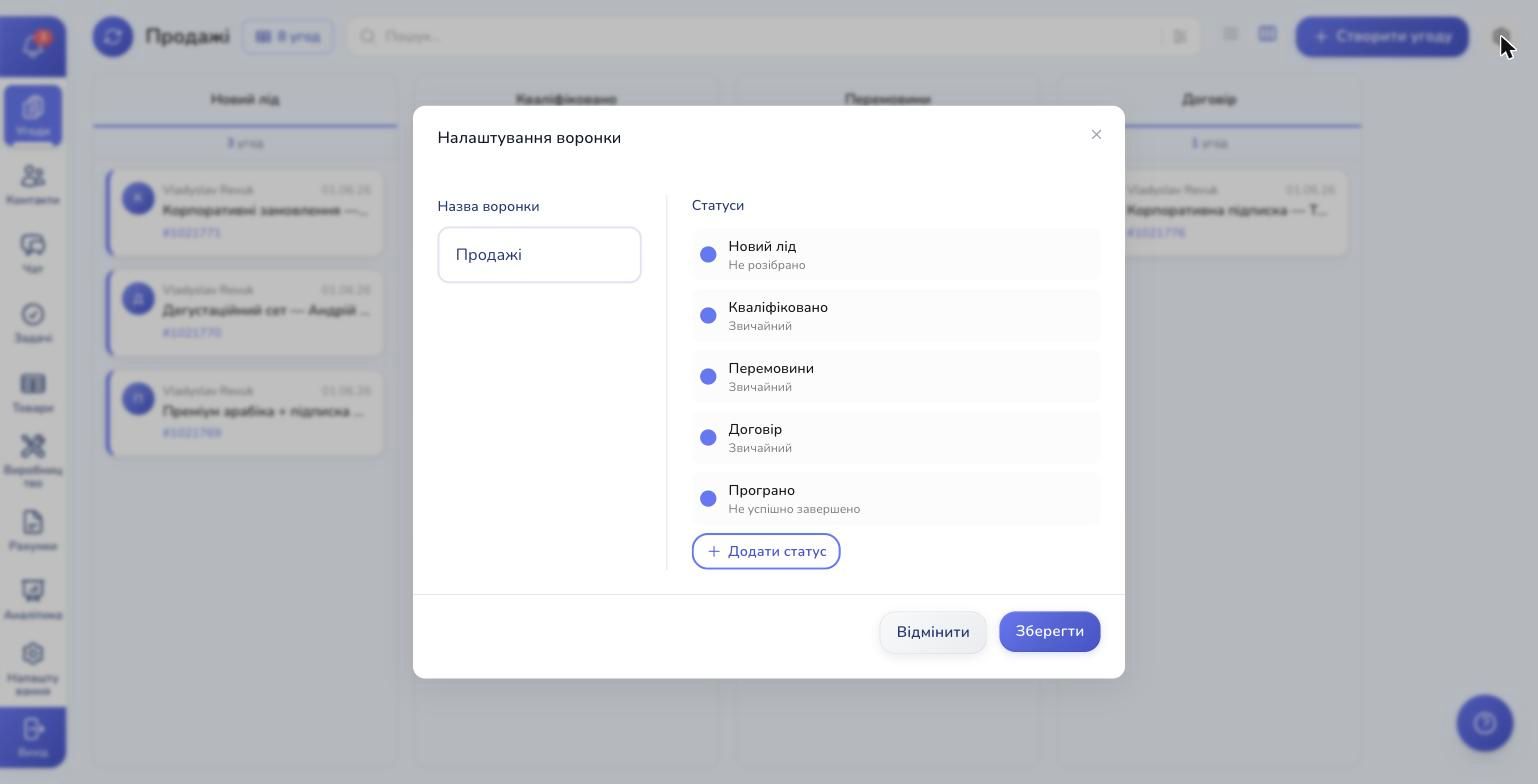
Click a stage — edit and delete icons appear on the right. In the edit form you can:
- Change the color — the color label appears both in the kanban and on the deal card
- Rename the stage
- Link a nested pipeline (more on this in "Sub-stages")
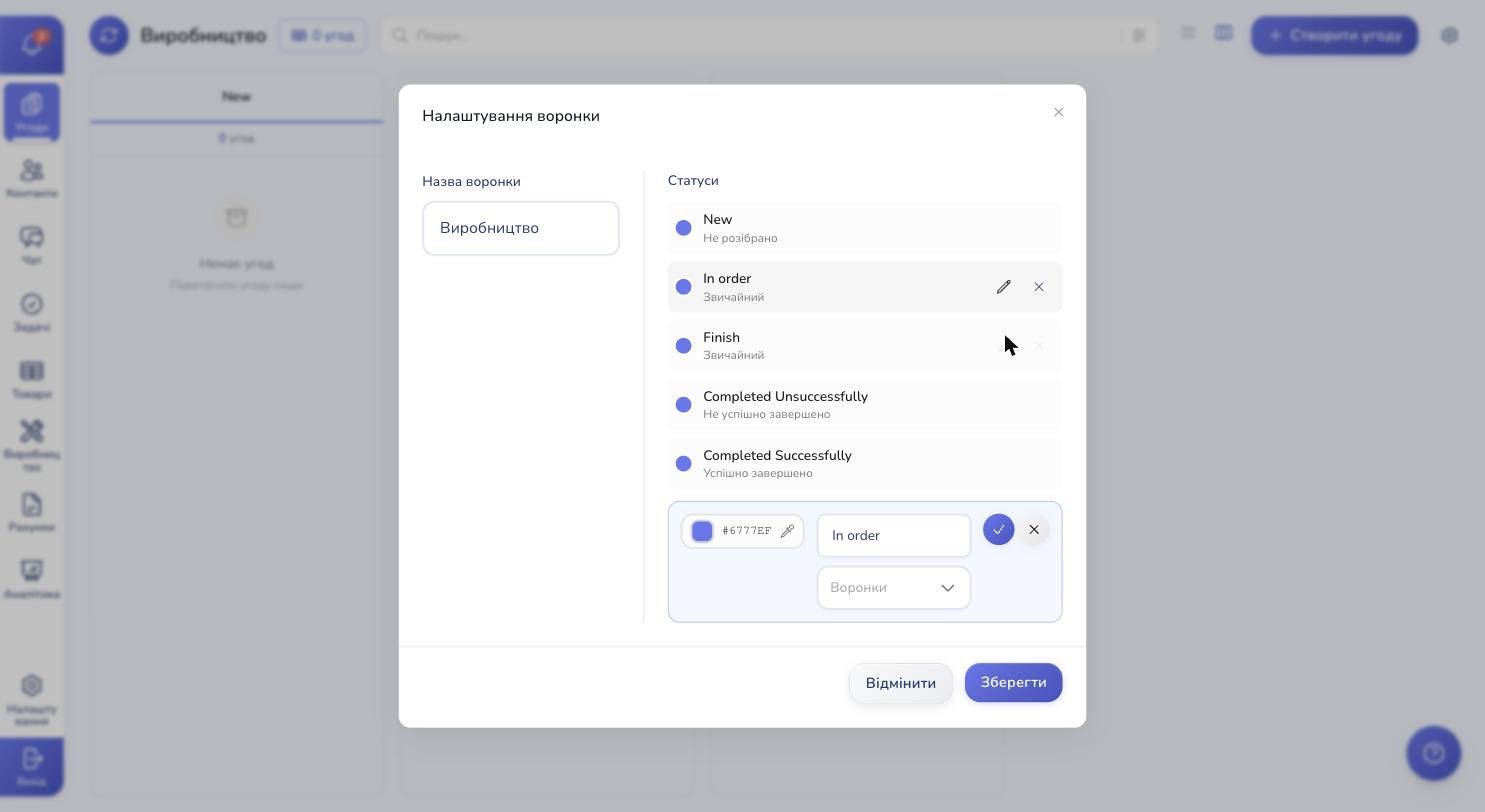
The Add stage button at the bottom creates a new stage — default type is "Regular."
How to Name Your Stages
A solid rule: stage names should describe the manager's action, not the "client's mindset." Not "Thinking," but "Awaiting reply." Not "Interested," but "Quote sent." This makes the pipeline predictable — you instantly see what to do with each deal.
Creating a Deal — Three Ways
Method 1. The "Create deal" button
In the top right corner of the kanban — the blue Create deal button. Click it to open an empty deal card. Fill in the name, amount, assigned manager, and link a contact.
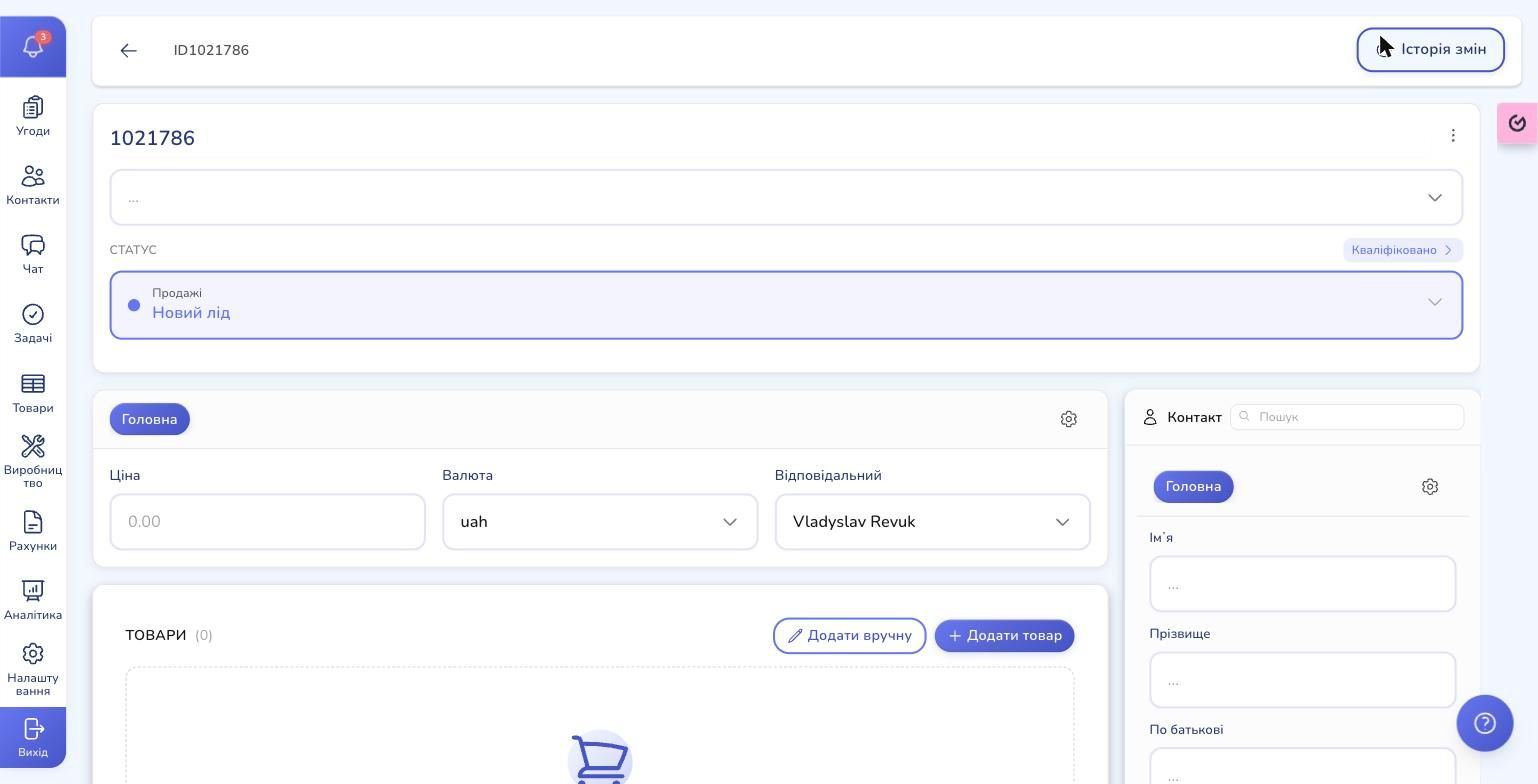
Method 2. From a contact card
Open a client → "Deals" tab → + → the deal is created already linked to this contact. Useful when a lead transitions to active work.
Method 3. From a chat
A manager is talking to a client on Telegram / Instagram / Viber — and clicks "Create deal" right from the chat window. The contact is pulled automatically from the messenger. This is our favorite scenario — leads don't get stuck, they enter the pipeline immediately.
The Kanban — Heart of the Pipeline
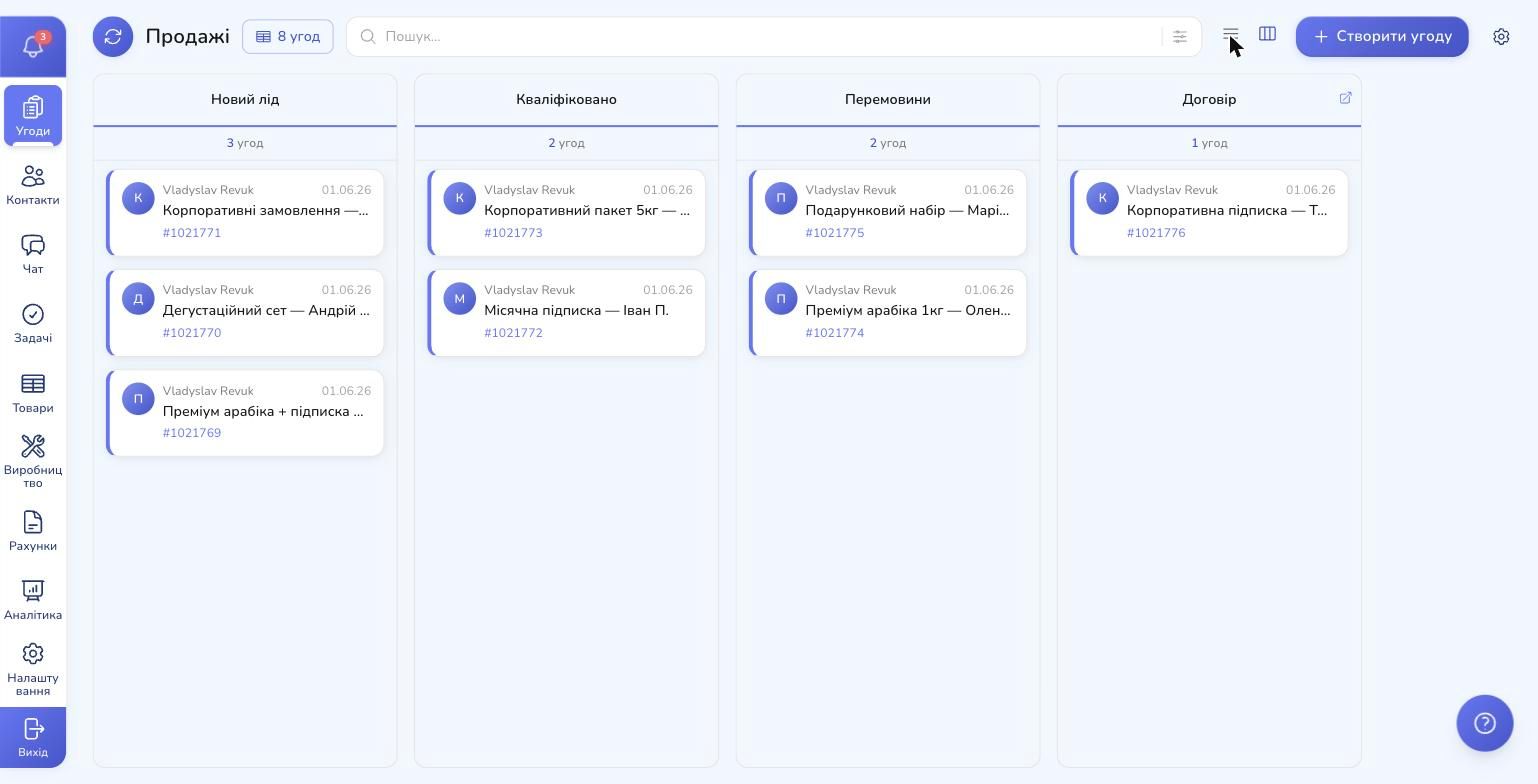
The kanban board is the default view. Why we prefer it over lists:
- One glance = full picture. You see where deals are stuck, where it's empty, where the action is.
- Drag-and-drop = instant updates. Dragged a card from "Negotiations" to "Contract" — status updated. No modals, no extra clicks.
- Color coding — the left border of each card matches its stage color.
What's on a Card
- Avatar circle — first letter of the assigned manager's or client's name. Quick visual ownership cue.
- Name and date — who's running the deal and when it was created.
- Deal name — a short summary.
- #ID — unique deal number (
#1021771, etc.) for cross-team references. - Tags (if any) — color chips at the bottom.
Deal Details — Everything About the Client in One Window
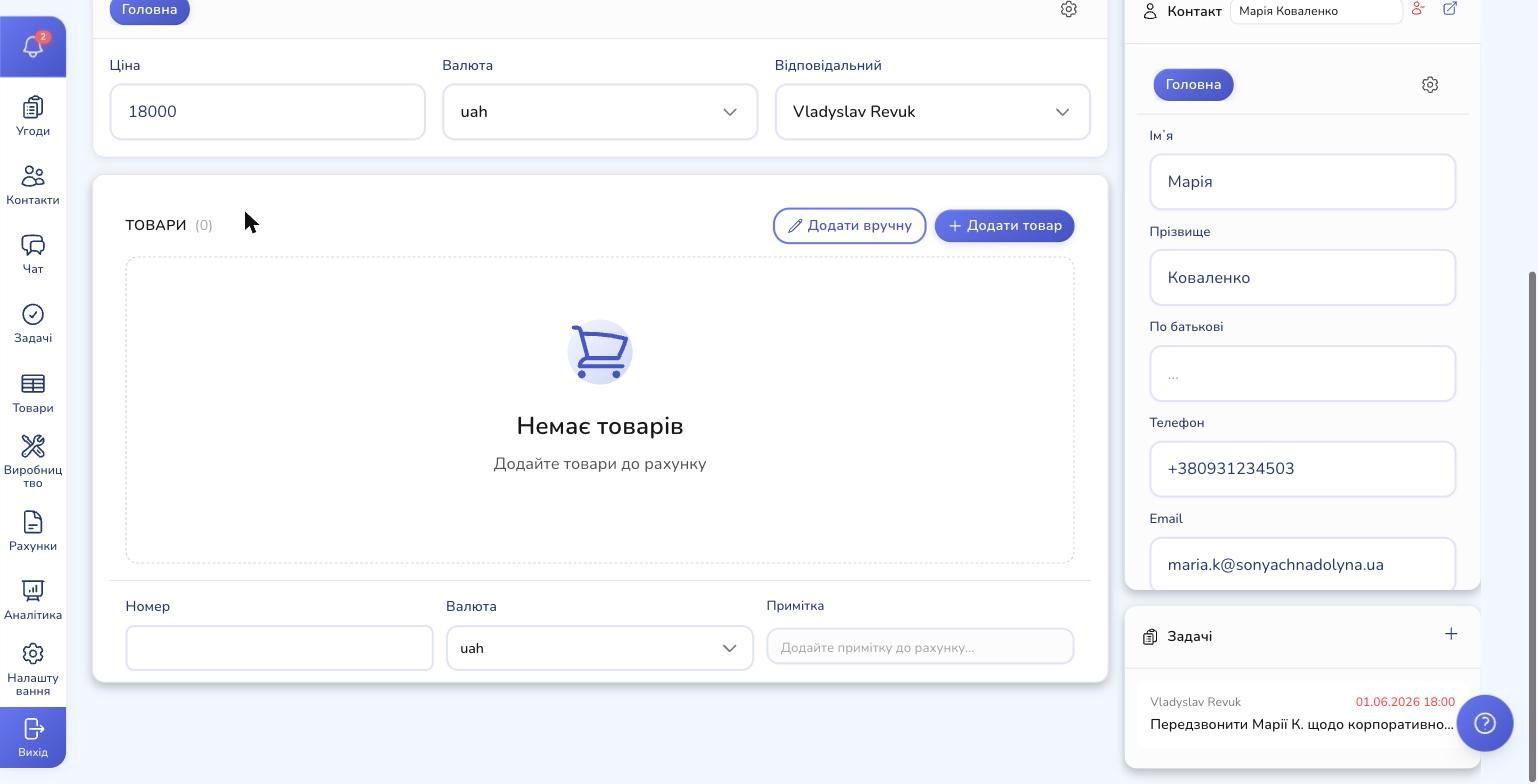
Click a card to land on the deal page. All the info is here: status, finances, contact, products, payments, tasks, production, files, change history.
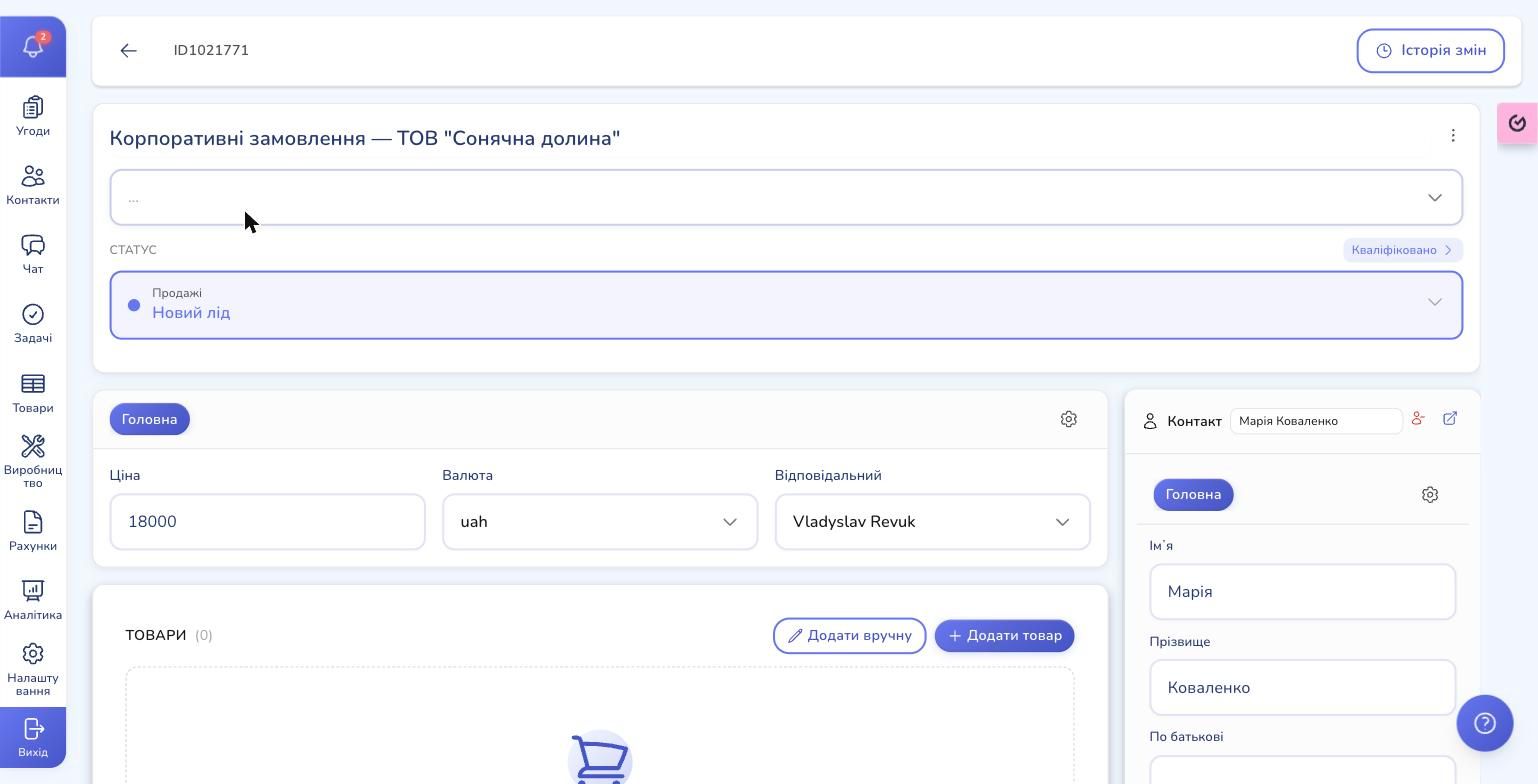
Deal Page Blocks
- Information — name, amount, currency (USD, EUR, UAH…), assigned manager
- Contact — first name, last name, phone, email, lead source. Quick jump to the full contact card
- Products — add products from the catalog or manually. Total is auto-calculated
- Payments — invoices linked to the deal (separate billing module)
- Tasks — tasks linked to the deal. Deadlines, assignees, reminders
- Production (if the module is enabled) — manufacturing stages for custom orders
Change History
In the top right corner — the Change History button. The full audit log lives here: who changed what name, who dragged to which stage, who edited the amount, who added a tag. Saves you when a manager says "I didn't change it" — and you see the exact timestamp.
Filters and Search — Find Anything in Seconds
The more deals you have, the more important filters become. RevukCRM gives you several layers:
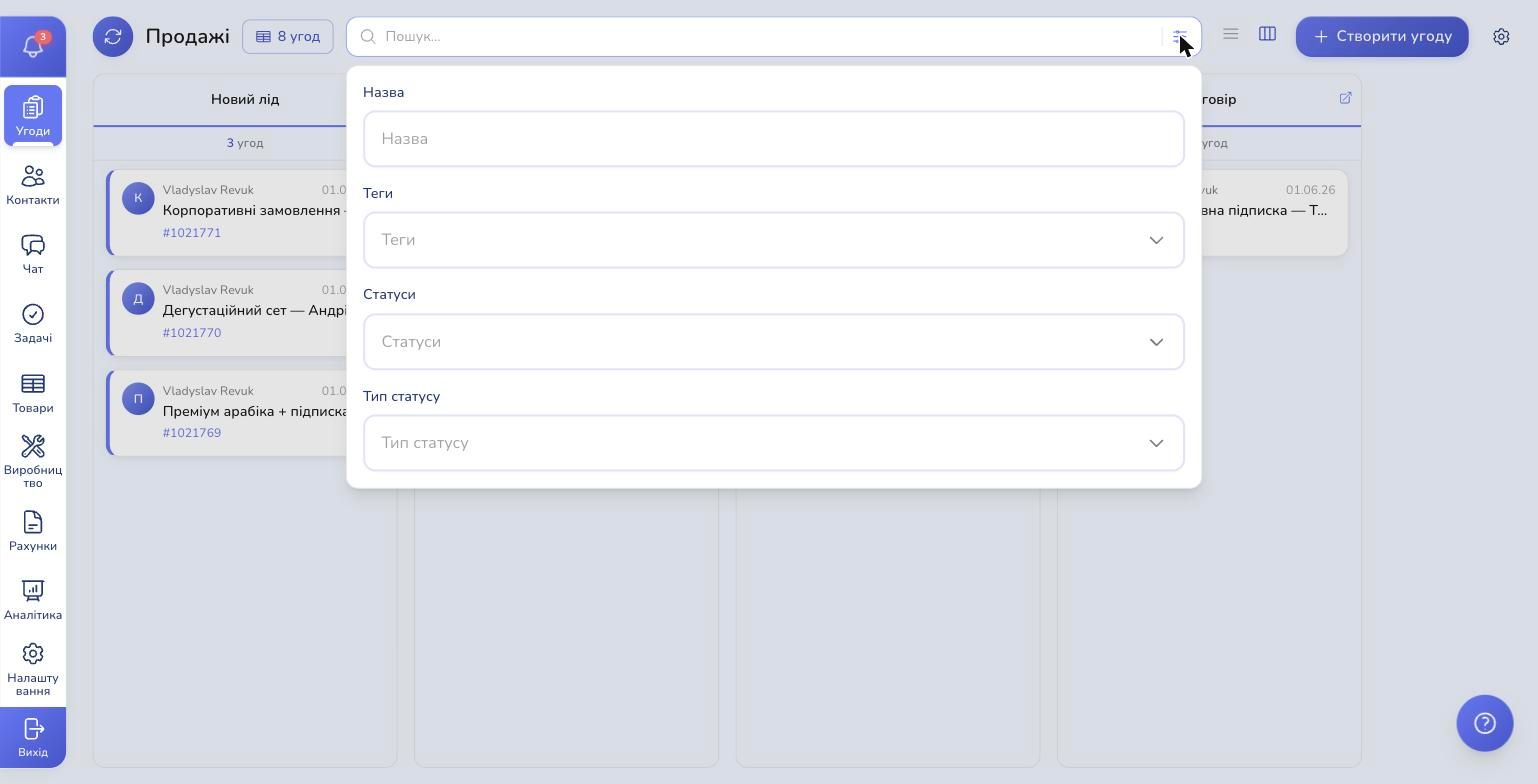
- Search by name — top toolbar field
- Stage filter — multi-select, e.g., "Negotiations + Contract"
- Tag filter — see only "hot" leads or "returning customers"
- Stage type filter — show only won deals for last month, for example
- Custom field filters — text (exact/contains), numbers (range), checkboxes, dropdowns
All filters persist in the URL. Share a link with a teammate — "look at all sent quotes from May" — and they get the same filtered view.
Custom Fields — Adapt the System to Your Business
Out of the box, RevukCRM knows the basics: name, amount, manager, contact. But every business is different. Selling solar panels? You need a "Power kW" field. Real estate? "Property type." Restaurant delivery? "Order time."
In settings, you can add custom fields of 10 different types:
- Text
- Number
- Date
- Date + time
- URL
- Textarea (for long descriptions)
- Checkbox (yes/no)
- Radio buttons (single choice)
- Dropdown (single choice from list)
- Multi-select (multiple choices)
Custom fields show up in both the deal edit form and the filters. You can group them into categories — handy when you have many fields that logically split.
Tags — Fast Categorization
Tags are a horizontal slice across the entire pipeline. Today a deal is "hot" — you tag it hot. Tomorrow the client returns for a repeat order — repeat customer. You serve a VIP segment — vip.
Tags have colors, are added with one click, and work beautifully with filters: "show all hot deals in Negotiations."
Multiple Pipelines — for Different Processes
If your business runs different types of work, set up separate pipelines.
Examples:
- "Sales" — the main pipeline where leads become customers
- "Service" — for post-sale support, with different stages: "Request → Diagnostic → Repair → Closed"
- "Warranty cases" — separate, because metrics differ
- "B2B partnerships" — long cycle, different assignees
All pipelines live in the same account, data is isolated, and in reports you can see each separately or aggregated.
Sub-stages: Nested Pipelines Inside a Stage
One of RevukCRM's most powerful features — and what sets us apart from simple kanban tools. Imagine: in your main "Sales" pipeline, you have a "Contract" stage. But inside it, you need a more detailed flow — because a deal can stall on "Legal review," "Director signature," or "Awaiting prepayment."
In RevukCRM, you can attach another pipeline as a "sub-stage" of this stage.
How It Works
In the settings of the "Contract" stage, there's a "Pipelines" dropdown — select a child pipeline (in our example, "Production").
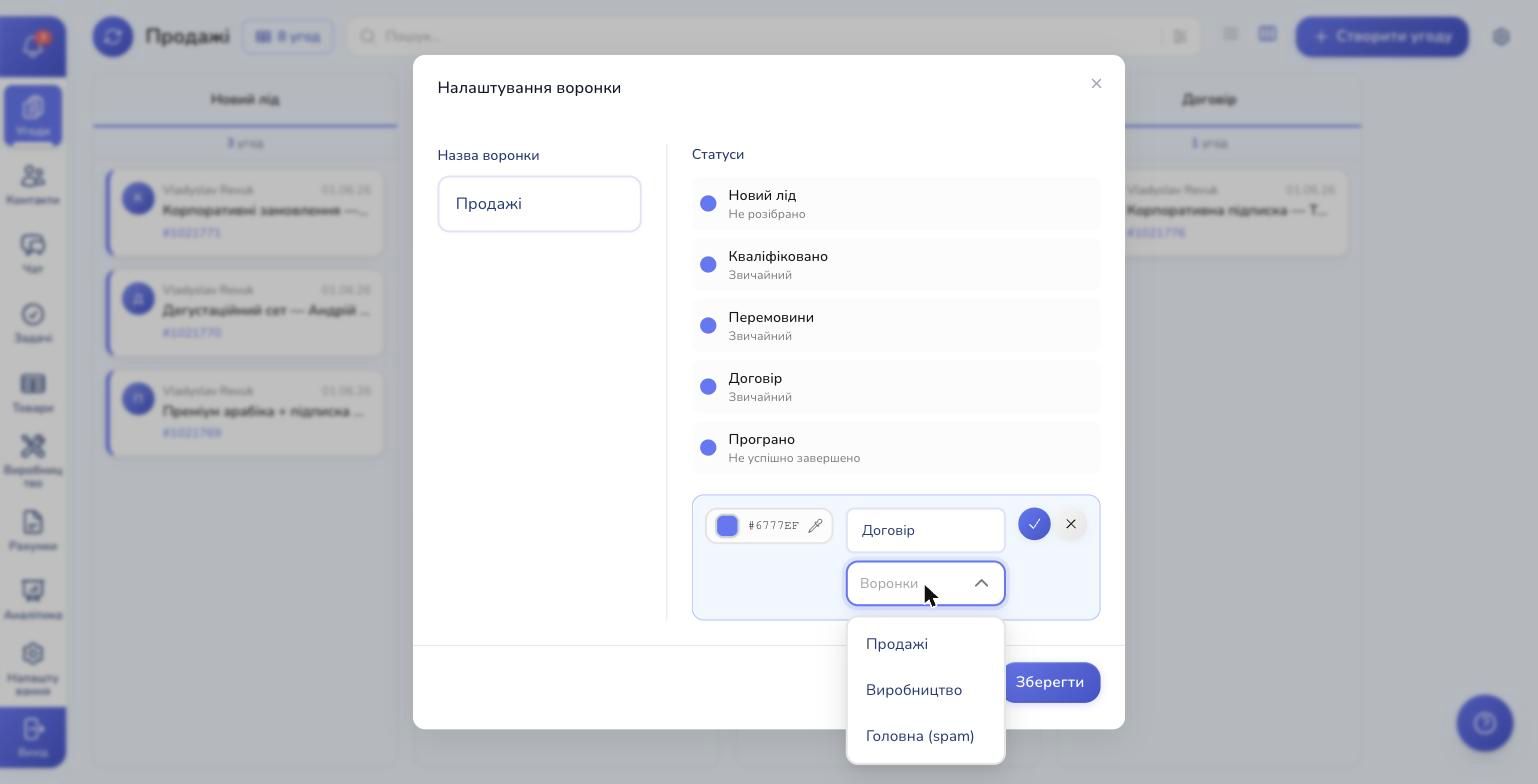
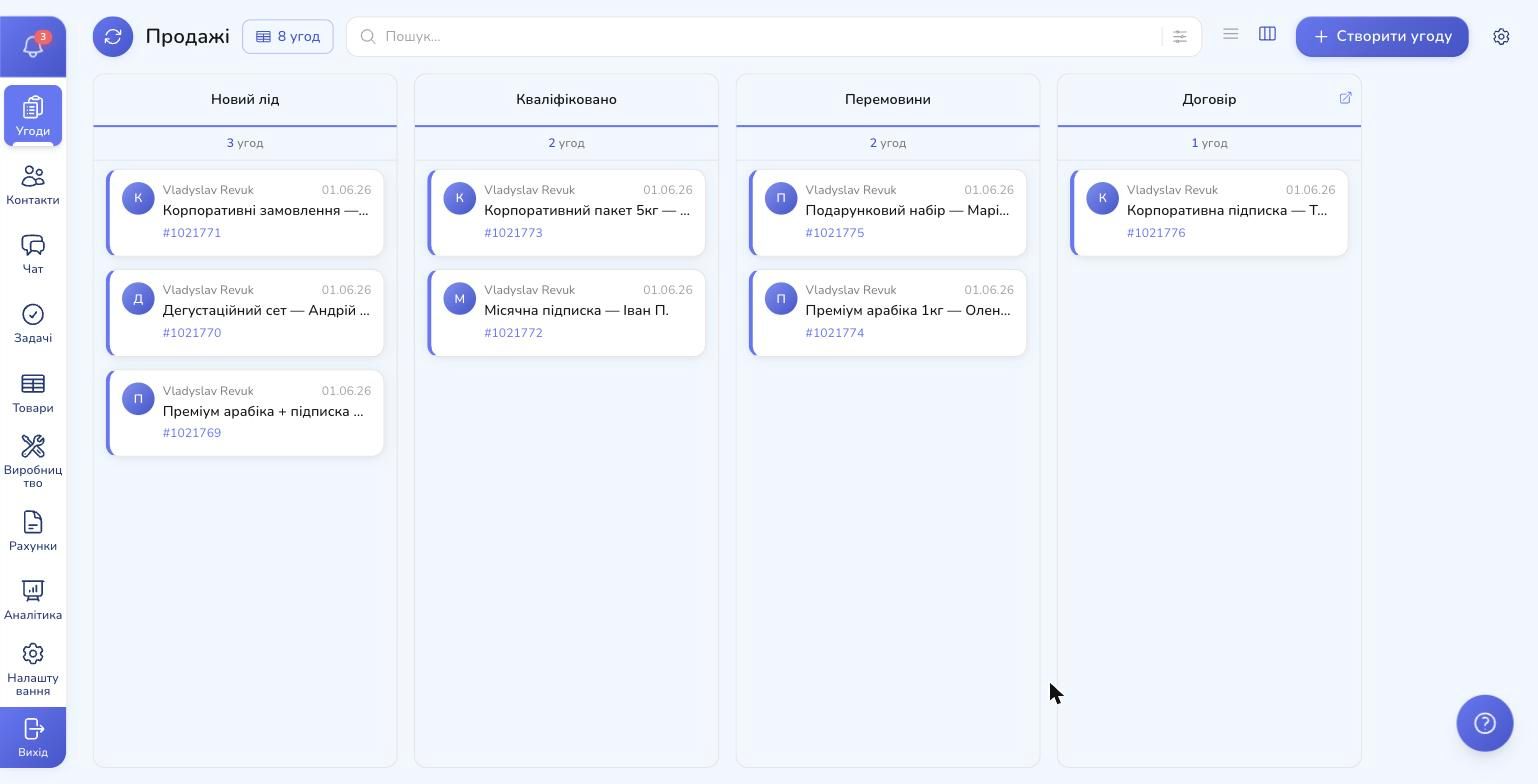
Save — and a small arrow icon appears in the column header for "Contract." Click it to enter the nested pipeline with its own stages.
The Magic: Automatic Movement Between Levels
- Dragged a deal into "Contract" → it automatically appears in the nested "Production" pipeline at the "Unsorted" stage
- The production manager moves it through nested stages: "Prep → Assembly → QC"
- When they drag it into "Successfully completed" of the nested pipeline → the deal automatically moves to the next stage of the main "Sales" pipeline
So one deal has two levels of visibility. The owner sees "5 deals in production." The foreman sees the exact stage of each item. No double bookkeeping, no Excel sheets on the side.
When You Need Sub-stages
- Custom manufacturing — a separate pipeline for the foreman
- Legal review — a separate pipeline to track contract deadlines
- Delivery — stages "Preparing" → "In stock" → "Handed to courier" → "Delivered"
- Tech support — a separate process for working on a request inside a larger deal
Closing a Deal — Won or Lost with a Reason
Eventually every deal closes. Two outcomes.
Won
Drag the card to "Successfully completed" — RevukCRM asks for confirmation but doesn't pester you. The deal joins the wins, shows up in win-rate reports, and invoices can be auto-closed.
Lost
Drag to "Unsuccessfully completed" — RevukCRM requires a loss reason. Why does that matter? Without a reason, you'll never see why you're losing deals:
- Price too high?
- Competitor won?
- Missed the deadline?
- Client vanished?
In the Analytics → Sales report module there's a dedicated "Loss Reasons" chart — it shows the most common reasons deals were lost over the selected period. That's where you see what's hurting your business systemically and can fix it — change the process, revisit prices, train managers.
Batch Operations — Dozens of Deals at Once
Switch to table view with the icon next to filters in the toolbar. Kanban and table show the same data — two views of one list.
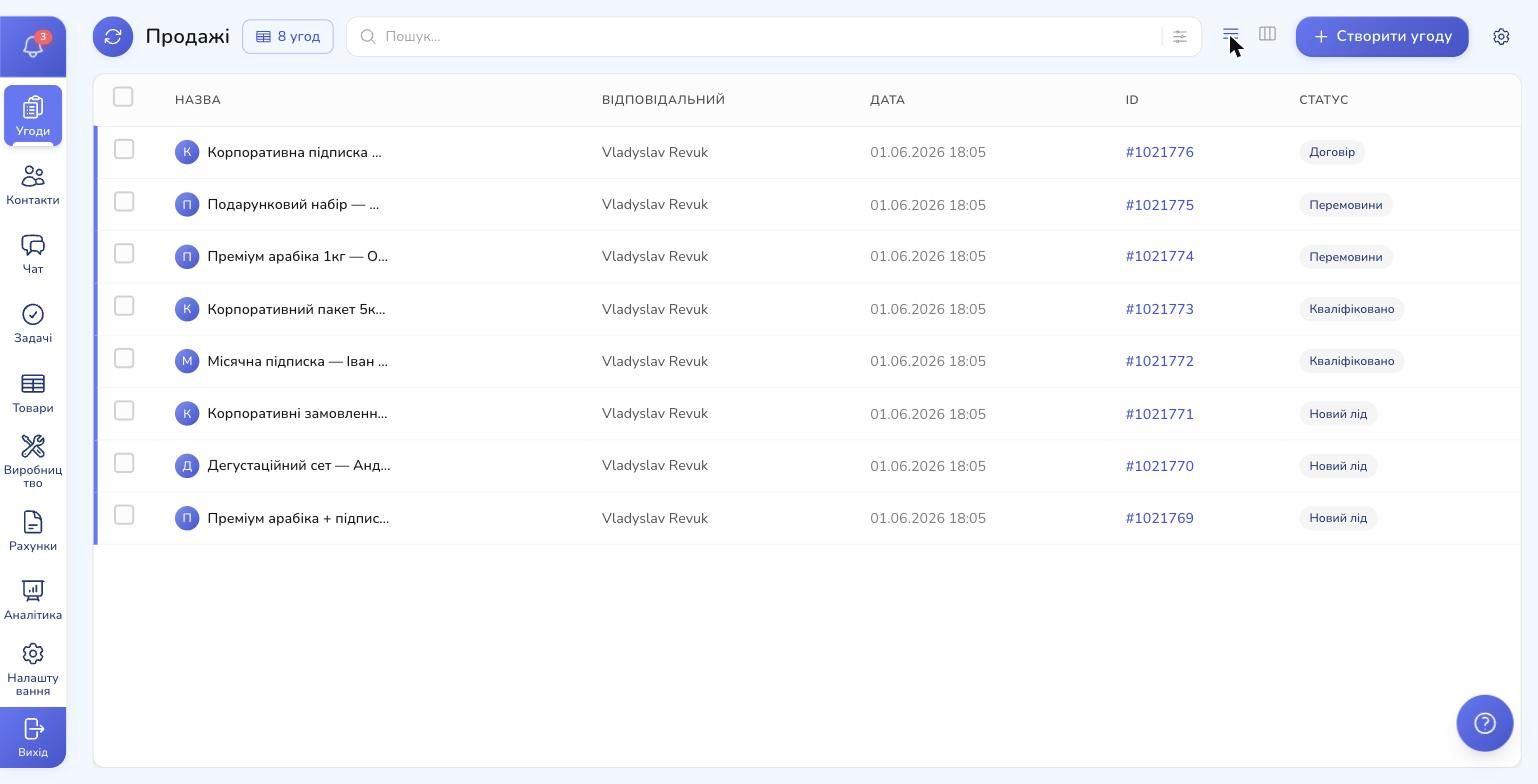
In table view, every row has a checkbox on the left. Select what you need (or all via the header checkbox) — a batch operations panel appears:
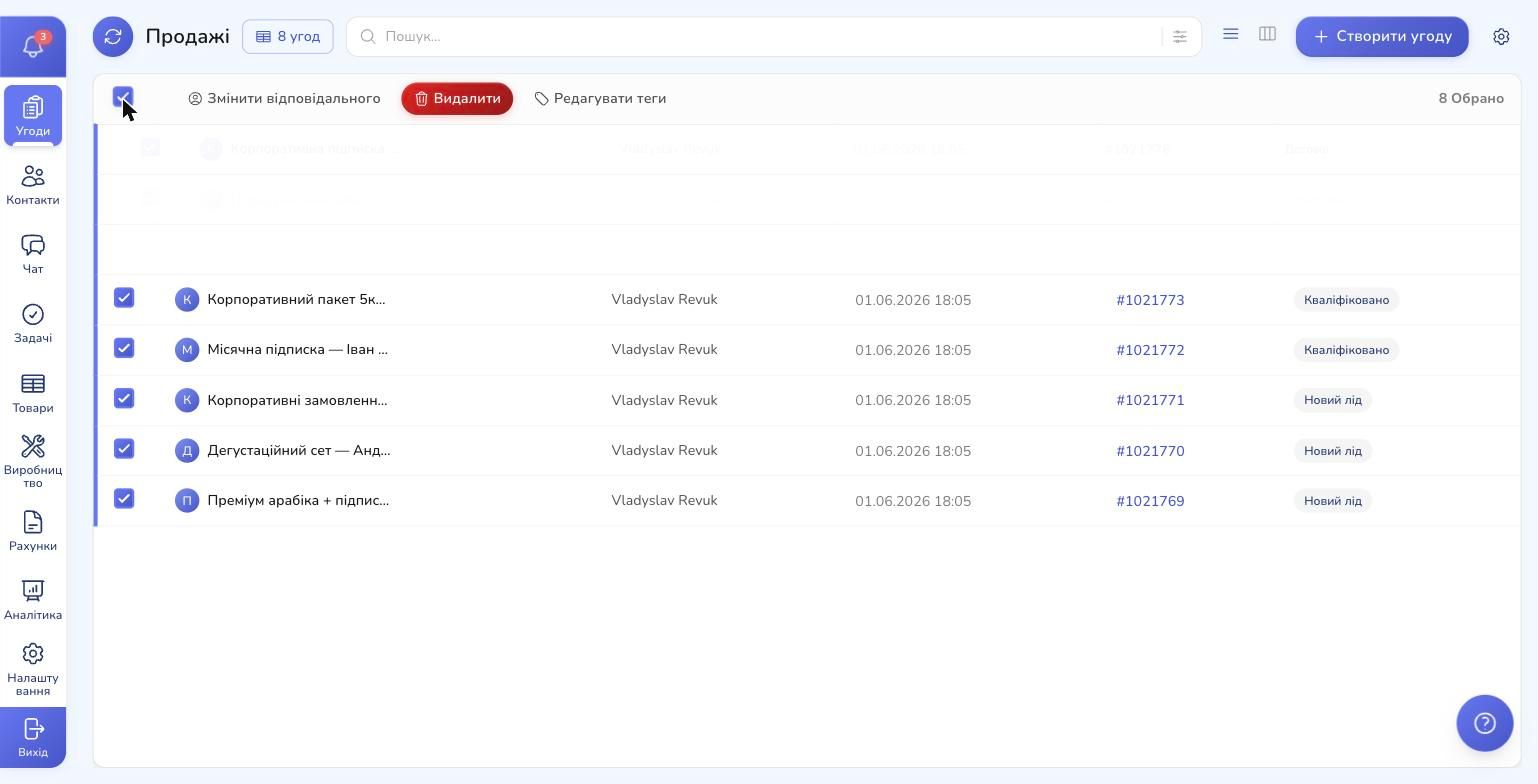
Real-world scenarios:
- Manager went on vacation → select their 30 deals → reassign to a colleague in one click
- Launched a campaign → select all leads from that source → tag them
black-friday-2026 - Cleaning spam leads → select the junk → delete in bulk
Real-Time Updates — No F5
RevukCRM syncs data instantly. That means:
- A colleague created a deal — it appears in your kanban immediately, no page reload
- A manager dragged a card — you see the new status on your board at once
- A contact sent a message — a deal was created from the chat — it's already in your "Unsorted"
This matters especially for teams where several people work in parallel. No more "let me refresh, I don't see your deal yet."
Integration with Pipeline Analytics
The pipeline itself is a working tool. But RevukCRM also shows you the health of the pipeline:
- Deal count per stage — visible in the badge at the top of each kanban column. You can instantly spot a "bottleneck" at "Negotiations"
- Conversion between stages — in the Analytics module. How many leads made it from "New lead" to "Won"?
- Revenue forecast — sum of all deals × probability of closing for each stage
- Manager win-rates — who closes more deals relative to leads received
A dedicated analytics article is coming — for now, know that your pipeline data is automatically available in reports.
Integration with Automation
The pipeline is tightly connected to the Automation module:
- Trigger "Deal created" → automatically send a welcome message to the client on Telegram
- Trigger "Stage change" → on transition to "Contract," auto-create a task "Prepare contract" for the assignee
- Trigger "Deal stale" → 7 days without changes on "Negotiations" → reminder to the manager
- Trigger "Deal won" → automatically issue an invoice, send it to the client, tag the deal "returning customer"
All this is configured without code through the visual builder. There will be a separate article on automation — here just remember that Pipeline and Automation work as one team.
Practical Tips
1. Don't Make 15 Stages
The more stages, the harder to maintain. 5–8 stages is optimal for most businesses. If you need deeper detail, use sub-stages (nested pipelines), don't proliferate columns.
2. "Unsorted" Should Be Empty
This stage is your inbox. New leads land here before first contact. The manager's job is to clear it daily — assign owners, move to working stages, delete spam.
3. Closing Stages Are Mandatory
Without "Won" / "Lost" stages, you won't have reports and won't see pipeline efficiency. RevukCRM creates them automatically — don't delete them.
4. Custom Fields Will Be Needed Sooner or Later
Don't be afraid to add them. Better to have 5 extra fields and use them than to dig through deal notes later.
Summary
A pipeline in RevukCRM is a full-blown sales system that gives your business:
- Transparency. All deals on one board. No lost leads.
- Flexibility. Multiple pipelines, custom fields, tags, custom stages.
- Depth. Sub-stages via nested pipelines — a unique feature for complex processes.
- Speed. Drag-and-drop, real-time, inline editing, batch operations.
- Integration. With contacts, invoices, tasks, production, automation, analytics.
If you're still tracking deals in Excel or in a "CRM from the last decade" — try RevukCRM. The first 30 minutes in the system will show you how different sales work can feel.
Ready to build your own pipeline?
Set up a Sales Pipeline in RevukCRM in 5 minutes — add stages, drag your first deal, configure automations. Free trial with no limits.
Tags