
The Production Module in RevukCRM: Orders, Stages, and Costing
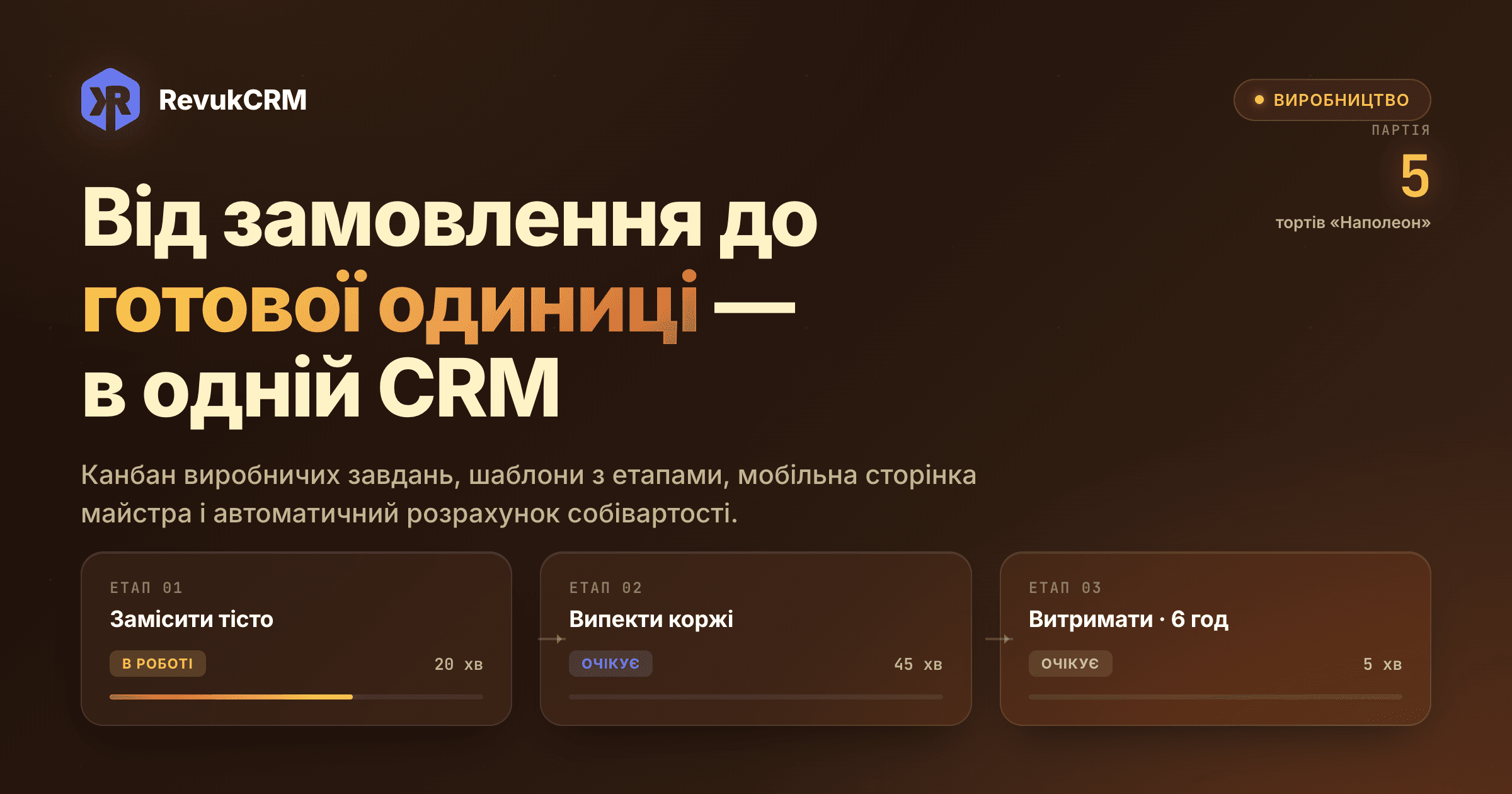
Most CRMs end where manufacturing begins. The sales manager closes the deal — and the customer "vanishes" into the spreadsheets of the workshop, where nobody sees the order status, the material stock, or who is to blame for the batch that has been stuck for the third day. RevukCRM closes that gap. Production orders live in the same workspace as deals, contacts, inventory, and finance — and are run through a kanban board, templates with stages, and a separate mobile page for the operator on the shop floor.
What you get in one workspace
- Production orders with a kanban board and list, filterable by product, operator, subcontractor, and period
- Production templates — the technology card of a product with stages, material norms, and automatic-launch conditions
- A mobile "My Stages" page for shop-floor operators — start, pause, finish stages from a phone
- Defect tracking with reasons, the "rework or write off" decision, and photos
- Material reservation and write-off from inventory by norm
- Automatic costing (materials + labor + subcontracting + defect loss)
- Seven thematic reports — from operator workload to per-product cost breakdown
Why production and sales should live in the same workspace
The classic scenario: sales runs in one system, manufacturing in another, inventory in a third, finance in a fourth. The sales manager sees the deal but does not see that the batch is stuck at "Assembly and decoration." The operator sees the task but does not see that the customer has already called twice and wants to cancel half of the volume. The accountant sees the invoice but not how much material was actually used.
In RevukCRM these layers are pulled into one place. A production order is linked to a deal, the deal to a contact, the contact to chat and call history. When the manager opens the deal card, they see a "Production" block with the current stage and progress. When the operator taps "Done" on their stage, the deal status can move automatically to "Ready to ship" — without separate notifications and copy-pasting into spreadsheets.
This means fewer people in the chain, fewer "let me call you back," and an end to the situation where customers are promised something that has been sitting half-done for three days.
Where the work starts: the production template
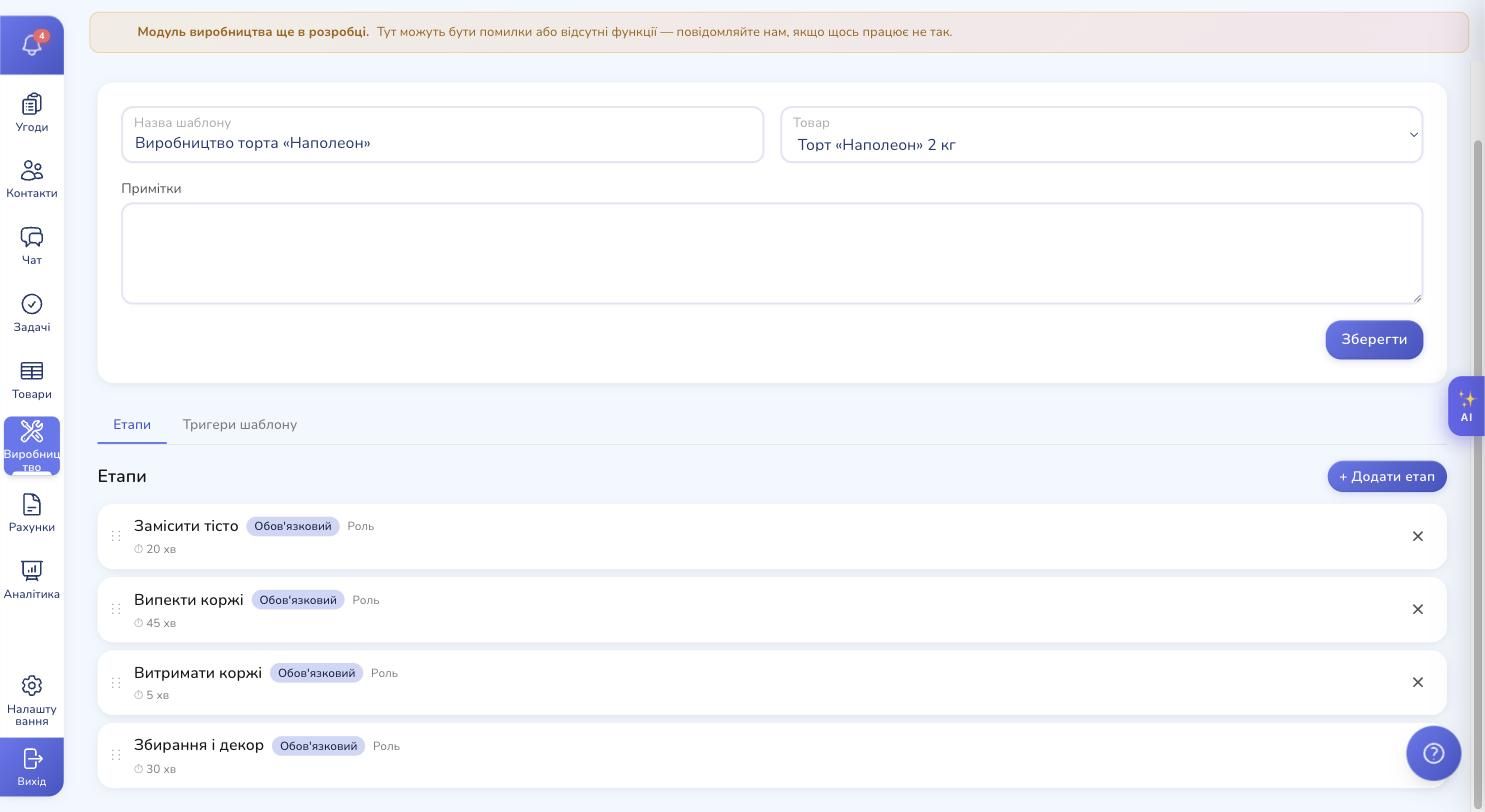
Before launching the first production order, a production template is created for the product — a technology card: the sequence of stages and the material norm per unit. One product — one base template. If the product has variants (size, filling, decoration), a separate version can be configured for each variant — overriding only the stages that differ.
The template lives under Production → Production templates.

In a new template you set the name, pick the product, and add stages. The example above is for the «Napoleon» cake, with four stages: knead the dough, bake the layers, let them rest, assemble with cream and decorate.
What is configured per stage
For each stage you set:
- Name and instruction — a short title and an expanded text for the operator on the shop floor
- Who performs it — a specific person, anyone in a role, a subcontractor, or "choose at start"
- Planned duration and technological wait — for example, bake the layers 45 min, then let them rest 6 hours to release moisture, only then assemble with cream
- Mandatory or optional — optional stages activate only on a condition (for example, if the customer ordered an upsell)
- Can it run in parallel with other stages
- Material consumption mode — at stage start or at completion
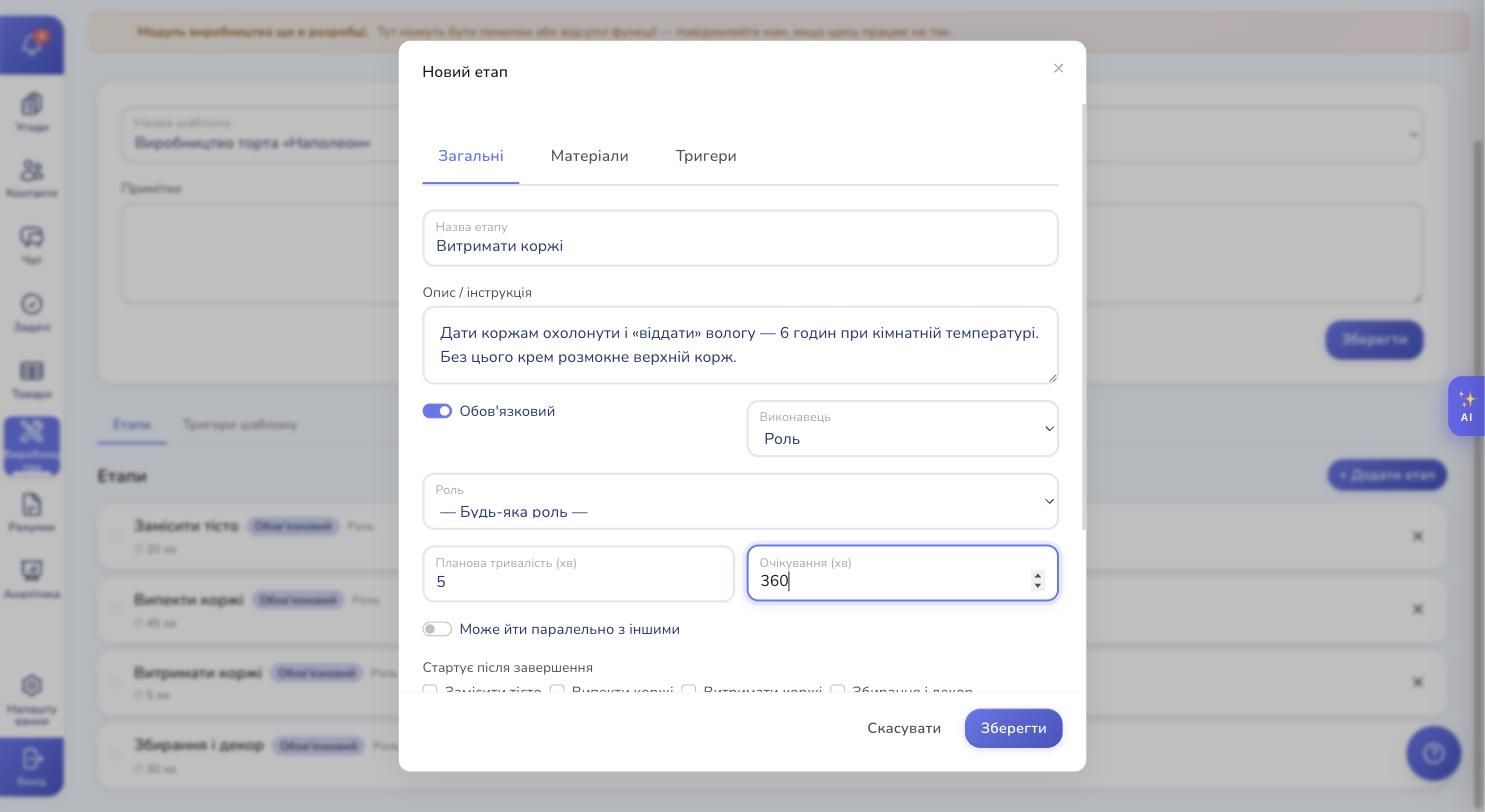
On the Materials tab, recipe lines are attached to the stage: which material from which warehouse is consumed per unit of the product. You can write a constant ("300 g of flour per layer") or a formula — when the norm depends on the product's attributes (for tailoring: "fabric length = garment length + 10 cm allowance").
A separate Triggers tab gives the template hooks into deal statuses: "when a deal moves into 'Accepted for production' — create a production order automatically," "when all mandatory stages are done — move the deal to 'Ready to ship,'" "when a defect is recorded — move the deal back to 'Rework.'"
Why editing the template won't break running orders
Every production order takes a snapshot of the template at creation. If the technologist decides tomorrow to rewrite a recipe or add a new stage, that only affects new orders. Batches already in progress keep running by the rules they started with. This removes the fear of editing the template during a live process.
Production orders: board, list, and three batch modes
All active production orders are gathered on the Production board — a kanban with status columns and a toggle to a list view.
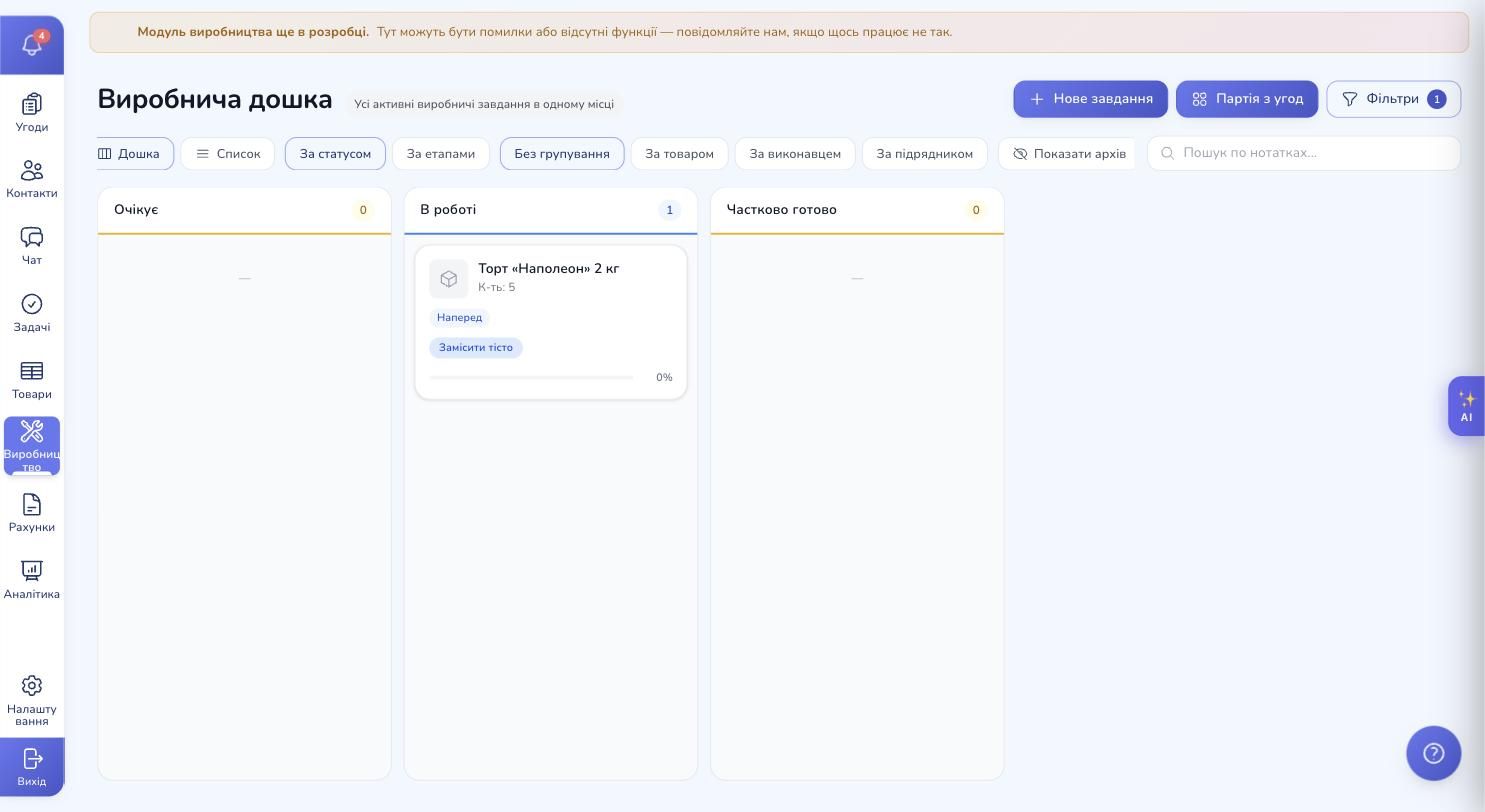
An order can be created manually — the + New task button — or set up for automatic launch from a deal. The creation modal is short: product, quantity, batch mode, notes.
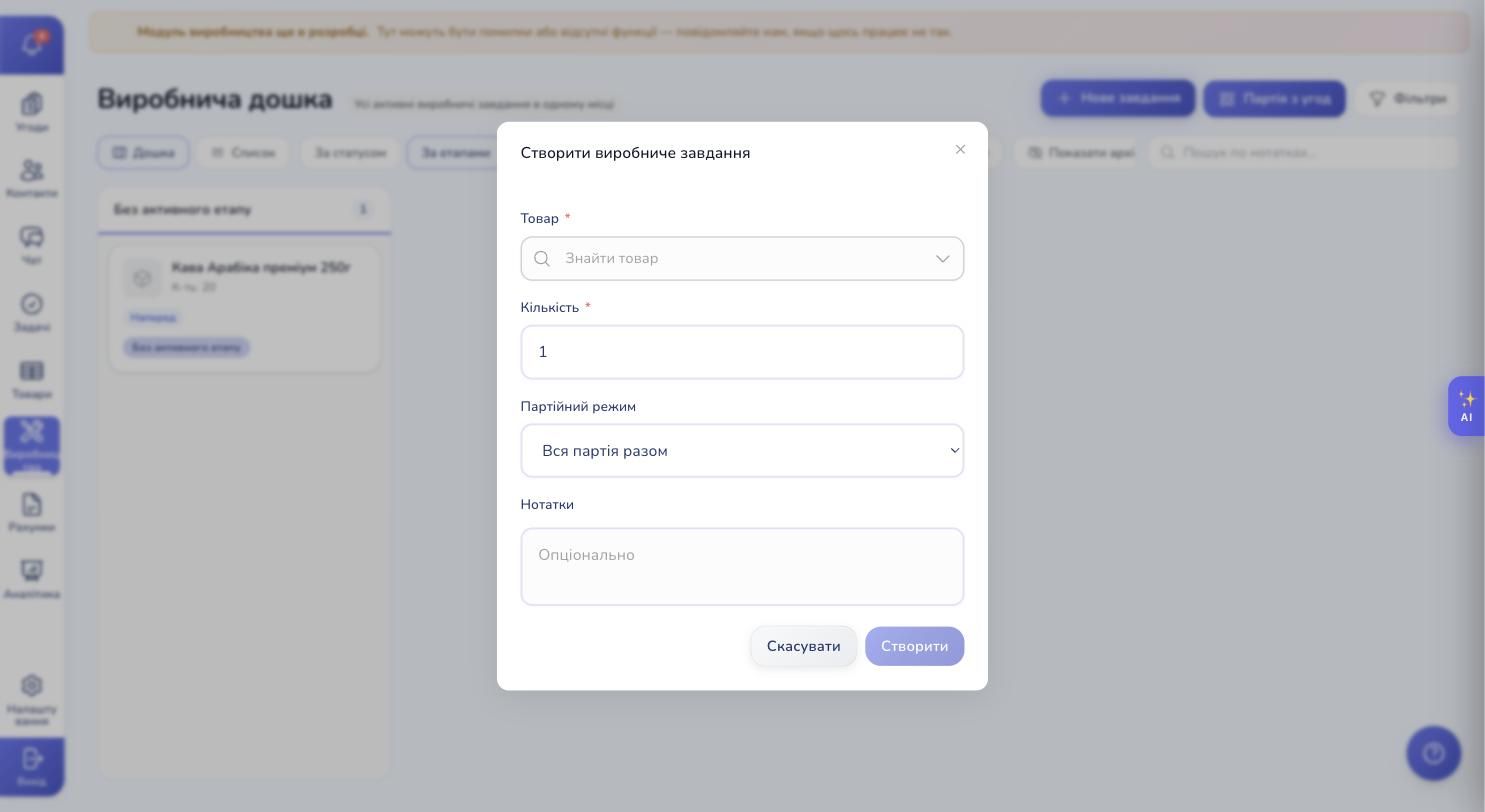
Three batch modes — for any manufacturing style
Whole batch together. Dough is mixed for the entire run at once, a furniture set is sewn by one crew, a print run is done in one pass. Each stage gets one start and one "done" for the entire volume. The fastest and most economical mode.
Per unit. For made-to-order: every armchair, dress, or personalized cake has its own story. The order card shows "8 of 12 done." Different operators can work on different units in parallel.
Split on demand. The batch starts as a whole, but if a defect is found in part of the volume at some stage, the operator "splits off" that part into a sub-batch that goes back to a previous stage. The rest keeps moving with no delay. A classic case: a joinery shop where some blanks turn out to have cracks after primary processing.
Two ways to look at the board
The board's columns can be switched between two modes:
- By status — the classic picture: Pending → In progress → Partially done → Done → Cancelled
- By stage — columns match the stage names (Knead the dough, Bake layers, Let rest, Assemble and decorate). You see exactly where each batch is stuck
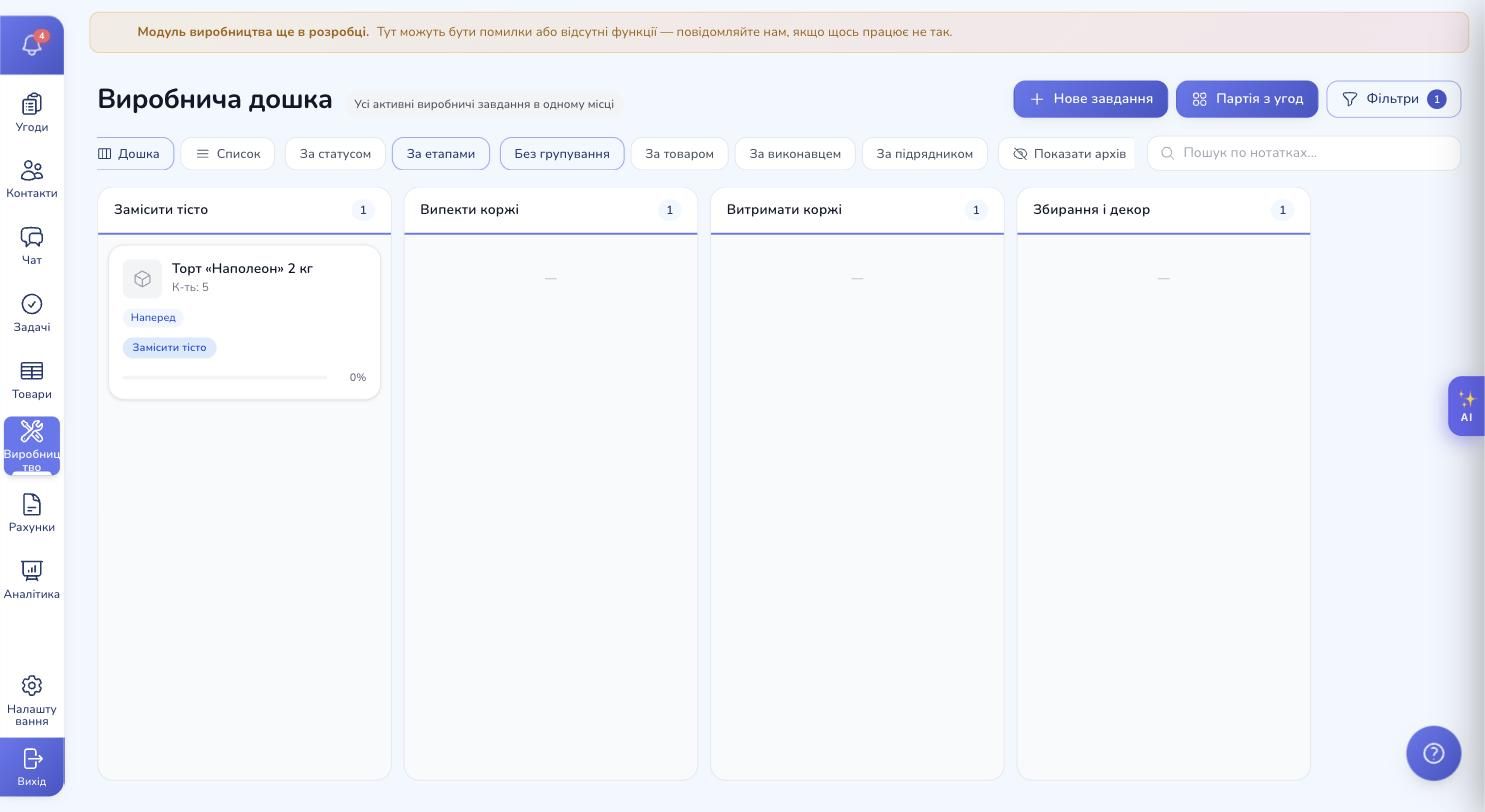
Next to that — row grouping: by product, by operator, by subcontractor. The last one is especially useful for supervisors: you immediately see how many batches sit with Olena-the-baker and how many are out at the decoration subcontractor.
Filters
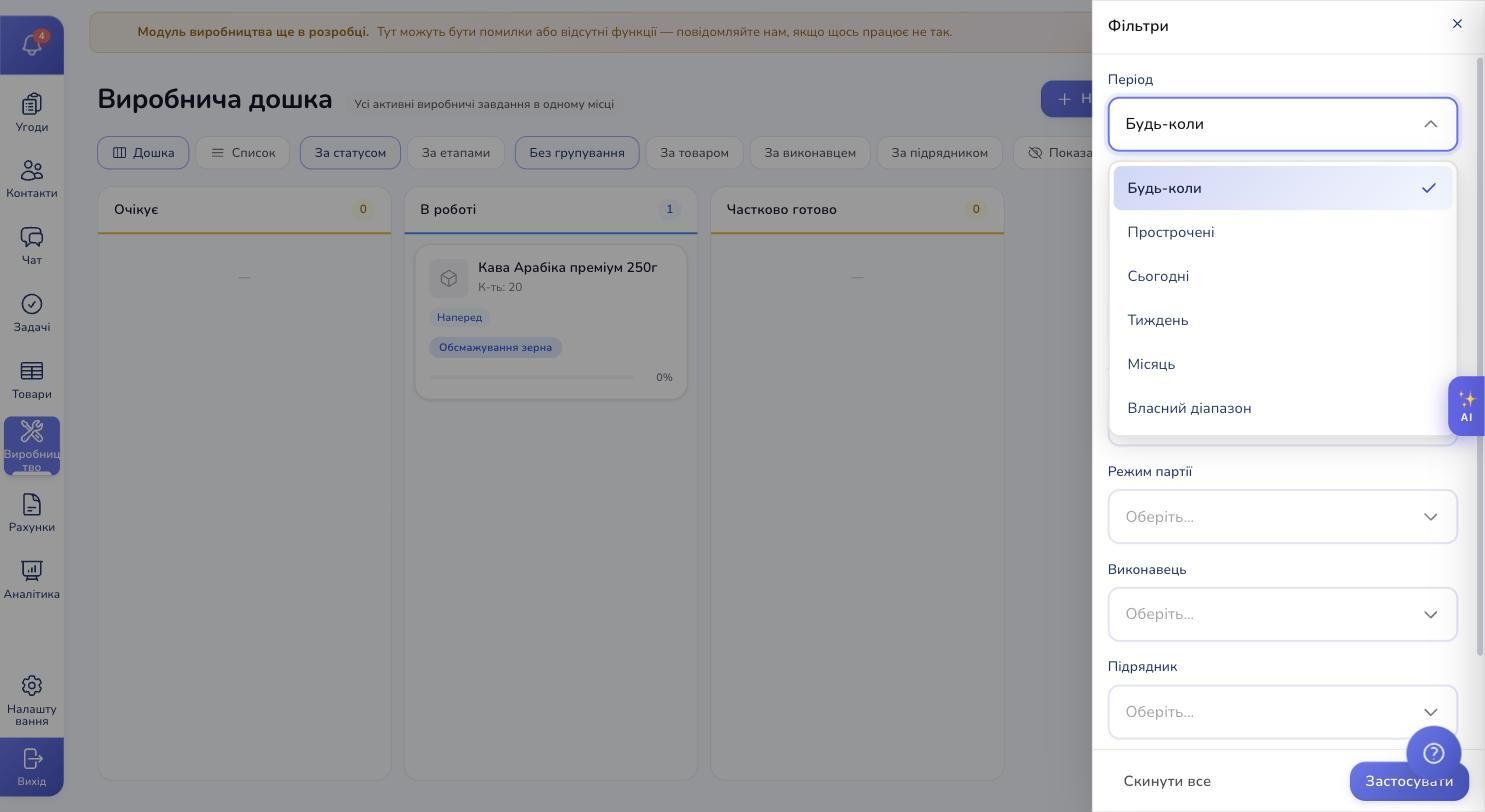
The filter side panel combines several cuts at once: period, batch mode, operator, subcontractor, product, deal. Active filters are counted on the button and reflected in the URL — a link to "all overdue orders for this week" can be dropped into a colleague's chat as a single line.
The order card: nine tabs for the supervisor
The production order card is the supervisor's workspace. Nine tabs: Overview, Stages, Materials, Time, Subcontractors, Files, Defects, History, Chat.
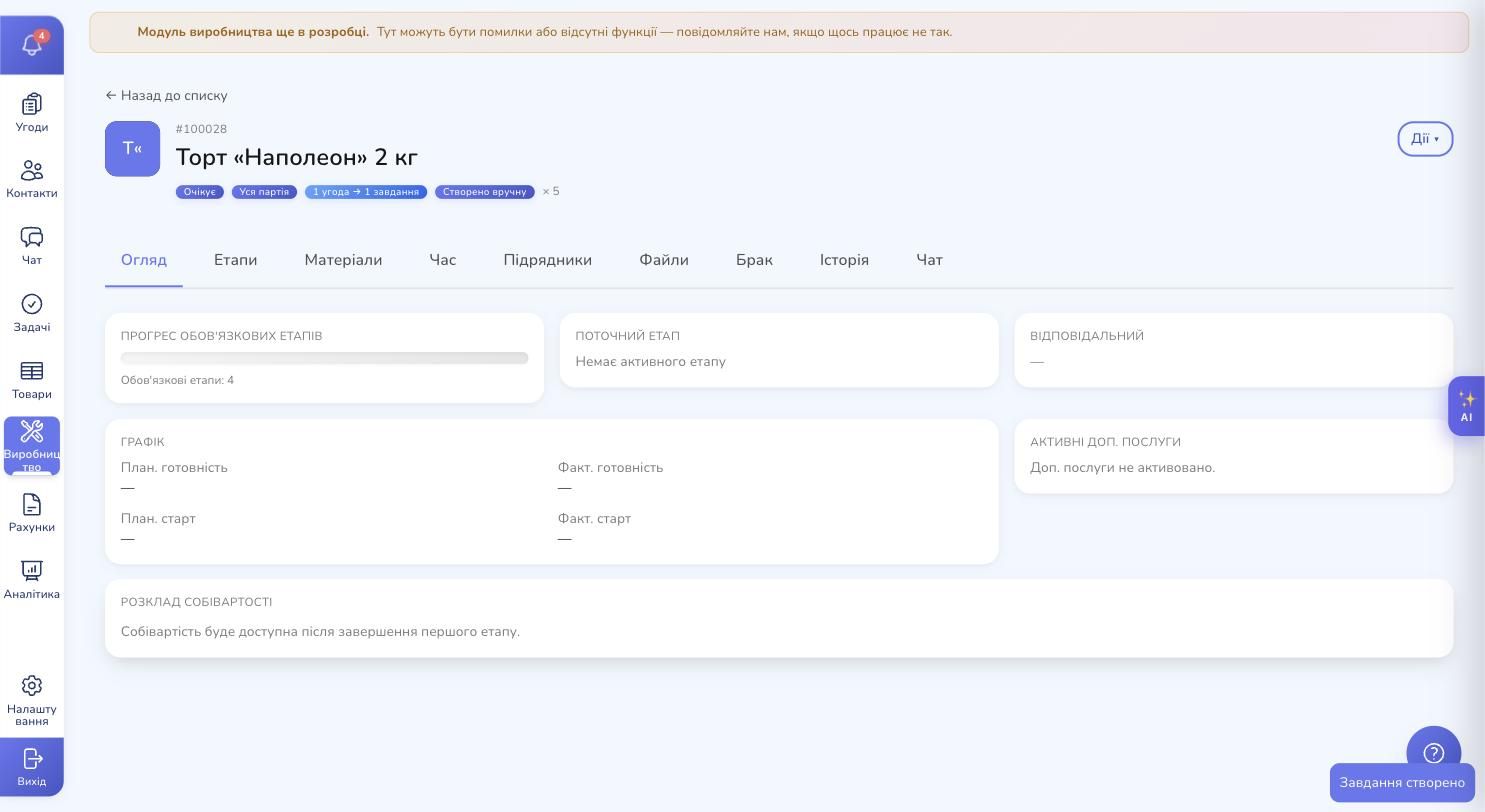
The Overview tab shows at a glance:
- Progress of mandatory stages (how many of four/five are done)
- The current stage and the assigned owner
- Planned and actual start and finish dates
- Whether upsells are activated (e.g., personalized inscription on the cake, premium packaging)
- The cost breakdown — available once the first stage completes
The Stages tab is the timeline where the supervisor sees where the batch is and can start, pause, or block each stage.
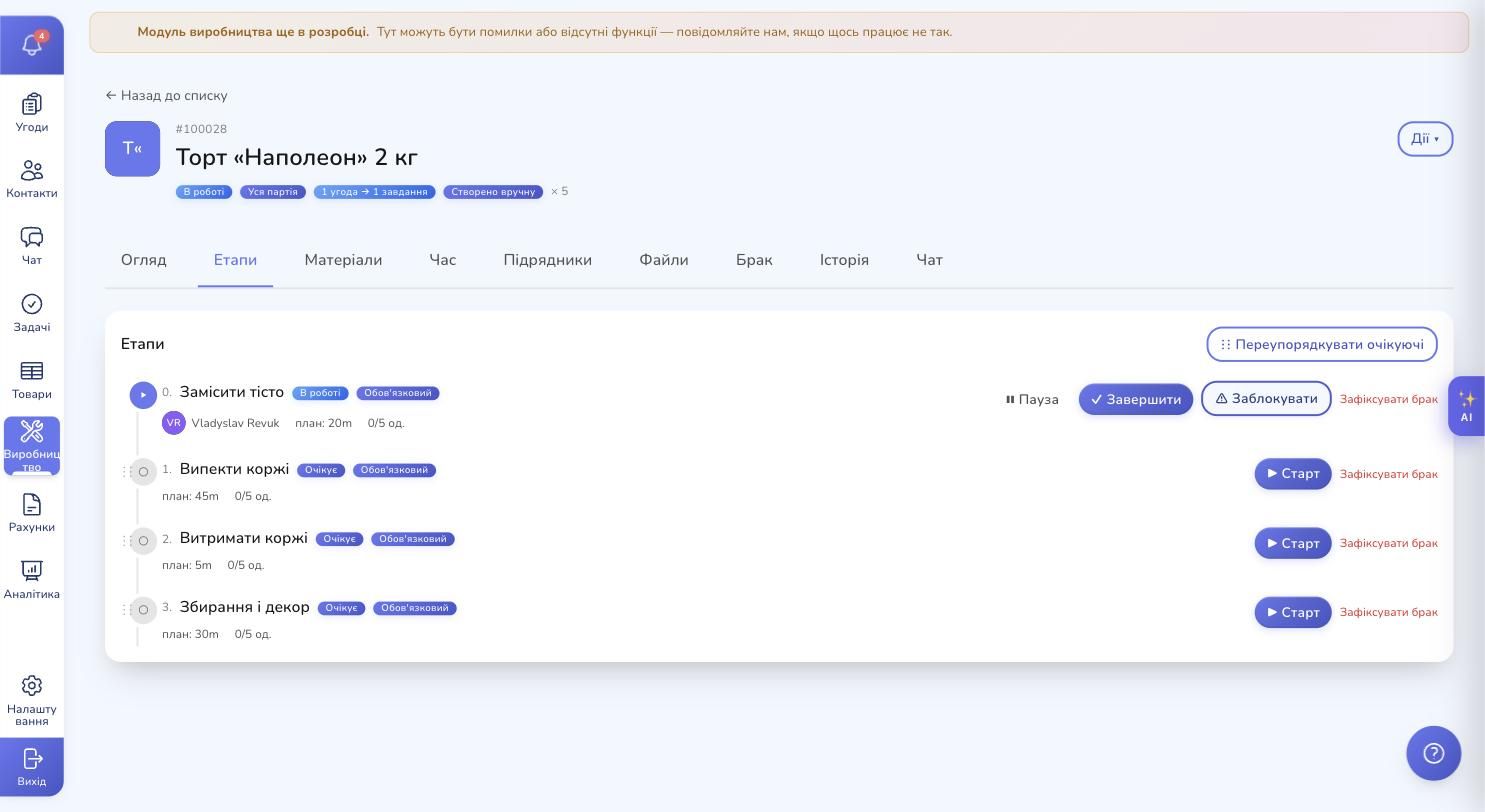
Buttons on each stage:
- Start — begins time tracking, the stage moves to "In progress"
- Pause / Resume — for a technological break, lunch, or equipment overload
- Finish — opens a modal with: units completed, actual materials, photos, comment, QA checklist
- Block — for a resource problem, with a reason; another supervisor sees the stage is stuck and why
- Report defect — a separate modal for when part of the units fail
Next to that — the other tabs: Materials shows norm, reserved, consumed, remainder; Time — actual hours of work with a "work / pause" split; Subcontractors — stage handovers; Files — photos of finished units, drawings, sketches; Defects — all recorded cases with reasons; History — a full audit of who changed what and when; Chat — discussion between manager, supervisor, and operator.
"My Stages" — a separate page for the operator on the shop floor
The operator does not need access to the supervisor's board, financial reports, or the template editor. They need to know: what is in progress right now, what is waiting for a start, what was finished today. For that, there is a separate mobile-first "My Stages" page with three tabs and counters.
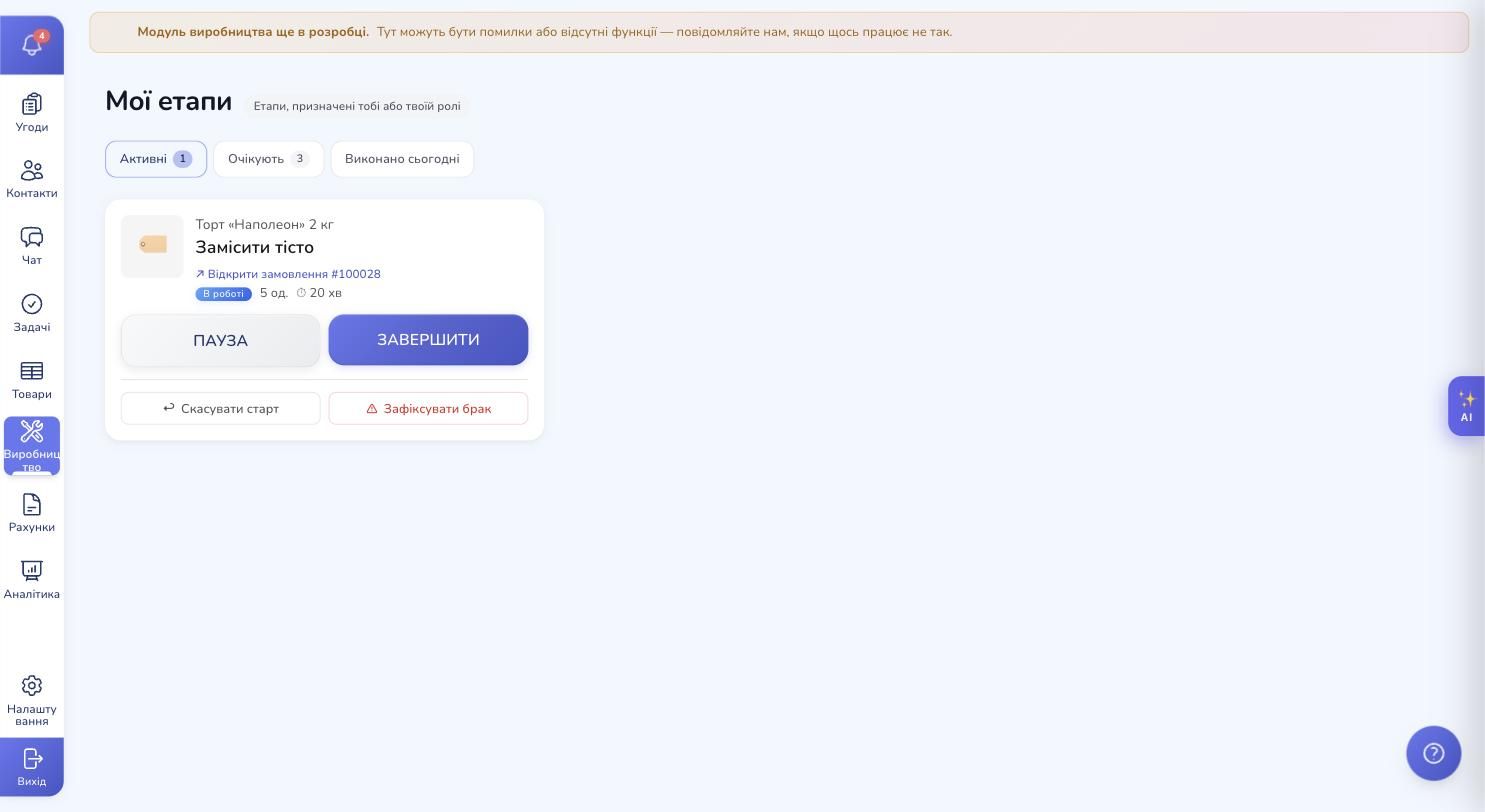
On the stage card the operator sees:
- Product photo and variant
- Batch unit count (for "per unit" mode — "8 of 12")
- Stage name and current status
- Instruction — collapsed, expands on tap
- Technological wait, if there is one on this stage (e.g., "Available from 14:30 — waiting for layers to cool")
- Materials with their norms
- The QA checklist
- Upsells the customer ordered
The large PAUSE and FINISH buttons are sized so they can be tapped even with dough on your hands. Separate ones — Cancel start (if the wrong stage was started by accident) and Report defect. The page updates in real time: when the supervisor unblocks a stage or reassigns an operator in the office, the shop-floor operator sees it without reloading.
Defect tracking: reasons, decisions, photos
Defects are a separate block with their own dictionary and logic. First, the admin sets up defect reasons — the way your manufacturing slices the causes: "Raw material defect," "Equipment setup error," "Human factor," "Packaging defect." This dictionary is what the operator picks from when reporting.
When the operator taps "Report defect," a modal opens with:
- A reason from the dictionary
- The number of defective units (for "whole batch" mode) or which exact units (for "per unit" mode)
- A decision:
- Return to stage — units go back to a previous stage and the rework cycle starts over
- Write off — units are taken out of the volume as a loss
- If returning — which stage to return them to
- Photos of the defect (compressed before upload to save mobile data)
- A free-text description
Every rework cycle is counted separately. The template can have a "no more than two return cycles to this stage" limit — after the second cycle, the workflow moves to the next level of control instead of looping forever.
Financial side. Defects can be accounted for in two ways: included in the cost of finished units (typical for high-volume production with a small defect share) or split out as a separate loss line (typical when you want to see the "clean" product cost next to the actual loss impact). The choice lives on the template.
Materials and inventory: reservation and write-off
Manufacturing without material accounting is not manufacturing — it's a lottery. When an order for 5 cakes is created, RevukCRM automatically reserves in inventory the amount of flour, sugar, butter, eggs, and cream specified in the stage norms. If something is short, a warning is returned with a shortage list, and the supervisor immediately sees what and how much to procure.
Write-off can be tuned to your process:
- At stage start — when all materials are taken at the moment of starting (typical for piece production)
- At completion — when the exact figure is known only after the fact, with the norm as an estimate
- With a manual override — the operator types in the actual consumption in the completion modal (e.g., the dough spread out and more flour was used)
On the order card's Materials tab, the supervisor sees three columns side by side: norm, reserved, consumed. If consumption exceeds the norm, an "Overconsumption" indicator lights up. If the reserve is below the norm — "Shortage." This eliminates monthly-inventory surprises: you see discrepancies in real time.
A separate path for variant materials: when cream comes in three types (butter, custard, whipped) but the recipe just says "500 g of cream," the system will not pick for the operator. It marks the line as "Awaiting selection" and the operator picks the variant at stage start.
Costing: automatic, with rate snapshots
RevukCRM computes batch cost on its own. Not with a "10% markup on materials" rule, but the real one — from materials in inventory at their current price, from operator labor at their hourly rate, from subcontractor payments, and from financial loss on defects.
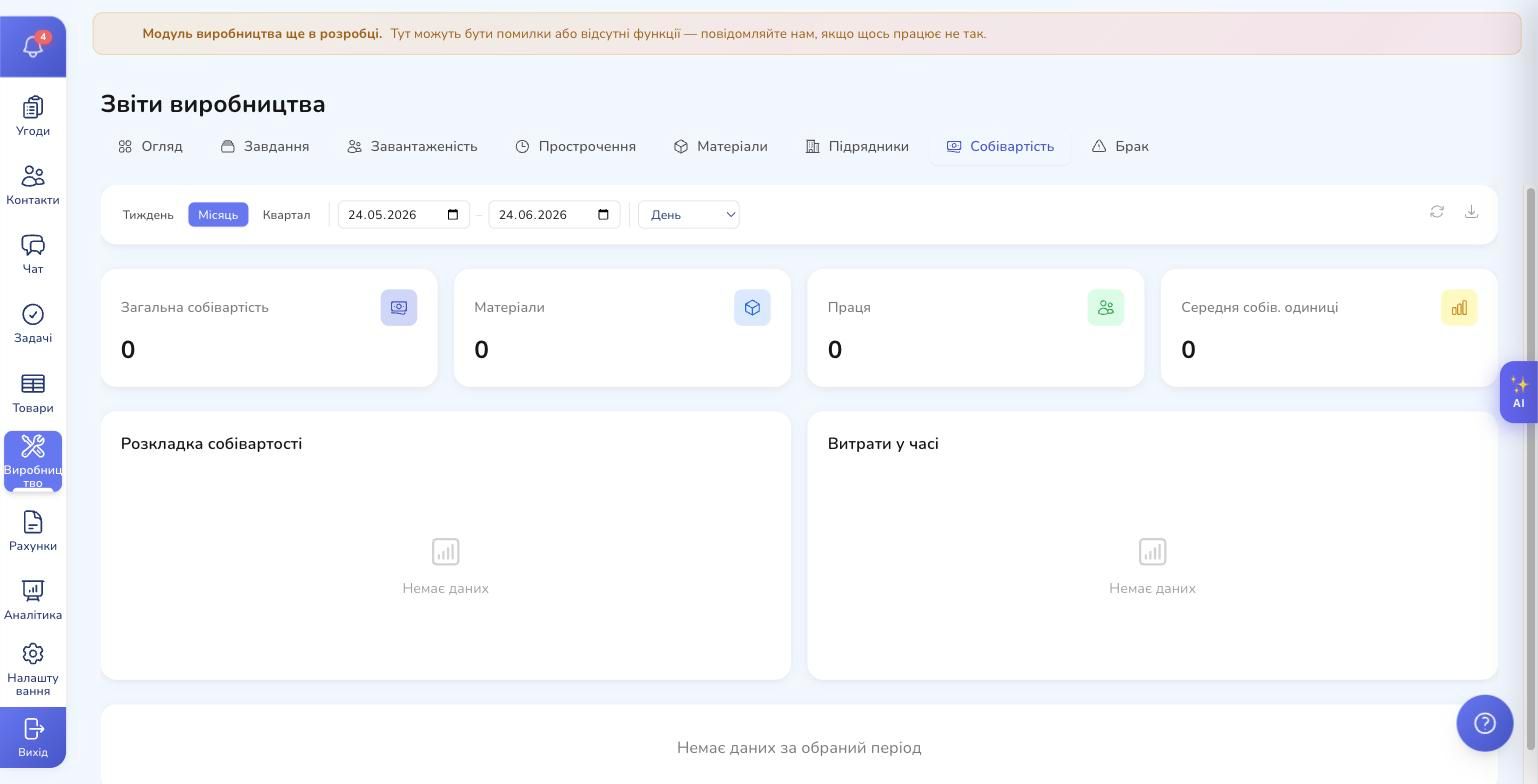
The breakdown is shown on three levels:
- Per order — total and per unit
- Per stage — how much of each stage went to materials, labor, and subcontracting
- Per category — materials vs. labor vs. subcontractors vs. defect loss
A key detail — the rate snapshot. When a stage completes, the system captures the operator's hourly rate, the material price, and the subcontractor price that were in effect at the moment of completion. If rates rise tomorrow, the historical cost of a batch finished yesterday does not "drift." This matters for long production cycles and for clean margin analysis per deal.
The cost figure flows back into the deal card — the sales manager sees the real profit from the customer rather than a top-down estimate.
Seven production reports
A separate Production reports section pulls together seven thematic views.
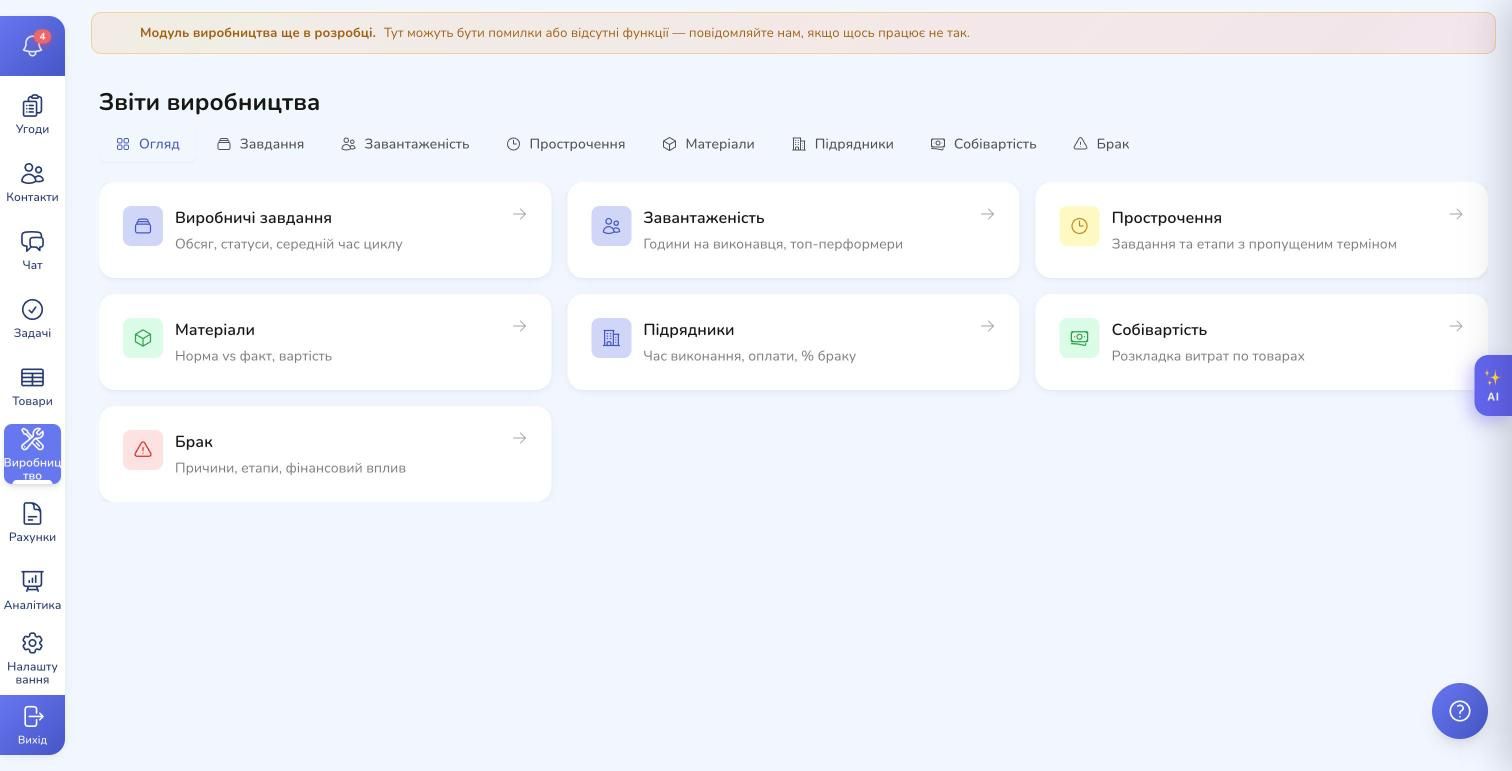
- Production tasks — volume, statuses, average cycle time. You see the dynamic: how many are created, how many finished, how many cancelled
- Workload — hours per operator, top performers, average stage duration. Useful for bonuses and for spotting who needs to be unloaded
- Overdue — orders and stages past their deadline, with hours of overrun. Without this report the supervisor is the last to find out about a problem
- Materials — norm vs. actual, cost, overconsumption as a percentage per material
- Subcontractors — who got how much, how much was accepted, how much rejected, how much was paid, what the defect rate is
- Costing — cost breakdown per product: where you actually earn vs. where you only cover costs
- Defects — reasons, stages, financial impact. Helps you see recurring issues and invest resources into the stage where the defect costs most
Every report filters by period (week / month / quarter / custom) and exports to CSV or XLSX for the accountant.
Subcontractors and stage handover
Not every stage is done in-house. Making sugar figurines for the cake, engraving, laser cutting, complex embroidery — these often go out to an external workshop. RevukCRM has a separate Subcontractors section for this, with its own dictionary and handover logic.
When the supervisor hands a stage over to a subcontractor, the system records the price (fixed, hourly, or variable), return deadline, free-text brief, attached files (sketches, specifications), material-handover policy, and materials actually handed over with photos if needed.
A separate function — partial acceptance. The subcontractor returned 50 units, 45 of acceptable quality and 5 defective. Instead of accepting or rejecting the whole batch, the supervisor marks in the acceptance modal: 45 — accept, 5 — reject. The five are sent back to the subcontractor with a reason; the rest keep moving along the production cycle.
If you want the subcontractor to see their own orders, there is a separate restricted portal — no access to the rest of the CRM, just their assignments and files.
Automation: triggers that move deals and create orders by themselves
You can create every order manually — that's fine for a small volume. But it quickly becomes clear that this routine is exactly what the CRM should take over.
On the Triggers tab of a production template, four kinds of links to deals are configured:
- Start — the deal status on which a production order is created automatically
- Done — the status the deal moves to when all mandatory stages are completed
- Cancel — the status the deal moves to when the production order is cancelled
- Defect / Rework — the statuses the deal moves to on a defect or a rework cycle
Separately — per-stage triggers at start and completion: when baking starts, an automatic message can go to the customer ("Your order is in production"); when the last stage completes, a task can be created for logistics ("Prepare for shipment").
This removes the manager's duty to check daily where each order is. The system moves statuses on its own and only flags what truly needs a human.
Who this is for
The module's logic is flexible across manufacturing types. A few real-world ways teams configure it.
Pastry kitchen and bakery — the example the screenshots in this article are built around. "Whole batch" mode, stages Knead dough → Bake layers → Let rest → Assemble and decorate. A 6-hour technological wait after baking — so the layers release moisture and the cream does not soak through the top. Trigger: when a deal moves to "Accepted," an order is created; when all stages are done, the deal moves to "Ready to ship."
Sewing workshop. "Whole batch" mode, stages Cutting → Sewing → Pressing → QA. A template per model, variant overrides for sizes. A subcontractor for embroidery.
Made-to-order furniture. "Per unit" mode — every kitchen module or wardrobe has its own configuration. The operator is chosen at stage start: the system spreads orders across the team. Technological wait for lacquer to dry. Photo capture is mandatory.
Joinery and metalwork. "Split on demand" mode — some blanks always go to defect after primary processing, and a splitting mechanism is needed. Subcontractors often use their own materials — the "material-handover policy" field supports this.
Print runs and contract manufacturing. Several small orders are aggregated into one batch through the aggregation wizard: economical because equipment is set up once instead of per order.
What's next
RevukCRM's production module covers the full cycle — from the moment a deal moves to "Accepted for production" through the moment the finished batch is received into inventory. It removes three big pains classic manufacturing companies face: the gap between sales and the shop floor, manual material and defect accounting, and the inability to compute real cost.
Later articles in this cluster will dig into individual parts — configuring stages, defect accounting, costing, material write-off, reports.
Try the production module for free
14 days of full access to RevukCRM — set up a template for your product, launch a test batch, and see real cost numbers. No credit card to start.