
TikTok Business in RevukCRM — Messaging Setup Guide
TikTok isn't just for dance videos anymore. Brands sell everything through it: clothing, cosmetics, courses, even industrial equipment. The For You algorithm puts your product in front of the right audience without an ad budget — and when someone gets interested, they DM you.
The problem is the TikTok team usually sits in a separate app, away from the sales managers. Messages get lost, response times climb to hours, and every DM is a potential customer slipping away.
The TikTok Business Messaging widget in RevukCRM brings every TikTok DM straight into your Chat — alongside messages from Instagram, Facebook, WhatsApp and your other messengers. The whole team replies from one interface, and history is kept forever.
What you get
- TikTok DMs in the shared CRM inbox — alongside other communication channels
- Text and images — receive and send regular messages and photos
- Shared Posts — when a customer shares a TikTok video in chat, you see the link right in Chat
- Automatic contacts — new senders show up in CRM with avatar and username
- Multiple accounts in parallel — connect different TikTok Business accounts for different brands
- Real-time — messages arrive instantly, the TikTok connection refreshes in the background
Before you start
This is an official integration through the TikTok Business API, so there are requirements:
- TikTok Business account (not personal). If you have a regular account, in the TikTok app go to Profile → Settings → Account → Switch to Business Account and pick a business category
- 48-hour reply window — TikTok only lets you send free-form messages to a customer within 48 hours of their last incoming message. Outside that window the integration returns an error. This is TikTok's own spam-prevention rule, not ours
No API keys to copy manually — the whole authorization goes through the official TikTok Login.
Step 1. Find the widget in the marketplace
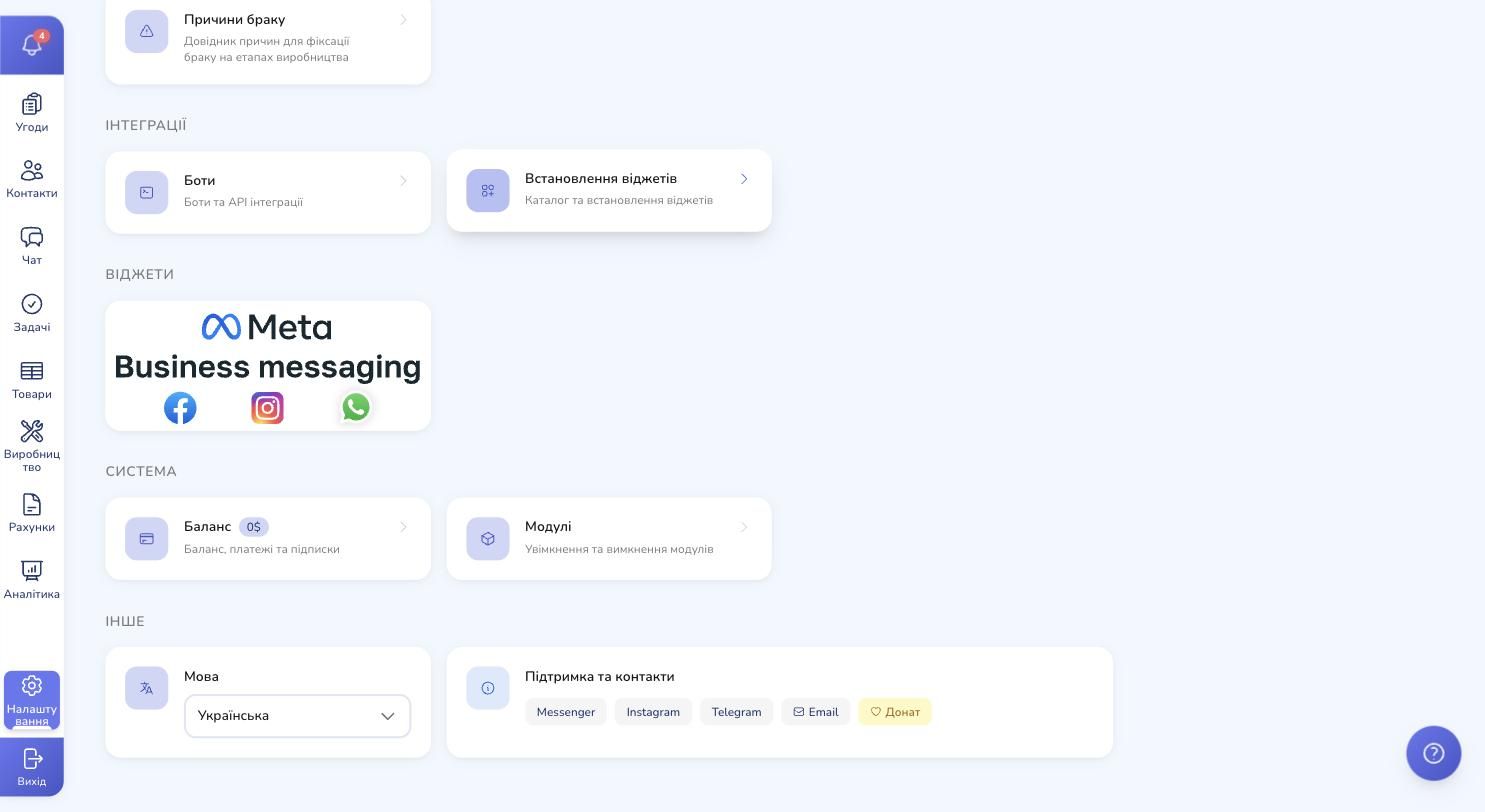
In the RevukCRM sidebar click Settings. Scroll down to the Integrations block — there are two cards. Click Widget installation (the second card labelled "Widget catalog and installation").
In the marketplace find the TikTok for Business Messaging card — you'll recognize it by the black-and-white TikTok logo with the iconic "d".
Step 2. Review the widget description
Click the card — a modal opens with the description, features and important notes.
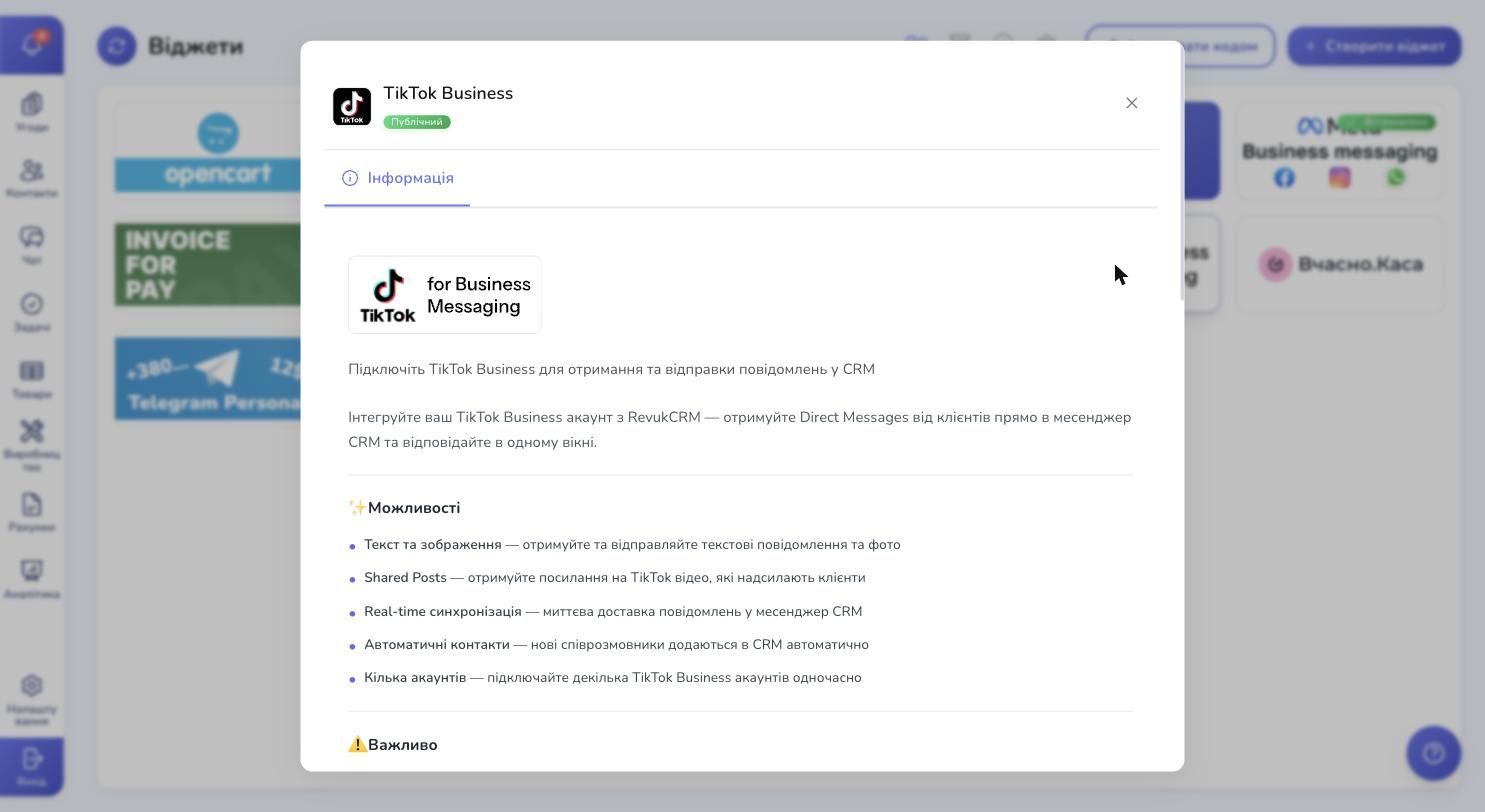
The "Features" block lists everything you get: text and images, Shared Posts from TikTok, real-time sync, automatic contacts, multi-account support.
Step 3. Check the installation instructions
Scroll the modal down. There's an "Important" block with TikTok's key requirements (Business account, 48-hour window) and a "How to connect" block with four steps.
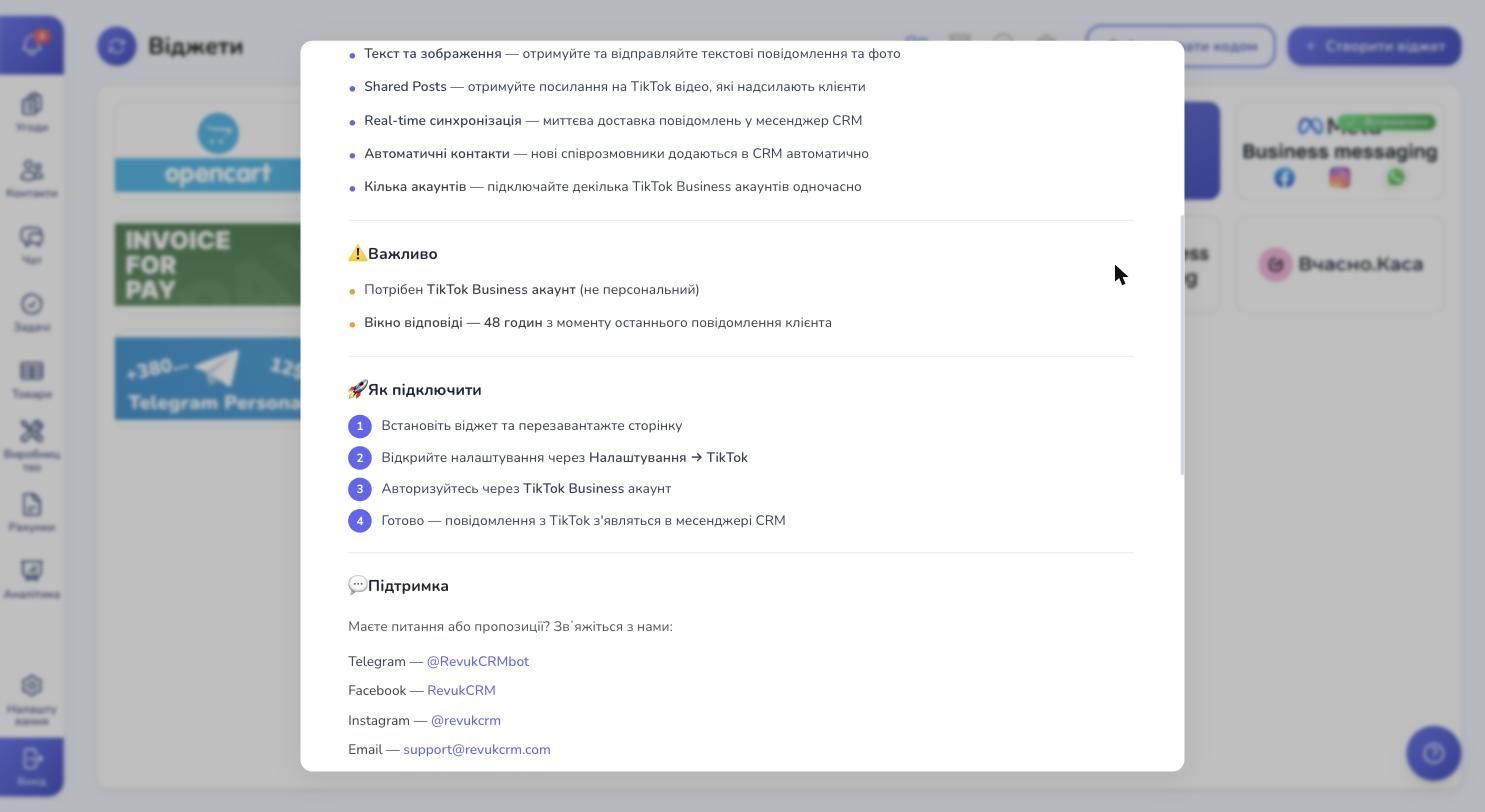
The sequence: install the widget → reload the page → click "Connect TikTok Account" → authorize through TikTok. The whole thing takes 3-5 minutes.
Step 4. Review the permissions
Below the steps is the "Permissions" table. It lists the CRM entities the widget gets access to.
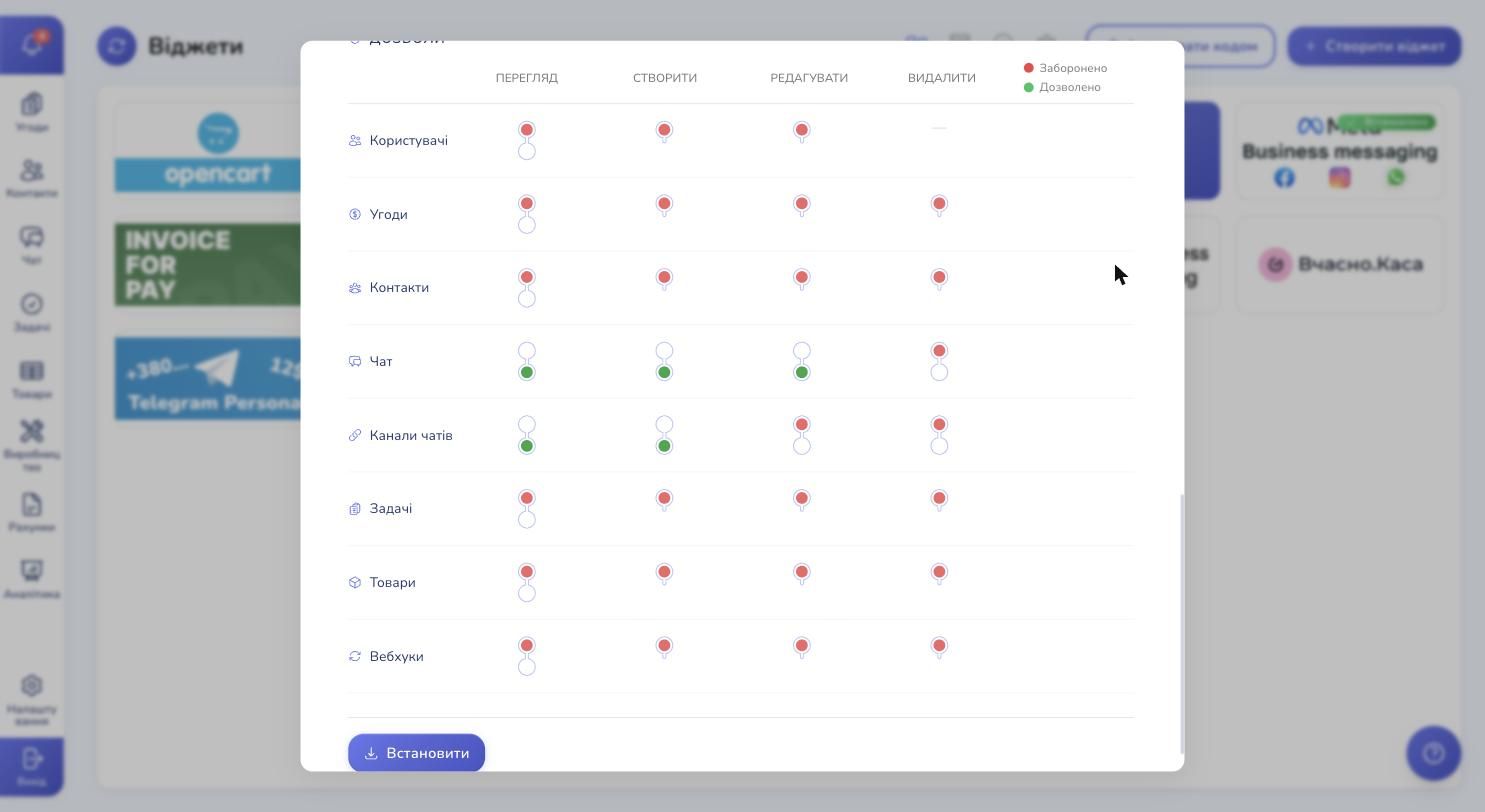
The critical ones for a messenger widget are Chat and Chat channels (green dots): the widget can create chats, add messages to them and manage the communication channels. Without these the integration won't work.
Contacts creation is also green — new TikTok senders are automatically added to your contact database.
Step 5. Install the widget
At the very bottom of the modal is the Install button. Click it. Installation takes a few seconds. Once successful, the button turns red and changes to Uninstall — that's the confirmation the widget is now active.
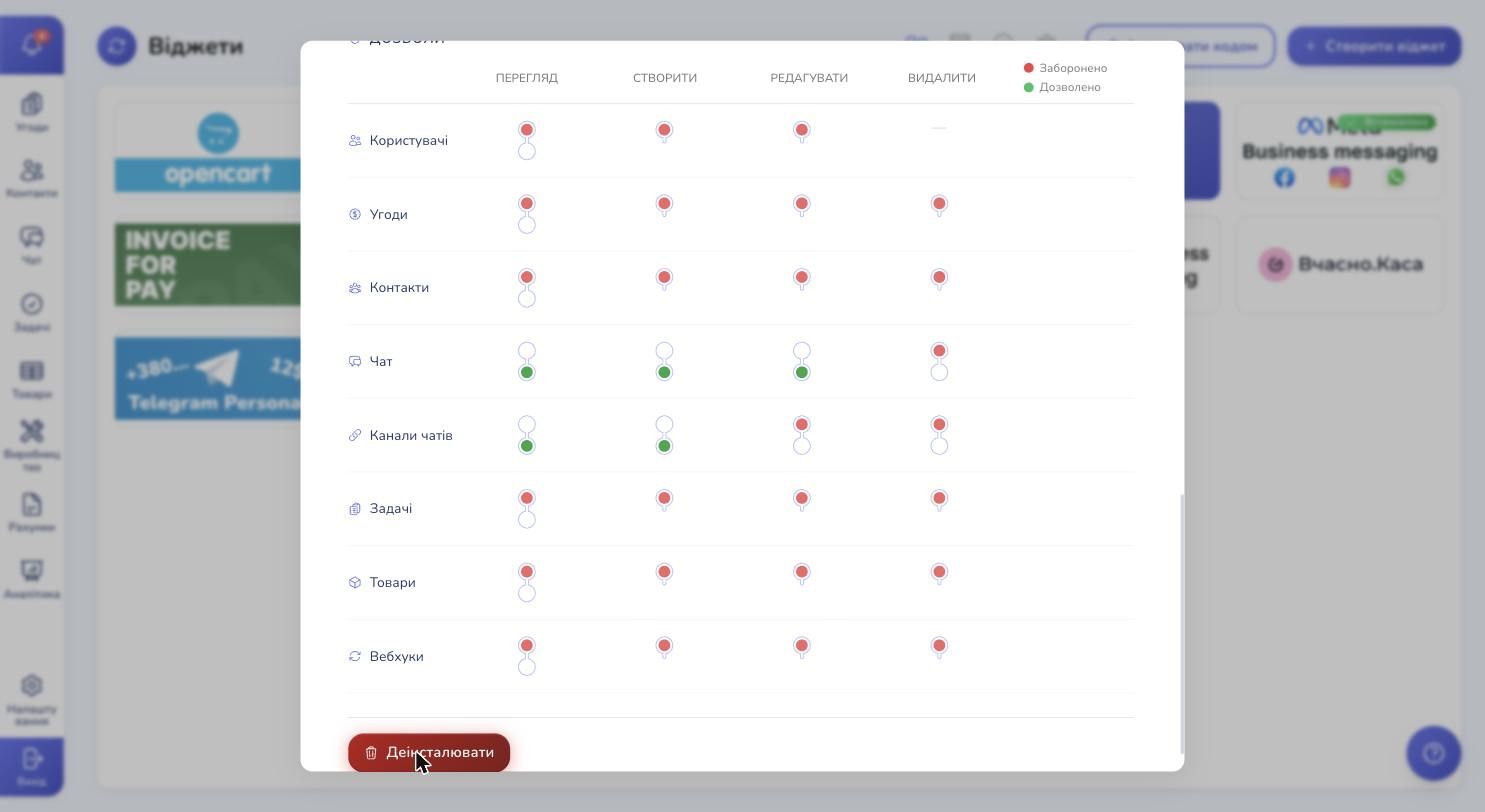
Reload the page (Cmd+R on Mac or Ctrl+R on Windows) — without it the new block in Settings won't appear.
Step 6. Open the widget settings
Go back to Settings and scroll down to the "Widgets" block — the TikTok for Business Messaging card is now there, with the TikTok logo.
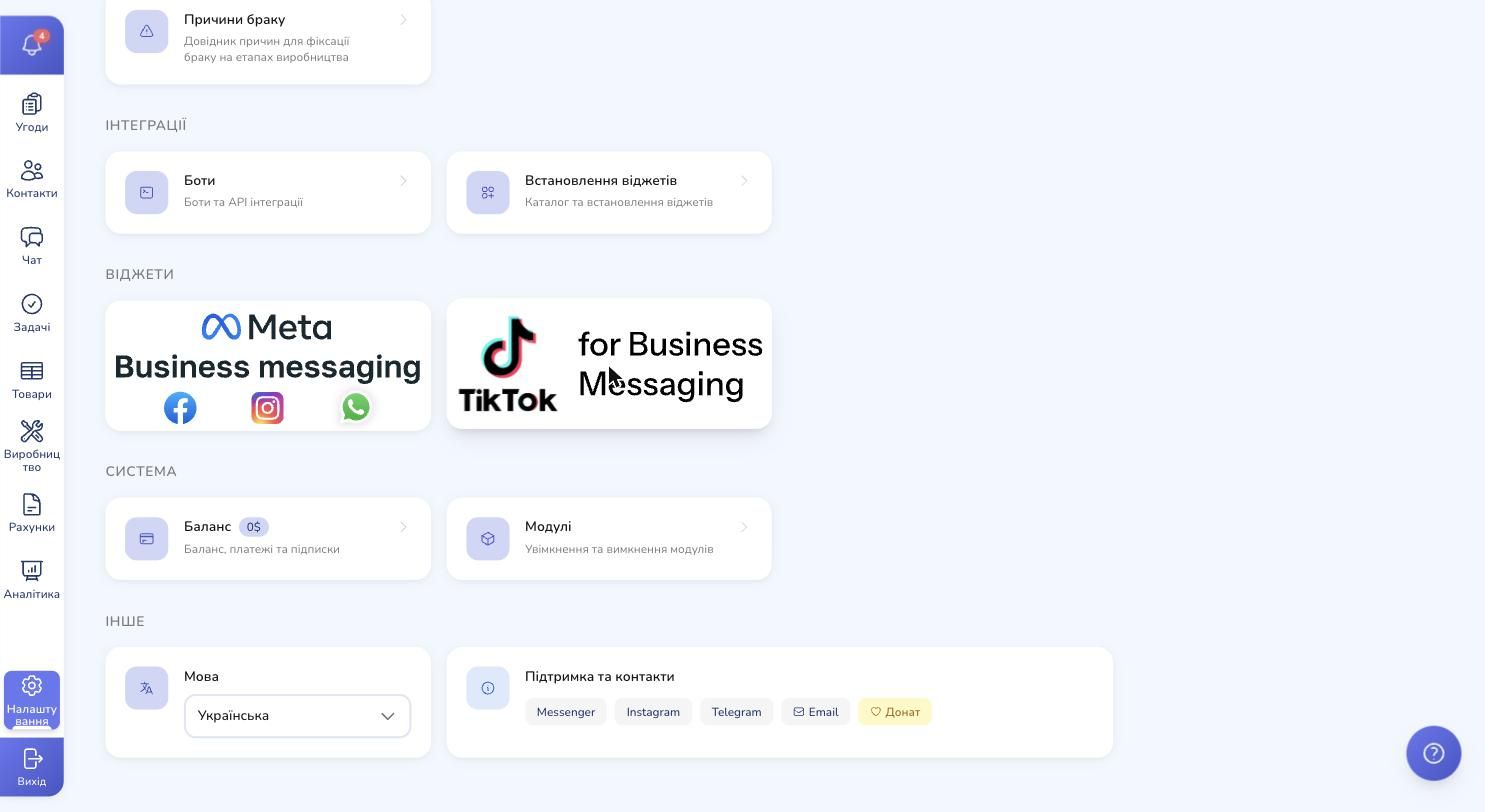
Click it — the widget interface opens.
Step 7. The empty state
Inside the widget you see the TikTok icon, the text "No TikTok accounts connected" and the branded black button Connect TikTok Account.
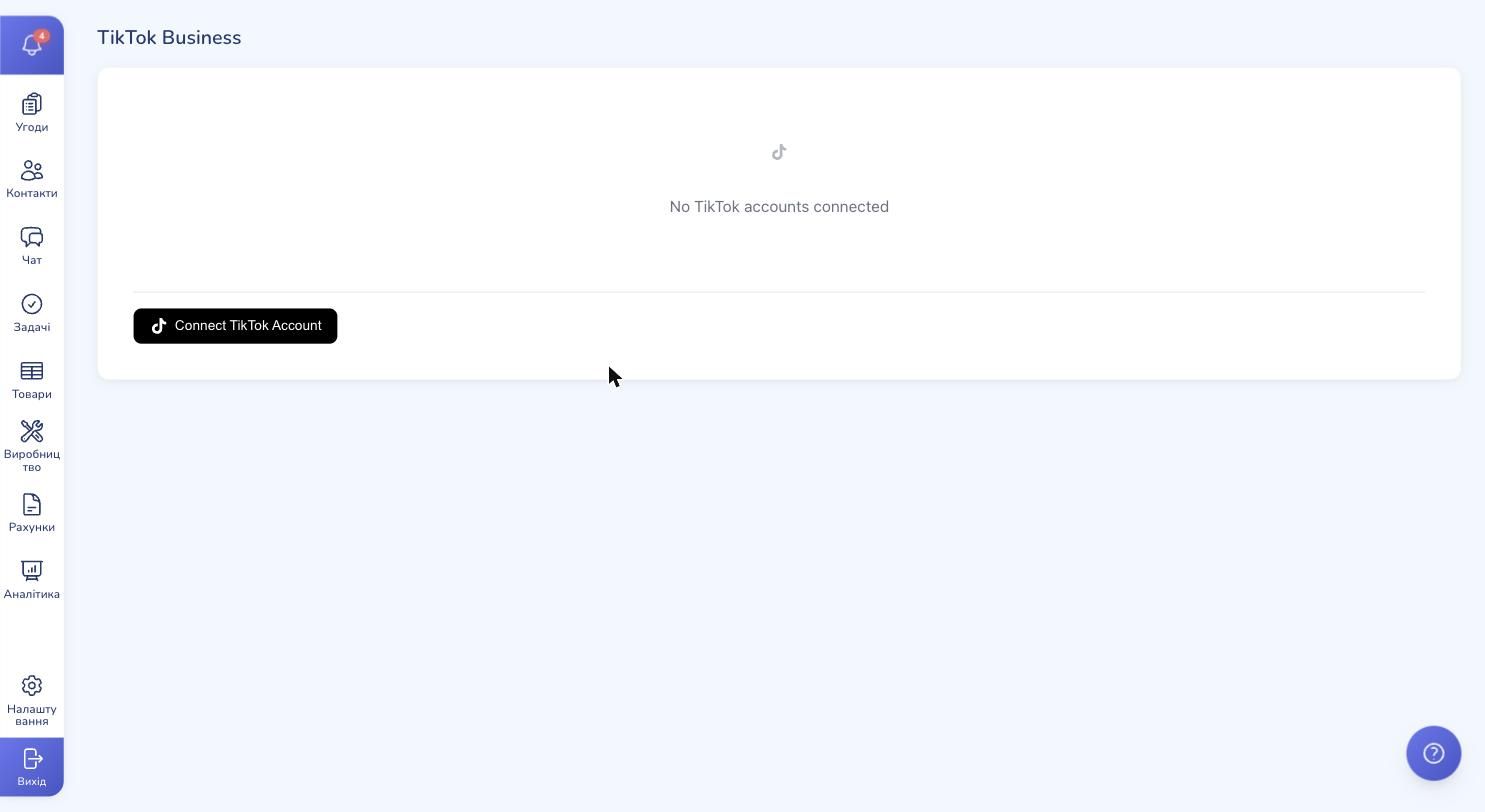
Nothing connected yet — that's normal. One click and you're on your way.
Step 8. Connect your TikTok account
Click Connect TikTok Account. The page redirects to TikTok's official authorization screen.
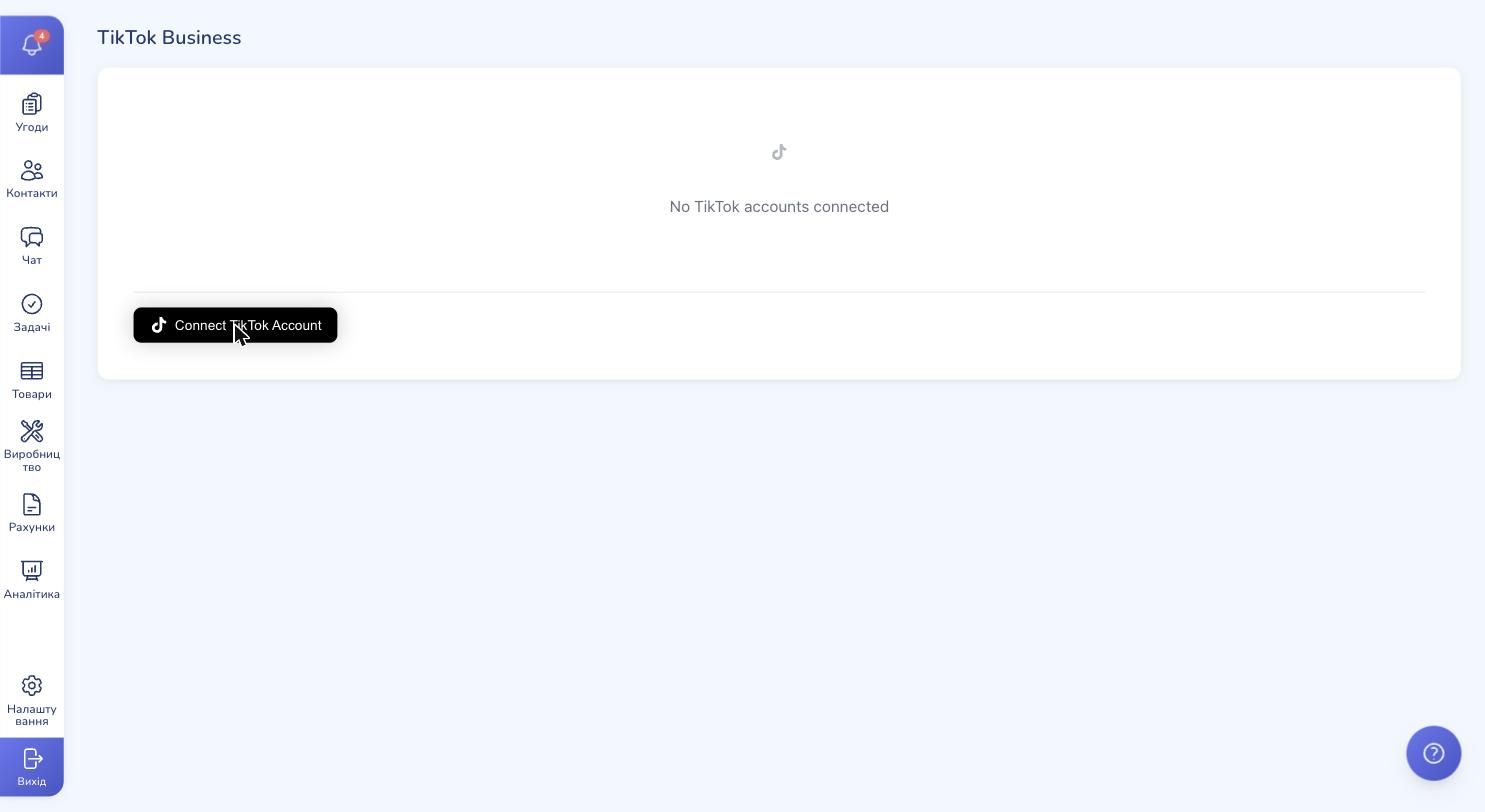
This is the official TikTok mechanism — your password is never sent to us, authorization happens directly on TikTok's server. On the permissions screen TikTok will show exactly what the widget is requesting:
- Basic profile info (name, username, avatar, stats)
- Account type (to confirm it's a Business account)
- Read messages — to receive customer DMs
- Send messages — to reply from CRM
- Manage conversations — to distinguish new and read chats
Review the list, confirm. After that TikTok redirects you back to the CRM, and the widget shows a preview of the chosen account — avatar, display name and username. Click Connect this account — the account is added to the list and ready to receive messages.
What's next
From this point on, TikTok messages start landing in your Chat (sidebar → Chat). Every new sender is automatically added as a contact — with name and avatar from their TikTok profile.
You reply from there like in any messenger: type text, attach a photo — the customer gets the message in their TikTok DM. If you have several managers, each one can take chats, assign owners and create reminders in Tasks.
If a customer shares a TikTok video with you (Shared Post), you'll see the link with its thumbnail right in Chat — you can hop over to TikTok and see the context immediately.
Channels in automations
TikTok accounts become available in automations just like other channels:
- Auto-welcome for a new TikTok lead — the moment someone DMs you for the first time, a bot sends "Thanks for reaching out! A manager will reply within 15 minutes" and creates a task for the assigned manager
- Auto-routing by channel — TikTok DMs go to Elena, Instagram to Andrew
- Template replies — preset auto-responses for common questions
- Integration with deals — a TikTok message creates a new deal with source "TikTok", so you can see how much revenue this channel brings
Multiple accounts in parallel
The widget lets you connect any number of TikTok Business accounts. Handy when your business runs several brands, regional accounts or separate profiles for different product lines. Every DM lands in the same inbox, but each contact's card shows which account they came in through.
About the 48-hour window
This is the most common question about TikTok integration — "why can't I message a customer first?". TikTok only allows free-form messages from the brand within 48 hours of the customer's last incoming message. It's TikTok's own anti-spam rule.
In practice this means:
- If a customer wrote today and you reply — everything works
- If a customer wrote three days ago and you want to ping them — the message won't go through, you need to wait for a new incoming
That's why auto-replies and fast response on fresh messages are the foundation of TikTok DM work. Set up an automation that sends a welcome message the moment a new DM arrives — that gives the customer confidence they're heard, and opens your 48-hour window for further conversation.
What's not there yet
To be honest — TikTok as a channel has its limits compared to Telegram or WhatsApp:
- Text and images only — videos, audio, locations, contacts and files don't flow through TikTok DMs at the moment
- No buttons or quick-reply — you send plain text
- No templates like WhatsApp has — outside the 48-hour window there's no way to message first
- Comments under videos don't flow into Chat — only private Direct Messages
If any of these are critical for you — write us at @RevukCRMbot and we'll add them to the roadmap.
Ready to bring TikTok DMs into your CRM?
Try RevukCRM for free — add TikTok in 5 minutes and reply to customers from one shared team inbox alongside Instagram, Facebook and WhatsApp.
Tags