
All customer channels in one RevukCRM inbox
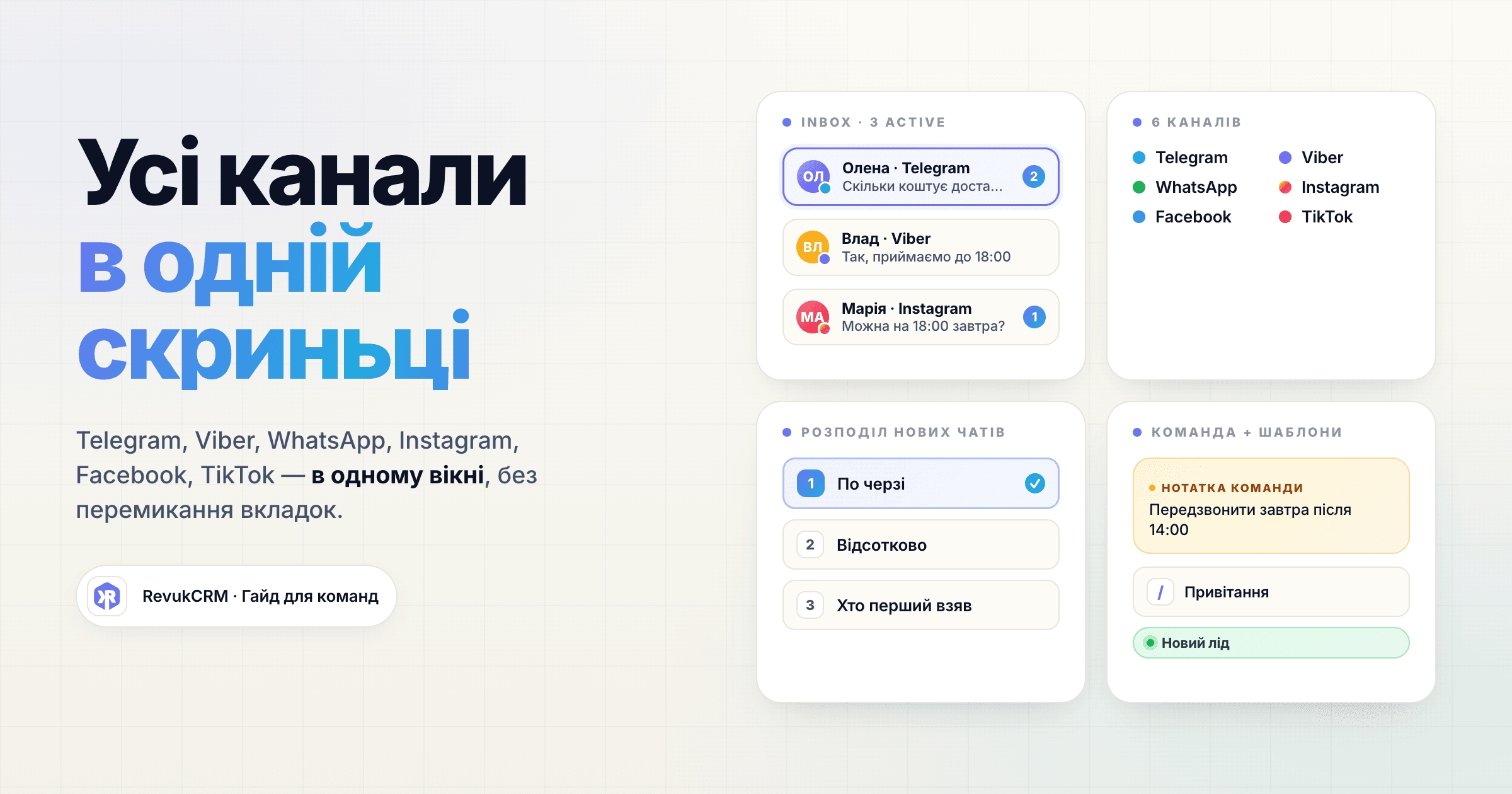
A coffee shop catches orders in Instagram. A services company replies in a Telegram bot. An online store confirms addresses on Viber. Every channel lives in its own app, with its own login and its own notification feed. A manager opens five tabs and juggles two phones during a shift — and something still falls through.
RevukCRM's unified inbox pulls that mess into a single window. No matter where the customer wrote — a bot, a personal number, Direct or WhatsApp — the conversation appears in one list alongside the rest. The manager replies in a familiar chat view without remembering which channel the customer came from.
Which channels you can connect
Out of the box RevukCRM supports:
- Telegram — bot and personal number
- Viber — bot and personal number
- WhatsApp Business
- Facebook Messenger — page conversations
- Instagram Direct — DMs from a business account
- TikTok — direct messages from a business account
Each channel is a separate "widget" you install from your account in a few minutes. Once connected, the channel automatically appears in the inbox as a source. From that moment, every message from it flows into a single thread.
What the manager actually sees
Open the Chat section and you immediately see every active conversation. The chat list is on the left, the open conversation is in the middle, and the customer profile sits on the right.
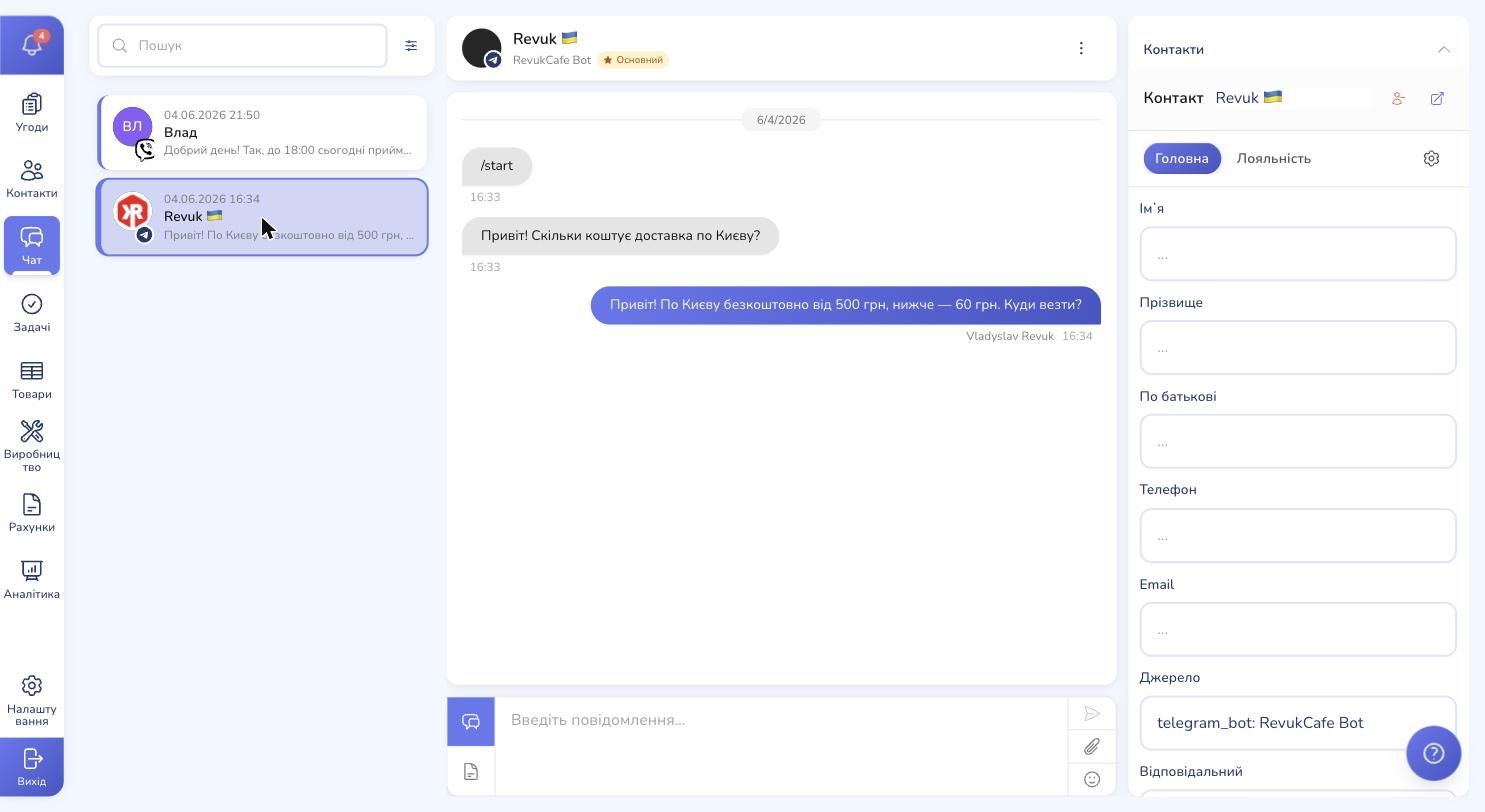
A small channel icon on the avatar tells you where the chat came from — a Telegram bot, a personal Viber number, an Instagram Direct, and so on. The coloured vertical bar on the left edge of each chat card matches the status colour: new, in progress, waiting on customer, resolved.
Chats sort in a strict priority: important ones first (the ones you starred), then new, then unread, and the rest at the bottom. In the first three groups the oldest sit at the top — so you tackle what's been waiting longest. In "rest" it flips — newest on top, older deeper down. A fresh lead won't slip behind old conversations.
Find the right chat in seconds
Inboxes grow fast. A week or two in, you'll have hundreds of threads. So search and filters live above the chat list.
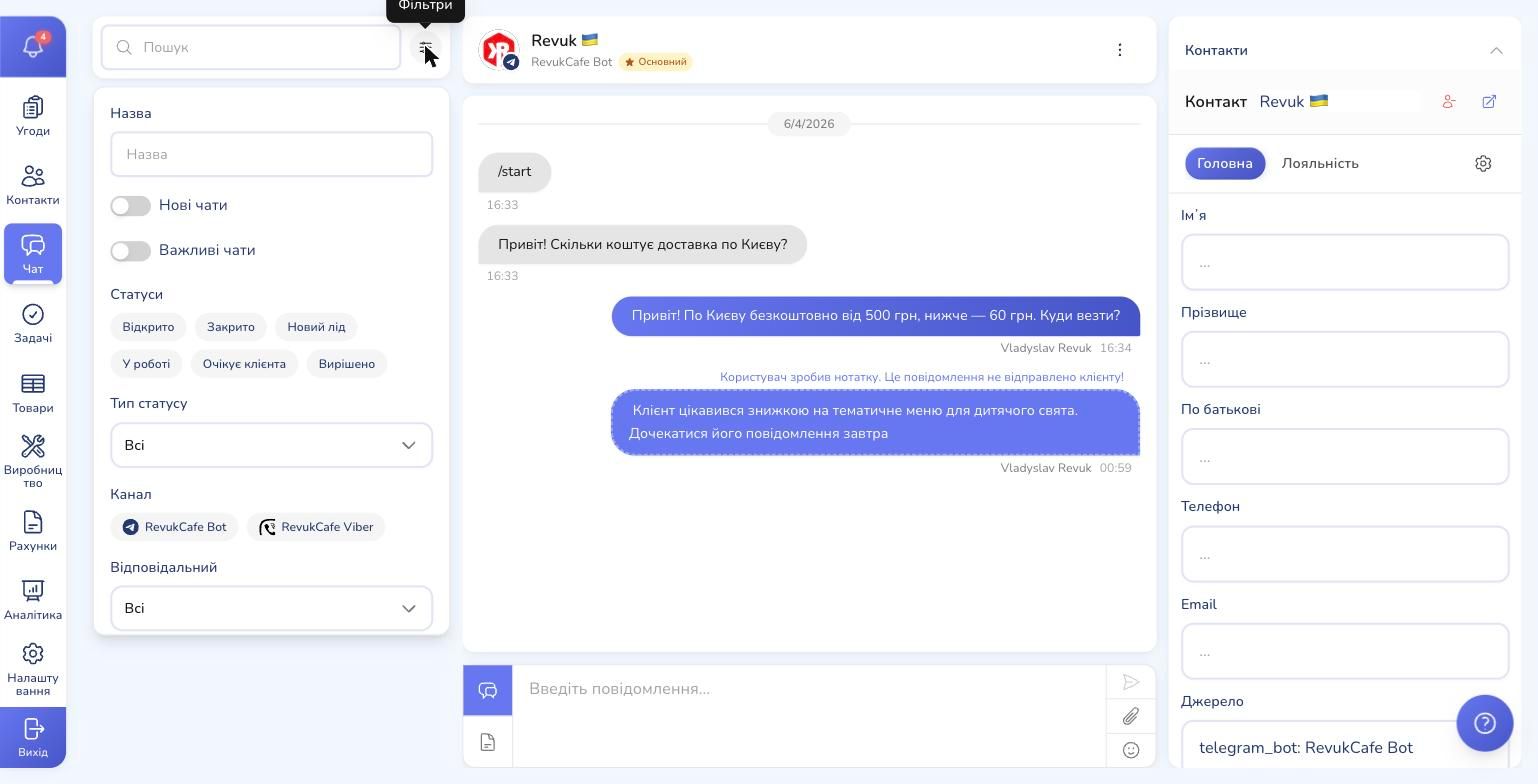
Filters narrow things down with one click:
- Channel — only Telegram, or only Viber, or only Instagram
- Status — "In progress" or "Waiting on customer" only
- Assigned manager — see one person's chats
- Date range — from and to
- New chats only, important only, unread only
A filter combo you reach for often you can save and pull up later in one click — for example, "My new leads today" or "Hot Viber chats."
A customer profile next to the chat
This is what makes the CRM chat worth opening instead of just staying in Telegram. To the right of the conversation you see who you're talking to: name, phone, email, tag, loyalty card, order history.
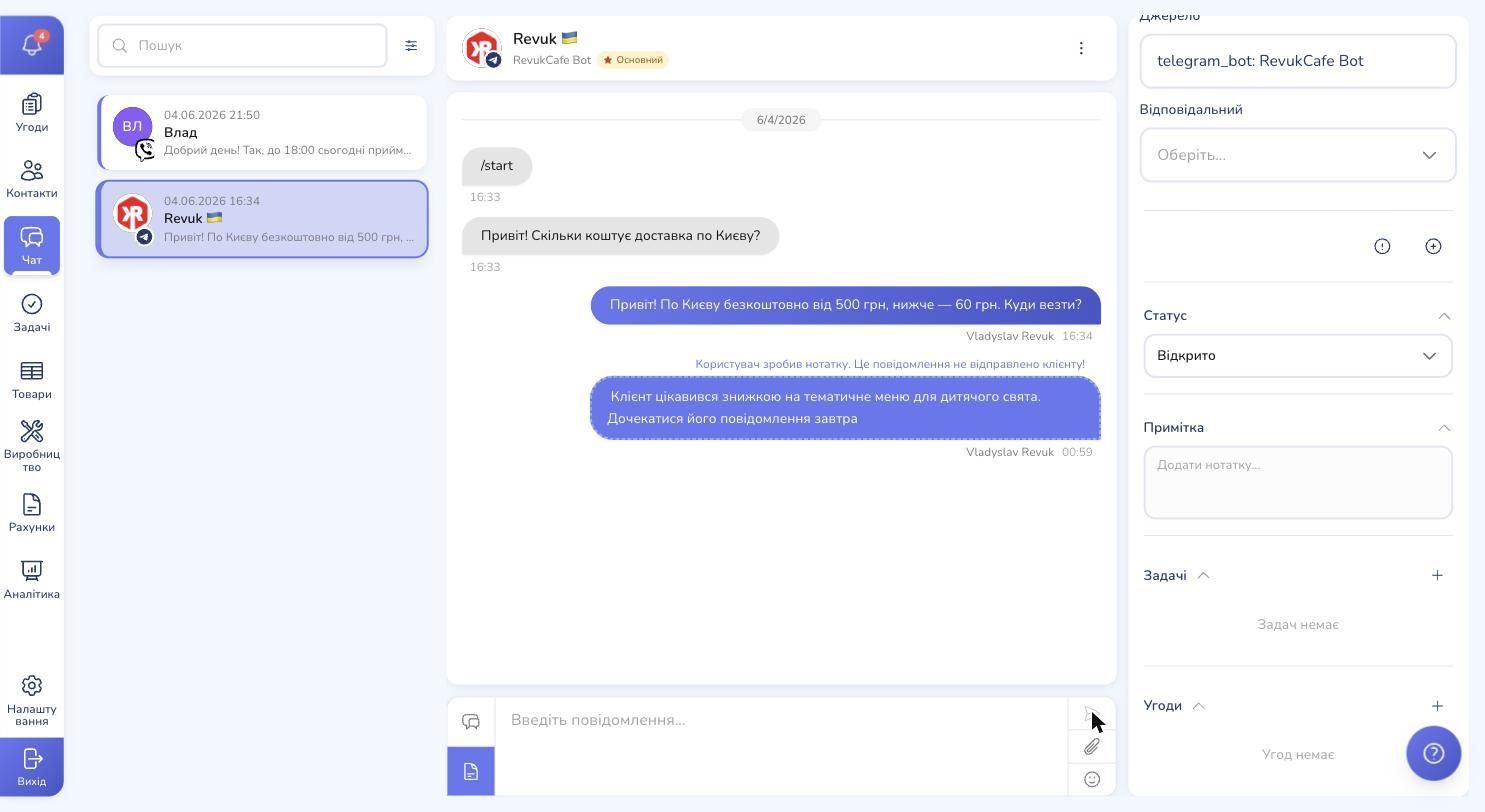
Alongside that — the conversation status (switchable with one click), an internal team note, the list of tasks and deals tied to this customer. The manager doesn't have to ask "have you ordered from us before?" — they can already see this is the third purchase this quarter and offer a returning-customer discount.
Internal team notes
Not everything the manager wants to say should be visible to the customer. A toggle switches the input into note mode — and the message stays inside the team only. The customer never sees it.
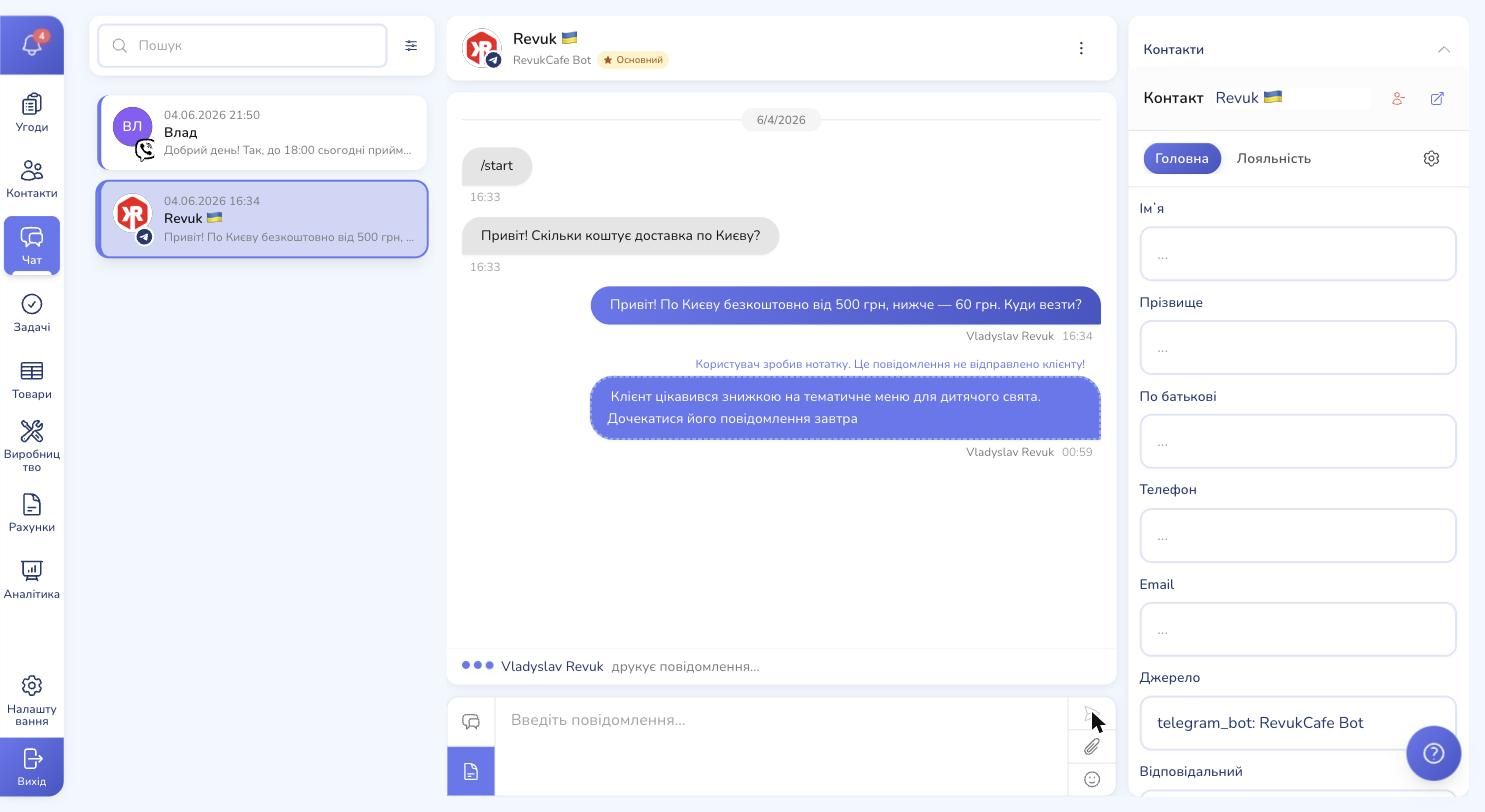
Handy when you're writing for a colleague: "this customer had a complaint last time — be careful with the tone" or "I'll call back tomorrow after 2pm." The full history of such notes lives right in the chat — the next manager opens the conversation and gets the context immediately.
From chat to deal in one click
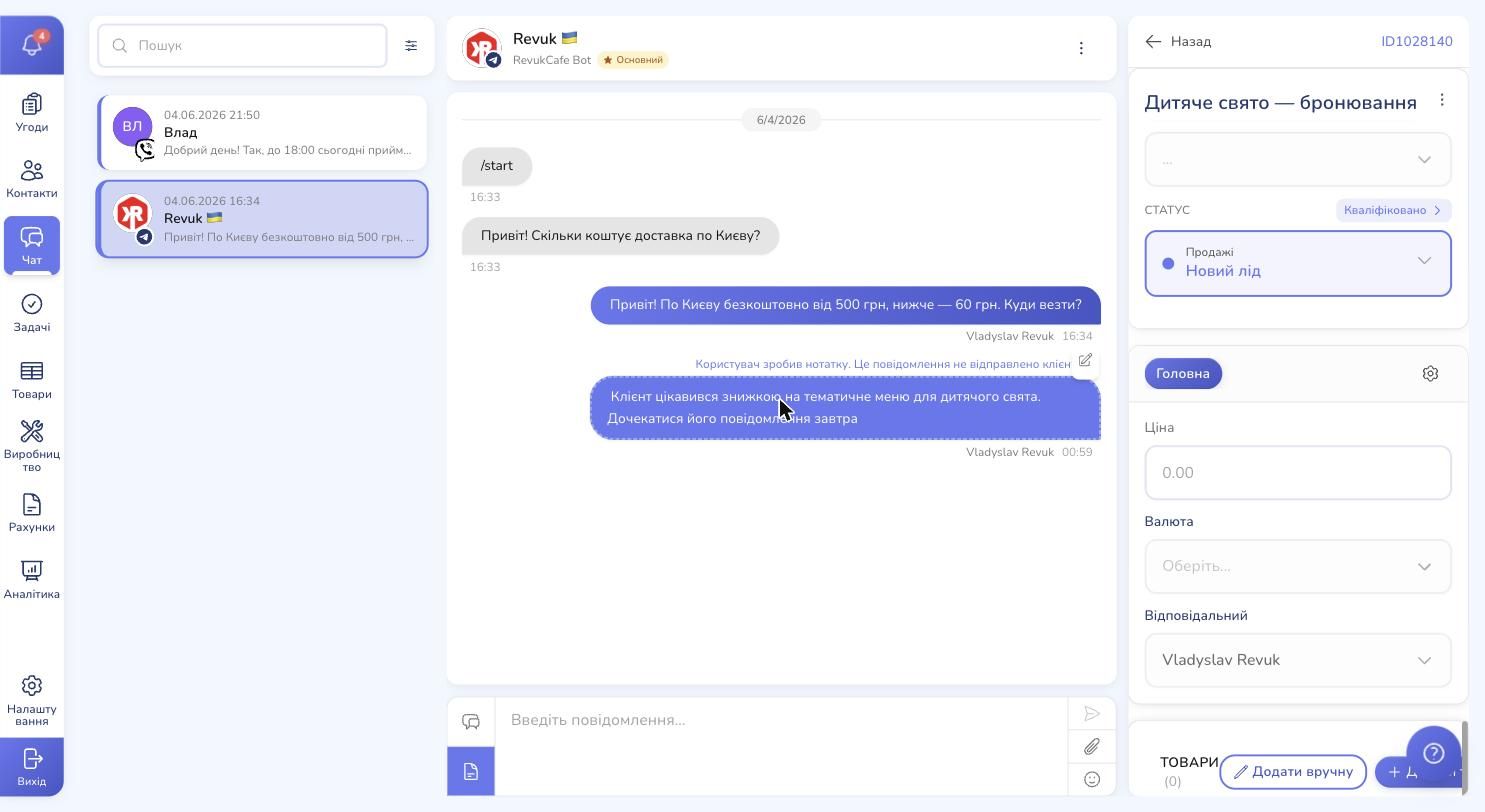
A lead writes, you talk it through, they're ready to order. Next to the "Deals" block in the right panel there's a plus button — click it and a new deal is created, already tied to this customer and this chat.
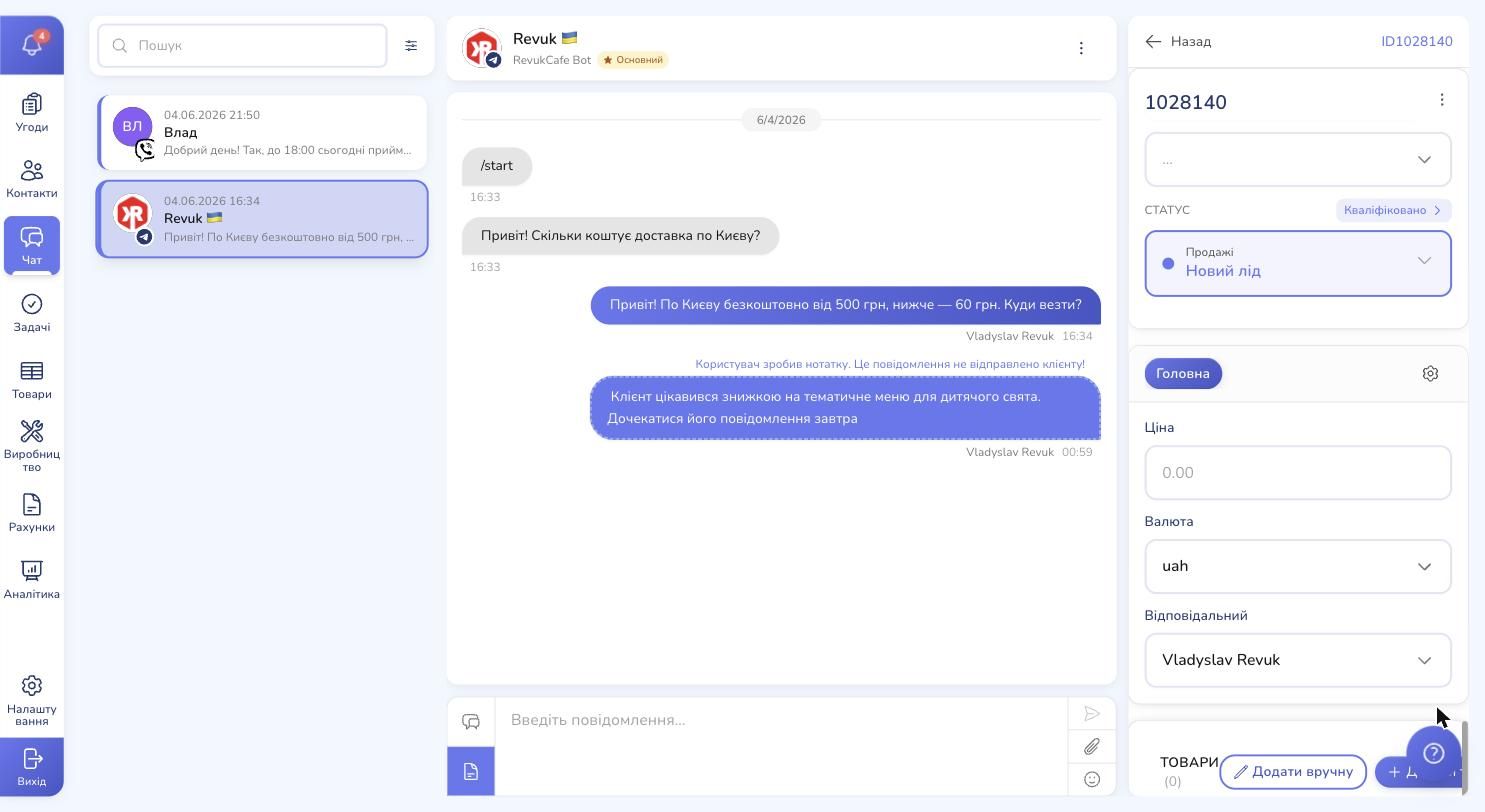
The deal lands in the "Sales" pipeline on the "New lead" status (or whichever you've set up). No jumping to another section, searching contacts, copying details from the messenger — it all happens in the window where the conversation just took place.
Inbox settings: channels and distribution
You see every connected channel under Settings → Chat channels.
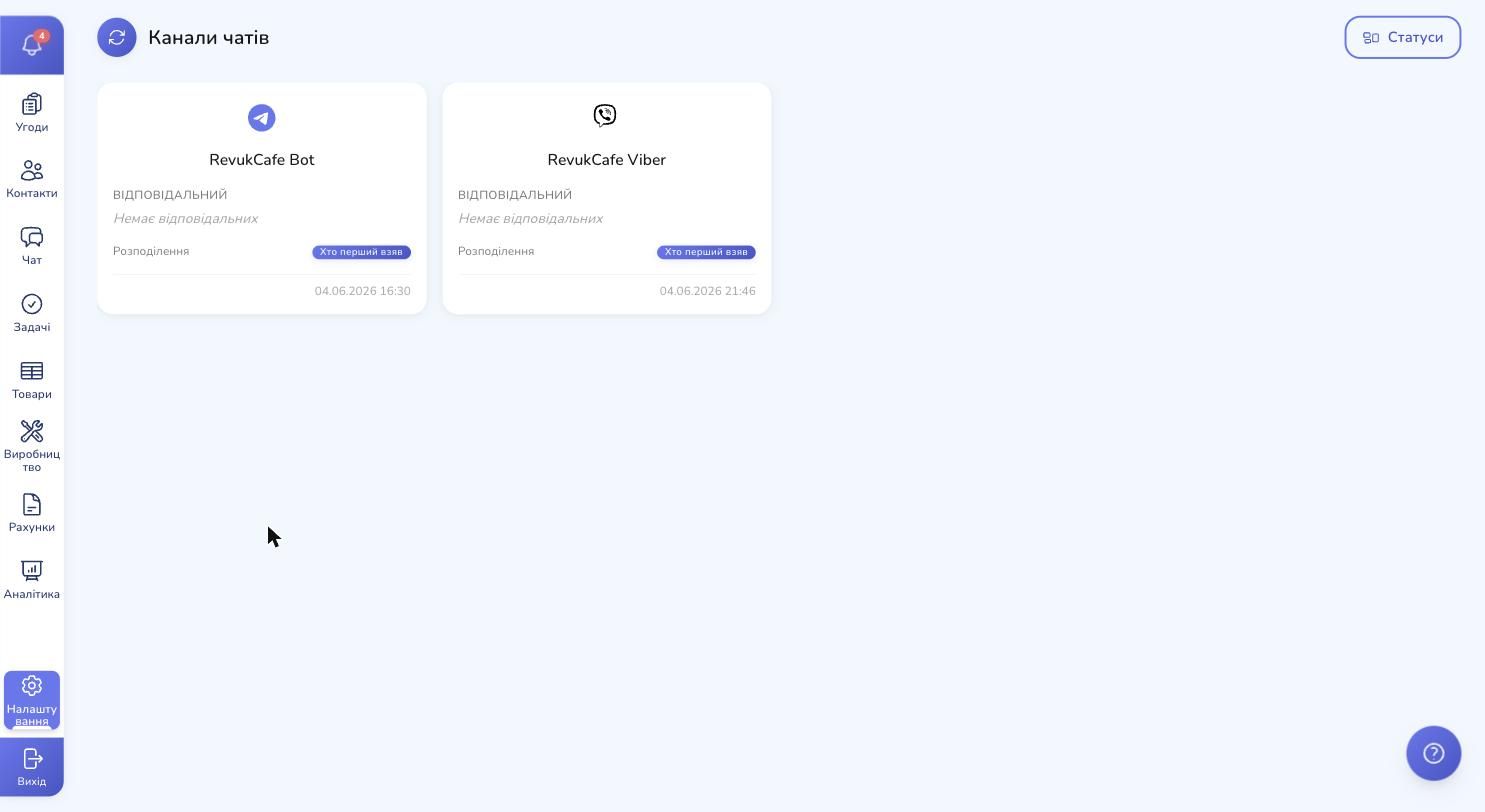
Each card shows the channel name, the managers assigned to it and the current routing mode for new chats. One click on a card and you're inside its settings.
Who picks up a new chat: three routing modes
This is the most important part if you have more than one manager. RevukCRM offers three ways to route incoming conversations.
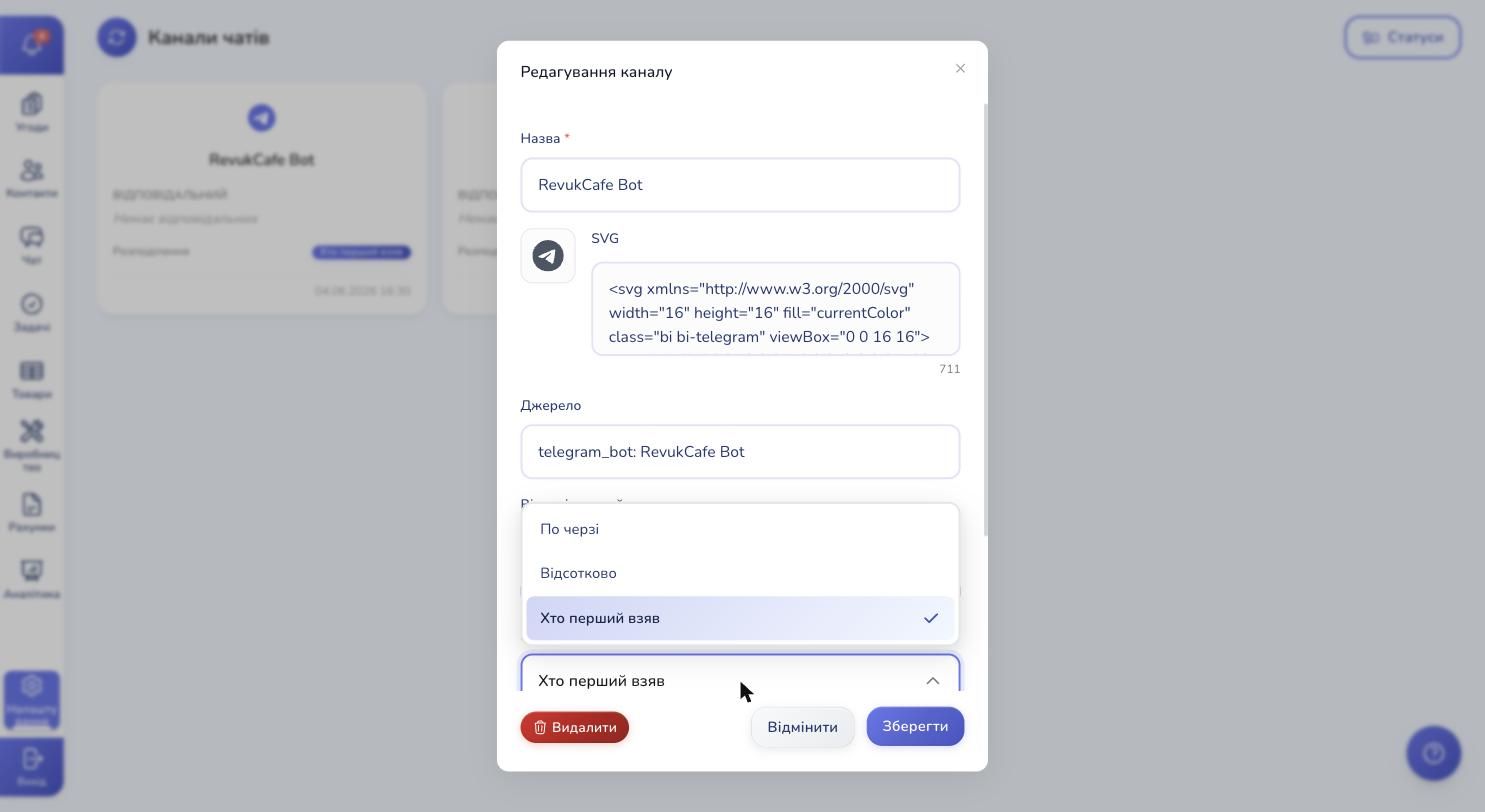
Queue. Classic round-robin. The first chat goes to Olena, the next to Igor, the third to Masha, the fourth back to Olena. Everyone gets the same load.
Percentage. You set a percentage for each manager — for example, Olena 60%, Igor 40%. The system distributes new chats in that ratio. Useful when you have a senior on a bigger share and a junior who's learning.
First to grab. All managers see the new chat at once and race for it. Whoever clicks first owns it. Aggressive — but it pushes fast reactions.
Catching managers who fall asleep
The worst thing that can happen to a lead: they wrote, got assigned to a manager, and that manager goes quiet for an hour. The customer waits, then leaves for a competitor. Money's gone, nobody notices.
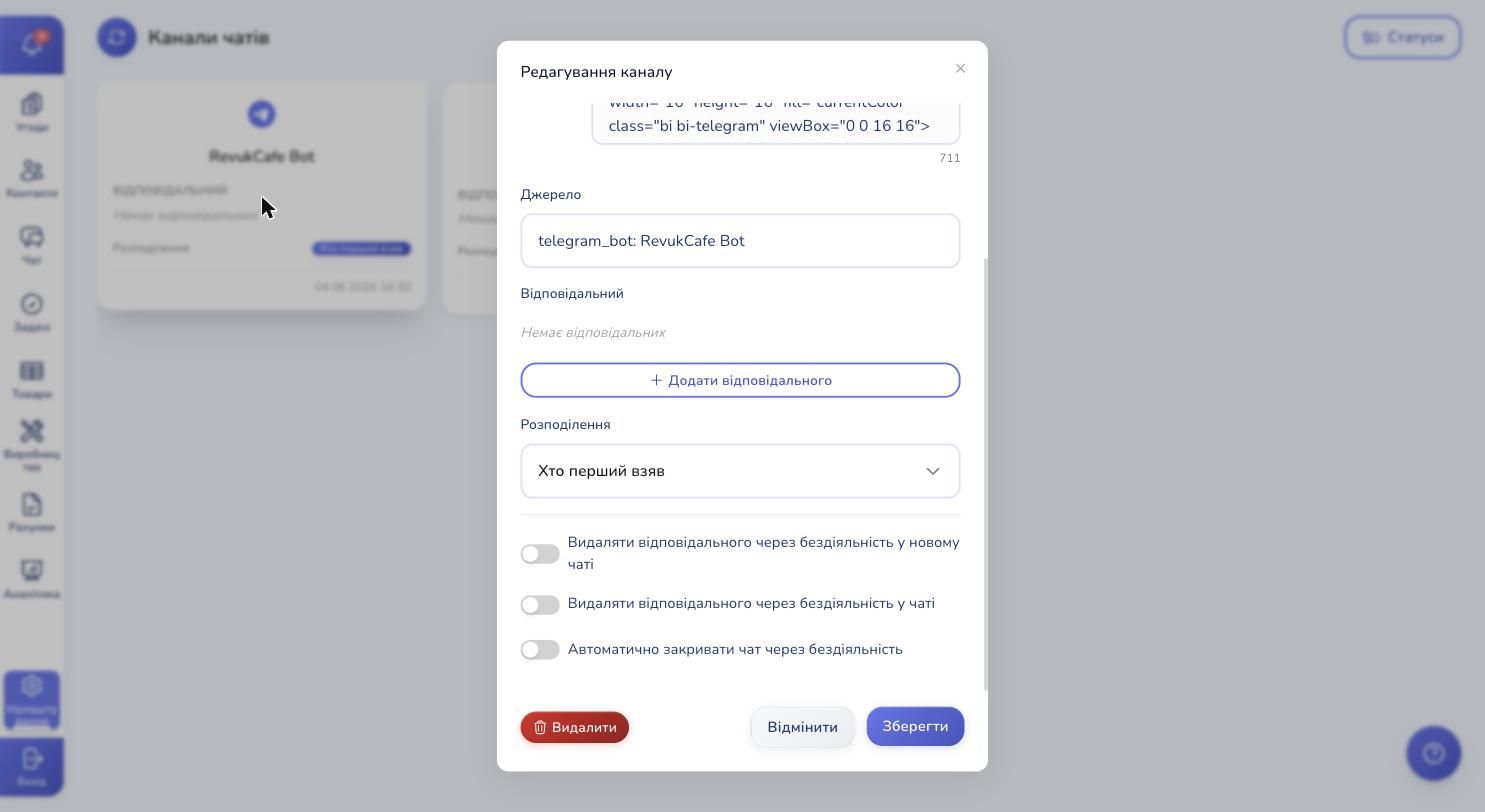
Three switches inside channel settings:
- Reassign the owner of a new chat after inactivity — if the manager hasn't opened a fresh chat within N seconds, the system passes it on automatically.
- Reassign the owner of a chat after inactivity — same idea, but for ongoing conversations. No reply within the time you set — the chat moves to someone else.
- Auto-close a chat after inactivity — an old quiet chat slips into the "closed" status by itself, so it stops sitting next to your hot ones.
Those three settings save hours every month — you don't need a supervisor watching the list and pinging managers.
Chat markers: "important" and "new"
In the header of an open chat, top right, sit two small buttons — ! (important) and + (new). Click one and the marker is set. Click again to unset it.
Both markers also appear automatically:
- "Important" is set when a manager missed the chat. That's the inactivity timer from channel settings: when the configured waiting time elapses, the owner is cleared and the chat is flagged as important — so it surfaces to the top of the list.
- "New" is set when a customer writes into a previously closed chat. The chat reopens with the "New" status, so the follow-up doesn't get lost among the resolved ones.
Once a manager replies to the customer, both markers clear themselves — that's the signal the chat is back in active work. And because important and new chats always sit at the top of the list, even on a morning with 50 conversations the first three or four are exactly the ones that need attention right now.
Custom chat statuses for your process
No mandatory categories. You create exactly the statuses your business needs.
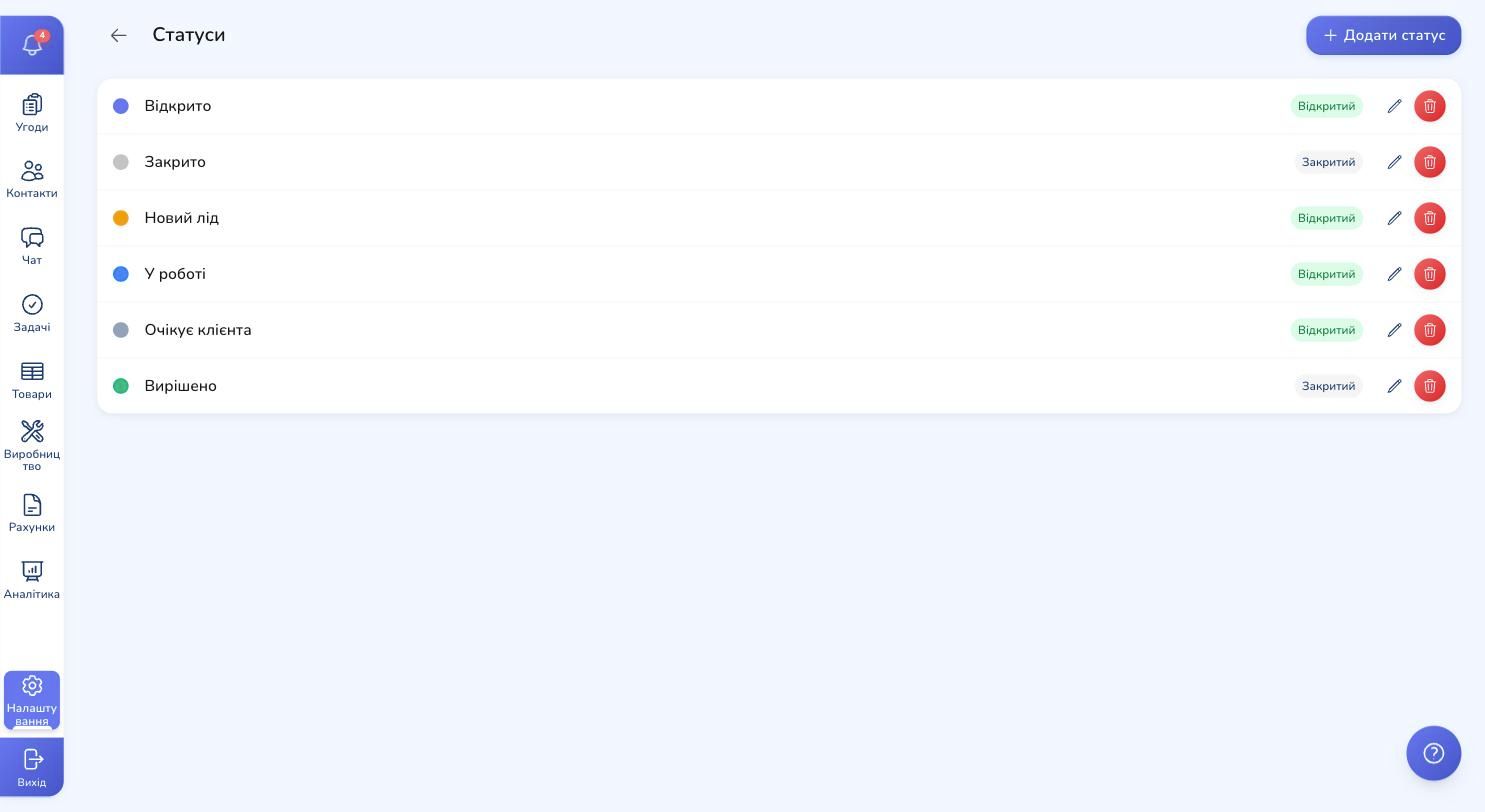
For a coffee-delivery shop it might be "New lead → In progress → Waiting on customer → Resolved." For a service firm — "New request → Clarifying → Handed to specialist → Quality check → Done." Each status gets its own colour, an "open" or "closed" type, no limit on how many you create.
The status is set manually from the chat window, or automatically — for example, "If the customer hasn't replied in three days, move it to Waiting on customer."
Message templates: routine answers in two clicks
Managers answer the same things every day: opening hours, delivery rates, payment options. Instead of typing it from scratch each time — create a template.
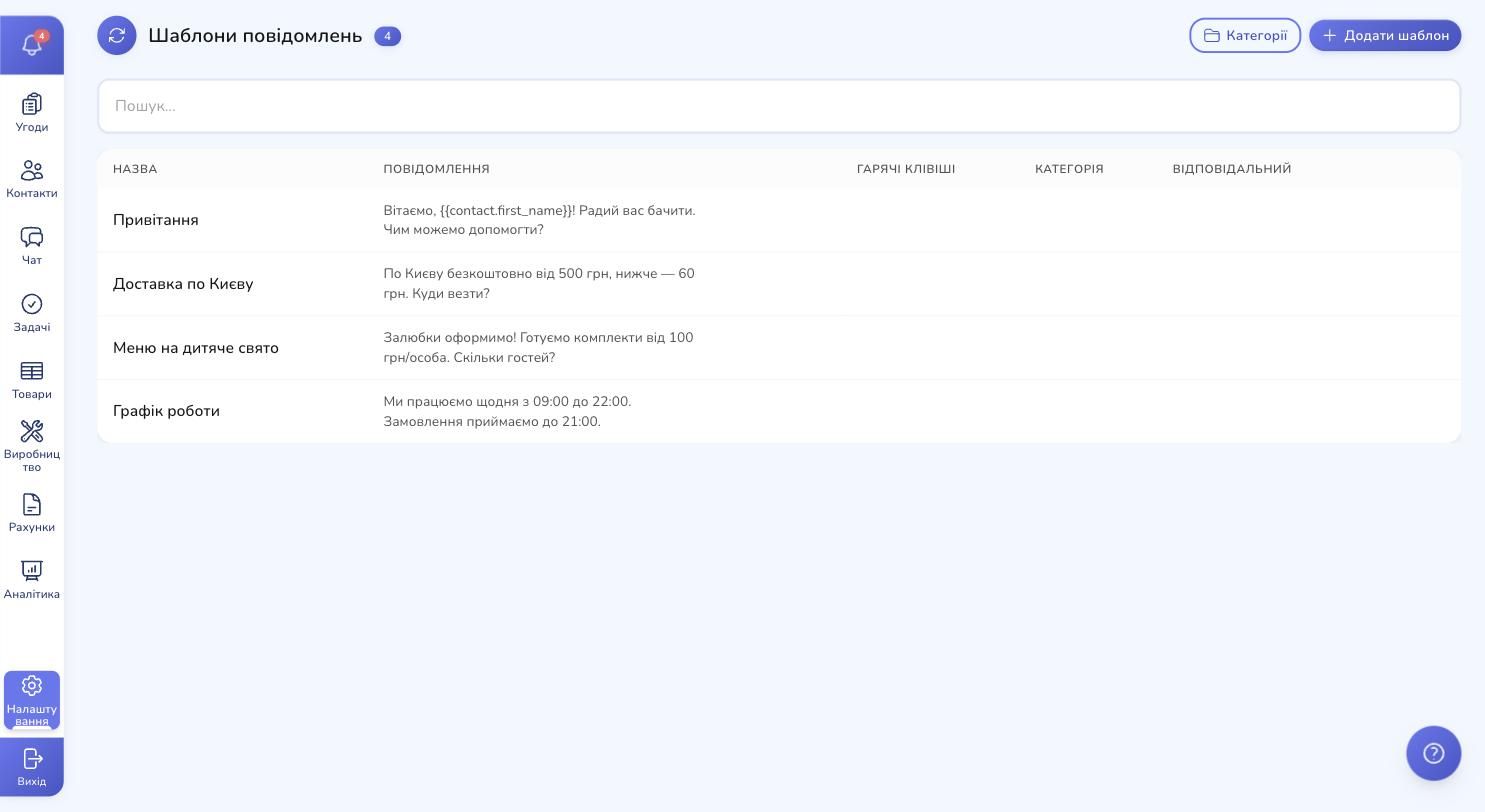
Templates work three ways in the chat input:
- Inline search. Start typing — and a list of matches appears above the input. The search looks at the template name, the first words of its message, and the category name. Pick a match and the text lands in the input, ready to edit and send.
- Hotkeys. Each template can have its own keyboard shortcut, set in template settings. Press it inside the chat — the text is inserted instantly, no search.
Templates don't replace live communication — they take the routine off the manager so attention goes where it actually matters.
Live updates: you see everything instantly
No page reloads needed. A new message shows up in the list at once. When another teammate is already typing in the same chat, you see their "typing…" — both in the chat list and inside the conversation. No two colleagues firing the same reply to the customer at once. A colleague changes a chat status and the list refreshes for everyone looking at it.
This isn't cosmetic — it's the difference between "I wake up at midnight worried about missing a Telegram message" and "I work in one comfortable window because every incoming message lands right in front of me."
Where to start
If you're just setting up RevukCRM:
- Connect one channel where most of your customers actually are. Most often it's a Telegram bot or Viber.
- Create 3-4 chat statuses that match your process. Don't try to spell out everything at once — add more as you go.
- Pick a routing mode that fits your team. One manager — "first to grab," a team of 2-3 — "queue," a team with a junior and a senior — "percentage."
- Add five most frequent templates — greeting, opening hours, delivery rates, thank-you-for-order, courier-on-the-way.
- Come back a week later and add more channels, statuses and automations — based on what you've actually seen in real chats.
Day one with RevukCRM you won't notice a difference. A week in, you'll see no chat gets dropped. A month in, the team can't remember how they ever worked with five open tabs.
Try the unified inbox for free
Connect Telegram, Viber and other channels — and run every customer conversation in one RevukCRM window.
Tags