
How to Connect a Viber Bot to RevukCRM — 5-Minute Setup Guide
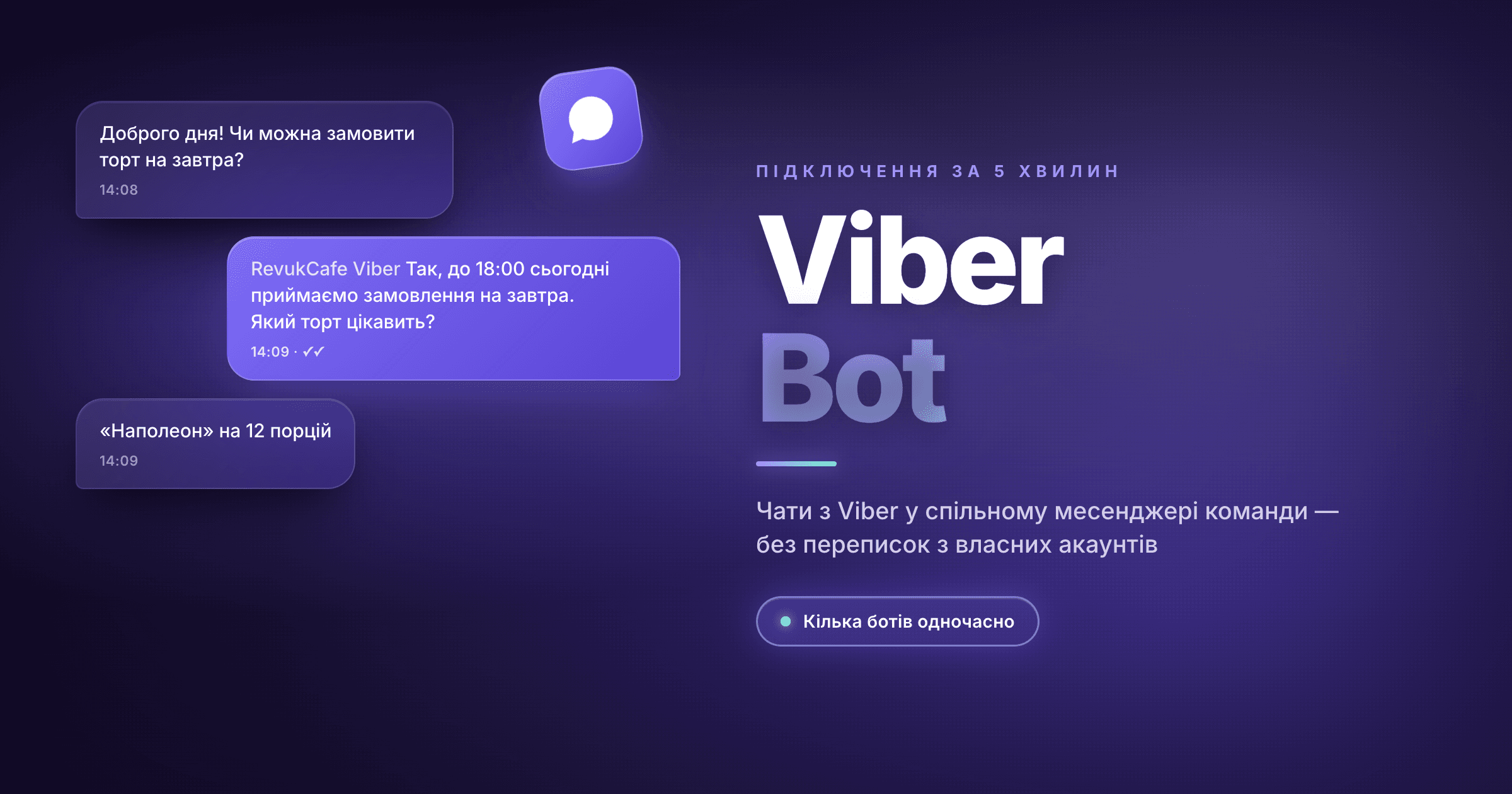
In Eastern Europe Viber is the messenger customers already trust: bank receipts, delivery notifications, government service alerts all land there. If your business has a presence in Viber, customers reply faster than they would to email or a call from an unknown number — especially the over-30 audience, regional clients, and anyone used to B2B-style communication.
A Viber bot connected to RevukCRM turns this into a working channel: customers write to your company's official Public Account, the message lands in the CRM inbox, replies go straight back into Viber. Your team handles everything from one interface, history is kept forever.
What you get after connecting
- Viber chats in the shared CRM inbox — alongside chats from other channels
- Automatic contacts — first-time customer writes → a contact card appears in CRM with name, avatar and Viber ID
- All attachment types — text, photos, videos, audio, files come through and go back
- Multiple bots on one CRM — separate Public Accounts for the main brand, support, delivery — no cap on count
- Automations like any other channel — welcome messages, out-of-hours replies, auto-deal creation
Before you start
You'll need:
- A registered Viber Public Account (Bot Account) — created at partners.viber.com. This is Viber's separate platform for businesses. Registration uses your personal Viber phone number
- An Authentication Token — generated automatically in the account settings: Account Settings → Authentication Token (a long alphanumeric string like
4dd07ca6f7d12dfa-...). Copy the whole thing — this is what RevukCRM needs - (Recommended) Avatar, description and category for your Public Account — set them in the Viber Admin Panel. That's what customers see before sending the first message, and it affects whether they bother
Step 1. Open the widget marketplace
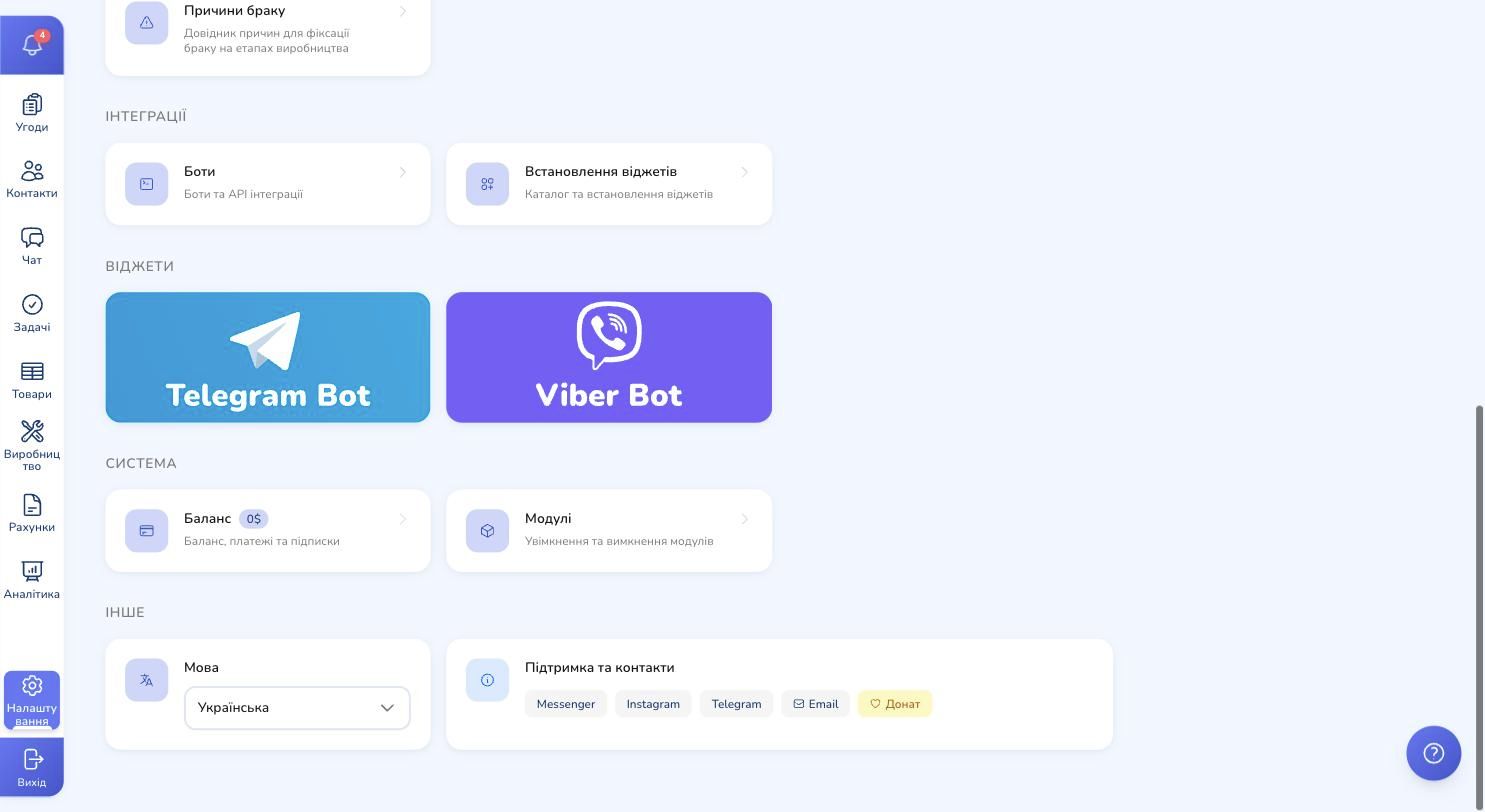
In RevukCRM's side menu hit Settings. Scroll down to the Integrations block — there are two cards. Click Install widgets (the second card labelled "Widget catalog and installation").
Step 2. Find Viber Bot
The marketplace opens with all available integrations: messengers, cash registers, delivery, telephony. Find the Viber Bot card among them (the purple one with a white phone icon).

Step 3. Review what the widget does
Click the card. A modal opens with a detailed description: what the widget is for, which message types it supports, how it integrates with the CRM inbox.
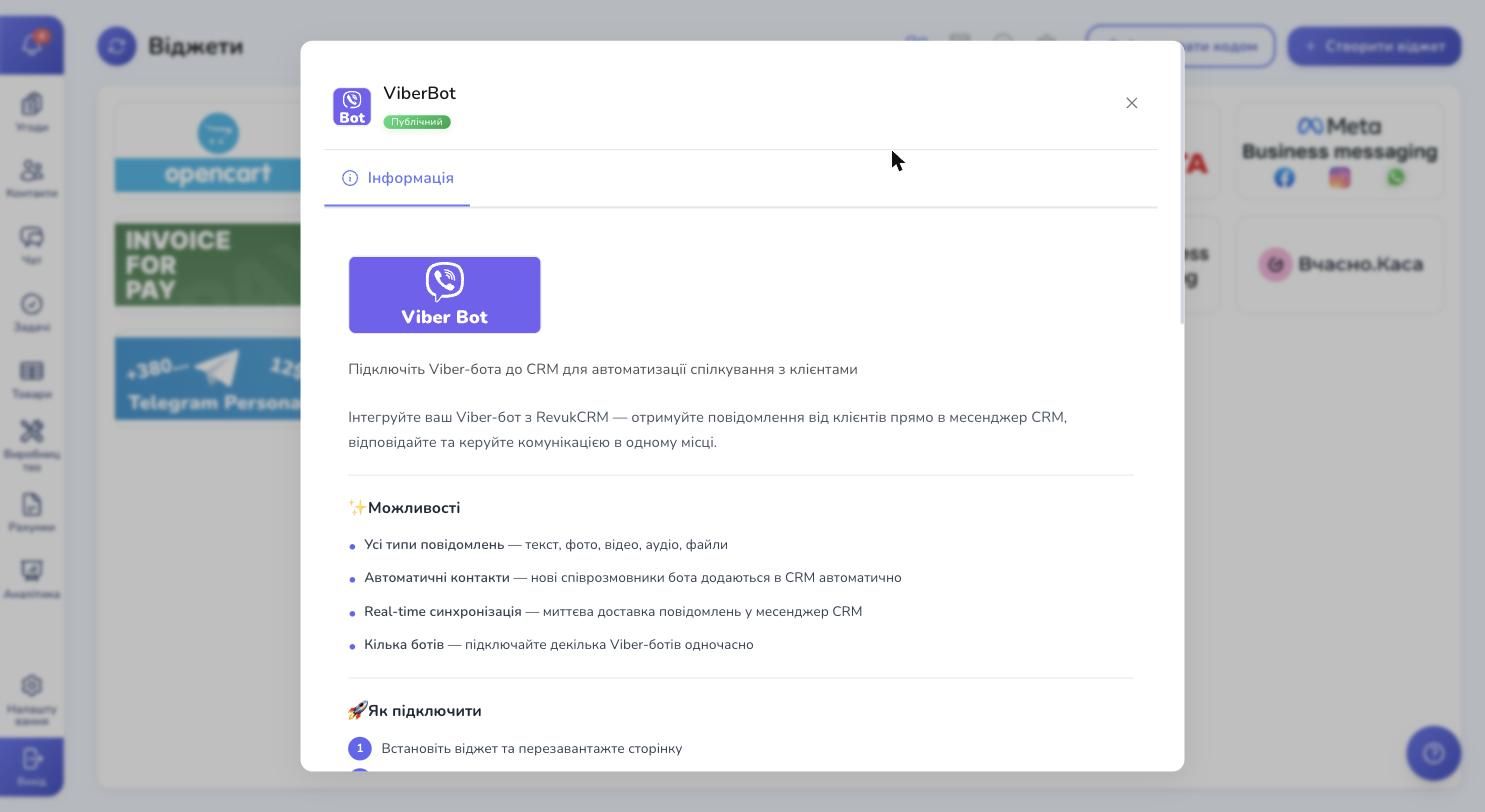
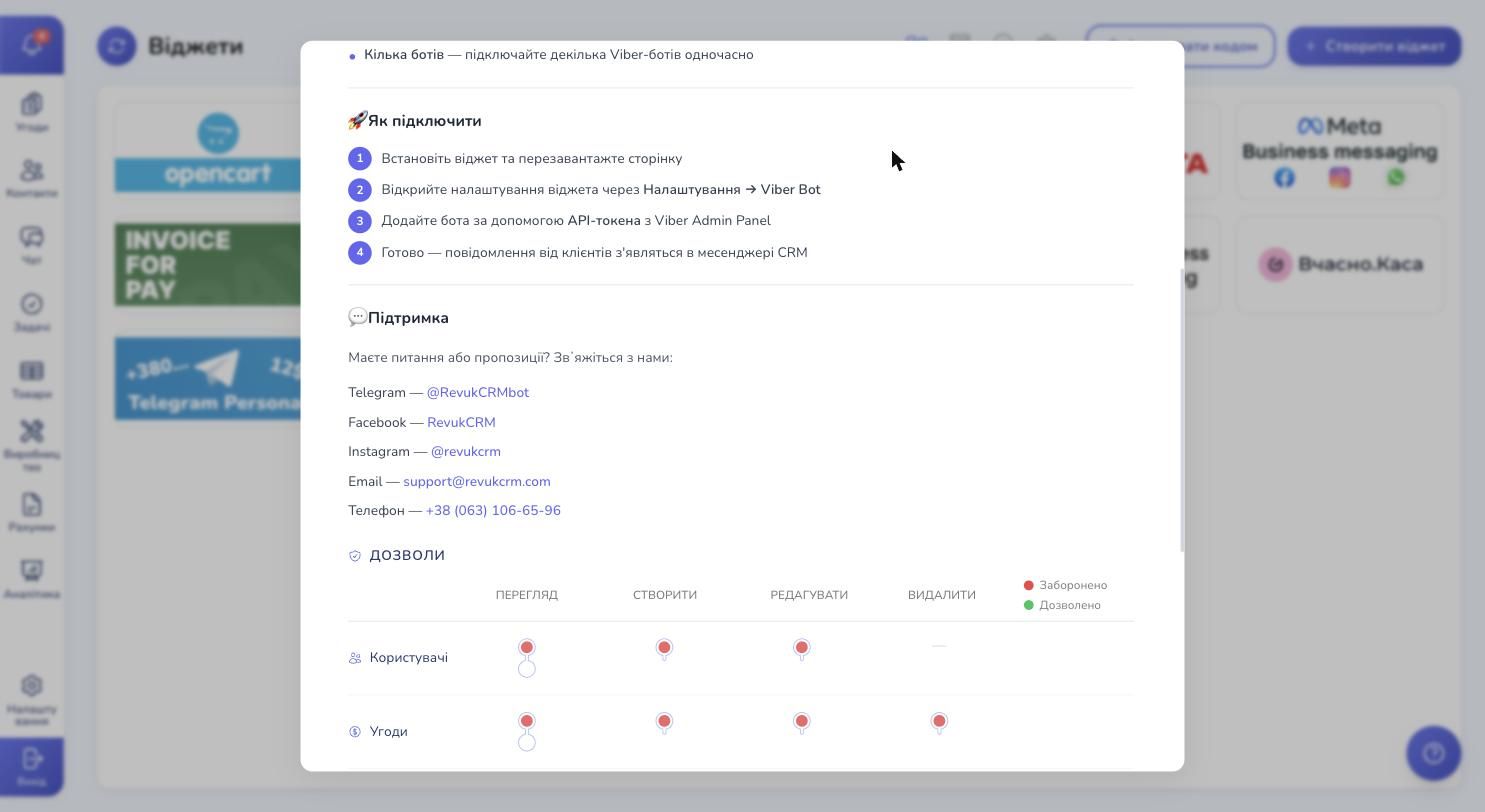
Scroll down — you'll see the How to connect block with four steps, a Support block with team contacts, and a Permissions table that shows exactly what the widget can do with your CRM data (read chats, create contacts, manage channels).
Step 4. Install the widget
At the very bottom hit Install. A second later the button turns red and says Uninstall — that means the widget is now linked to your RevukCRM account.
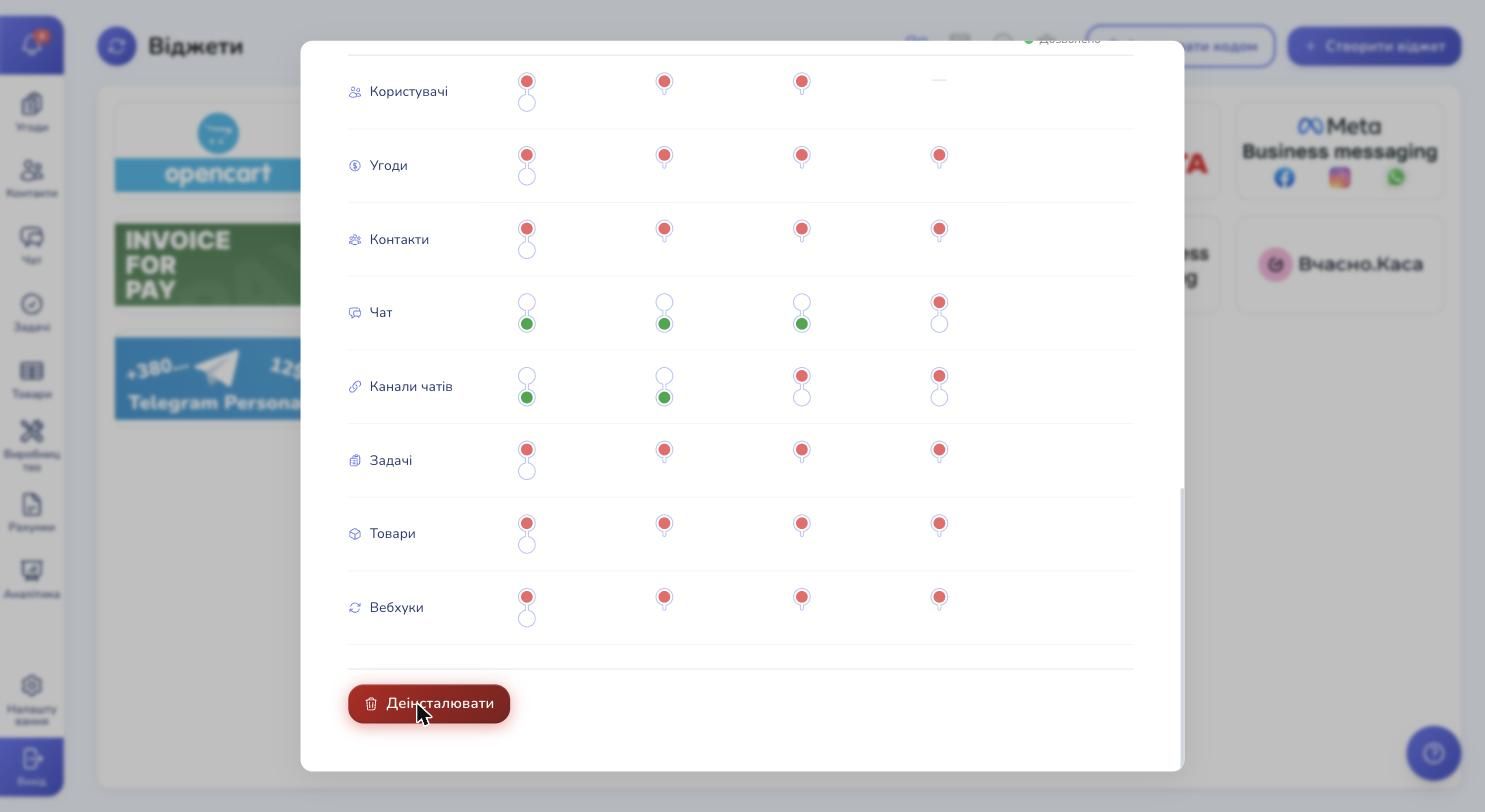
Close the modal and reload the browser page. That's required so new entries the widget adds to Settings show up.
Step 5. Go back to Settings
Open Settings again from the side menu and scroll past the Integrations block. A new Widgets block now contains a Viber Bot card. Click it.
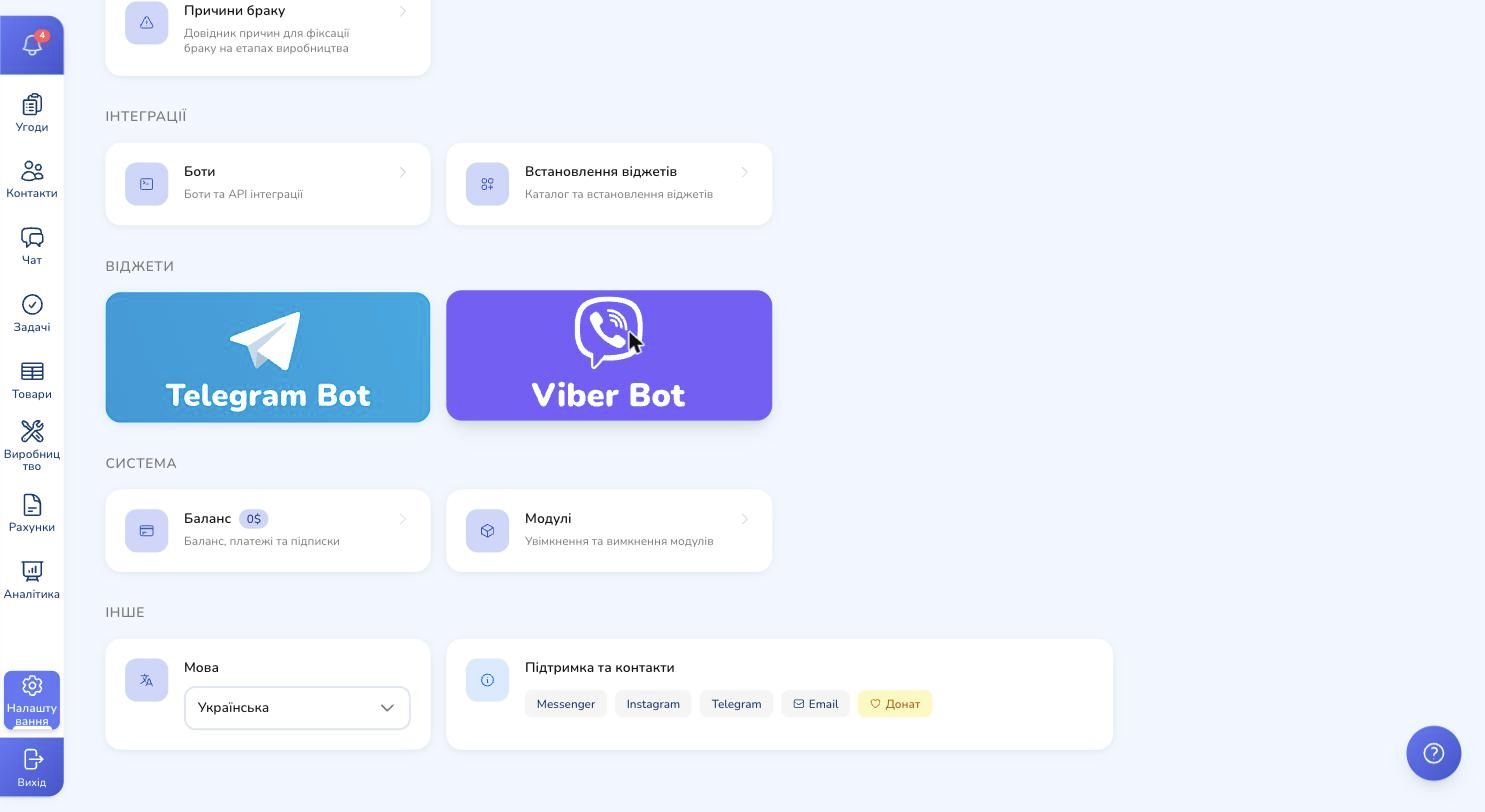
Step 6. Add your first bot
On the first run you'll see an empty state: "No accounts. Add a Viber bot." Hit + Add in the top-right corner.
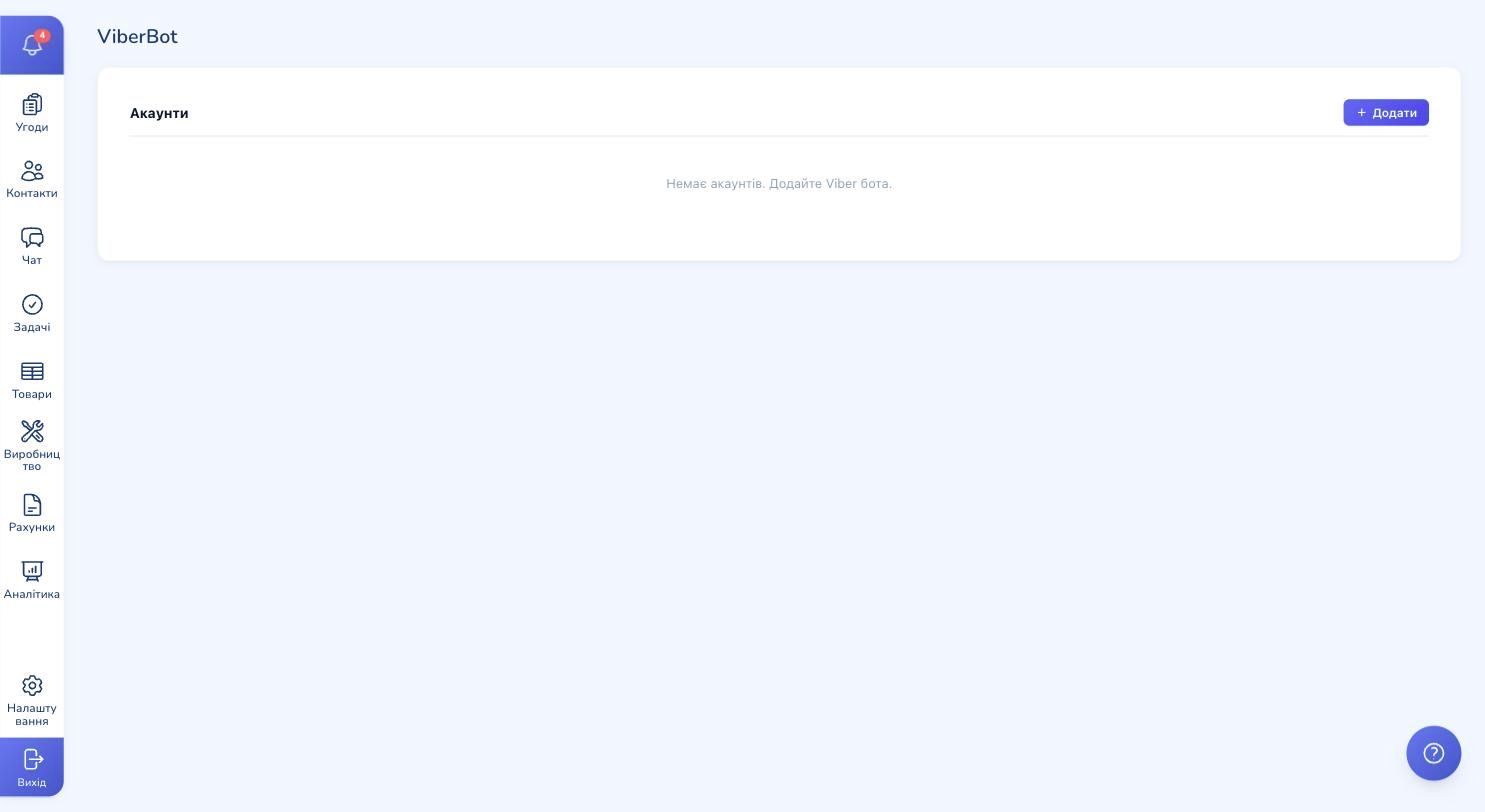
A form opens with two fields:
- Name — how this bot is labelled inside CRM. Useful when you'll add more than one (think "Main channel" or "Support" rather than the brand name)
- Token — the Authentication Token from your Viber Admin Panel
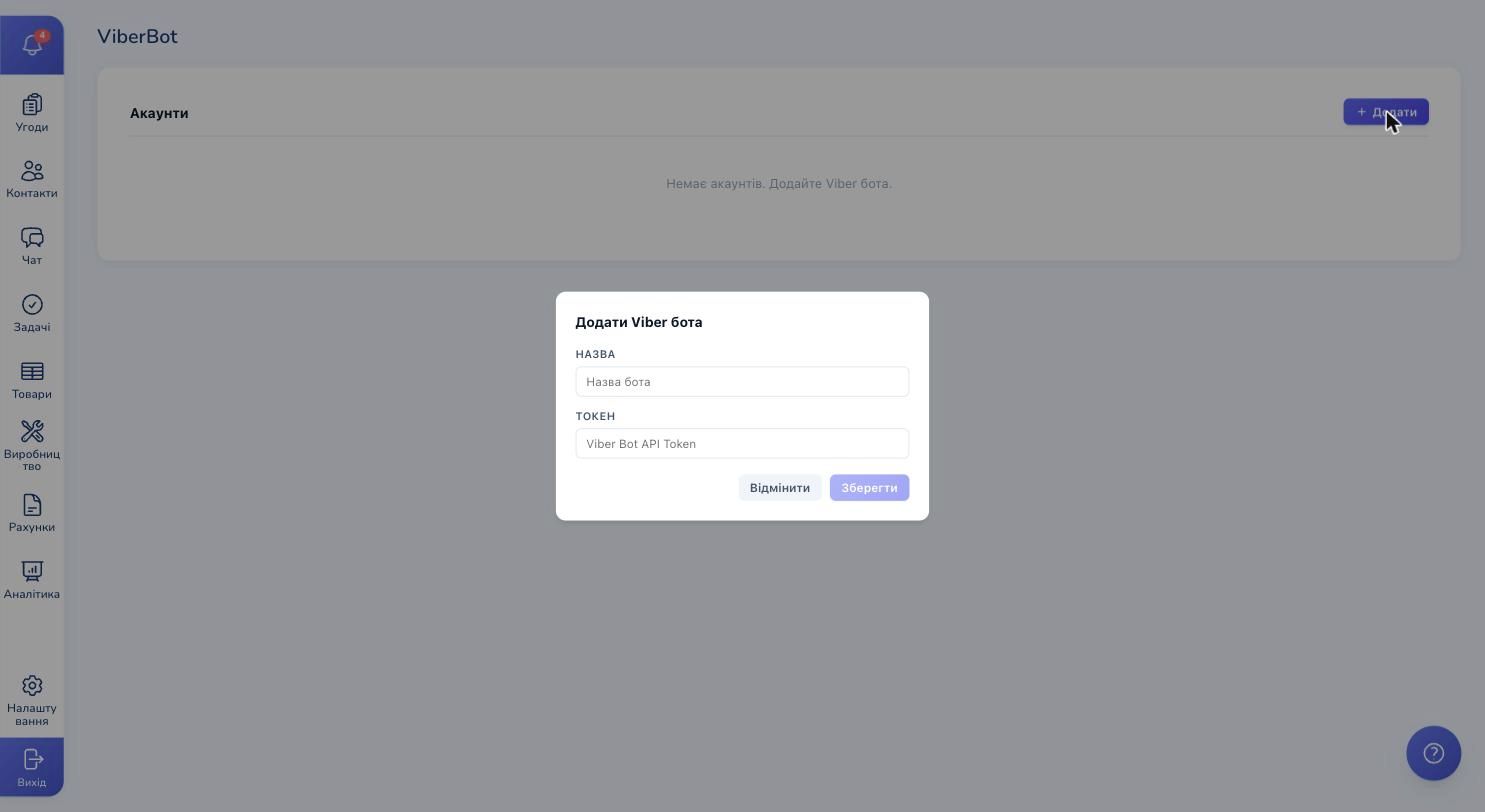
Type the name, paste the token. The Save button becomes active.
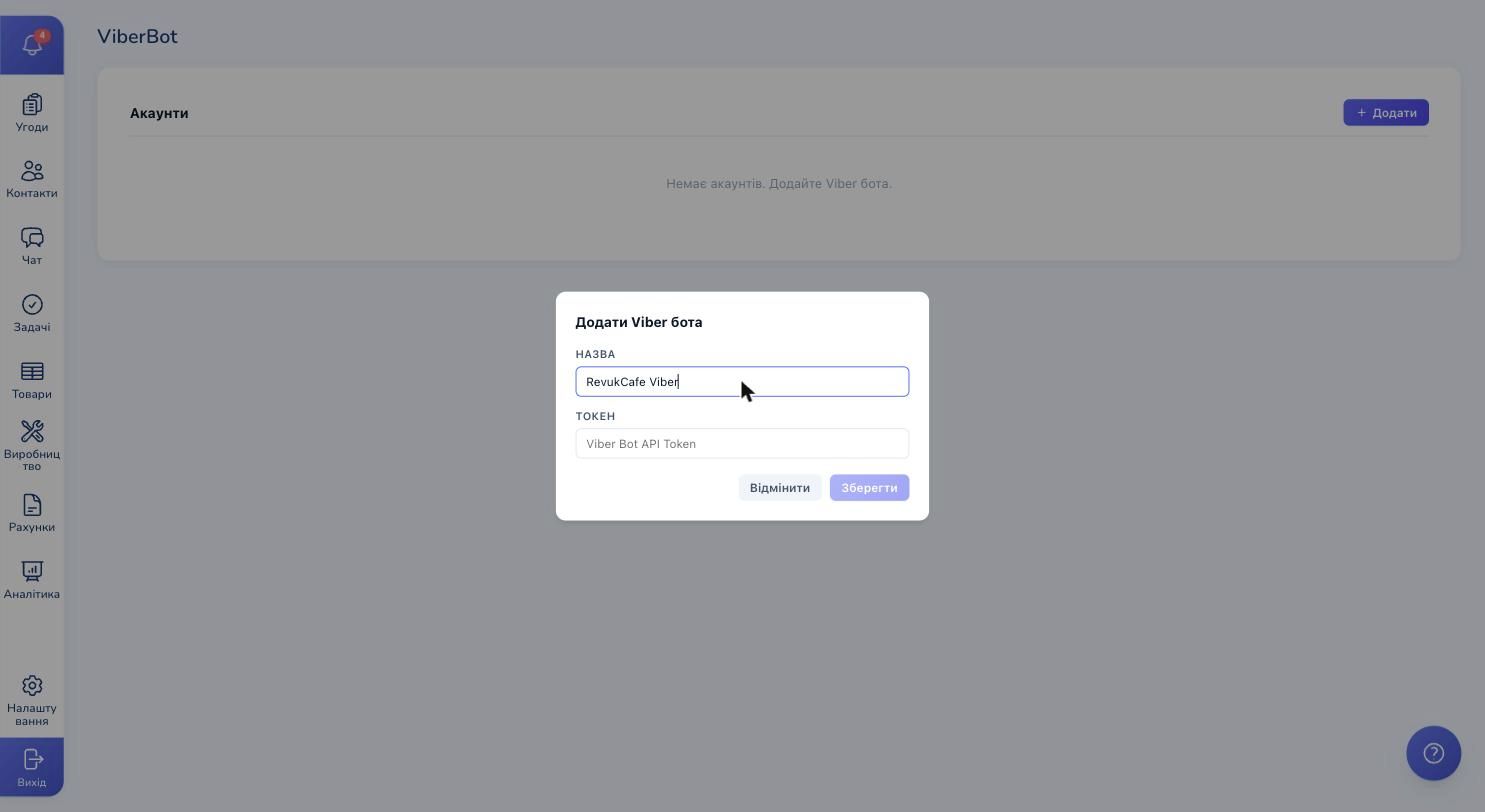
Hit Save. RevukCRM validates the token against Viber and links the bot to your account. If the token is invalid, you'll see an error and the form stays open for you to fix it.
Step 7. Confirm the bot is listed
The bot now appears in the list with its name. Next to it is a trash icon for when you'd want to remove it.
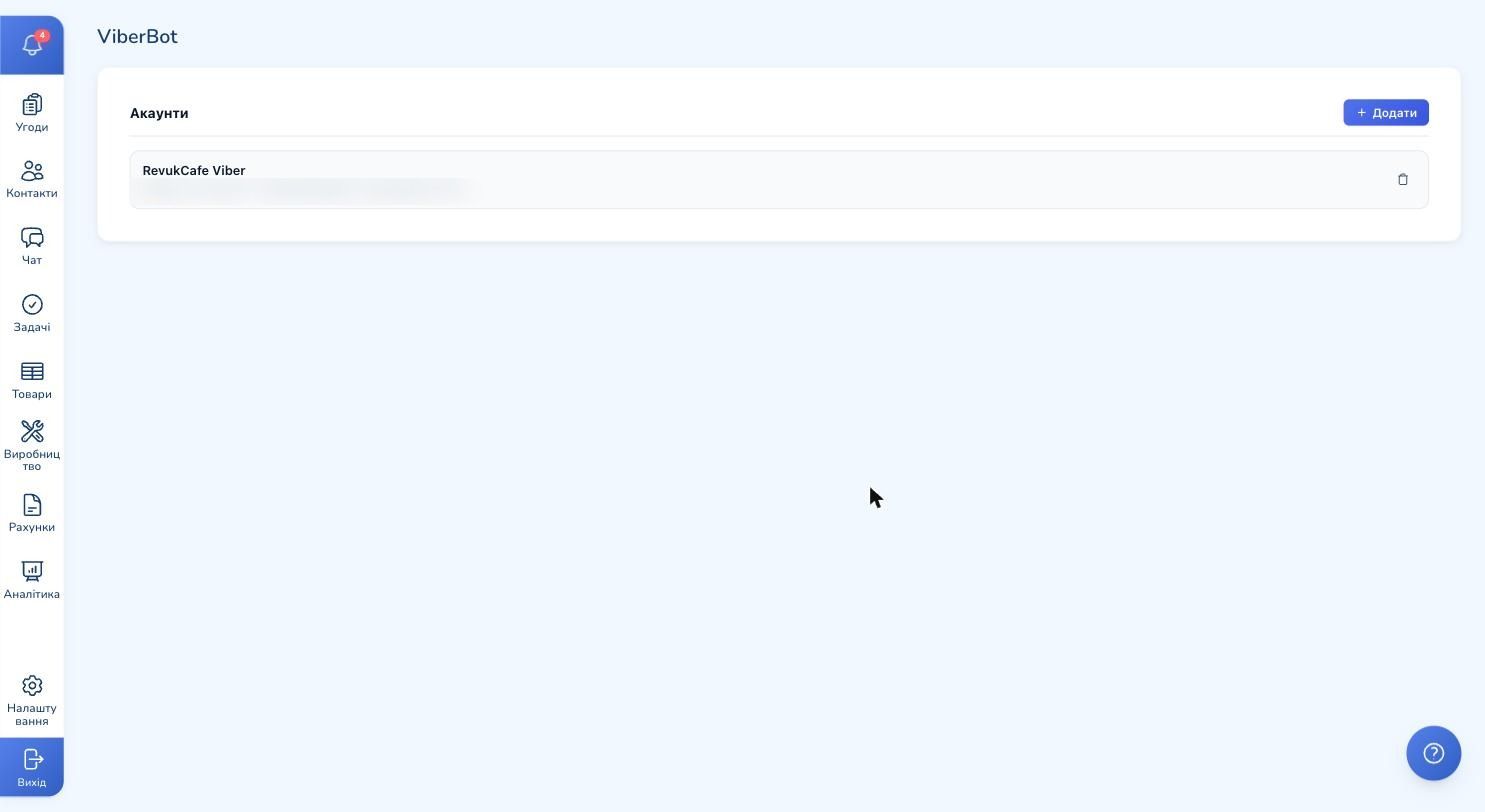
From this point every message your customers send to your Public Account lands in CRM. To confirm, ask someone to find your Public Account inside Viber and send a test message.
Step 8. Check the first message in the CRM inbox
Open the Chat section from the side menu. A new conversation appears in the list — the customer's Viber profile name, avatar, and a preview of the last message.
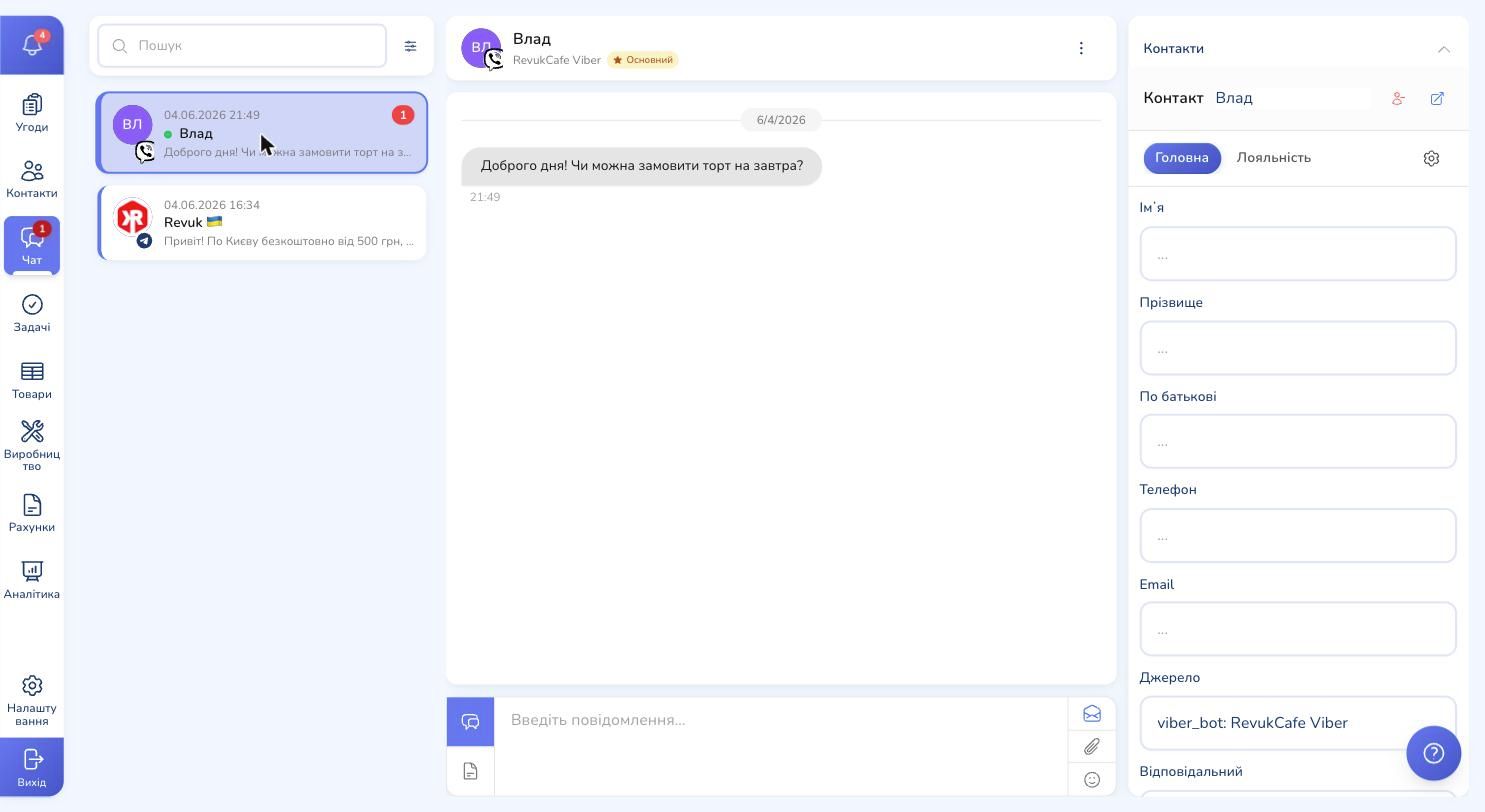
The contact card on the right is populated immediately: first name, last name, phone, email — and a source field viber_bot: RevukCafe Viber so you immediately know which channel the customer came in through. First-time customers get a new contact created automatically.
Step 9. Reply from CRM
Click the chat, type a reply in the bottom field, hit Send. The customer receives the message in their Viber from your Public Account — the same way they receive anything from any other brand in Viber.
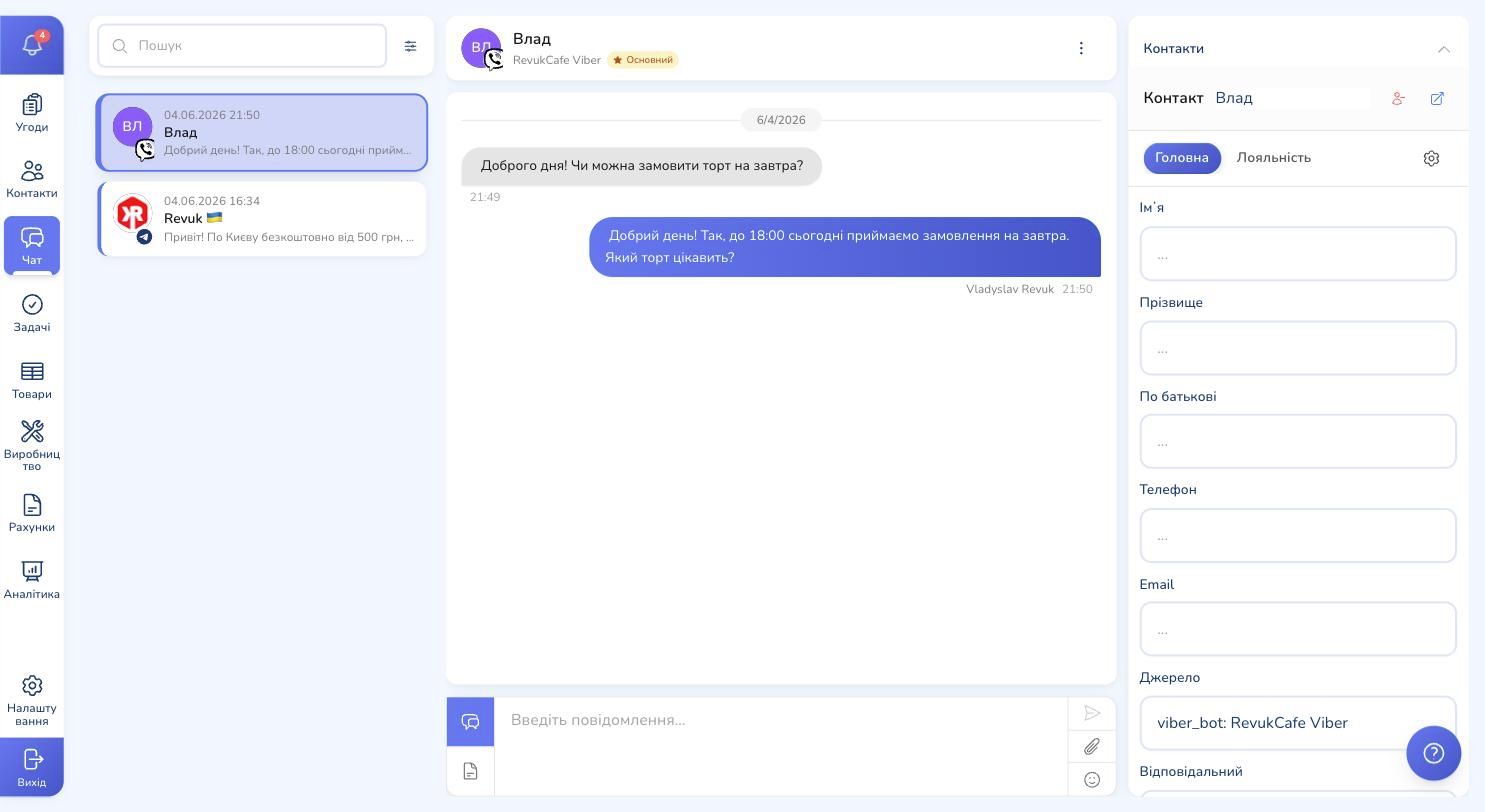
The reply shows the operator's name and the timestamp. Every conversation stays in CRM forever — even if a salesperson leaves the company, the next one sees the full chat history with each customer.
Setting up automations for Viber chats
A Viber bot triggers all standard rules in RevukCRM. The most common setups:
- Welcome message — first-time customer writes, the bot replies "Hi! A manager will be with you shortly"
- Out-of-hours reply — message arrives at 11pm, customer gets "We're closed for the night, back at 9am tomorrow"
- Deal creation — new message in an empty chat → a deal lands at the "New lead" stage, linked to the contact
- Manager assignment — incoming messages get distributed round-robin or by your routing rule
- Stale-deal nudge — customer hasn't replied for three days → the bot sends "Hi! Quick check-in on your order?"
All of this lives in Settings → Automation, identical to setup for any other channel.
Multiple bots for one company
One Public Account = one channel = one face of the brand in Viber. If your business has several distinct lines worth separating, go back to Settings → Widgets → Viber Bot, hit + Add again and add another token from another Public Account.
Useful splits:
- Main channel for orders and consultations (Public Account "RevukCafe")
- Support for complaints and quality issues (Public Account "RevukCafe Support")
- Delivery for order tracking (Public Account "RevukCafe Delivery")
Conversations from different Public Accounts live in one CRM inbox, but each contact's card shows which channel they came in through.
Ready to connect a Viber bot to your CRM?
Try RevukCRM for free — install the widget in a minute, and your team handles every Viber chat from one shared inbox with full history kept forever.