
Custom Fields for Contacts and Deals — Make CRM Fit Your Business
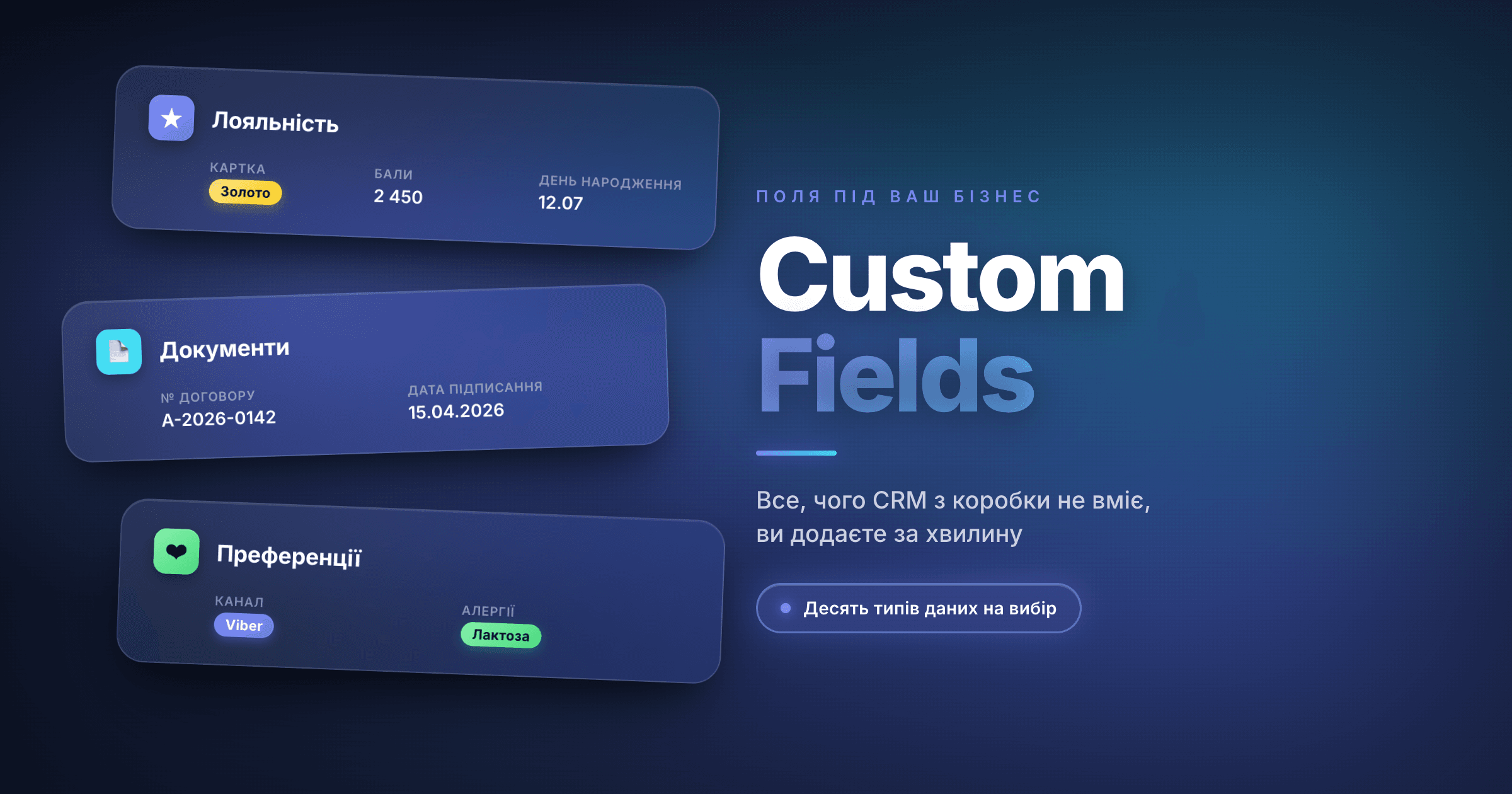
Every business tracks different things about its customers. A café cares about food allergies and a favorite drink. A repair shop needs the device model and warranty number. A B2B agency wants job title and LinkedIn. When a CRM ships with one rigid field set, half of what matters ends up in scattered notes, spreadsheets, and someone's head.
RevukCRM solves this with custom fields: any data point worth remembering about a contact or deal goes straight into the card — in a minute. Pick the field type from ten options, group fields into categories so the card stays readable, and you're done.
What custom fields are
A contact's stock fields are first name, last name, phone, email, source, assigned user. A deal's stock fields are name, amount, date, status, owner. That covers any classic sales flow, but rarely covers your business.
Custom fields sit on top of the standard ones. You name them whatever you want, pick a type (text, number, date, dropdown — see the full list below), and link them to a category. They show up in every contact or deal card immediately.
Custom fields work in three places:
- Contact — loyalty card tier, birthday, preferred product category
- Deal — budget, lead channel, deadline, link to the brief
- Task — for specialized task types (production, warehouse, warranty)
This guide walks through the contact setup. Deals work identically — only the gear icon for opening settings lives inside the deal card instead.
Categories and fields: two levels of organization
Custom fields live inside categories. A category is a labeled section that groups related fields. Every contact card already has a "Main" category with the standard system fields. You can't delete it, but you can add custom fields underneath.
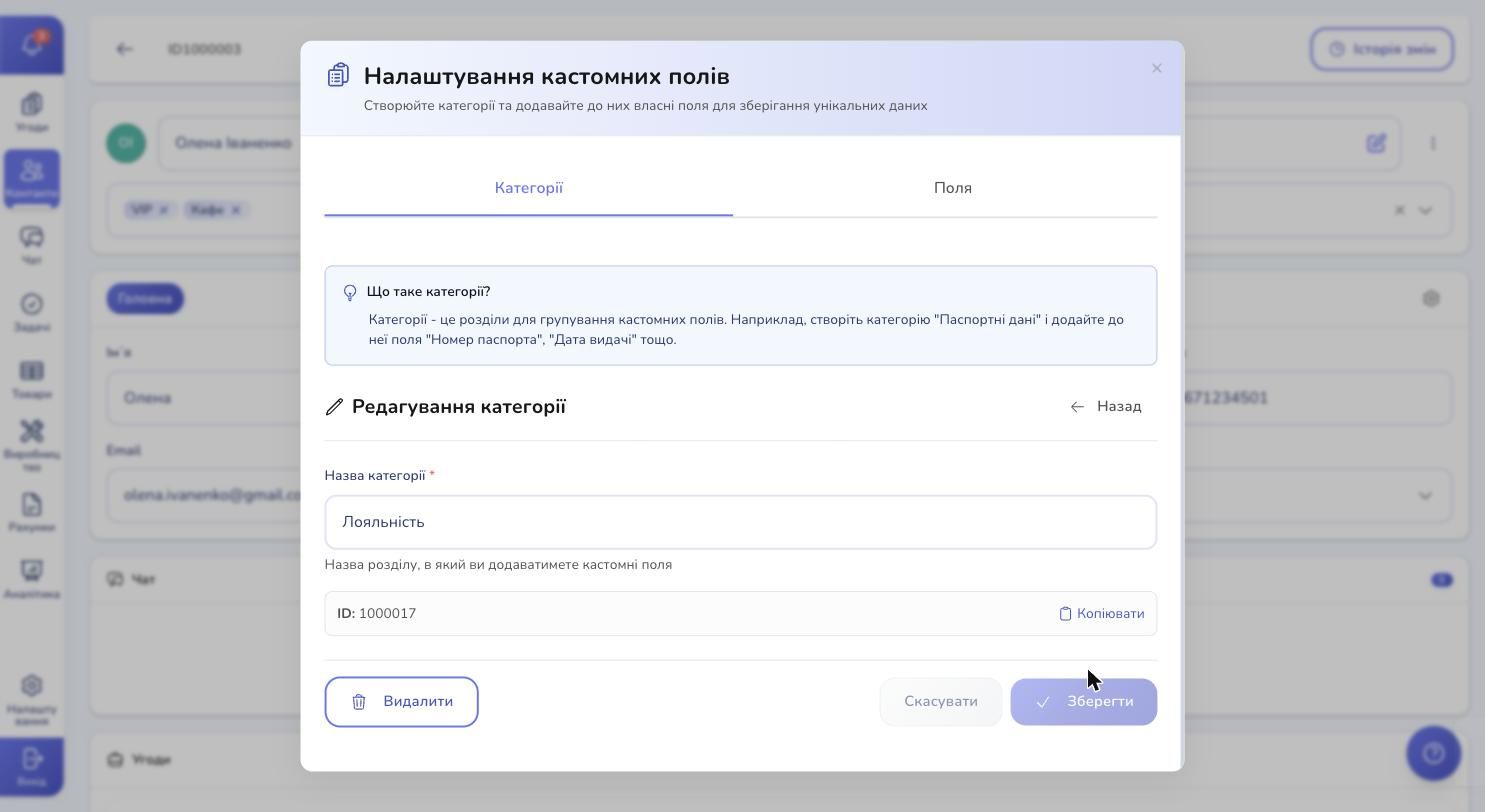
Your own categories are for data clusters that make sense to keep apart. For example:
- Documents — passport number, tax ID, issue date
- Loyalty — tier, points, birthday
- Preferences — favorite cuisine, allergies, communication channel
- B2B — company, role, LinkedIn, quarterly budget
Categories keep operational data separate from sales data, so a salesperson doesn't have to scroll past logistics fields they don't care about. Each category becomes its own tab on the contact card — one click to switch.
Ten field types for any kind of data
When you create a field, you pick its type from a ready-made list. The type decides how the field looks in the card and what values it accepts.
The available types:
- Text — short string: pet name, apartment number, company
- Number — for numbers: number of kids, square meters, budget
- Checkbox — yes/no: "consents to marketing", "has loyalty card"
- Dropdown — one option from a list: card tier (Silver / Gold / Platinum), shirt size, city
- Multi-select — several options from a list: allergies, interests, languages
- Date — birthday, contract date, warranty end
- Date and time — precise moment: appointment, deadline with a specific time
- URL — link with an "Open" button: social profile, brief, Google doc
- Text area — long text: rep's notes, interaction history, special requests
- Radio buttons — like a dropdown, but all options show at once (handy when there are 2–3)
One key thing: you can't change the field type after creating it. If you set up "Budget" as text and later want a number for analytics, you'll have to create a new field and move the data over by hand. Pick the right type the first time.
Creating your first category
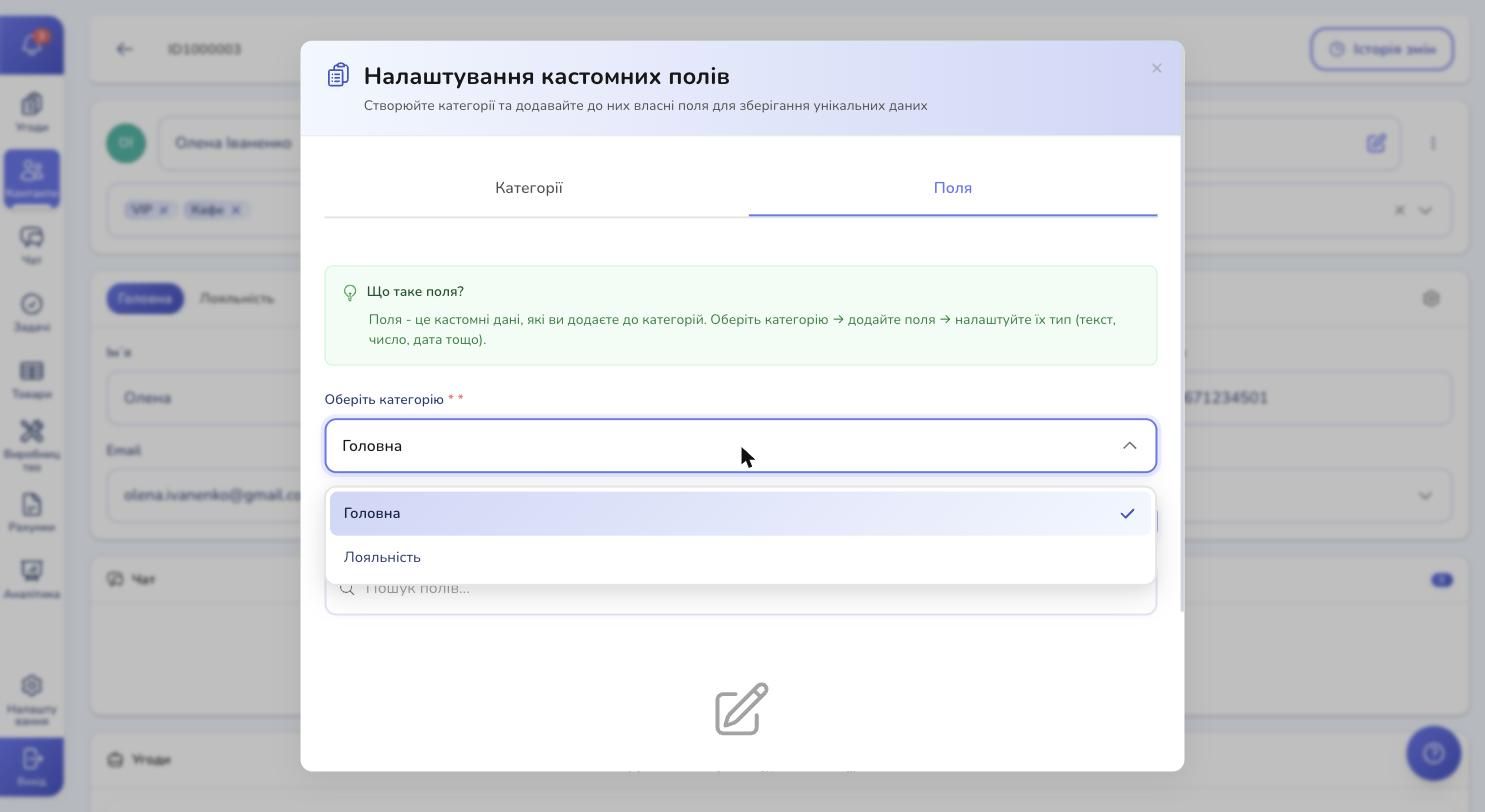
Next to the category tabs in any contact card, there's a gear icon — that's the entry point to custom fields settings. Click it, and a modal opens with two tabs: "Categories" and "Fields".
On the "Categories" tab you hit Create Category, enter a name (say, "Loyalty"), and save. Done — the category appears in the list and instantly becomes a new tab inside the contact card.
If you make a typo in the name, edit and save again. The name updates across every card. The "Main" category can't be renamed or deleted — it holds the system fields.
Adding fields to a category
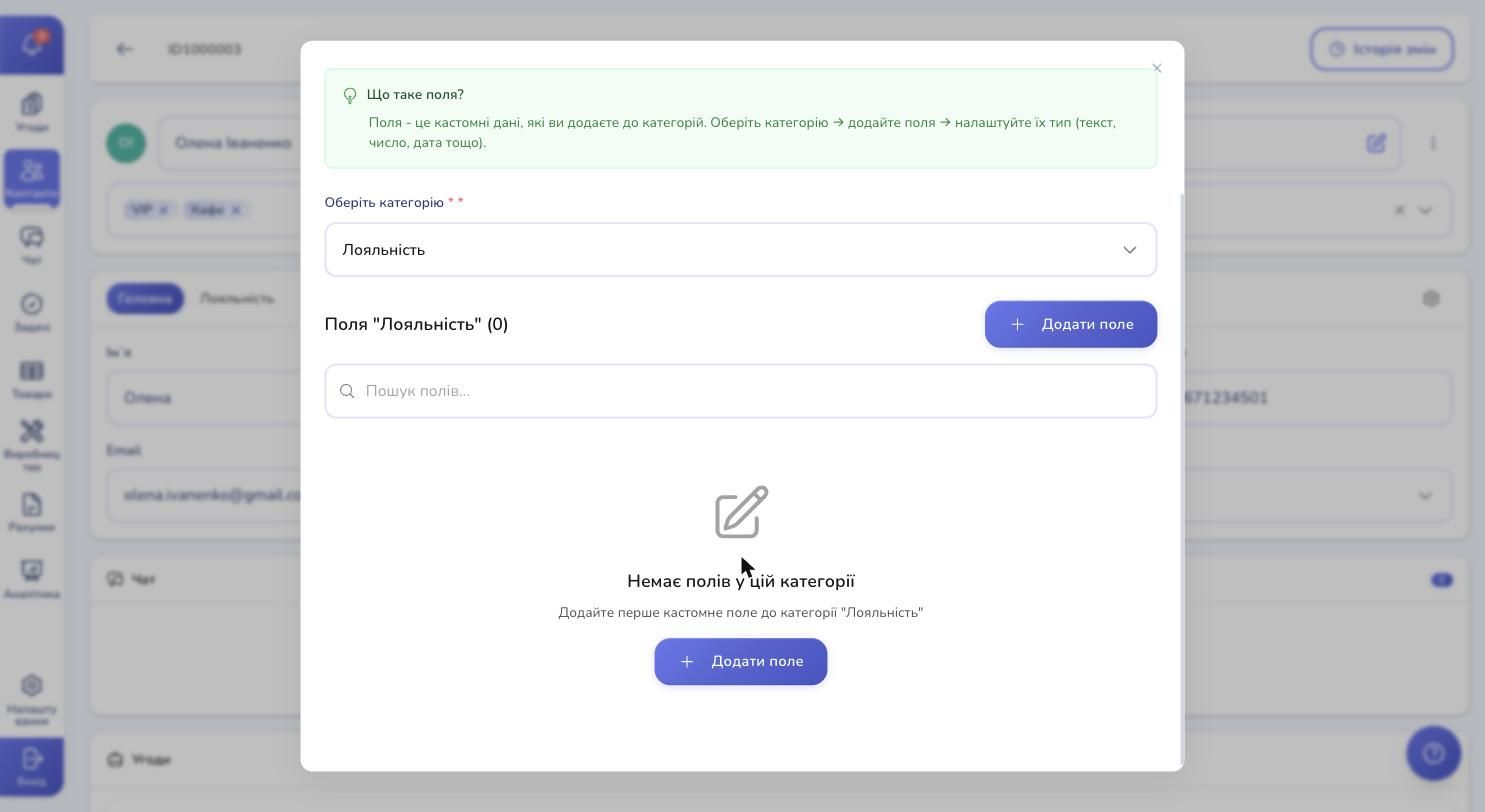
Switch to the "Fields" tab, pick a category from the dropdown at the top, click Add Field. The form has three pieces: name, type, and — if the type needs them — a list of options.
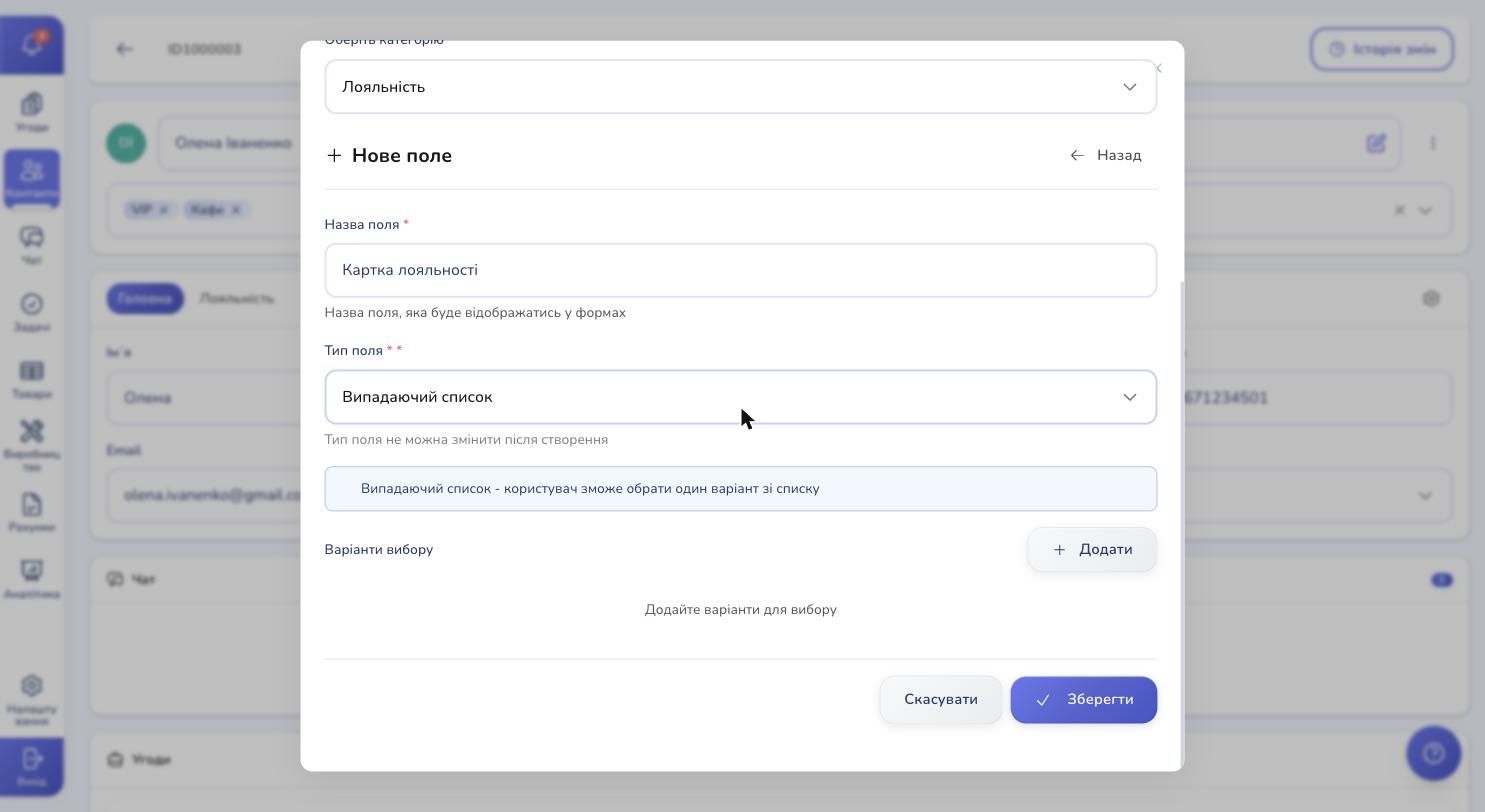
The name is what shows up in the contact card. The type defines the data format. If you pick "Dropdown", "Multi-select", or "Radio buttons", a "Choices" block appears below — add as many options as you need, one per line.
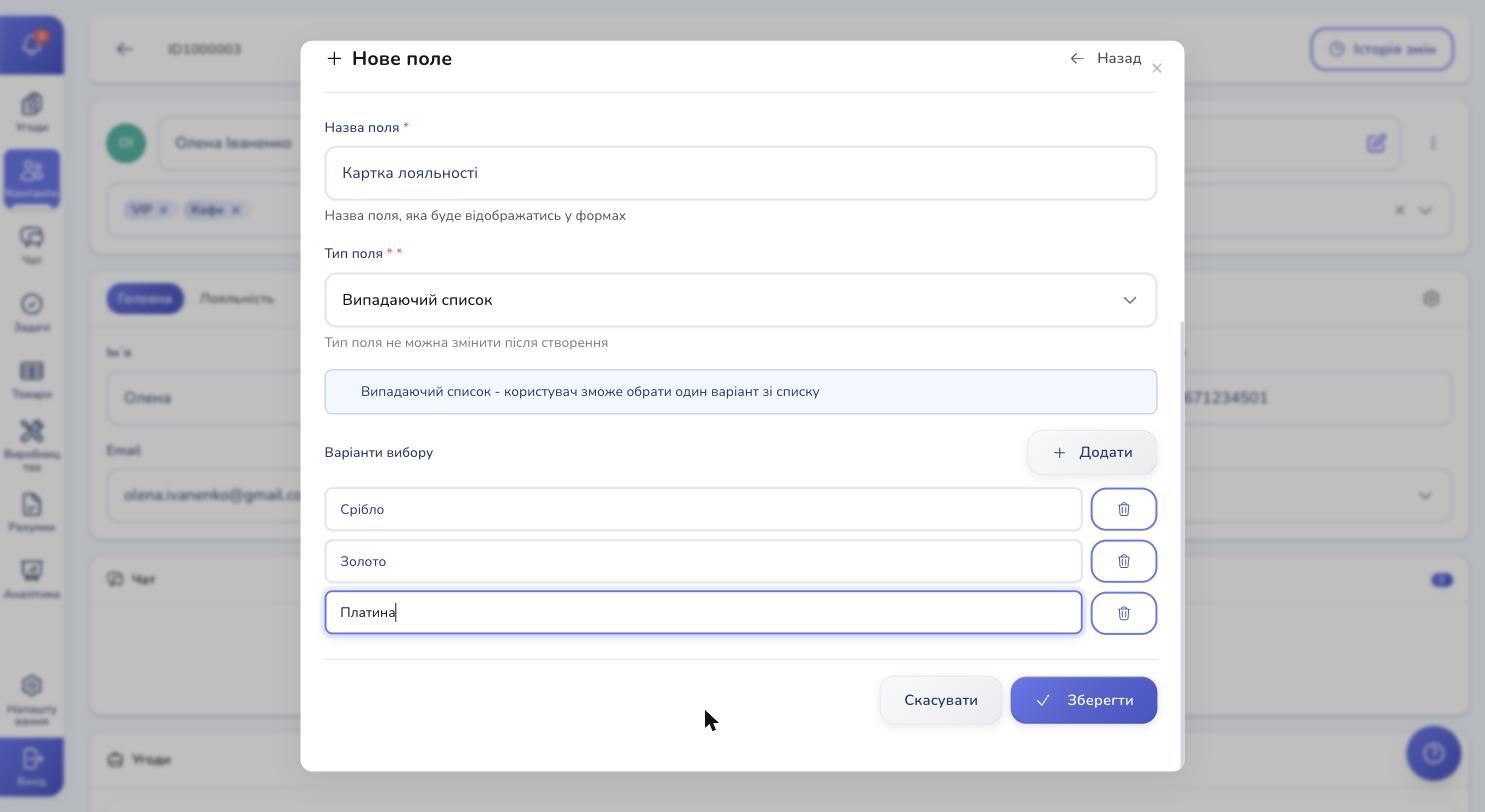
For example, a "Loyalty Card" field with "Silver", "Gold", "Platinum" options gives you a built-in customer tier system tied to each contact. Or a "Size" field with "XS / S / M / L / XL" saves your team from typos that crash analytics later.
Hit Save — the field shows up in the category's list and is immediately available in every contact card.
How it looks inside the contact card
This is the payoff.
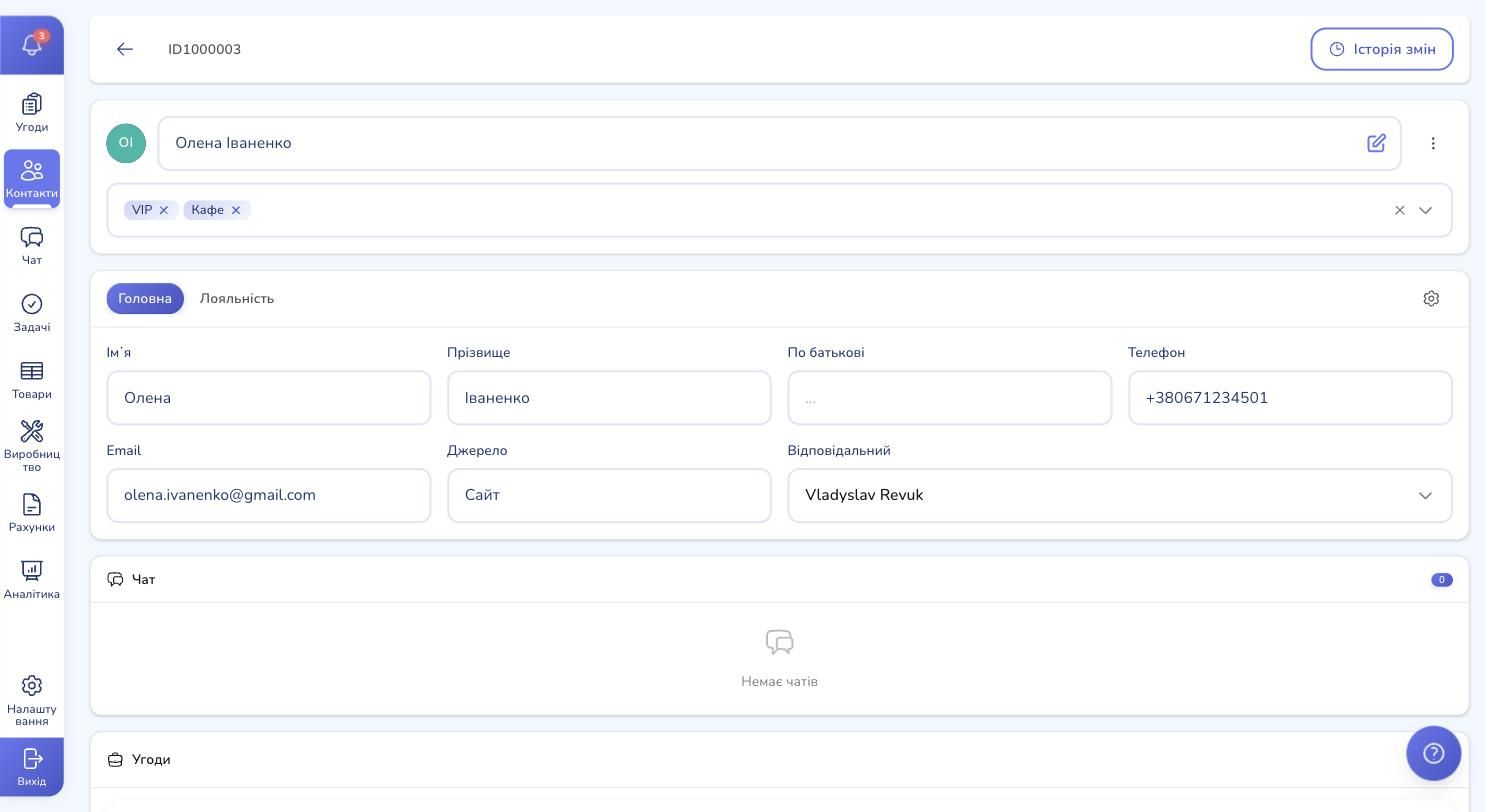
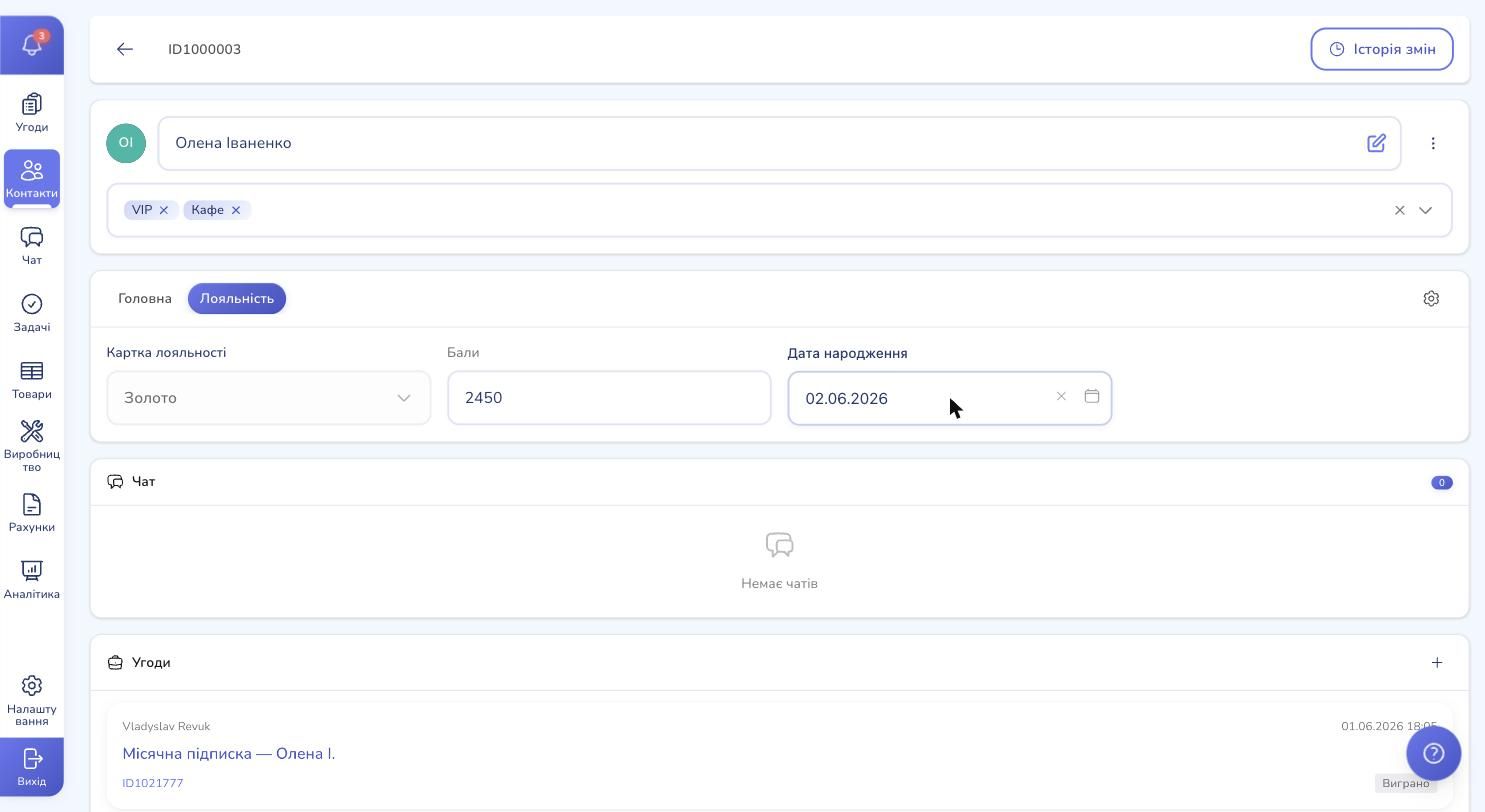
Above the fields you now see tabs — "Main" plus each of your categories. Switch to "Loyalty" and your custom fields show up in a clean grid. On a wide screen the layout breaks into four columns, on a laptop three, on a phone they stack vertically. Text areas and radio buttons span two columns automatically so they don't look cramped.
Filling them is intuitive:
- Text and number — click, type, move on — saved
- Dropdown — click, pick — saved
- Date — click, pick a day in the calendar — saved
- Checkbox — flip the toggle — saved
- URL — paste a link, an "Open" button appears next to the field
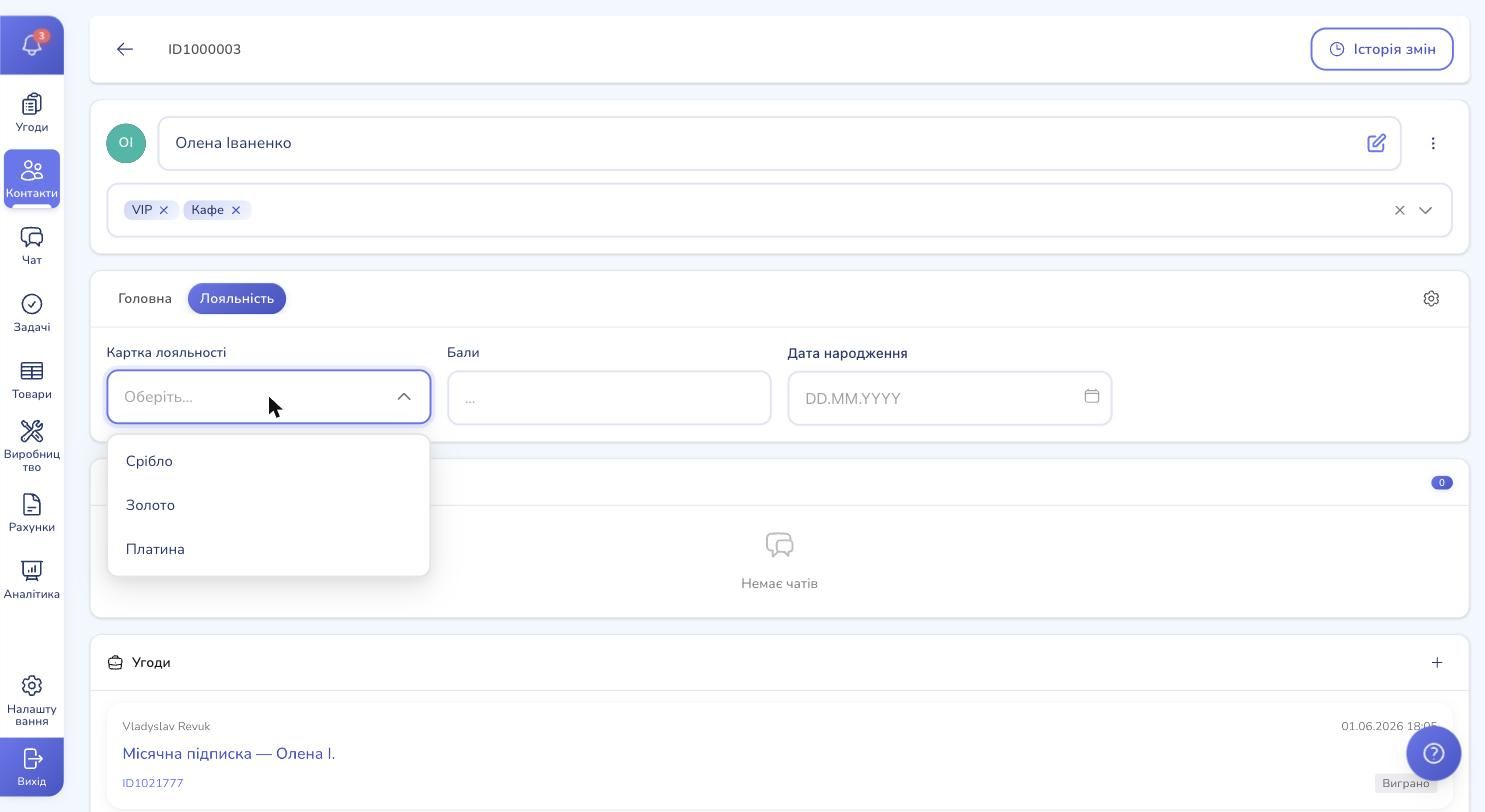
Every change syncs to the server right away — no separate "Save" button. You can fill in one field, close the tab, come back a week later, and everything is exactly where you left it.
The same setup works for deals
Everything above applies to deal cards too. Open any deal, find the gear icon next to its category tabs, click it — the same modal opens with categories and fields. You might create a category called "Order Details" with fields like "Lead Channel", "Expected Shipping Date", "Brief Link", "Urgency". The fields become available in every deal across your company.
Contact custom fields and deal custom fields are separate sets. The loyalty card you set up for contacts won't show in deals, and vice versa — which is exactly right, since the data means different things.
Field IDs and why you'd copy them
Next to each category and each field in settings, there's a small clipboard icon labeled "ID". This is the field's unique identifier in the system.
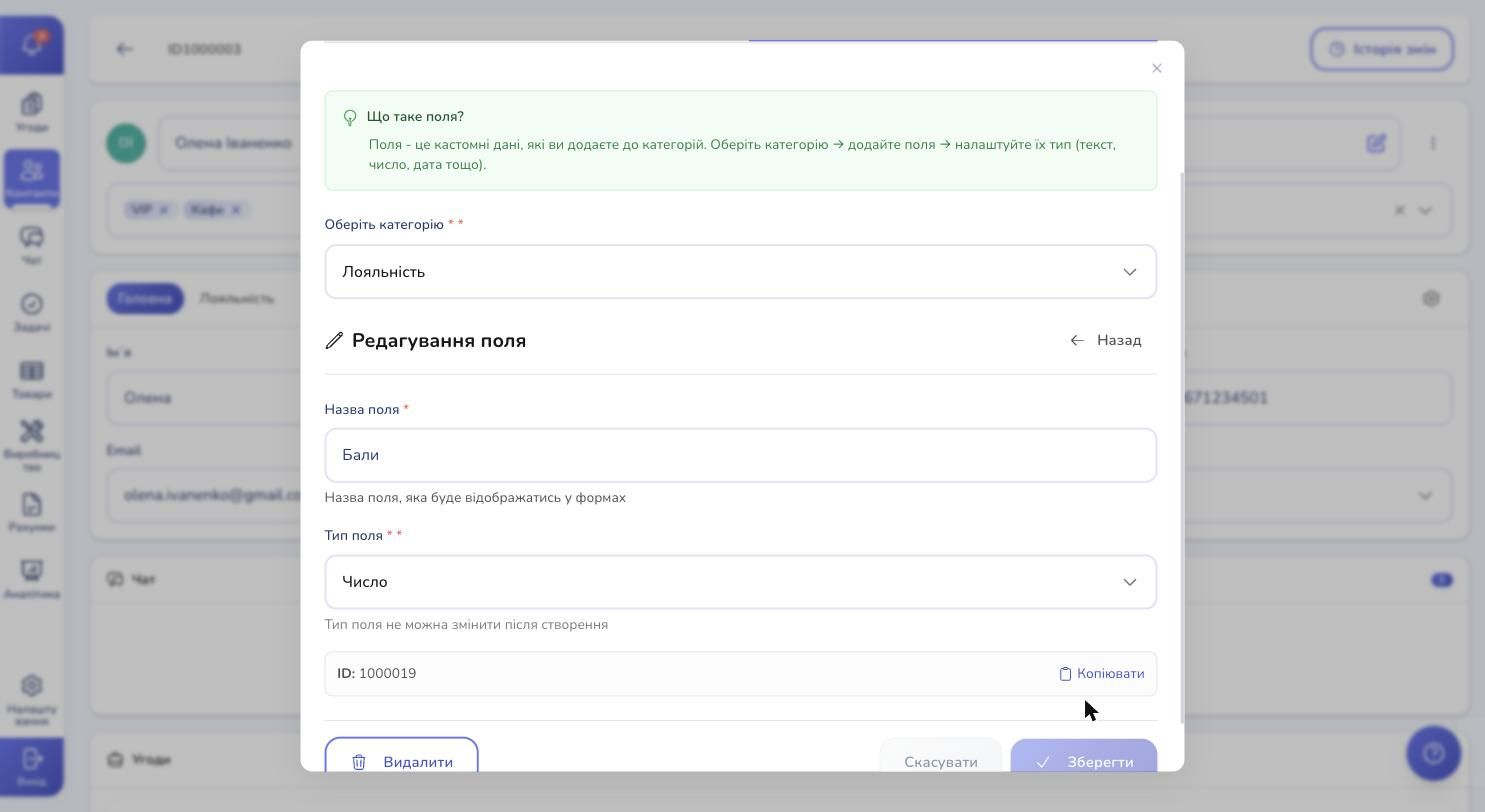
When you'll want it:
- Setting up automations — so a trigger can reference this specific field
- Connecting an external service — for example, syncing a loyalty card with your accounting software
- Talking to support — if something goes sideways, the ID lets the team find your field in the logs fast
Click the icon — the ID copies to the clipboard, and a "Copied" confirmation appears.
A few things to think about before going live
Don't pile on categories. Two to four categories per contact is the sweet spot. Six or more and you'll forget where each field lives — every click between tabs becomes a search.
Name fields clearly and concisely. "Birthday" is fine. "BDay" isn't. "Birthday of the client (important!)" is worse. Picture a teammate opening the card for the first time — they should understand each field without explanation.
Pick the right type. A "Budget" stored as a number lets you filter clients by amount. A "Budget" stored as text ("50,000 USD") doesn't. If you plan analytics or filters, use number or date, never text.
Deleting a field destroys its data everywhere. Before deleting, double-check that no one needs the data — there's no undo. If in doubt, rename the field to "ARCHIVE: old budget" and leave it for a month or two.
Deleting a category deletes its fields too. Removing a category wipes out the category, all its fields, and every value in every contact at once. The app shows an extra confirmation — read it carefully.
Custom fields are the tool that turns a stock CRM into your business's CRM. Set them up once, and you get a system that speaks your team's language.
Ready to tailor your CRM to your business?
Try RevukCRM for free and add the exact fields your team actually needs to contacts and deals. No limits on categories or fields.
Tags