
Vchasno.Kasa in RevukCRM: Fiscal Receipts Right from the Deal Card
If you run a business in Ukraine that sells goods or services, fiscalizing receipts isn't optional — it's the law. Vchasno.Kasa is a Ukrainian software cash register (pRRO), and RevukCRM ships with a native integration that lets you issue fiscal receipts directly from a deal or contact card — manually with one click, or automatically the moment a customer pays.
This guide walks you through the full setup in about ten minutes.
What you get after connecting
- Fiscal receipts from inside the deal. A button on the deal card — the receipt is created and the fiscal number is bound to the deal and contact
- Customer receipt history. On the contact card you see every receipt for that client: sales, refunds, net totals, count
- Full automation. Set a trigger like "deal status → Paid" and receipts issue themselves
- Prepayments, postpayments, refunds. Every fiscal operation type is supported
- Payment mapping. Cash, card, wire transfer, mixed — each CRM payment method maps to its proper fiscal type
- Shift management. X-report, Z-report, auto-open on first receipt, scheduled auto-close
- Two connection modes. Cloud API for online businesses, Device Manager for POS hardware
Why Vchasno.Kasa
Vchasno.Kasa is a modern, reliable PRRO (software fiscal register) for businesses of any size, fully compliant with Ukraine's tax authority (DPS). Its standout advantage for Ukrainian merchants: the register keeps working even without electricity, internet, or connection. In offline mode you keep issuing fiscal receipts during blackouts, and once the connection is back, the data is sent to the tax authority automatically.
What Vchasno.Kasa brings on its side:
- Works without power or connection — offline mode for blackouts
- Tax-authority compliant — fully legal receipts
- Supports every acquiring type — accept payments any way
- Qualified support — help at onboarding and in daily work
- Part of the Vchasno ecosystem — document flow and other services in one place
- Constant updates — the service evolves with the market
Together, RevukCRM and Vchasno.Kasa cover the full cycle: from a deal in your CRM to an official fiscal receipt in your customer's hands.
🎁 50% off your first Vchasno.Kasa payment
A special offer for RevukCRM customers: 50% off your first payment for connecting Vchasno.Kasa.
Before you start
You'll need:
- An active Vchasno.Kasa account — sign up at kasa.vchasno.com.ua
- A cash register created in your Vchasno.Kasa cabinet (Trading Points → Cash Register)
- An API token for that register — we'll show you exactly where to find it below
Step 1. How to get your API token in Vchasno.Kasa
Sign in to your Vchasno.Kasa cabinet at kasa.vchasno.ua and open the Trading Points & Cash Registers section.
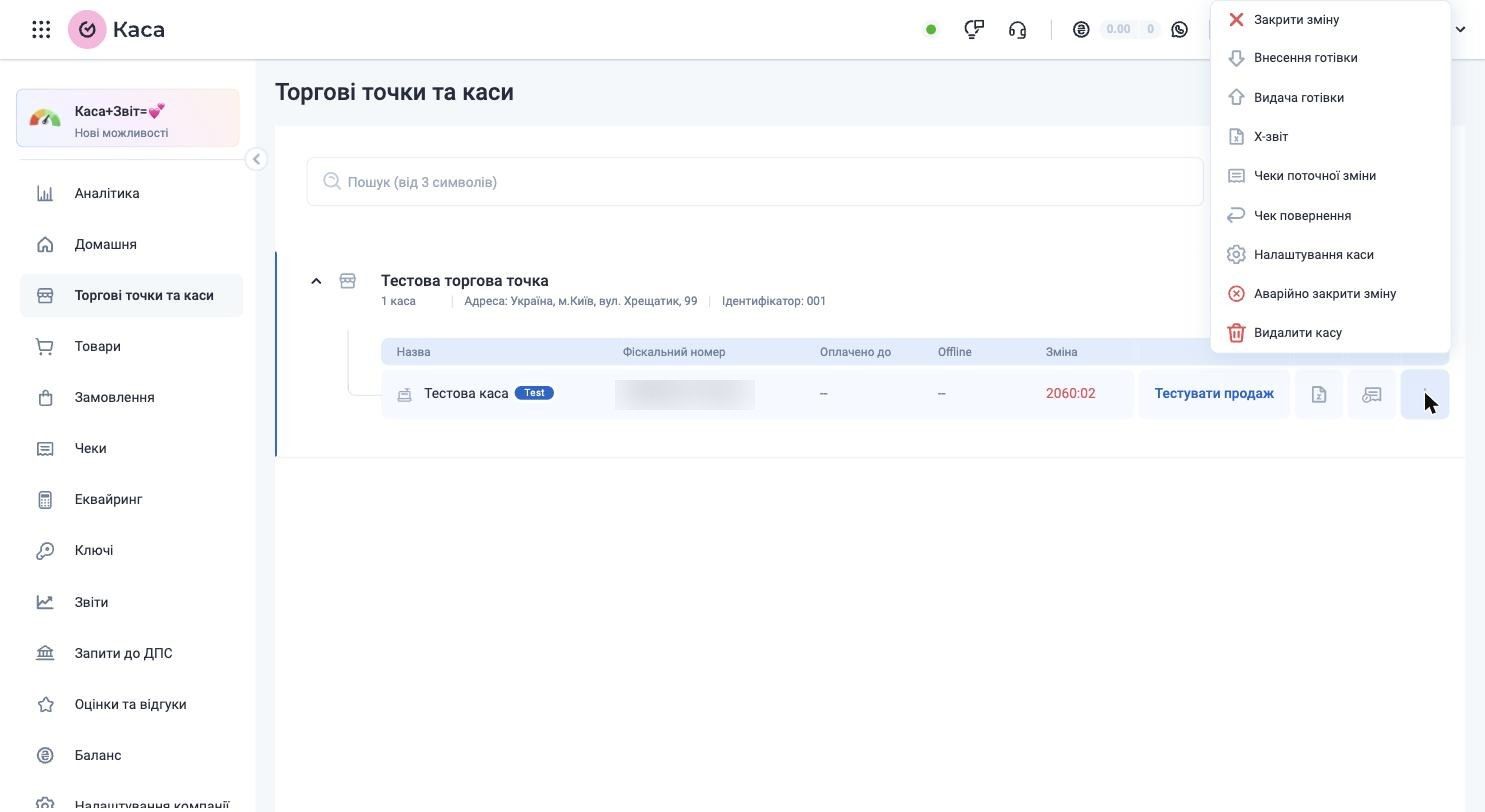
Find your register, click the three-dot menu (⋮) to the right of it and choose Cash Register Settings.
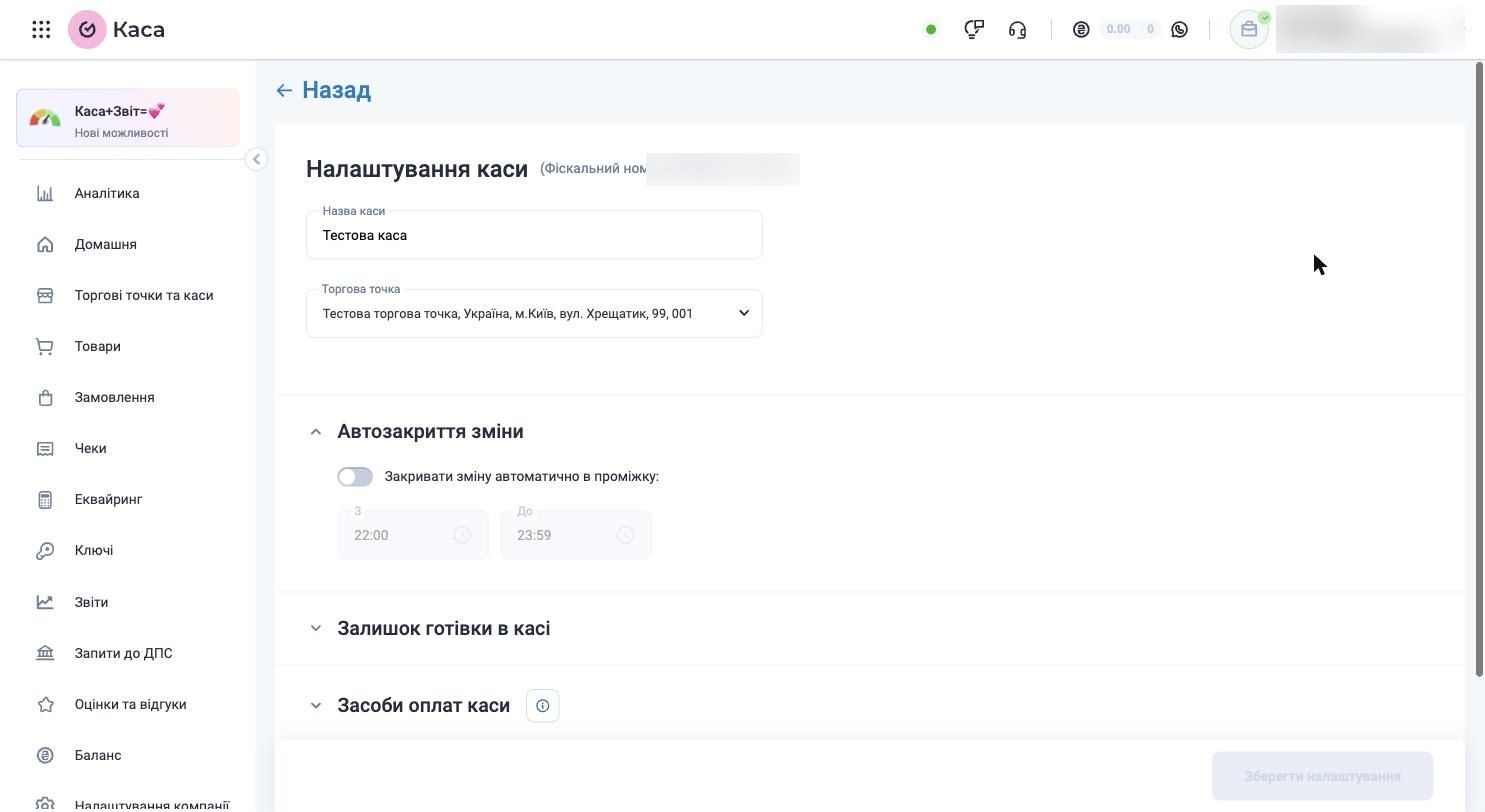
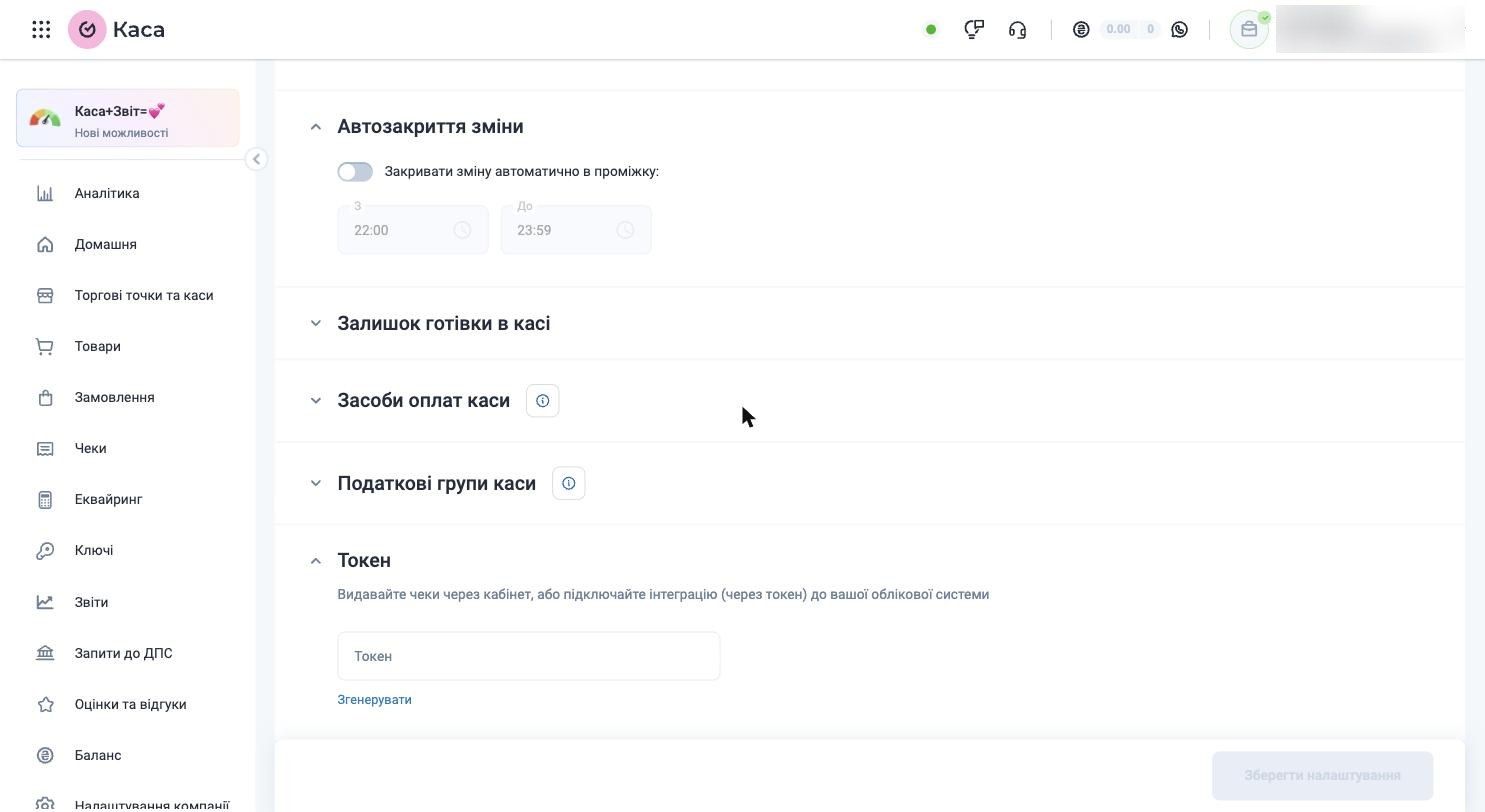
Find the Token section and expand it. If a token doesn't exist yet — click Generate and copy the resulting string. That's your API token for RevukCRM.
⚠️ Important: also remember the register name (the "Cash register name" field at the top) — you'll need to enter it in RevukCRM exactly as it appears here.
Step 2. Find Vchasno.Kasa in the RevukCRM marketplace
In RevukCRM open Settings from the sidebar. Under the INTEGRATIONS group, click the Install Widgets card — this is RevukCRM's marketplace with every ready-to-use integration.
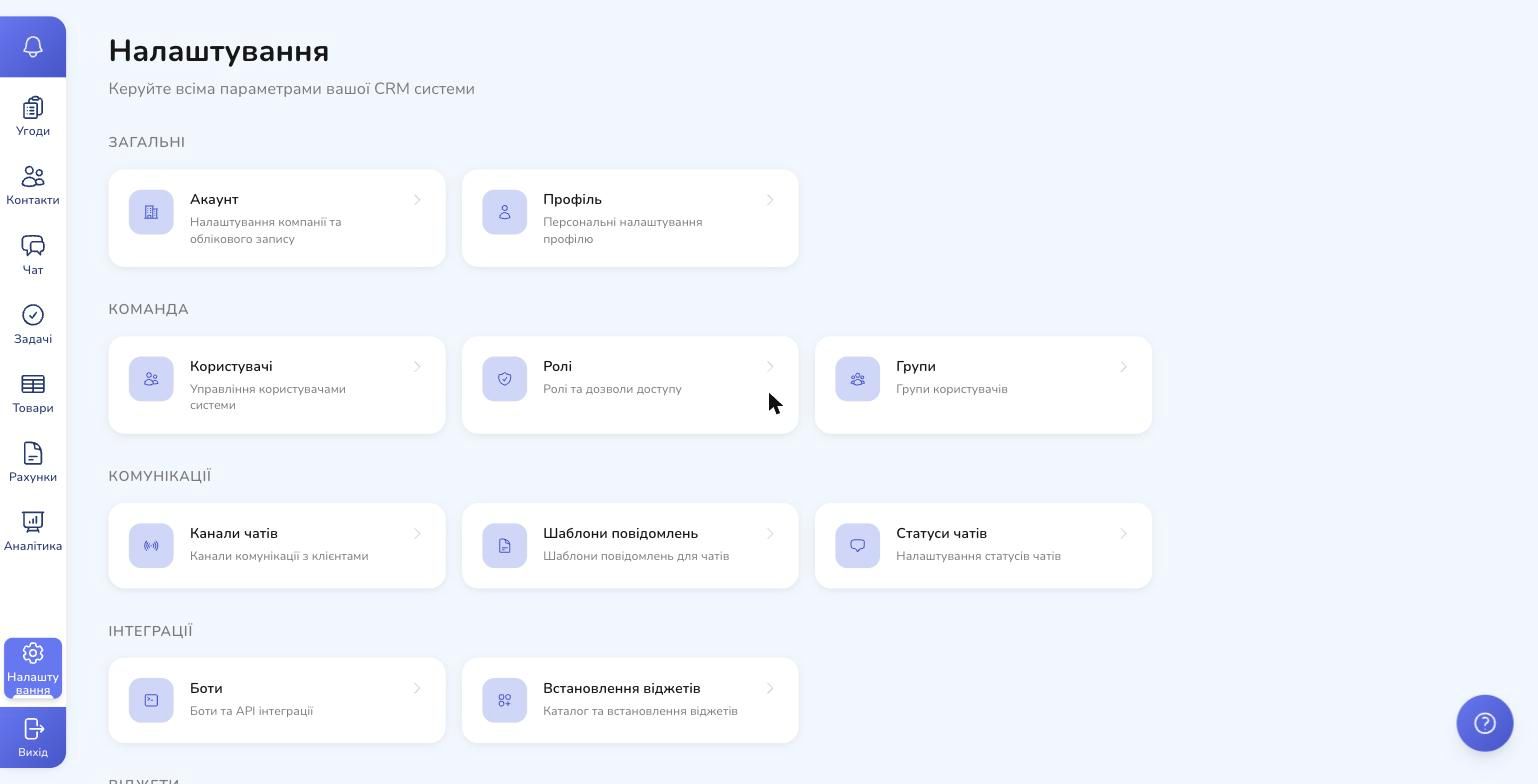
In the marketplace find the Vchasno.Kasa tile and click it.

Step 3. Review the capabilities and install
A detailed description opens: what the widget does, its features, and which actions become available in the automation builder.
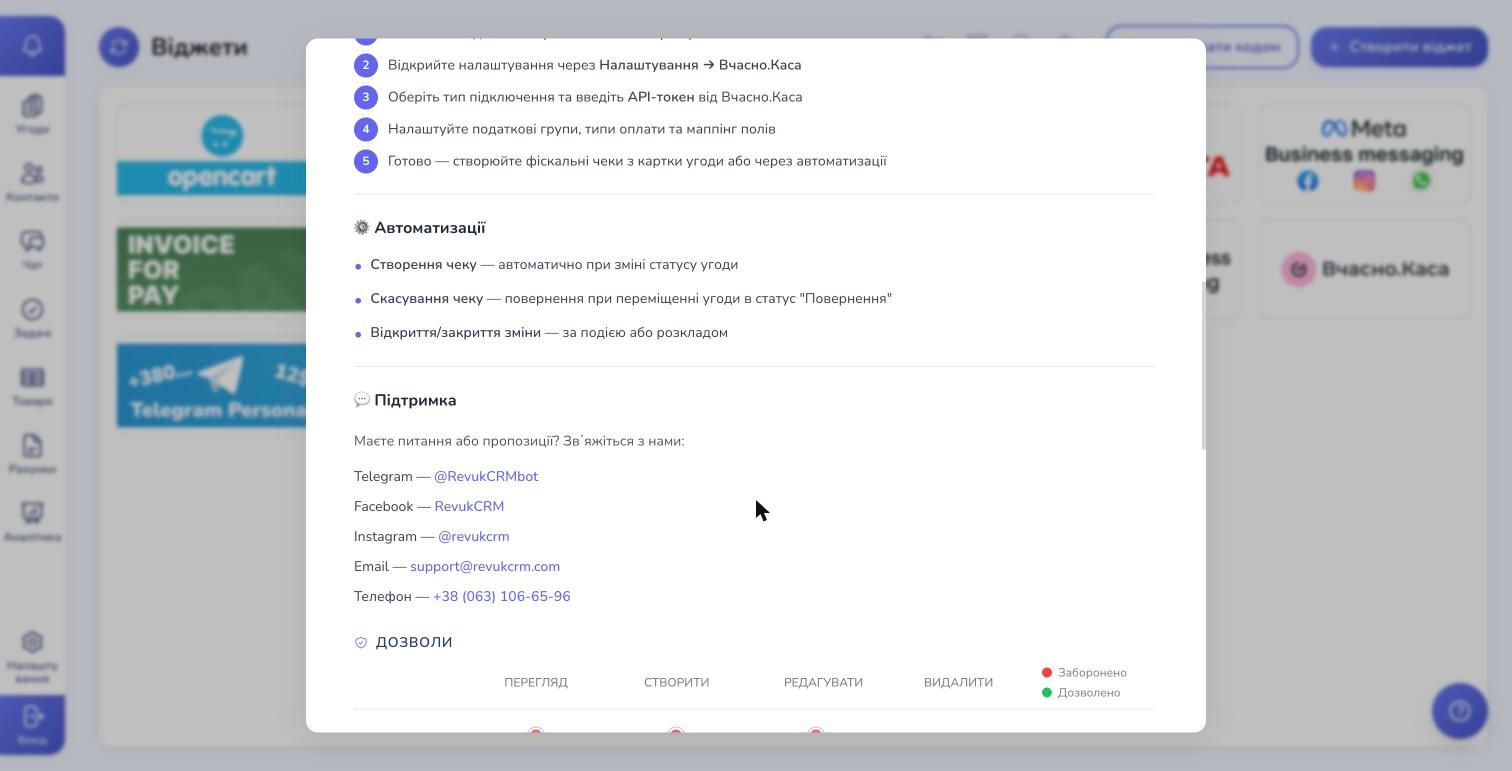
Scroll down to the Automation Actions section — four actions that appear in your automation builder right after installing:
- Create fiscal receipt
- Cancel fiscal receipt (refund receipt)
- Open cash register shift
- Close cash register shift (Z-report)
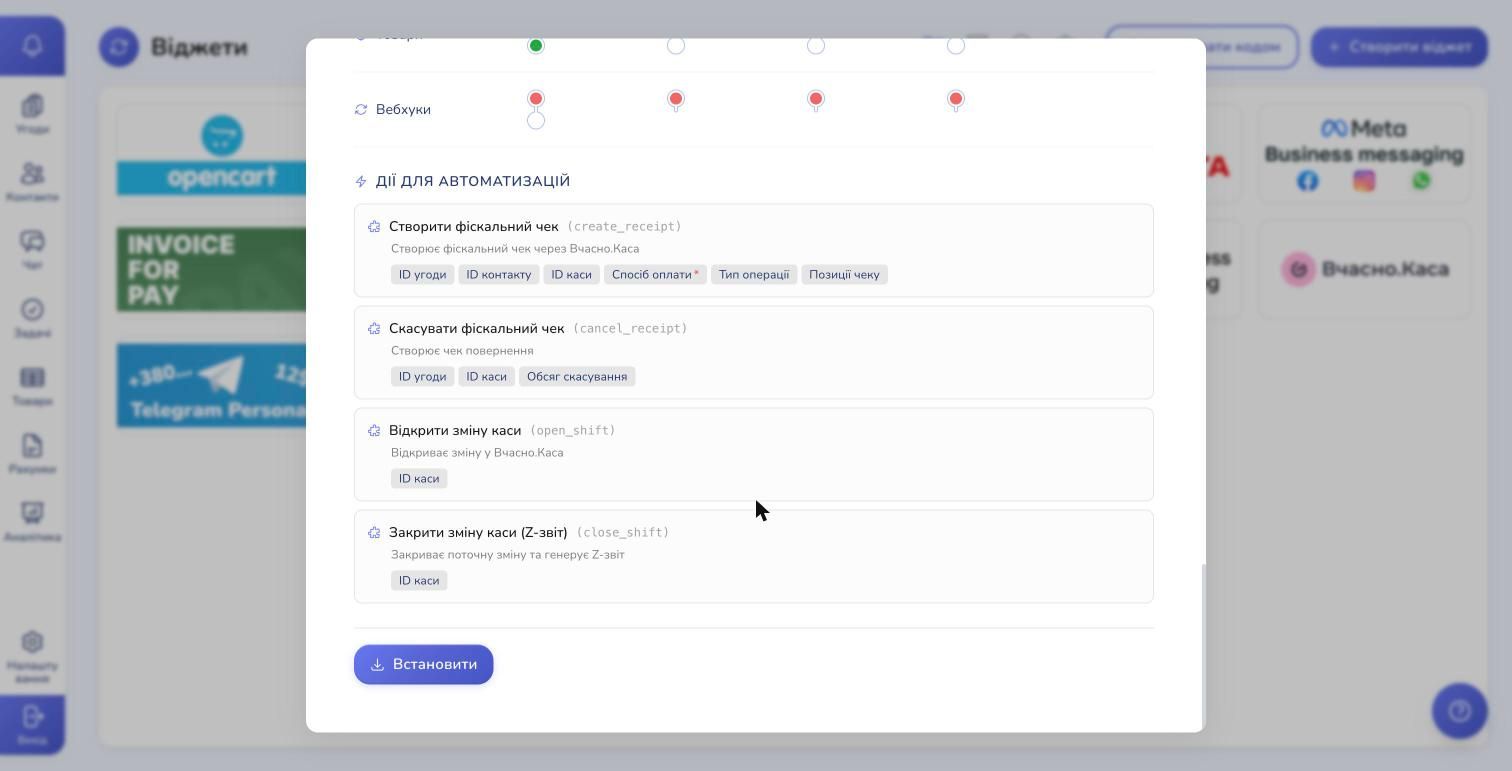
At the very bottom click Install and reload the page.
Step 4. Open Vchasno.Kasa settings in RevukCRM
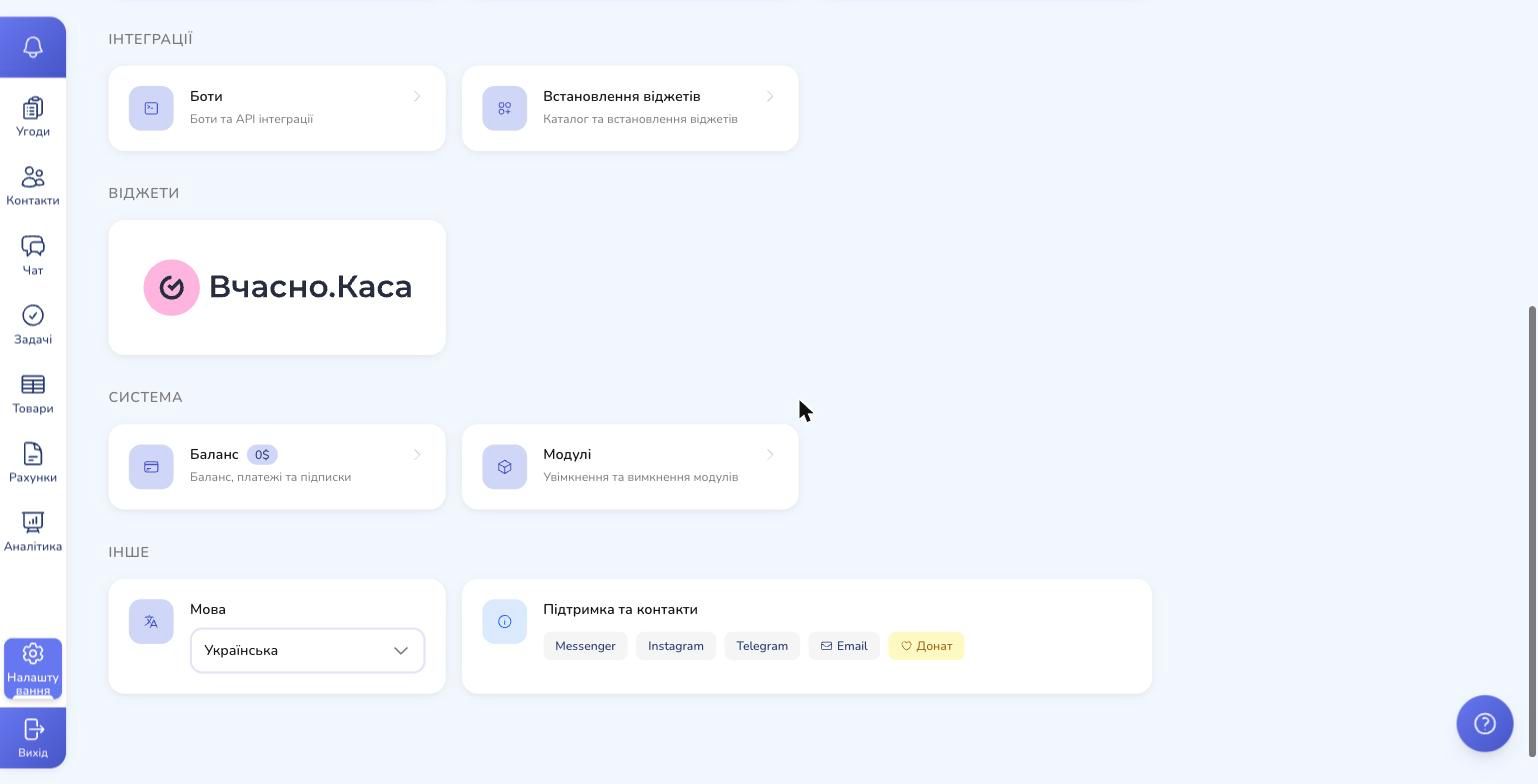
Close the description and go back to Settings. Scroll down — under the WIDGETS group you'll now see the Vchasno.Kasa card. Click it.
Step 5. Add your first cash register
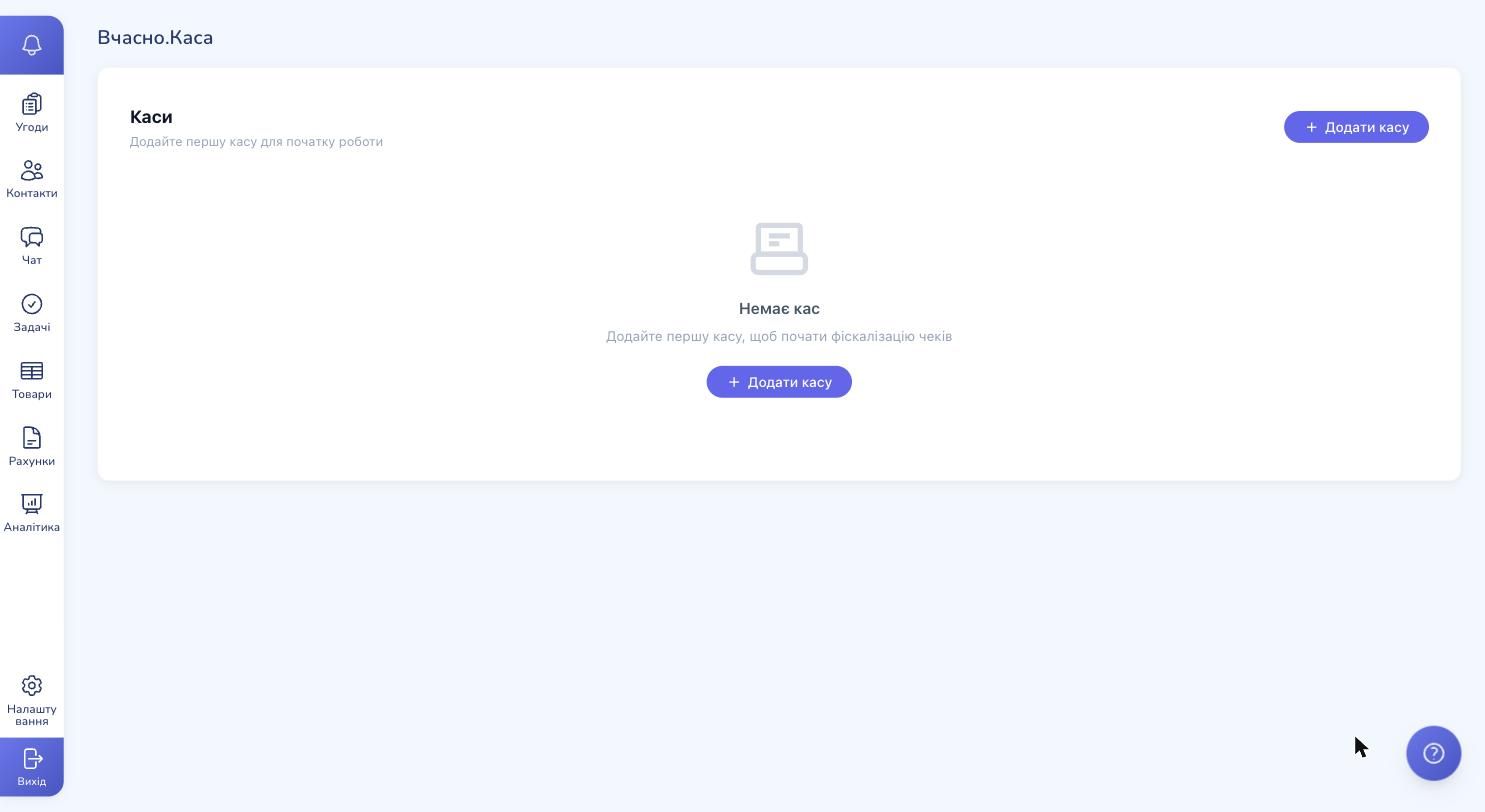
On first launch you'll see an empty state — "No cash registers." Click Add cash register.
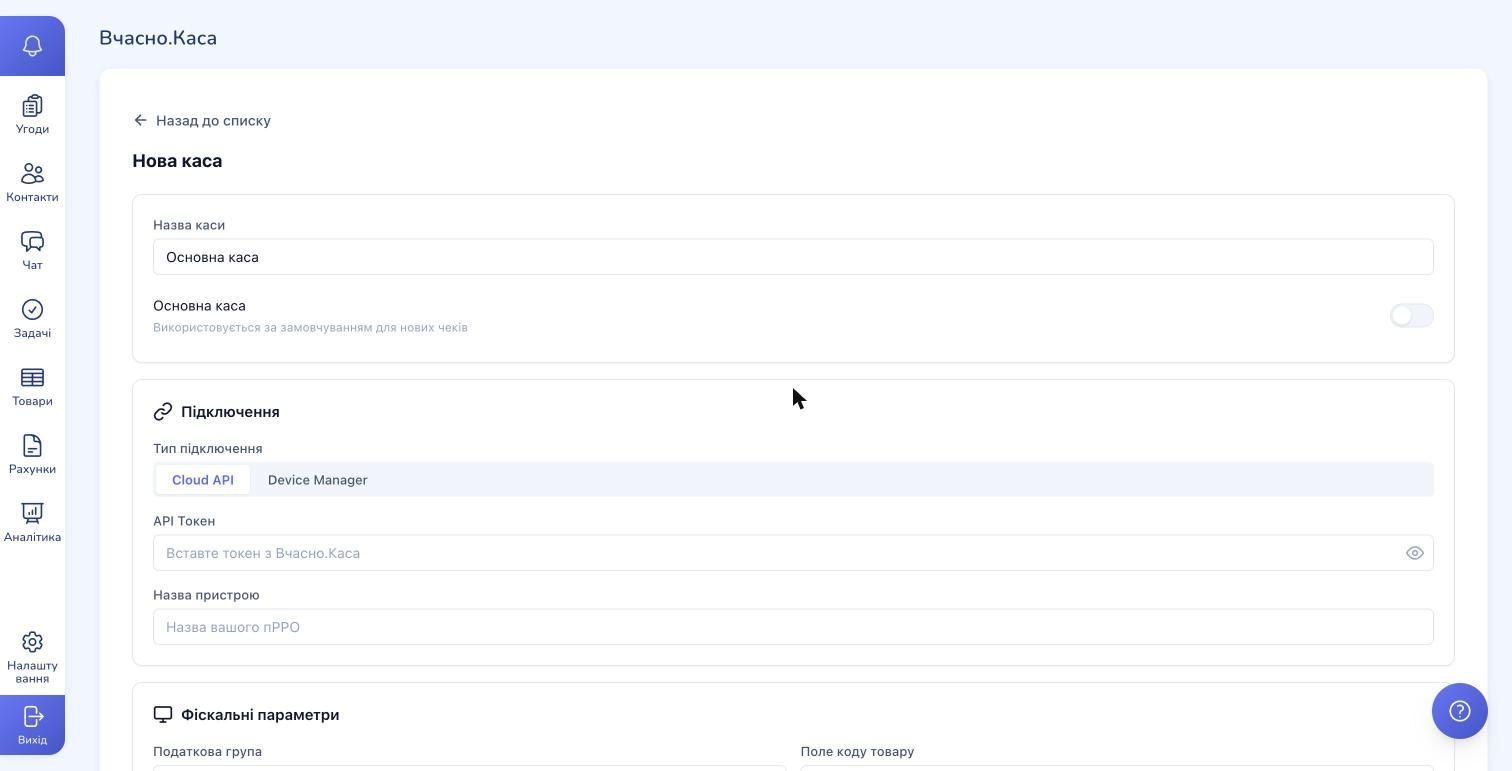
A form opens. Fill in the top section:
- Cash register name — how it will be labeled inside RevukCRM (defaults to "Main register")
- Main register — toggle on if this should be the default for new receipts
- Connection type — leave Cloud API for online work; switch to Device Manager only if you have physical POS hardware
- API Token — paste the token you copied in Step 1
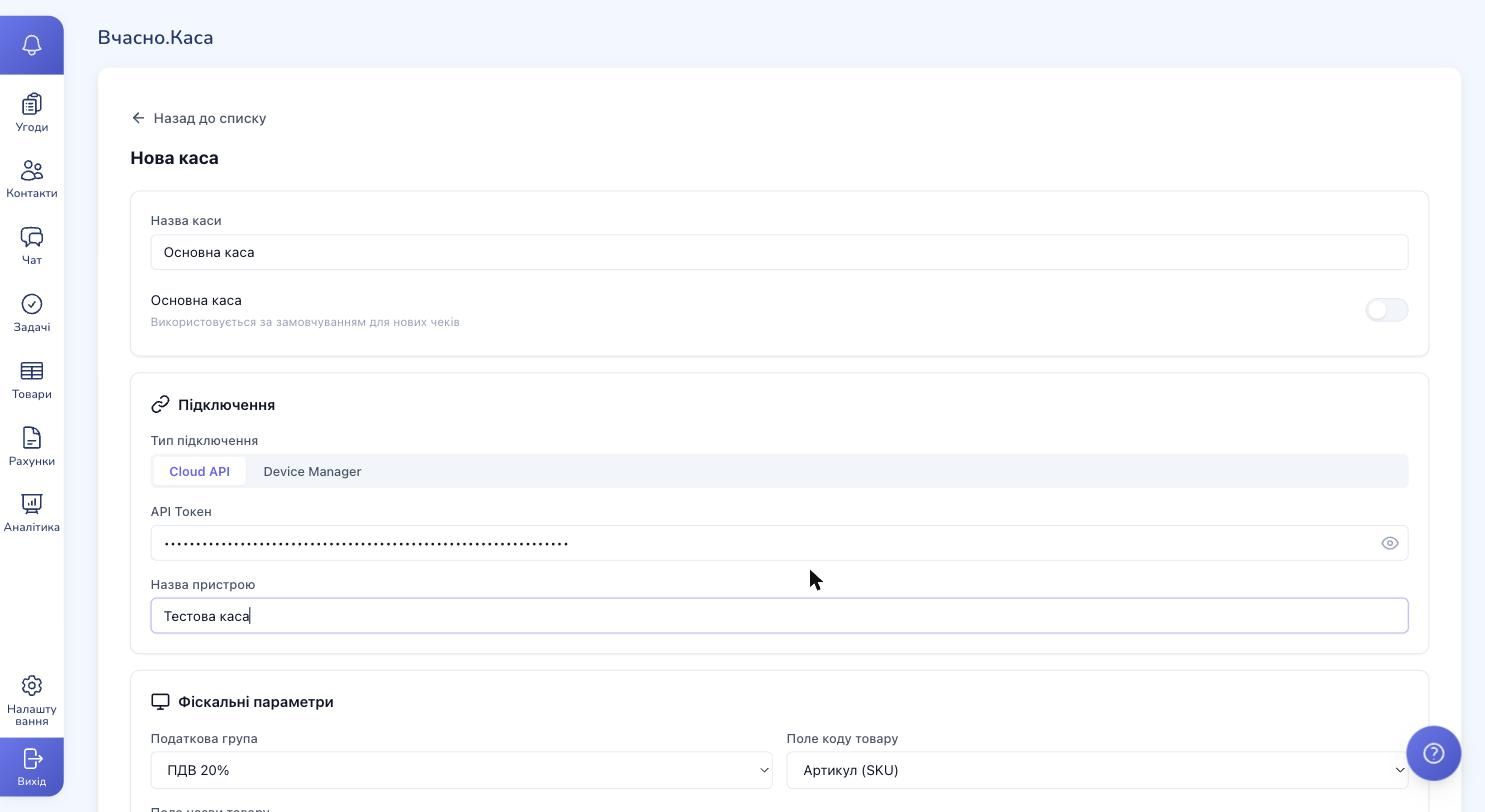
- Device name — enter the register name exactly as it appears in your Vchasno.Kasa cabinet (e.g. "Тестова каса" in our example)
With token and device name filled in:
Step 6. Configure fiscal parameters and payment mapping
Scroll down to Fiscal Parameters and Payment Mapping.
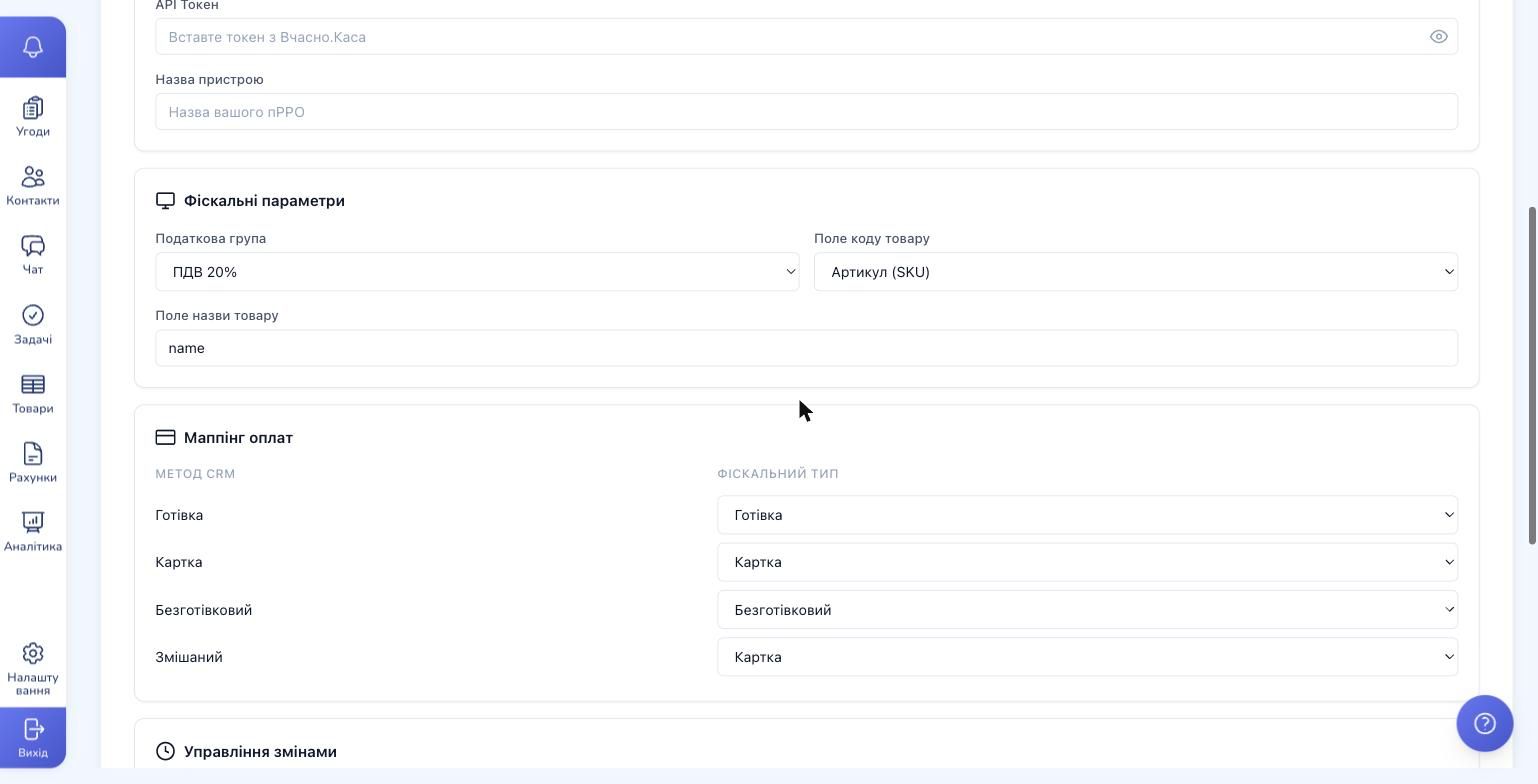
Fiscal parameters:
- Tax group — the default tax code applied to items without their own group. Usually VAT 20% for VAT payers or No VAT for single-tax businesses
- Product code field — what to pass as the product code on the receipt (SKU by default)
- Product name field — what to use as the line-item name on the receipt (name by default)
Payment mapping binds RevukCRM payment methods to official fiscal types. The defaults map sensibly: Cash → Cash, Card → Card, Wire transfer → Wire transfer, Mixed → Card.
Step 7. Shifts and advanced options
Just below — Shift Management and Advanced.
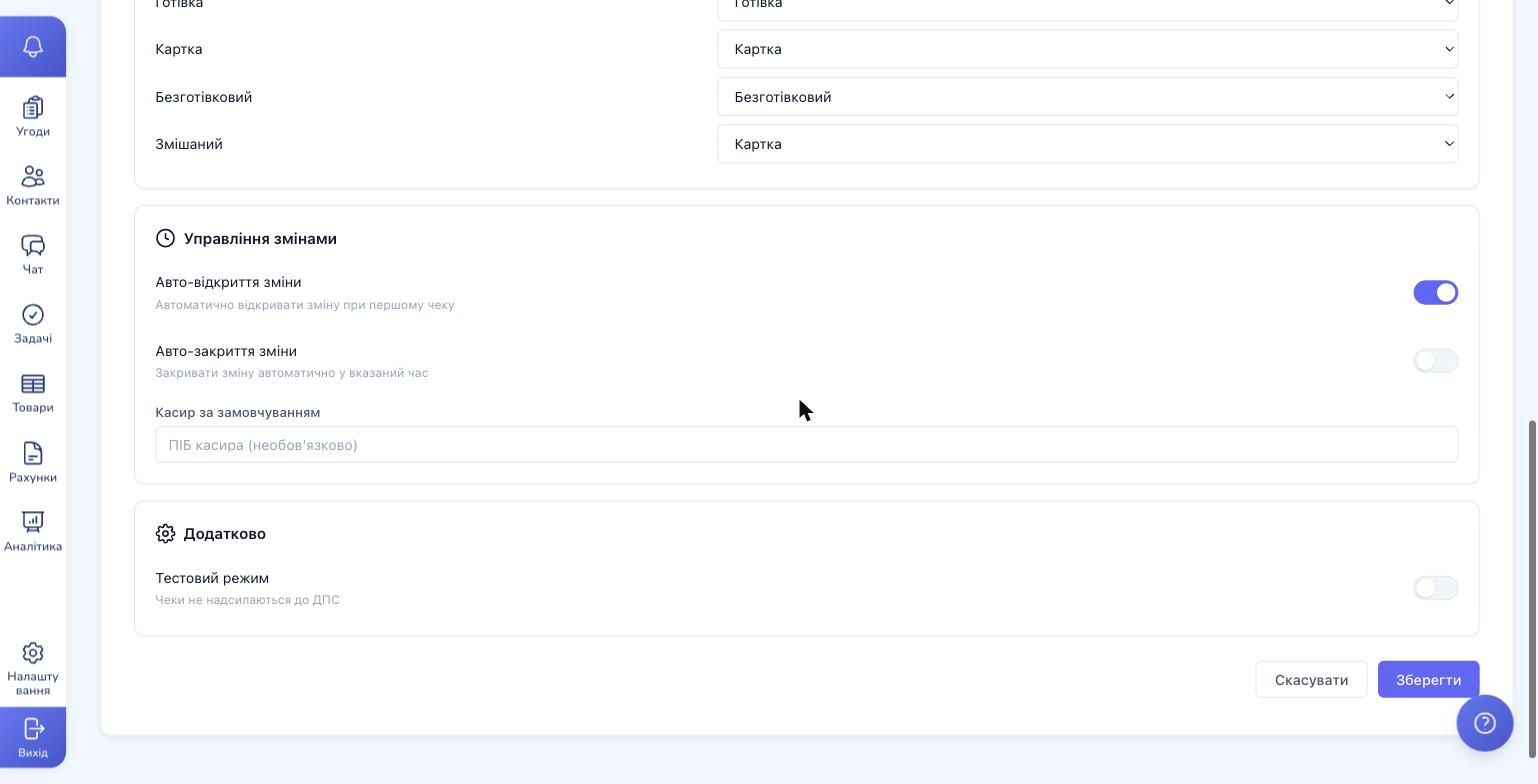
- Auto-open shift — we recommend keeping this on. The shift will open on the first receipt of the day, so your team never hits a "shift not open" error
- Auto-close shift — turn on to close the shift on a schedule (e.g. daily at 23:00). Guarantees a Z-report even if no one closes the shift manually
- Default cashier — the cashier name printed on receipts. Optional
- Test mode — turn on while piloting. Receipts will be created in Vchasno.Kasa but won't be sent to the State Tax Service
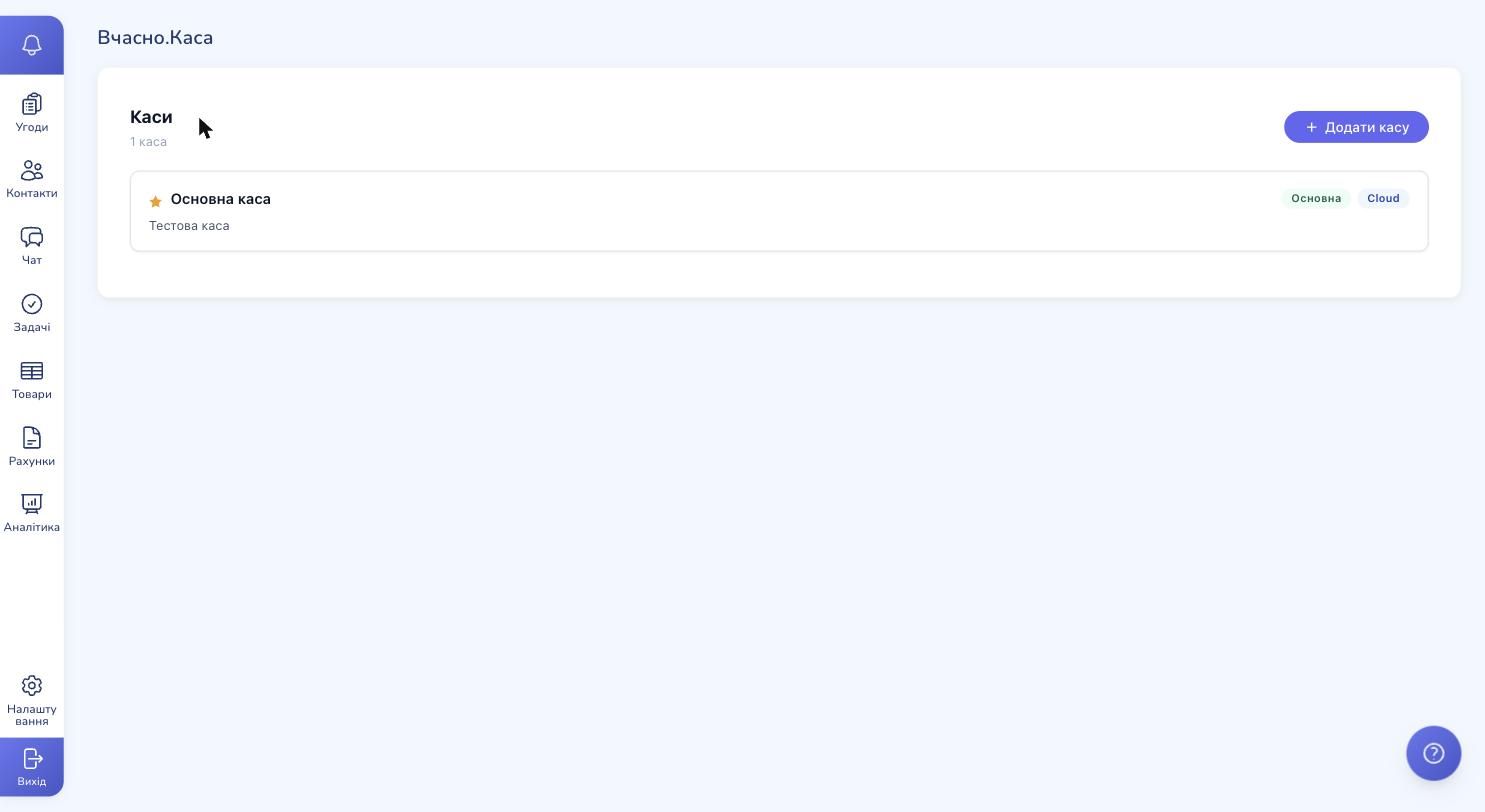
Click Save. The register appears in the list with a Cloud badge (or DeviceManager) and a Main marker.
Issuing fiscal receipts manually
From a contact card
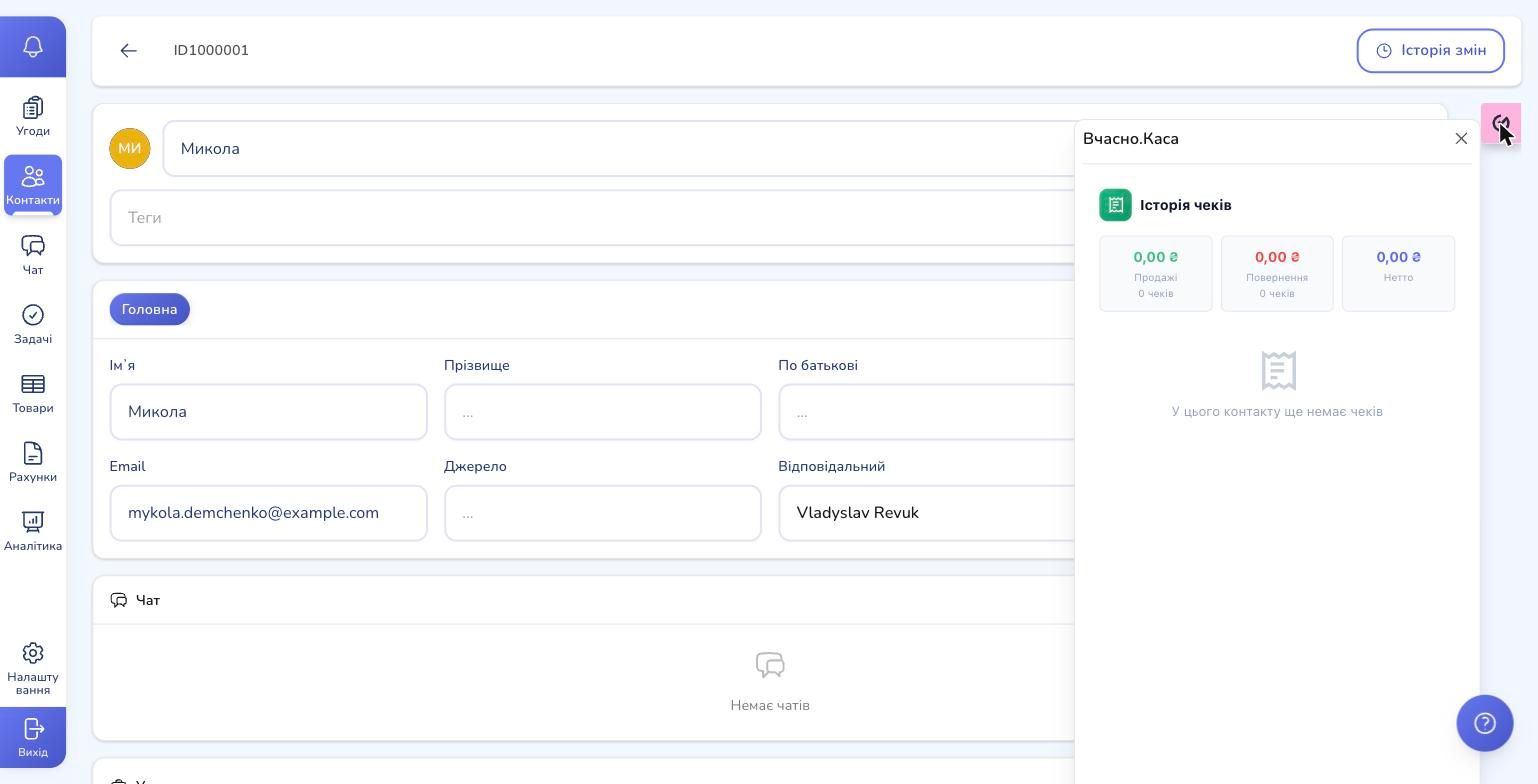
Open any contact. On the right edge you'll see a Vchasno.Kasa icon — click it. A panel opens with that customer's receipt history: sales, refunds, net total, receipt count.
From a deal card
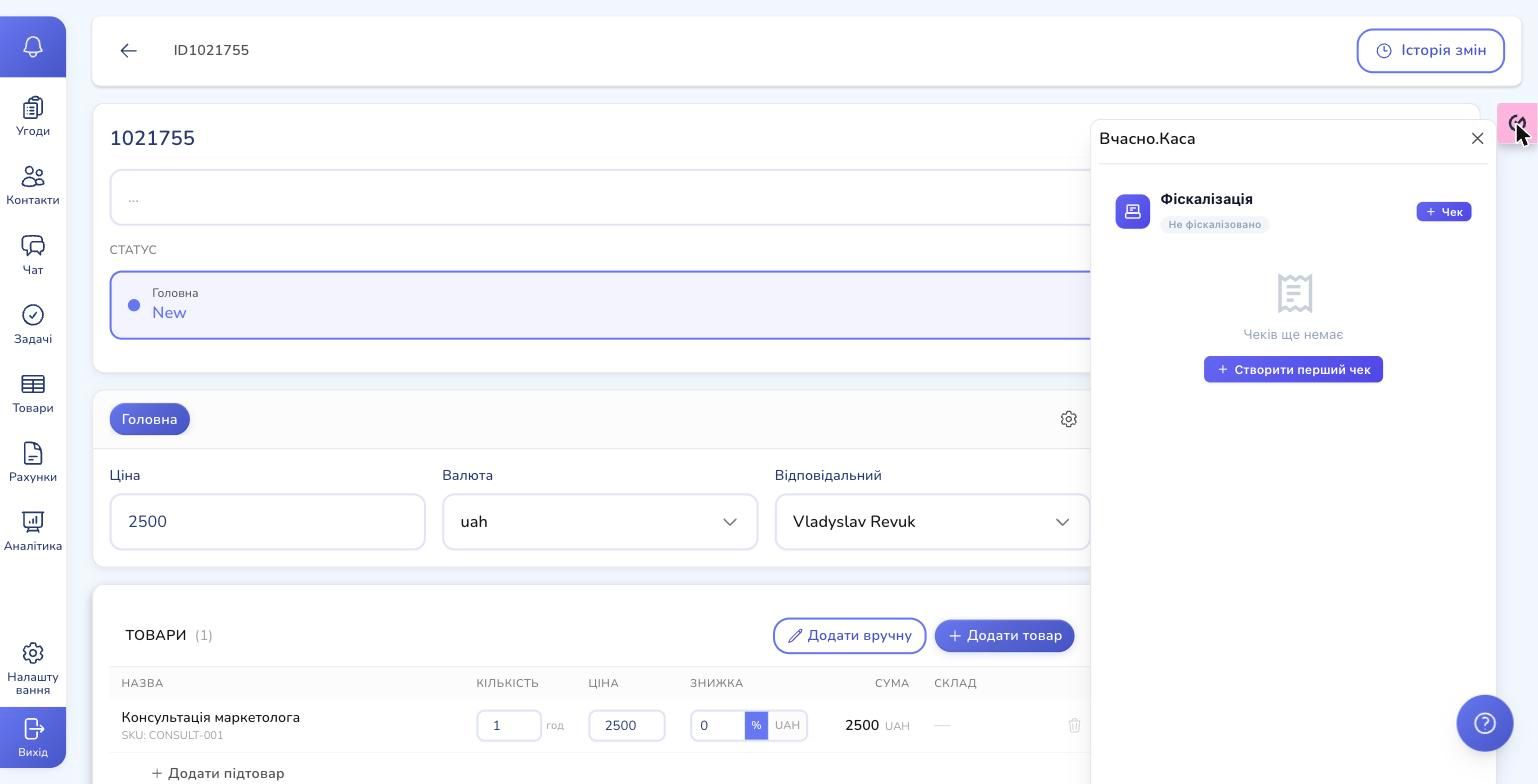
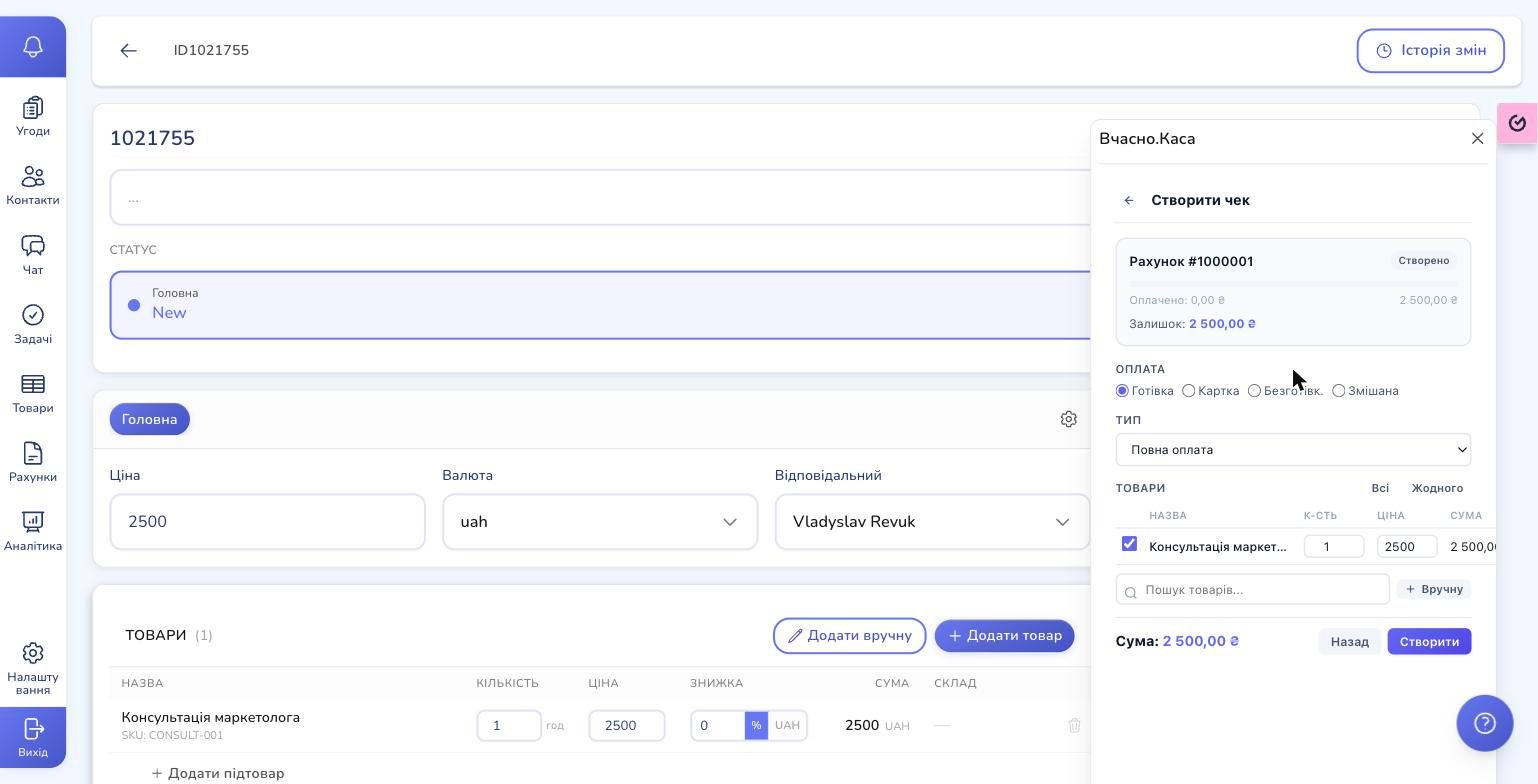
Open any deal that has products attached. The Vchasno.Kasa icon is on the right edge here too. Click it — you'll see a "Fiscalization" block with the deal status and a Create first receipt button.
Click the button — a receipt creation form opens with every deal line item already filled in (product, quantity, price). You just pick:
- Payment method: Cash / Card / Wire transfer / Mixed
- Operation type: Full payment / Prepayment / Postpayment
- Optionally add more items manually
Click Create — RevukCRM sends a request to Vchasno.Kasa and returns the fiscal number. The receipt is linked to the deal and the contact.
Automatic fiscalization through automations
This is where it gets interesting. In RevukCRM you can issue fiscal receipts without a single click — the system does it the moment your conditions are met.
The most common scenario:
Trigger: Deal → status changed to "Paid" Action: Vchasno.Kasa → Create fiscal receipt (Payment: Card, Items: deal products)
The customer pays through your site → the deal status flips → the receipt is created automatically, the fiscal number is attached to the deal, and the link can be sent to the customer in the next automation step (Email, SMS, Viber, Telegram).
Other production scenarios:
- Cash only for retail. Trigger "deal closed" + condition "payment method = Cash" → "Create receipt (cash)"
- Prepayment + final receipt. Two automations: one on "Prepayment received" (type: prepayment), another on "Full payment" (type: postpayment)
- Automatic refunds. Trigger "status → Refund" → "Cancel fiscal receipt" (refunds the last receipt of the deal)
- Auto-close shifts at 23:00. Schedule-based trigger → "Close cash register shift". Guarantees a Z-report even if your team forgets
- Fiscalize + downstream chain. Create receipt → update "Fiscalized" field → add a tag → notify the manager in internal chat
All four widget actions are available in the automation builder with hints and templated variables.
Sending the receipt to the customer
Fiscalization returns a receipt URL — a link where the customer can view or download a PDF stamped with the State Tax Service QR code. You can deliver it through any channel your CRM has connected:
- Email — via AWS SES or your own SMTP
- SMS — via an SMS provider
- Viber, Telegram, Instagram, Facebook — via the matching messenger widgets
- Copy link — and send manually
In an automation, simply add a "Send message" step right after "Create receipt" and use {{widget_result.receipt_url}} as a variable in the message body.
Ready to try?
Connect Vchasno.Kasa to RevukCRM in ten minutes and forget about issuing receipts by hand. Your team saves time, your accounting gets a clean registry, and your customers receive instant fiscal receipts the moment they pay.