
A customer wrote on Telegram and Instagram: how to reply from one window
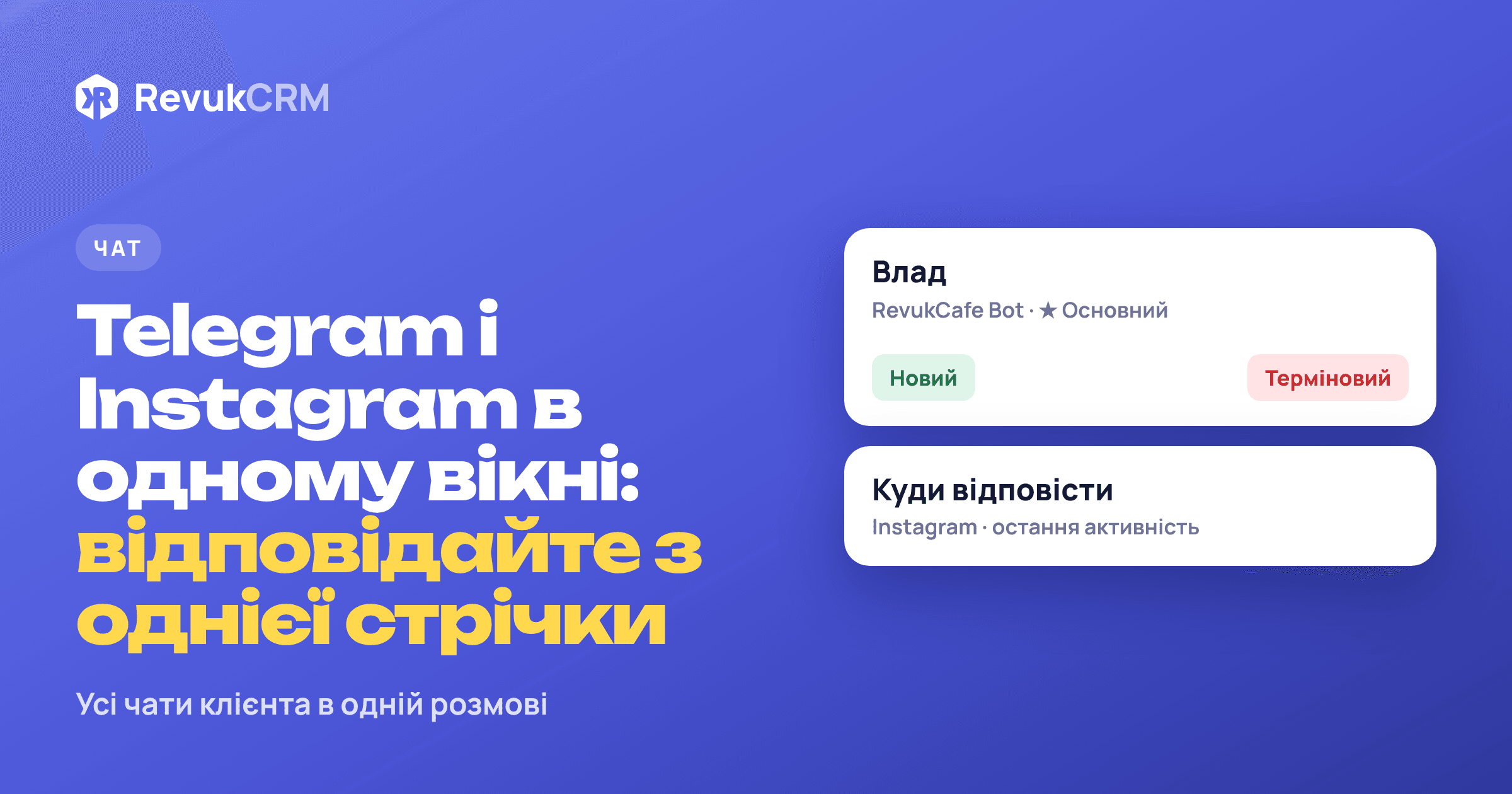
A customer messages you on Telegram in the morning, gets no reply, and sends the same thing on Instagram in the evening. Who answers first, and does the second person see the earlier message? When chats live in separate apps, requests get lost exactly like this. In RevukCRM every conversation lands in the "Чат" (Chat) section, and you reply from one window.
What you see in Chat
The left menu has a "Чат" item. The red number on its icon is how many chats have unread messages. When a customer writes to any connected channel, a chat appears in the list with a green "Новий" (New) dot.
The CRM looks for a contact with the same phone number, then the same email. If it finds one, it attaches the chat to it. If not, it creates a new contact.
Open the chat and you see who the customer is and what deals and tasks they have. You can create a deal in the right-hand panel without leaving the conversation.
Step 1. Connect channels and decide who answers
Channels (Telegram bot, personal Telegram, Viber, WhatsApp, a Facebook / Instagram page, website chat) are connected in Settings → Widgets. You can add as many as you need, even several of the same kind, such as two numbers or two bots.
Then open Settings → Communications → Chat channels and click a channel. In the "Редагування каналу" (Edit channel) window, add the people responsible and pick how new chats are assigned.
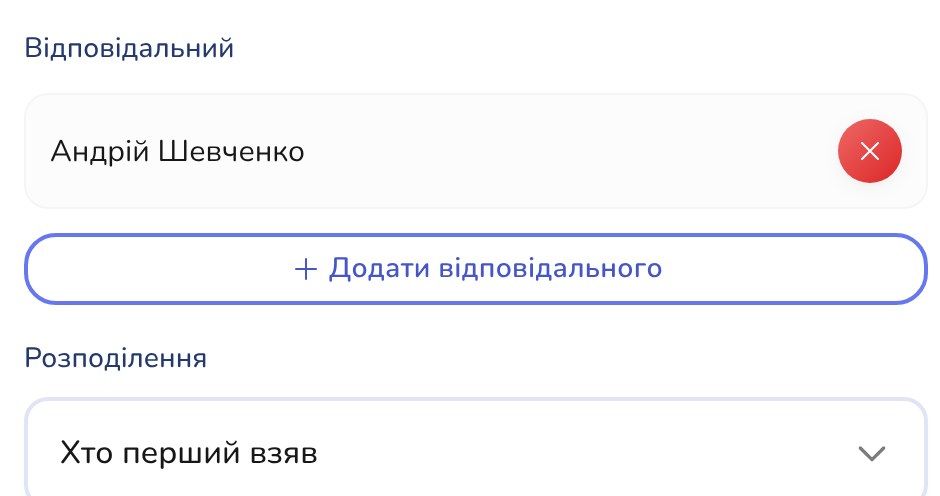
Three options:
- "Хто перший взяв" (first to take it): a new chat has no owner, and whoever replies first becomes the owner;
- "По черзі" (round robin): new chats go to the responsible people in turn;
- "Відсотково" (by percentage): you set a percentage for each person, 100% in total.
You can also turn on removal of the owner after inactivity and set the time in seconds. If the manager does not reply in time, the owner is removed and the chat is marked "Терміновий" (Urgent). The countdown runs only if the message arrived during the company's working hours.
Step 2. Merge one customer's chats
At the top of the same page is the "Об'єднувати чати одного клієнта" (Merge a customer's chats) switch. It applies to the whole company and is on by default. Anyone who is allowed to change chat channels can switch it.

Now a customer who writes from both Telegram and Instagram takes one row in the list. Small channel icons sit next to the name, and the counter adds up unread messages from all channels. The chat window shows one timeline: messages from every channel in time order, each with its channel icon.
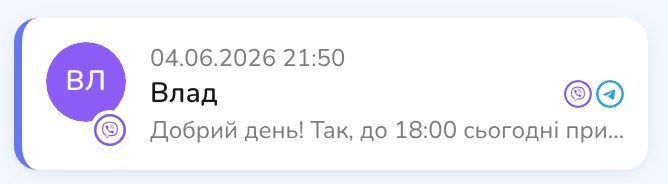
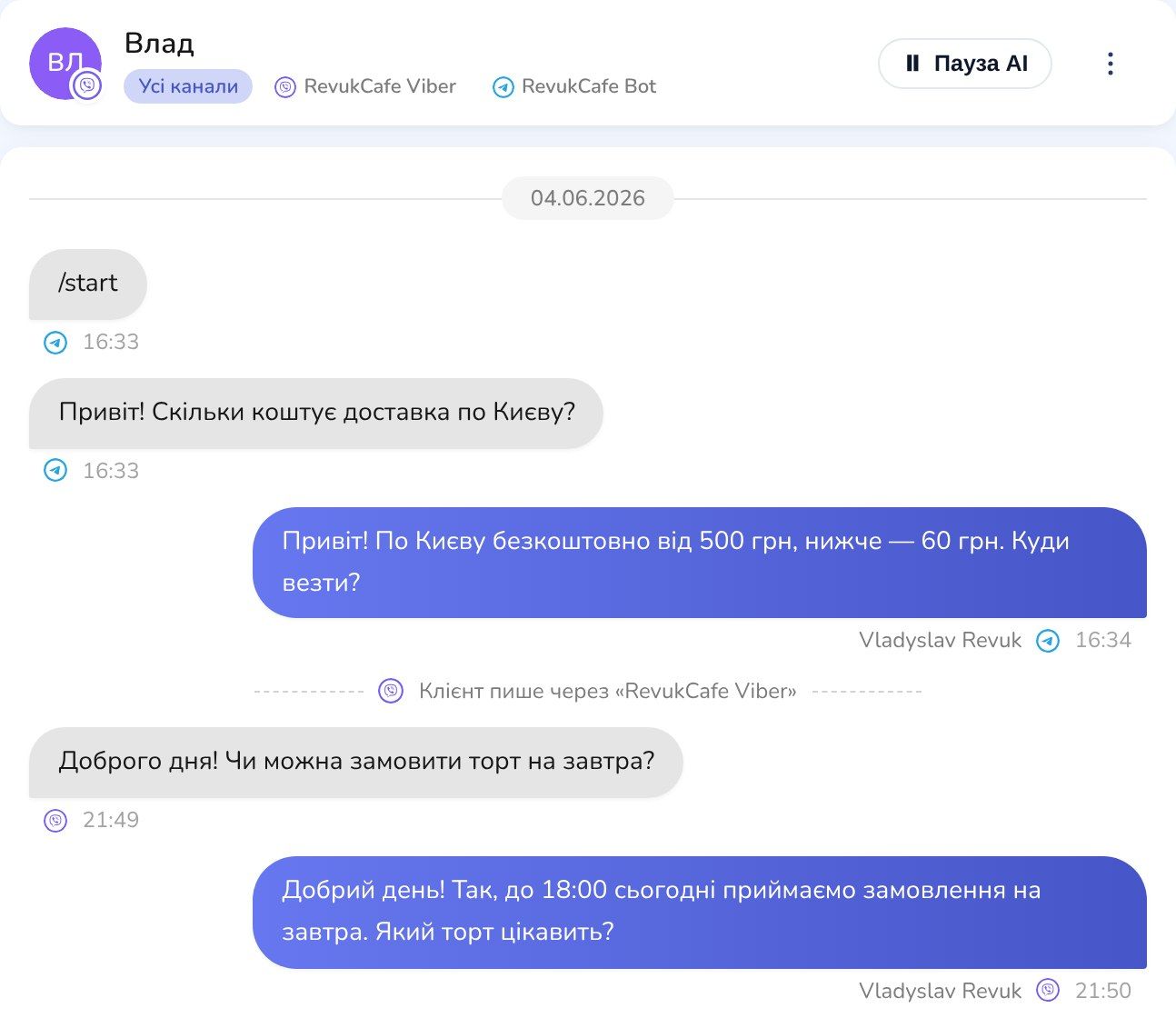
Chats are merged when they are linked to the same contact. A chat with no contact stays a separate row. Link it to a contact in the right panel and it joins that customer's conversation.
Step 3. Reply through the channel you need
Next to the "Шаблони" (Templates) button there is a button with the channel name the reply will go to. Click it to open "Куди відповісти" (Where to reply): all the customer's channels with the time of the last message in each. The channel where the customer wrote last is marked "остання активність" (last activity).
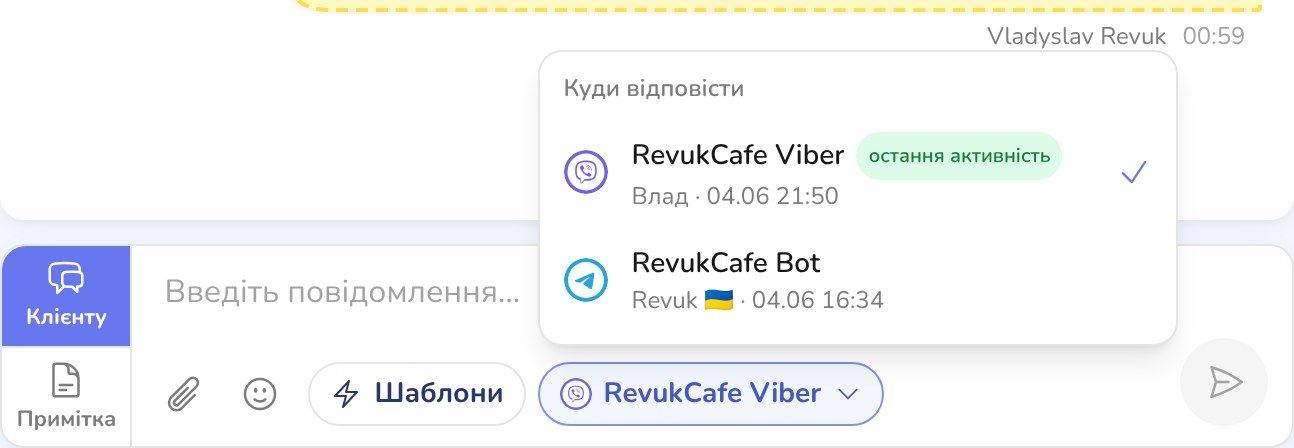
By default the reply goes where the customer wrote last. If they switch from Telegram to Instagram, a hint appears above the field saying the reply will now go there.
If you pick a channel yourself, new customer messages no longer switch it. When your reply is set to a different channel than the customer's last message, a yellow bar appears above the field with a button to reply through that channel. The text you typed stays in the field.
To leave a message for colleagues rather than the customer, click "Примітка" (Note) next to the input: the field turns yellow, only your colleagues see the note, and the customer does not receive it.
Step 4. Work through chats in the right order
The list sorts itself: urgent chats first (red dot), then new, then unread. Within each group, the customer who has waited longest is on top. Read chats follow, newest first. The chat that has waited longest is hard to miss.
The "Фільтри" (Filters) button narrows the list: new chats, unread chats, channel, status, owner. In the owner field you can choose several people at once, for example "Я + Не призначено": your chats plus the ones nobody has taken yet.
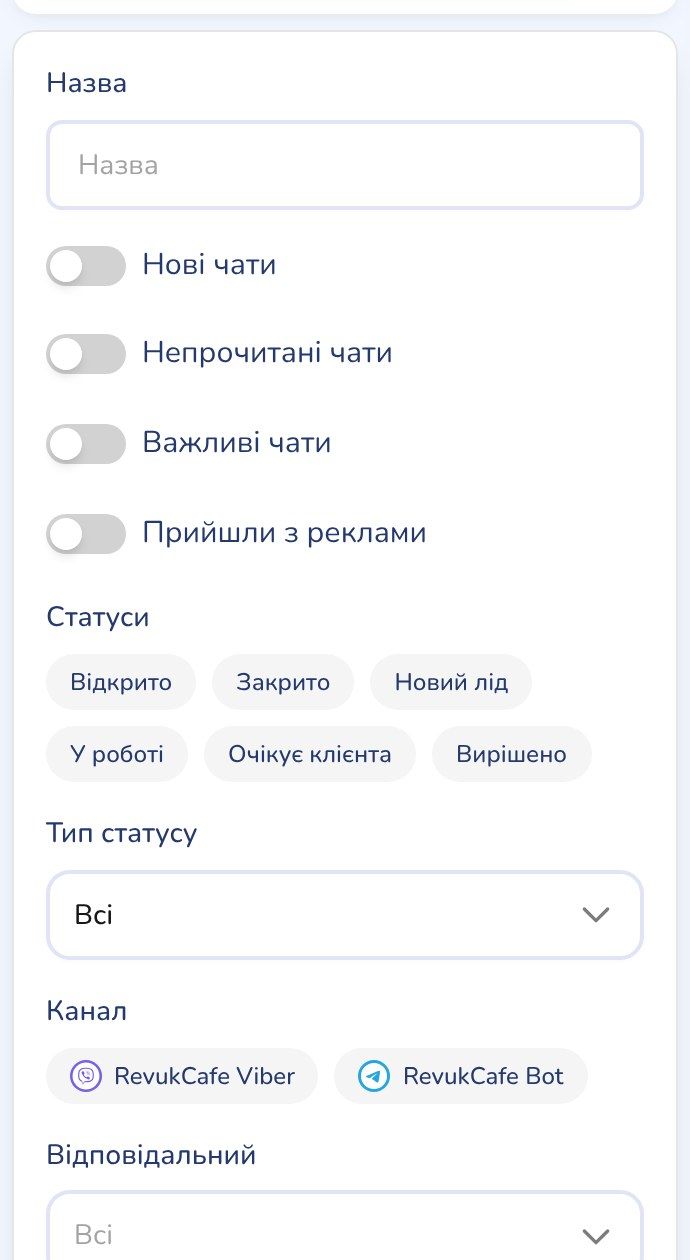
Built a filter you use every day? Click the save-filter icon, give it a name, and it becomes a button above the list. Saved filters are personal to each user.
Step 5. Write templates for repeated answers
Questions about opening hours, delivery or payment come up again and again. Open Settings → Communications → Message templates and create ready replies: a name, text, optionally a category and a hotkey such as Ctrl+1.
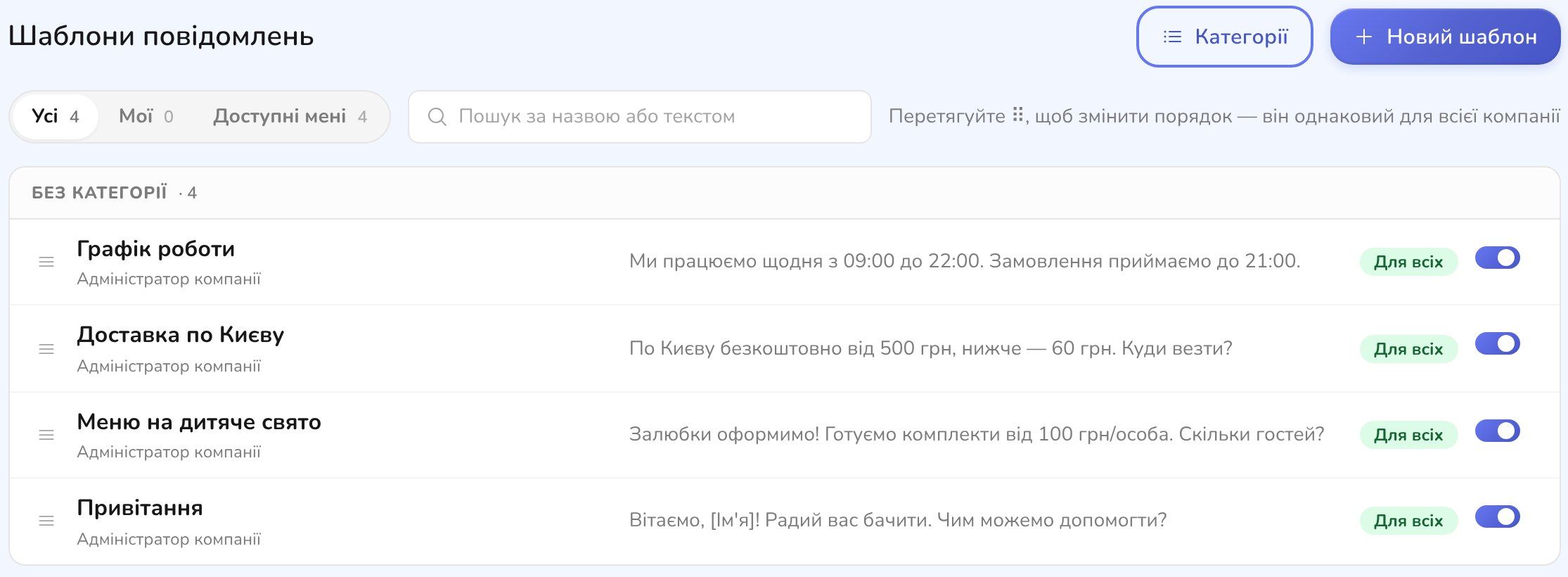
Variables let the CRM fill in customer data: name (also in the vocative case), deal number, invoice amount and more. One template can hold up to 10 messages sent one after another, plus files, for example the invoice PDF from a deal.
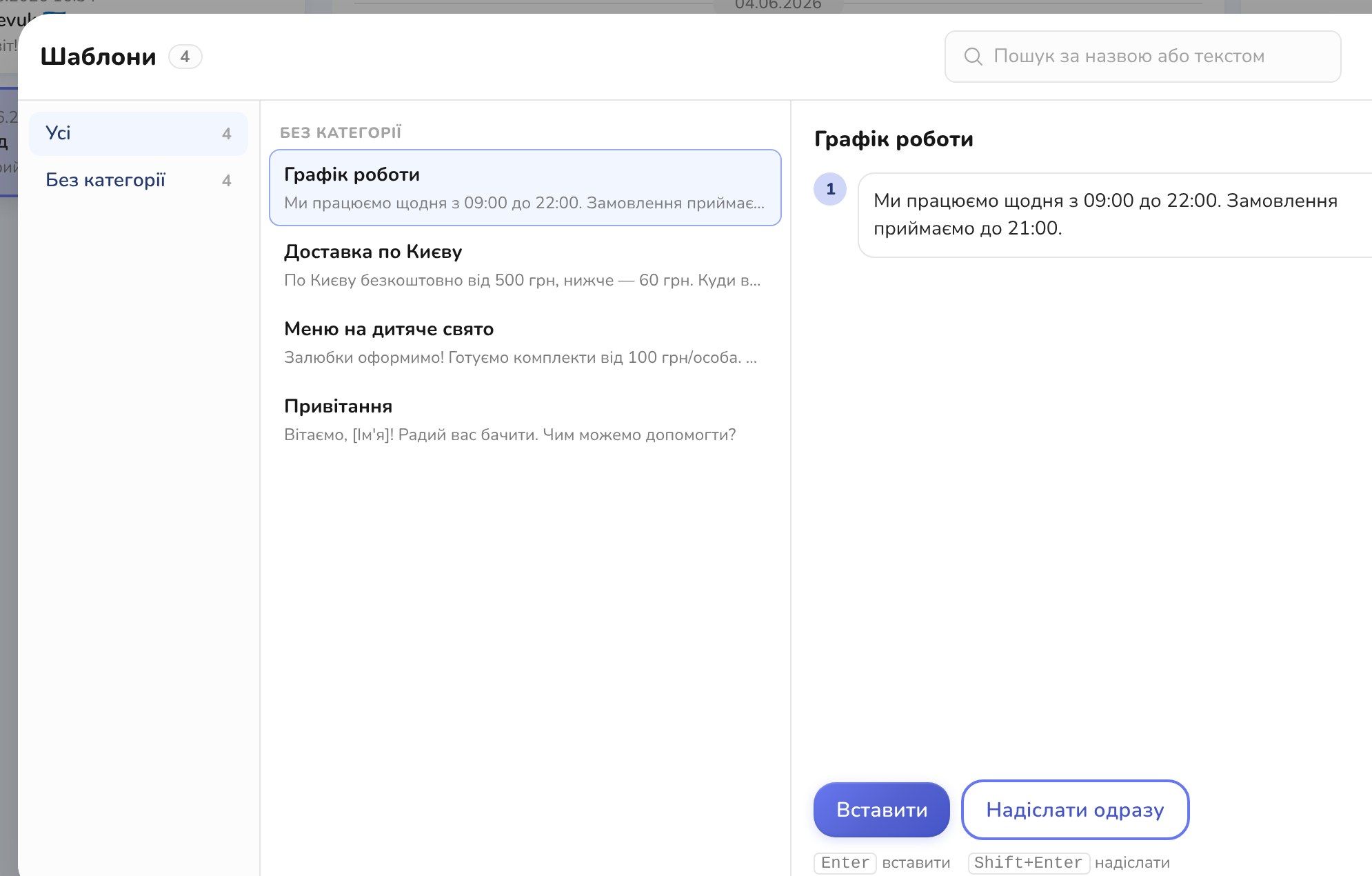
In a chat, click "⚡ Шаблони", find the one you need and choose "Вставити" (Insert) to edit before sending, or "Надіслати одразу" (Send now).
Where to start
Sign up for free, connect a channel in Settings → Widgets and open "Чат". When the first customer writes, the chat appears in the list marked "Новий", and you can reply right from the CRM.
See your customer chats in one window
Sign up for free, connect a channel and open the Chat section.


