
How to move your clients from Excel into a CRM in one evening

A client list in Excel works fine until you need to know who spoke to whom and what was promised. You can move it into RevukCRM in a single evening: the import wizard guesses the columns itself and shows you the result before anything is saved.
People put off the move because it feels like retyping every client by hand. You won't. You upload the file and check what the CRM understood.
What you can import
The wizard handles four sections: contacts, companies (if the "Companies" module is on in your account), deals, and products with stock for a warehouse. Tasks and invoices can't be imported.
Go to Settings → "Дані" (Data) → "Імпорт даних" (Data import). There are two tabs: "Новий імпорт" (New import) and "Історія імпортів" (Import history). We'll use contacts as the example.
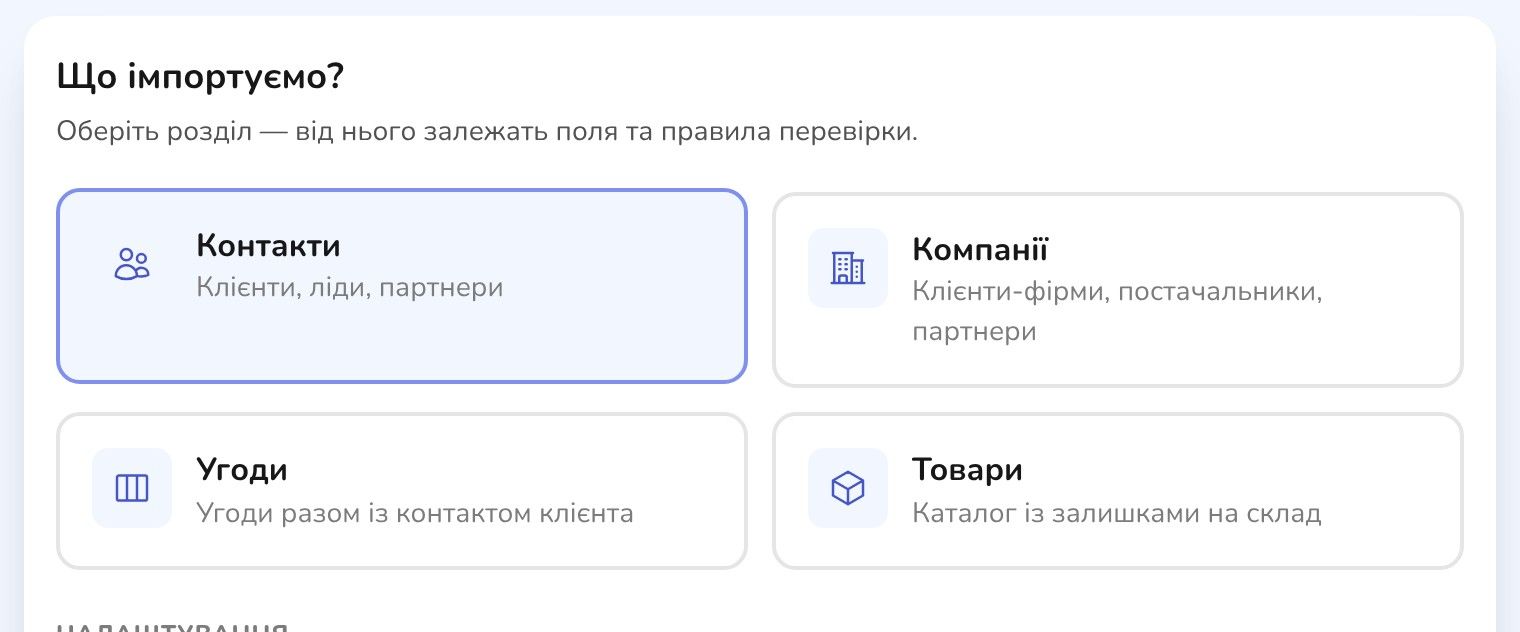
Steps 1–2. Choose the section and upload the file
Click "Контакти" (Contacts), then "Далі" (Next). Rows that have no manager in your table go to the user set as the default owner.
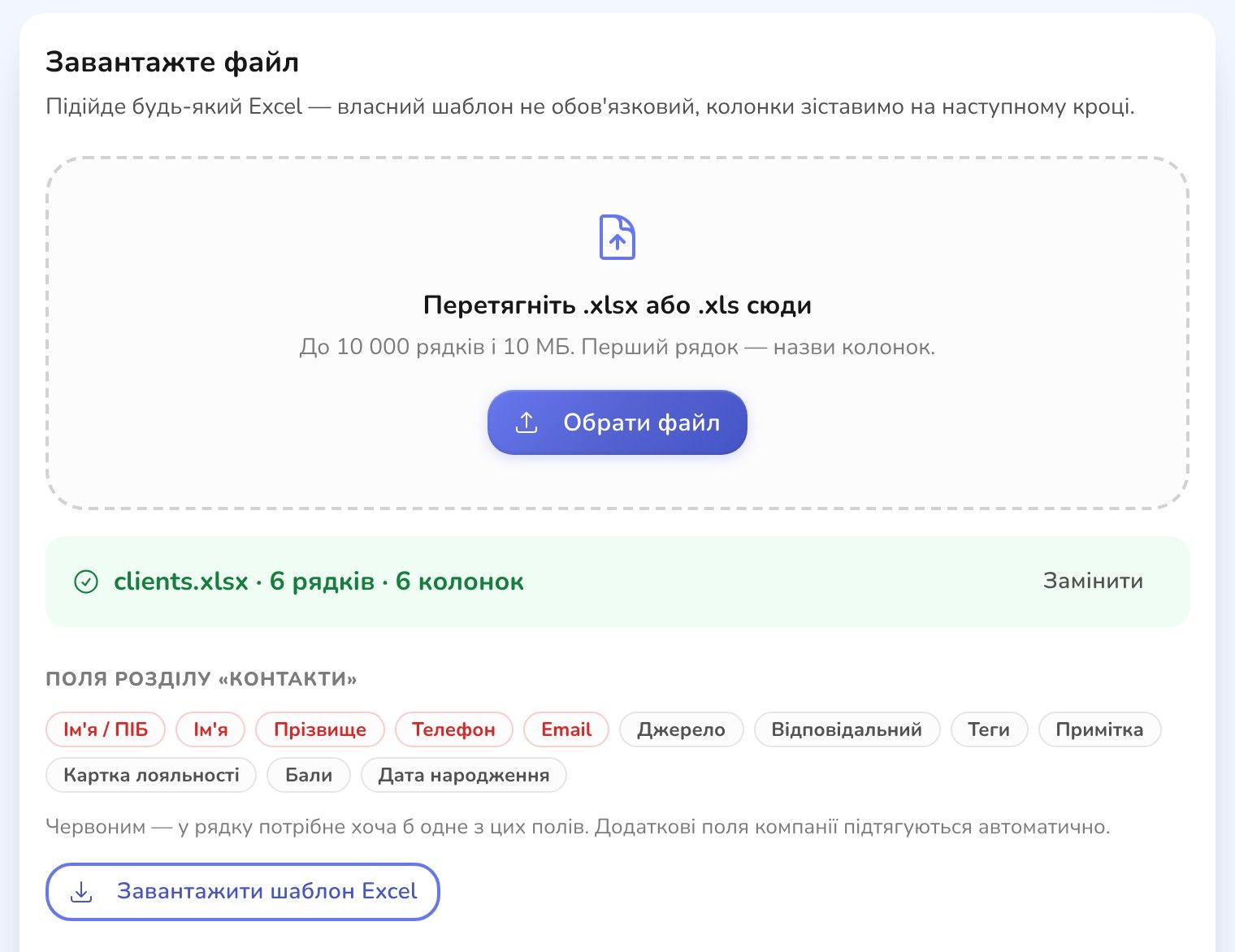
Upload an .xlsx or .xls file. CSV won't work. The limit is 10,000 rows and 10 MB, so split larger tables into parts.
The first non-empty row must hold the column names. The CRM reads only the first sheet and skips empty rows. You don't need a special template, but "Завантажити шаблон Excel" gives you a file with hints and a sample sheet.
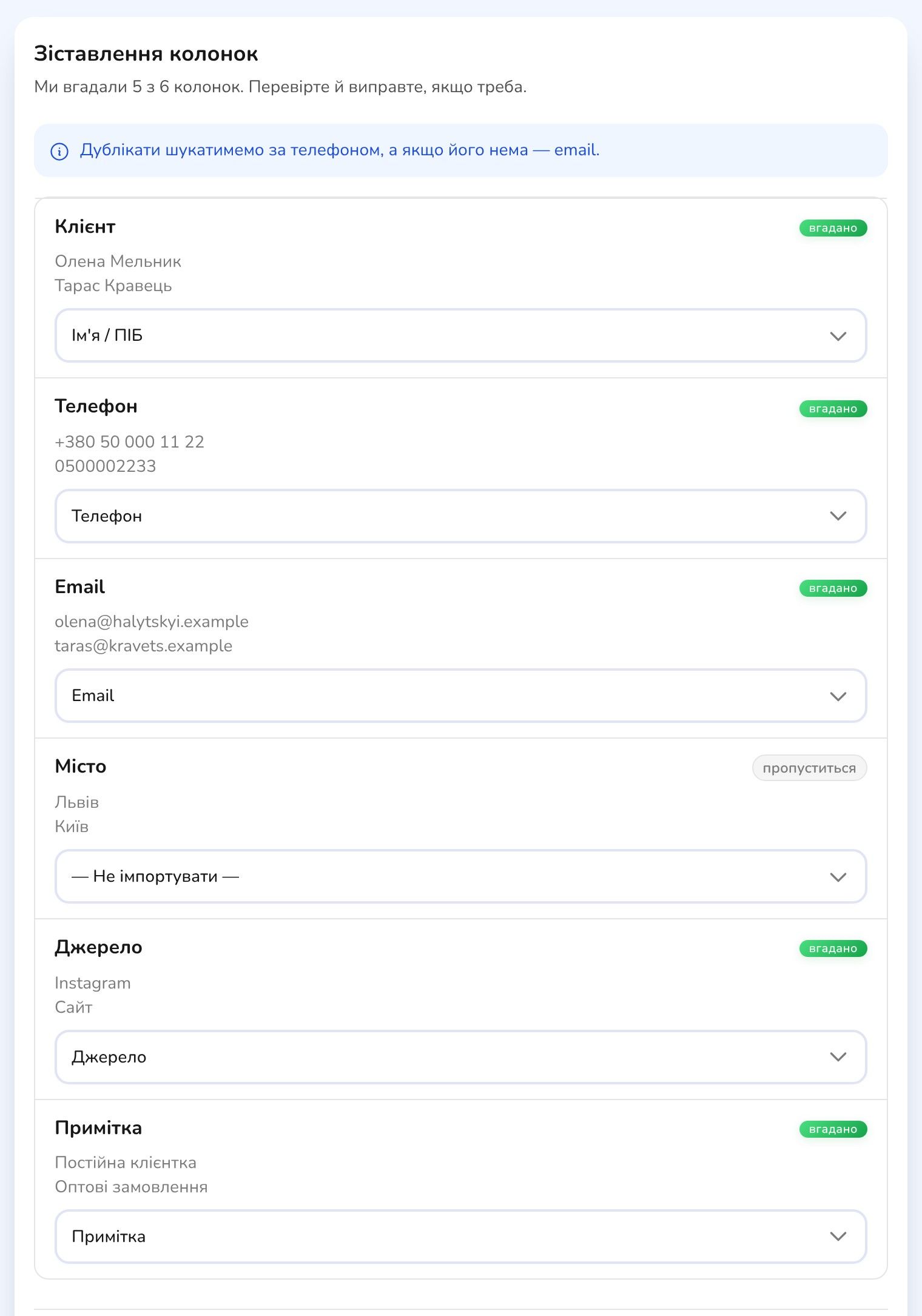
Step 3. Check the columns
Here the wizard shows how it read your table: "Ми вгадали 5 з 6 колонок" (We guessed 5 of 6 columns). For each column you see sample values and the "Поле в CRM" (CRM field).
In this file the "Клієнт" column became "Ім'я / ПІБ" (Name), while "Місто" (City) wasn't recognized. It stays on "— Не імпортувати —" with the status "пропуститься" (will be skipped). If you want, pick a field from the list yourself, or "+ Нове додаткове поле" to create a text field named after the column.
For contacts, each row needs at least one of: name, surname, phone or email. Click "Перевірити файл" (Check the file).
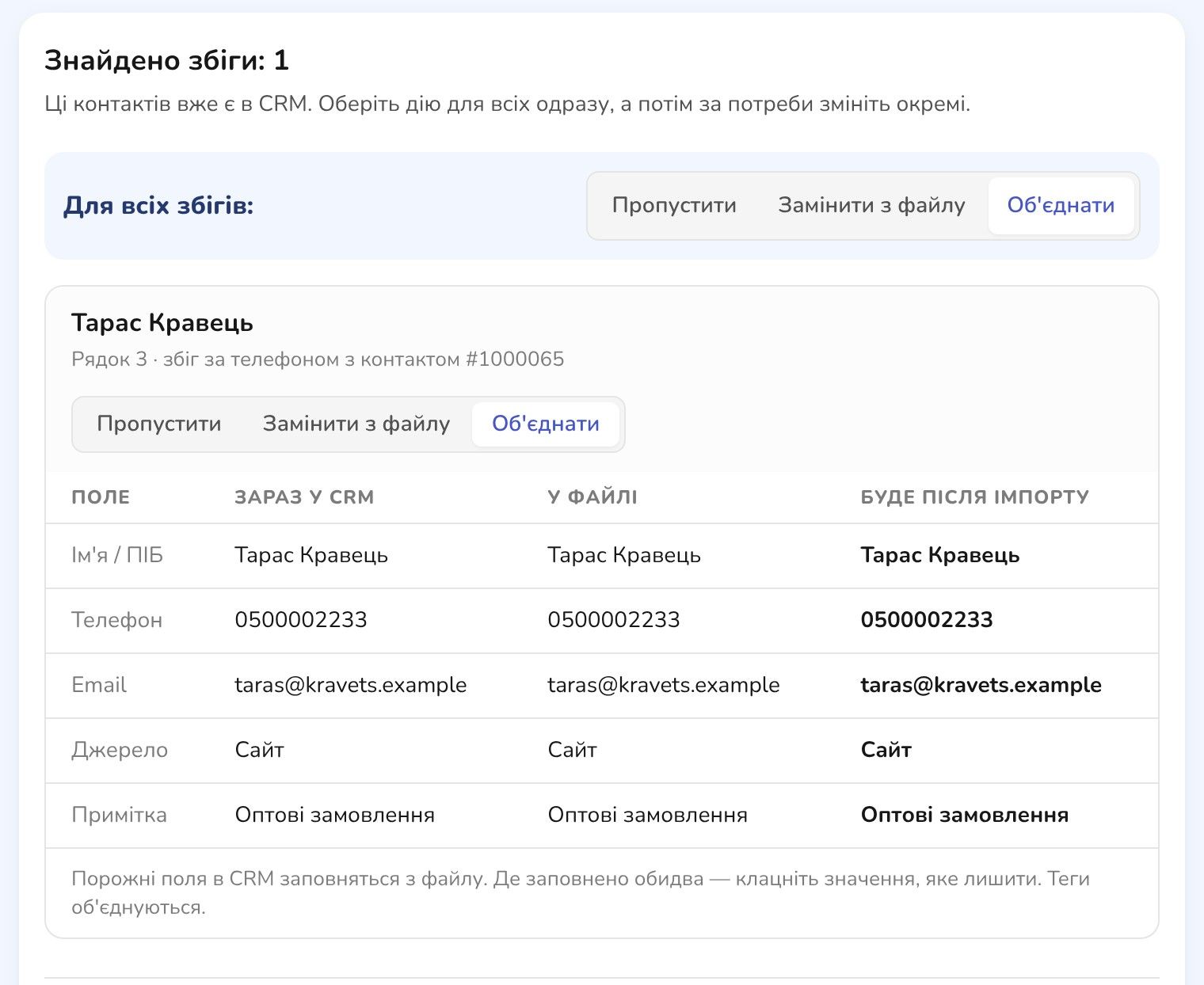
Step 4. What to do with duplicates
Contacts are matched by phone (the last 10 digits), or by email if there is no phone. So "0500001122" and "+380 50 000 11 22" count as the same client. In the example there is one match: Taras Kravets is already in the CRM, so the wizard says "Знайдено збіги: 1" (Matches found: 1).
If there are matches, you see a table for each: "Зараз у CRM" (Now in CRM), "У файлі" (In the file), "Буде після імпорту" (After import). Pick an action for all matches at once or for a single row:
- "Пропустити" (Skip) — the existing contact stays as it is.
- "Замінити з файлу" (Replace from file) — file data overwrites the CRM. Empty cells erase nothing.
- "Об'єднати" (Merge) — empty CRM fields are filled from the file; where both have a value, the CRM value stays.
Step 5. Review before importing
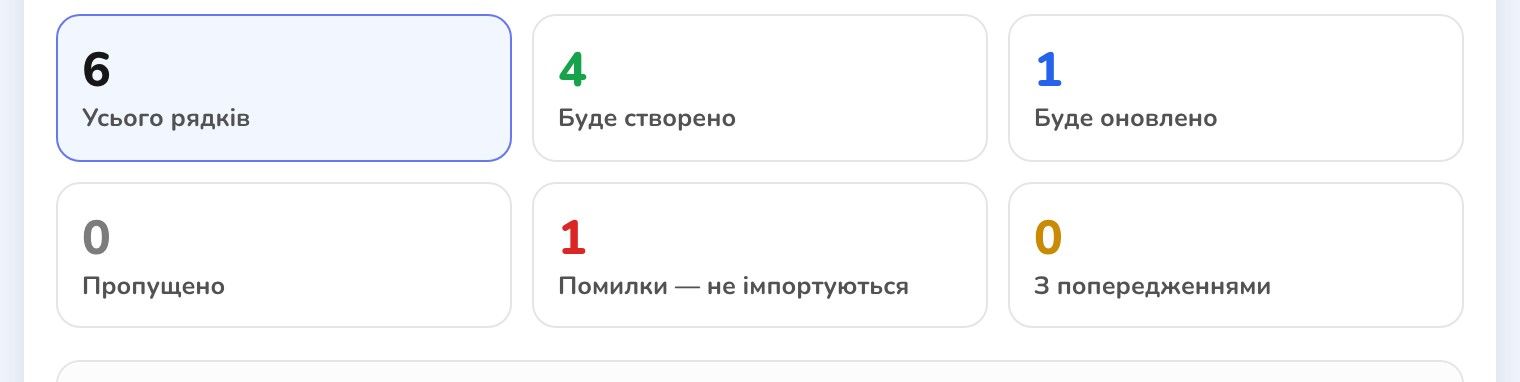
Nothing is saved yet. The tiles on top: total rows, to be created, to be updated, skipped, errors (not imported), with warnings. Every row has a status and a note.
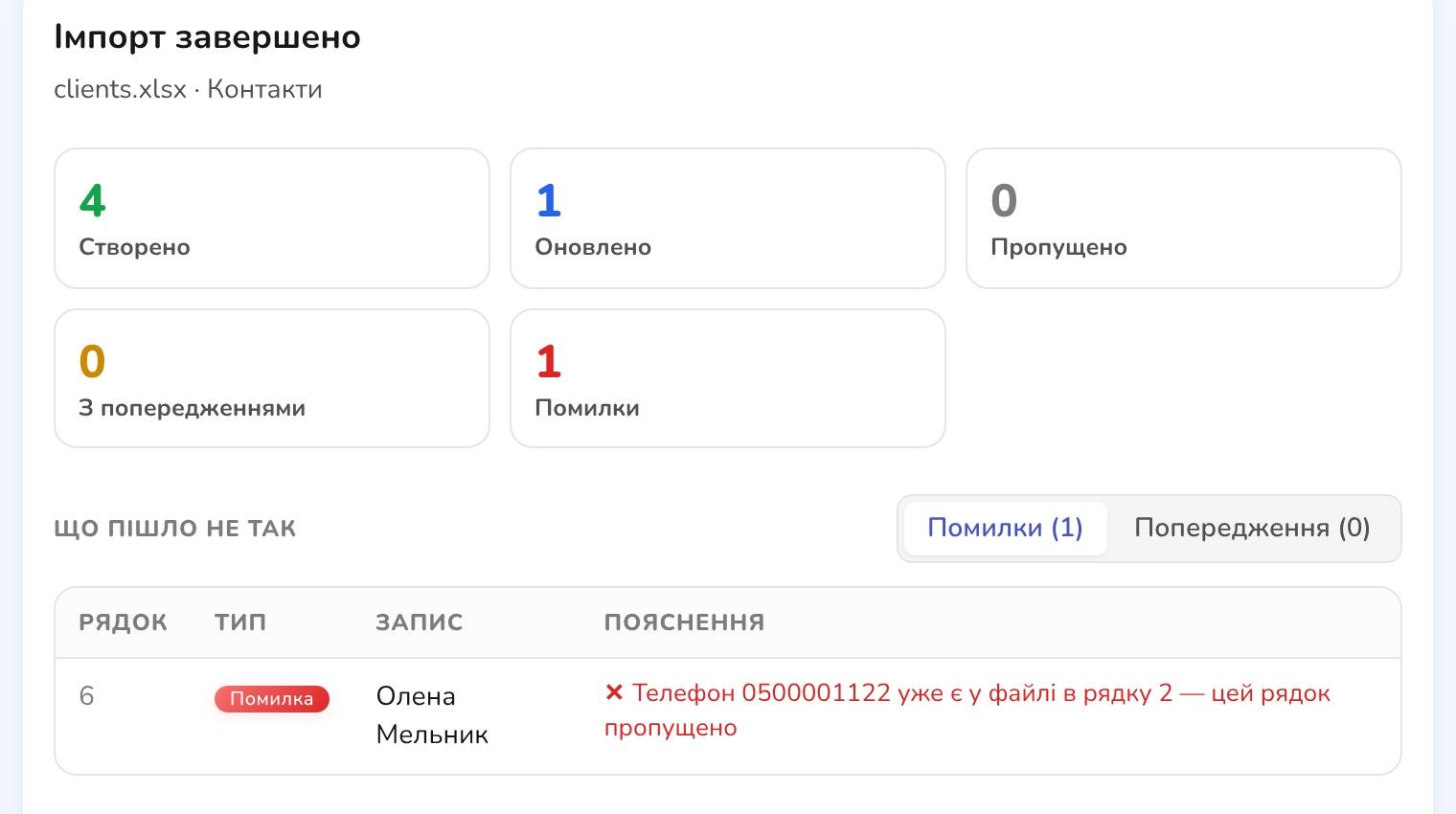
In the example, 6 rows: 4 will be created, 1 updated and one is an error. Olena Melnyk appears twice with the same phone, and the CRM says the phone is already in the file at row 2, so this row is skipped. An error means an empty required field, a non-number where a number is needed, or a duplicate inside the file itself. A wrong email or date is only a warning: the row is imported and that field is left out.
If it all looks right, click "Почати імпорт (5)" (Start import).
Step 6. The import and what's left afterwards
The import runs in the background. You can close the window, and the CRM shows a message when it's done. A running import can't be stopped, so don't skip the review step.
At the end you see how many records were created, updated and skipped, plus a "Що пішло не так" (What went wrong) table. "Скачати рядки з помилками" (Download rows with errors) gives you an Excel file with the same columns and the reason for each. Fix it and upload again.
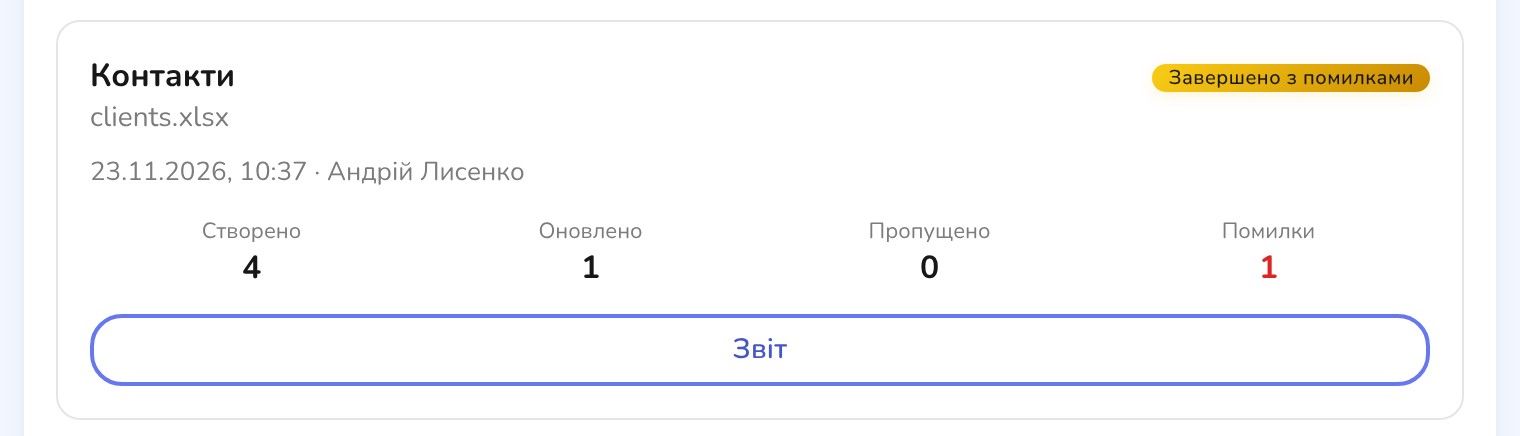
Every import stays in the "Історія імпортів" tab: what was imported, when, by whom, the status and the number of records. The "Звіт" button opens the result.
What to prepare in your table
- Column names in one first row on the first sheet.
- Phones with at least 10 digits. If a number has nine digits with the Ukrainian code, the CRM adds the leading zero.
- Dates as 31.12.2025 or 2025-12-31. The US format 12/31/2025 isn't recognized.
- Tags in one cell, separated by a comma or semicolon.
- Managers by their CRM user name, not by email.
Importing needs the "Імпорт з Excel" permission in the role settings. If you don't have it, ask your administrator.
Importing the same file with deals a second time creates the deals again, because deals aren't checked for duplicates. Contacts in that case come up as matches.
During import, records appear quietly: no automations, outgoing webhooks or notifications. If you need them, there is a switch on the first step of the wizard.
Move your client spreadsheet over
Sign up for free, upload your Excel file, and the wizard will show which columns it guessed and what will be created, before anything is saved.


