
Companies in CRM: all of a client's people and details in one card
If you sell to companies, one name in your CRM is not enough. You need the whole firm: the director, the accountant, the buyer, their chats and deals. The Companies module puts all of that in one card.
Here is a typical day for a wholesaler. An accountant at a shop writes: "Please invoice the LLC." The manager opens the CRM and sees a name with no job title. Who approves orders there? Which legal entity gets the invoice? They go ask a colleague, dig through old emails for bank details, and the invoice goes out the next day.
Where to turn Companies on
The module is off by default. Until you enable it, there is no menu item, no "Company" column and no company block in deals. A direct link to the companies page will not open either.
Go to Settings → Modules and switch on "Companies". The person who does it needs the "Enable and disable modules" permission in their role. Companies depend on Contacts: turn Contacts off and Companies go with it.

After that, the Contacts menu shows two items: Companies and Contacts.
Create your first company
Open Contacts → Companies and click "+ Company". Only the name is required. Add a type (client, supplier, partner or other) and the tax code. If a company with that code already exists, the CRM warns you, but you can still create it.
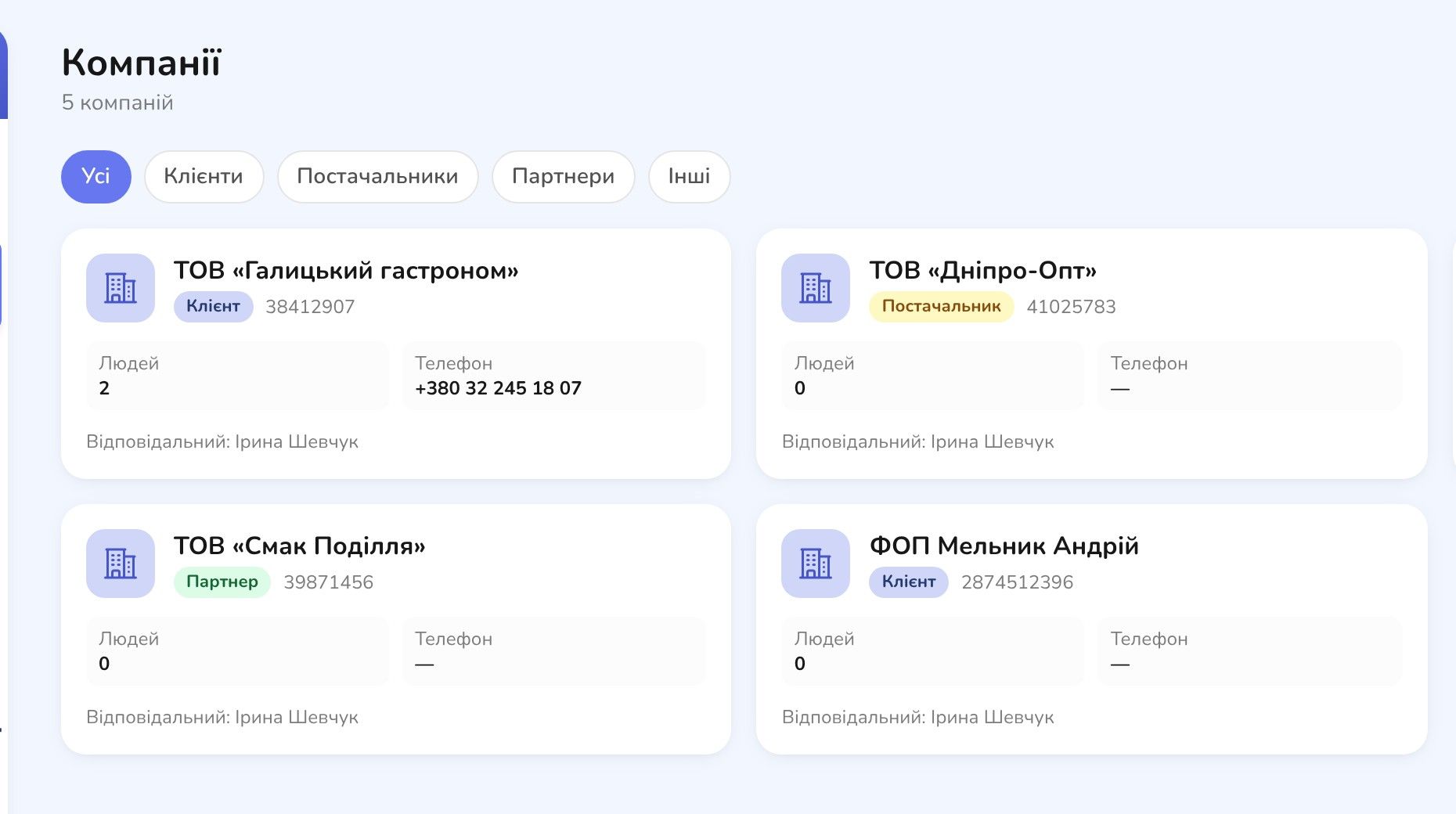
Companies appear as cards: name, type, code, number of people, phone and owner. You can search by name, code or phone, and filter by type with the buttons above the list.
Already have firms in a spreadsheet? Go to Settings → Data import → Companies. The import brings in the companies only. You add people, bank details and deals in the card.
Add people with job titles
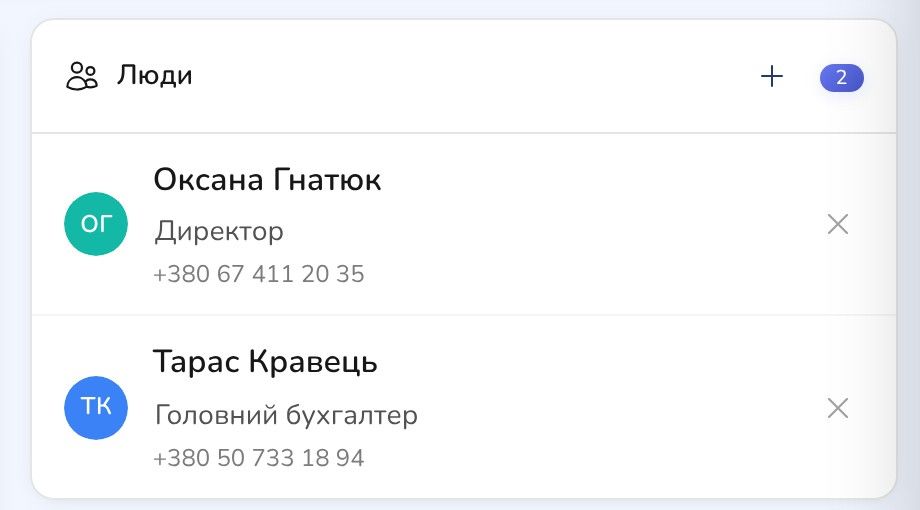
Open a company card. On the right is the "People" block. Click "+" → "Add person", find an existing contact by name or phone, or create a new one, and type their job title. For example, Oksana Hnatiuk, director, and Taras Kravets, chief accountant.
You can change a title right in the list. If someone leaves the firm, unlink them: the contact, their chats and deals stay, only the link to the company goes away.
Right below, the same column gathers the chats of everyone at the company. A chat always belongs to a specific person, because a person is who writes, but your manager sees the conversations with both the accountant and the director in one card.
Fill in the bank details
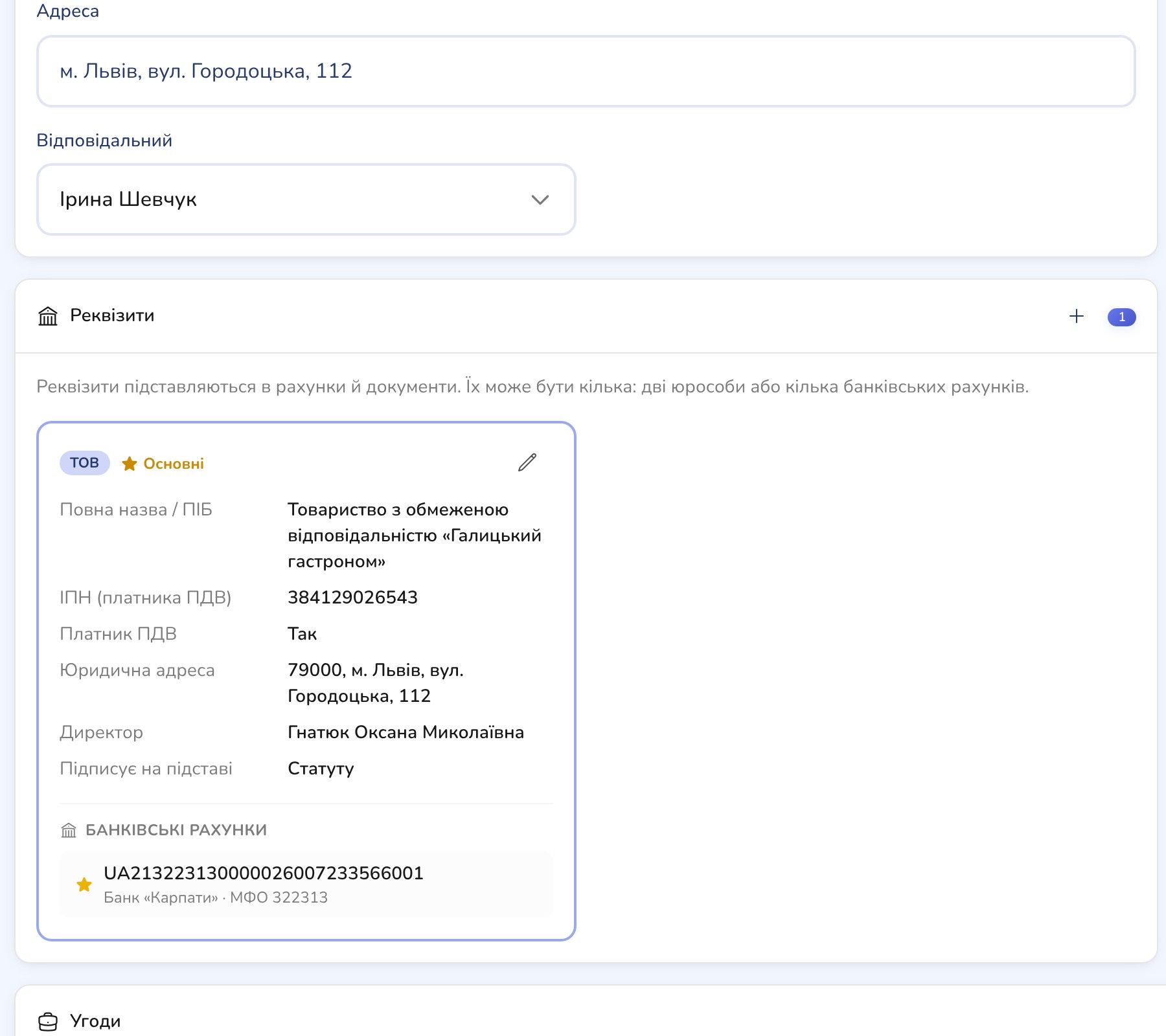
In the "Requisites" block click "New requisites" and pick a template: LLC, sole proprietor, individual or foreign company. The template decides the fields: full name, tax ID, VAT status, legal address, director, "acts on the basis of", single tax group.
Inside each set, add bank accounts: IBAN, bank, MFO, currency. Mark one as the main account. If a firm has two legal entities, create two sets and mark the one used most often as the main one.
The main set is filled into invoices and documents for that company's deals automatically. Nobody copies bank details out of old emails any more.
Deals on the company
Below the requisites is the "Deals" block: every deal with the firm in the same row layout, with name, owner, amount and stage. Click "+" → "Create deal" and the deal is created for this company with its main person.
You can also pick a company from inside a deal: "Choose company" or "+ New company". After you pick one, the CRM offers to add that firm's people to the deal. If the company has no bank details, the deal shows a yellow warning: only the company name will go into the invoice.
One person, several companies
A buyer may work for two shops owned by the same person. In the CRM that is one contact with a different title in each company. Mark one of them as the main company with the star. It shows in the Company column of the contacts list and is used in new deals.
Team comments and history
Next to the company name there is a comments button. It is an internal chat for your managers about this client, and the client never sees it. Type "@" and the start of a colleague's name, and they get a notification.
The "Change history" button shows who changed the name, code, phone, owner, added or unlinked a person, or saved the bank details, and when.
Good to know before you start
- There are no separate permissions for companies. Contact permissions apply: whoever sees contacts sees companies.
- A deleted company cannot be restored. People stay as contacts, deals stay without a company, and files from the company's custom fields are deleted.
Start with the one firm you work with most. Add the director, the accountant and the bank details, then create your next deal from that card.
Try it on your own clients
If you do not use RevukCRM yet, sign up for free. The Companies module is off by default, so first switch it on in Settings → Modules. Then add your first firm and the people with their job titles. In a few minutes you will see your first firm with its people and bank details in one card.
Keep every client company in one card
People with titles, bank details and deals for each company in RevukCRM. Sign-up is free.
Tags


