
How to Connect UniTalk to RevukCRM: Telephony in Your CRM
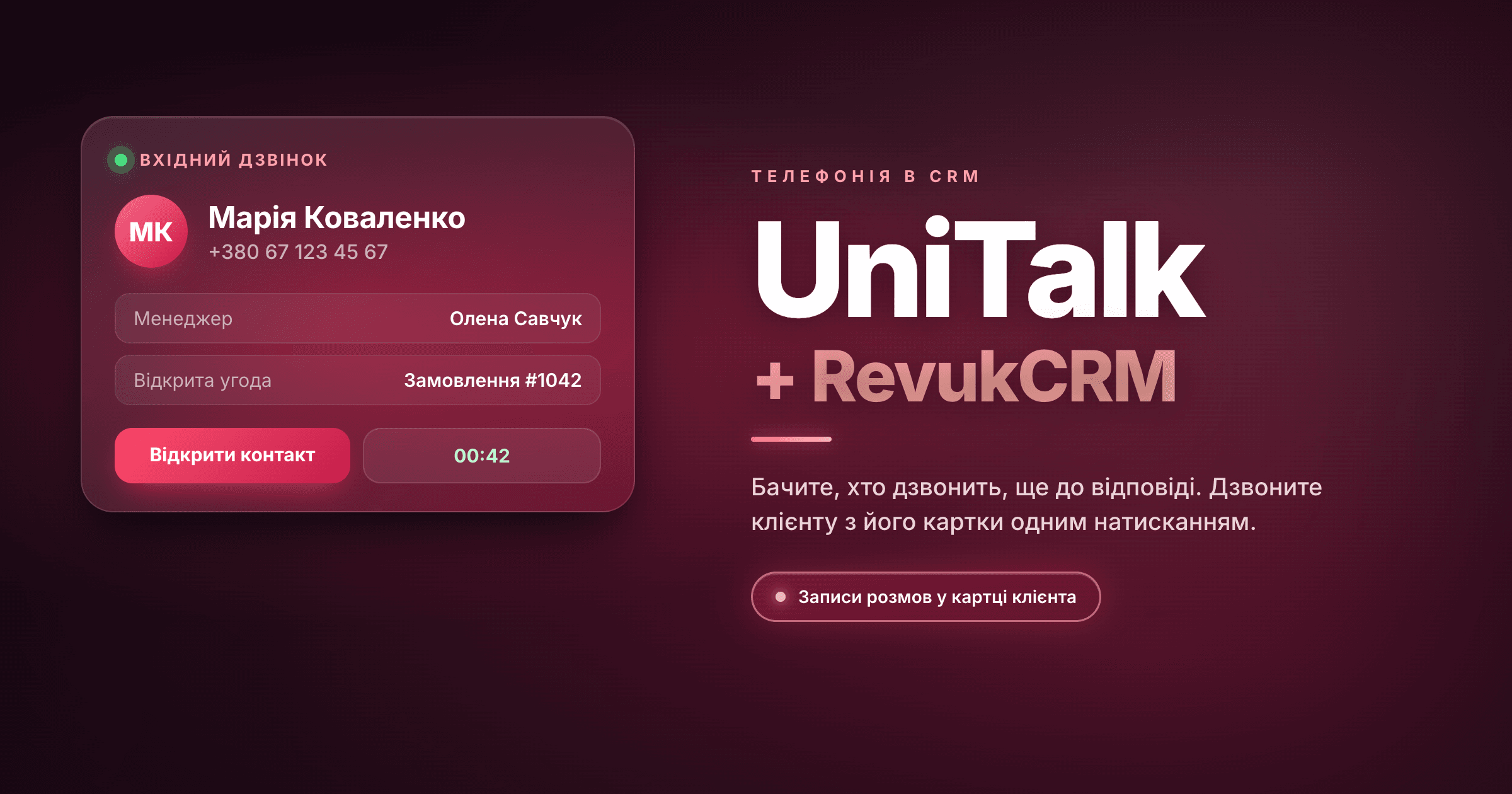
The UniTalk integration connects cloud telephony to your RevukCRM customer base. Your team sees who is calling before picking up, and calls a customer straight from their record with one click.
Every conversation and its recording stays on the customer record, missed calls turn into follow-up tasks, and managers see how many calls the team answered and how many were lost.
What you get
- A call card on screen — on any CRM page: number, customer name, company, account manager and up to three open deals, plus a live call timer
- Click-to-call from the customer record — a button on every contact and deal. Your phone rings first, then UniTalk connects you to the customer
- Call history with recordings — on contacts, deals and in a company-wide call log. Play or download any recording
- New contacts from unknown numbers — a first-time caller already has a record in the CRM
- "Call back" tasks for missed calls — assigned to the operator the call was meant for, without duplicates
- Calls routed to the right manager — returning customers reach the person who already works with them
- SMS and Viber via UniTalk — from the customer record, with templates and bulk campaigns with A/B text testing
- Auto-dialing, call analytics and AI call analysis — without switching between dashboards
Before you start
- A UniTalk account with operators and their internal extensions set up
- A UniTalk API token (an access key for the CRM) — in your UniTalk account under API & automation → API
- Admin rights in RevukCRM to install and configure the widget
One RevukCRM account connects to one UniTalk project.
Step 1. Open the widget catalog
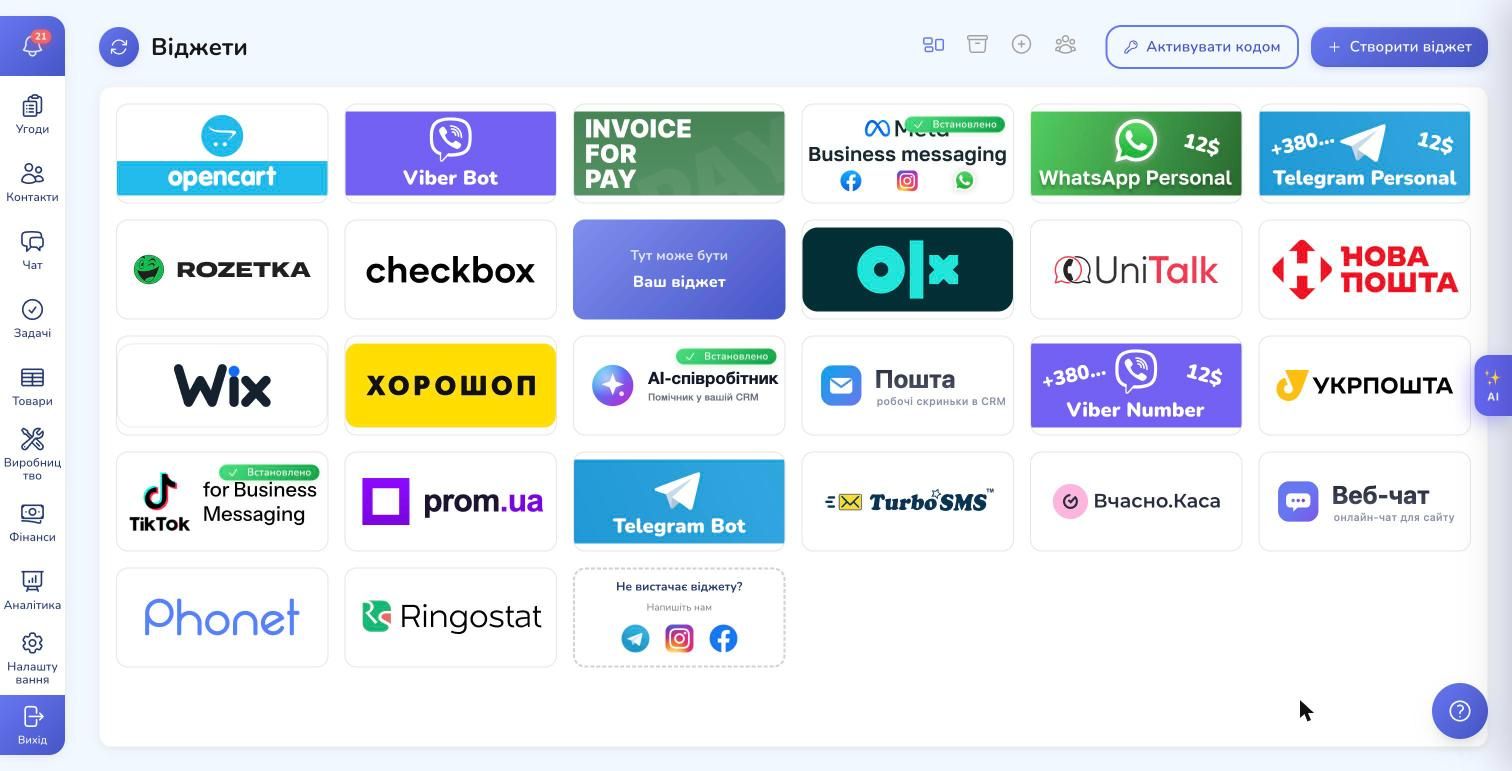
In the RevukCRM sidebar click Settings, scroll to Integrations and open Install widgets. All integrations live here: messengers, delivery, cash registers, telephony. Find the UniTalk card.
Step 2. Review the widget
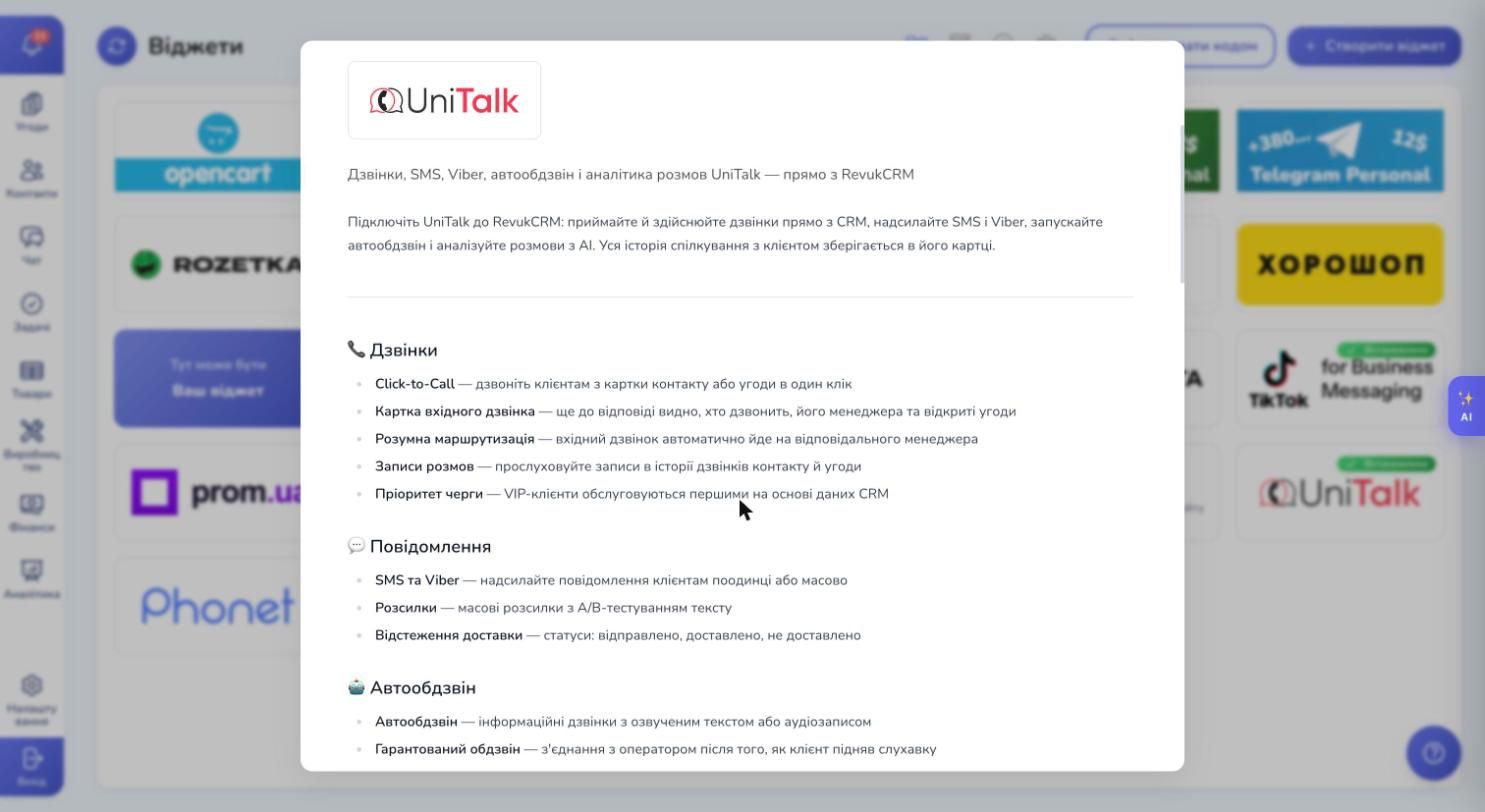
Click the card to see what the integration covers: calls, messaging, auto-dialing and analytics.
Step 3. Install the widget
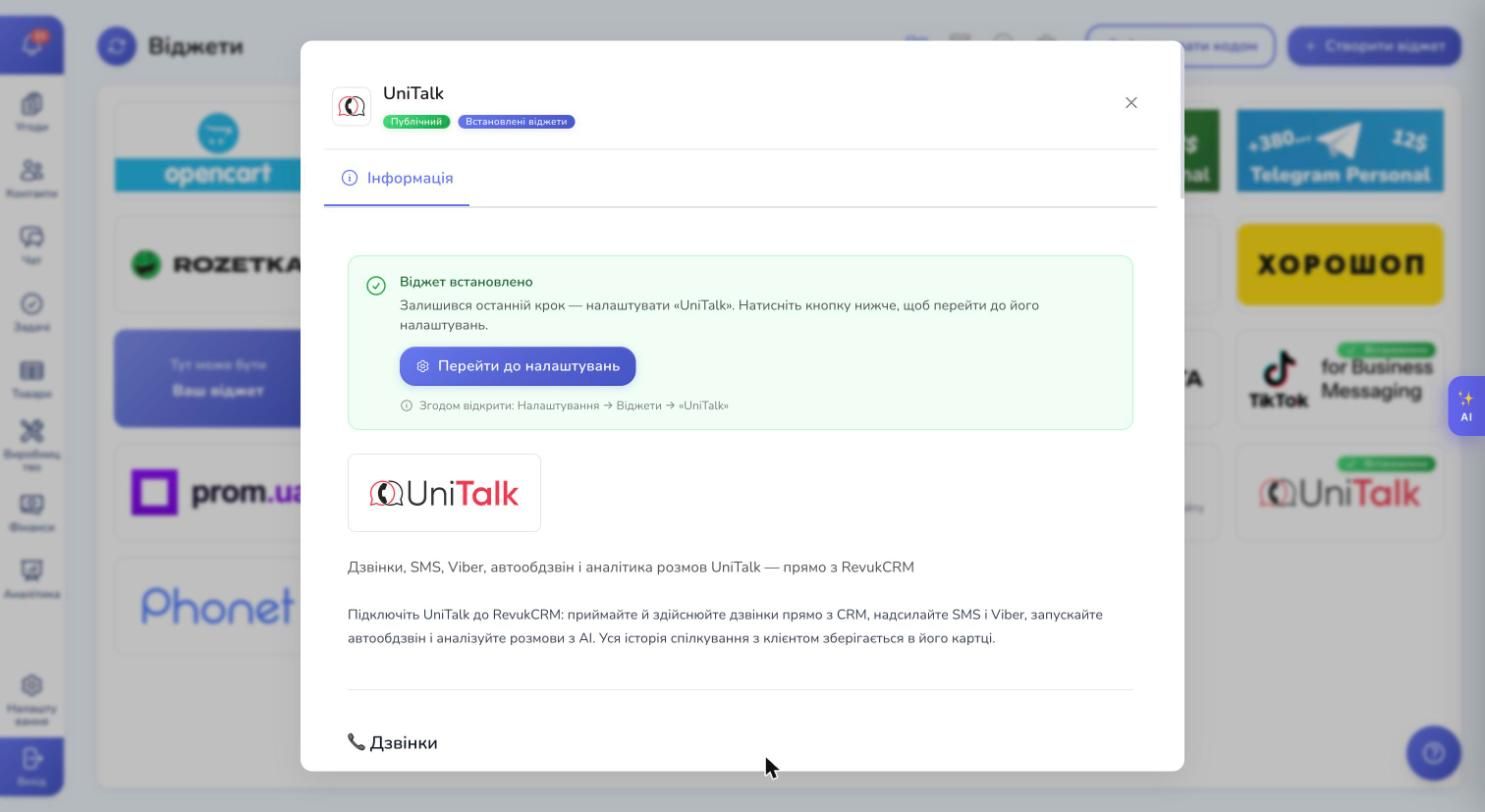
Click Install. A second later you'll see "Widget installed" and a Go to settings button — click it. If new menu items don't appear, reload the page.
Later you can open the widget page from Settings → Widgets → UniTalk.
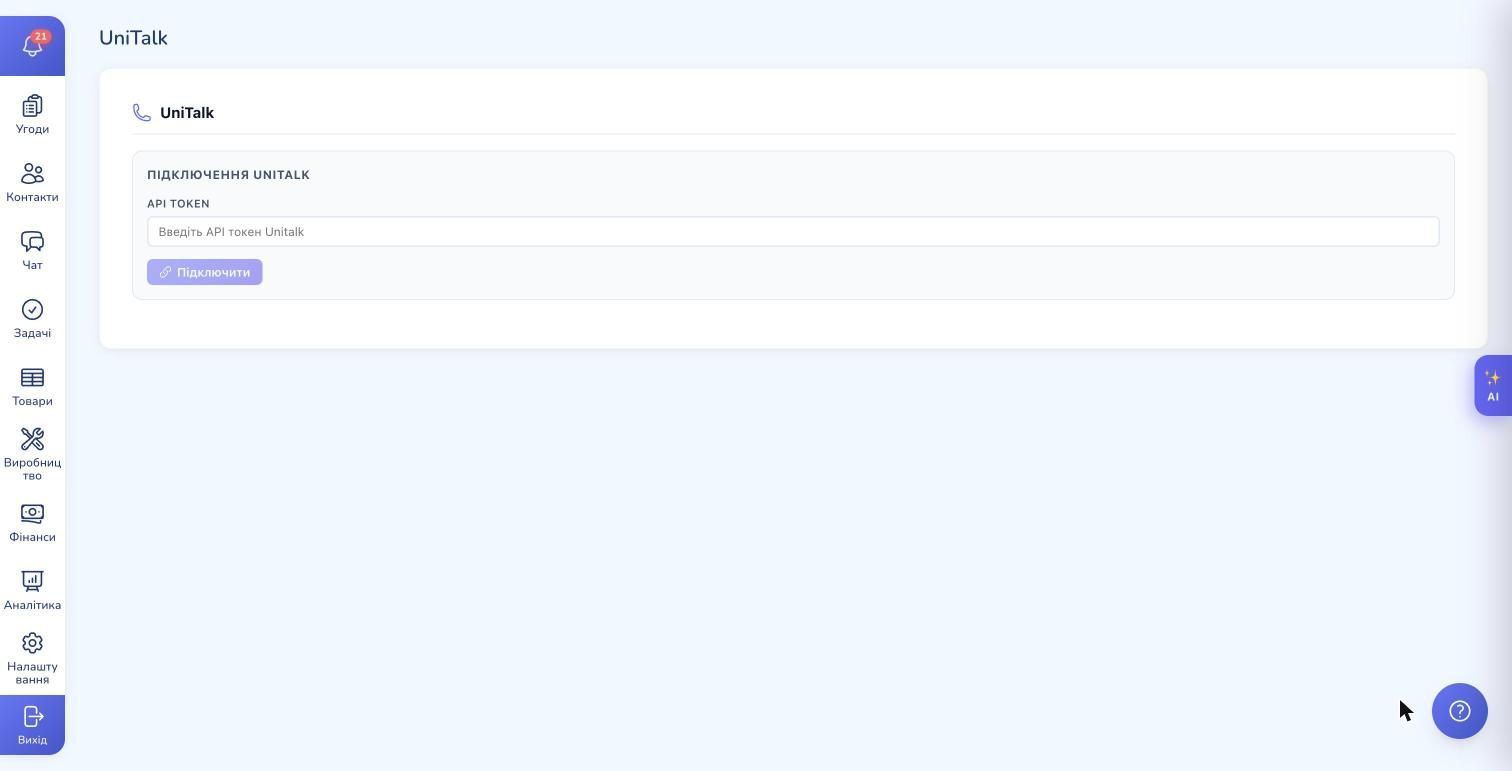
Step 4. Connect your UniTalk account
Copy the API token from your UniTalk account. On the widget page paste it into API Token and click Connect.
RevukCRM checks the token and immediately loads your UniTalk operators. The token is stored encrypted.
Step 5. Set up the webhook in UniTalk
A webhook is the address UniTalk uses to tell the CRM about every call. Without it there's no on-screen call card and no call history.
- On the widget page, in the Webhook block, copy the address. It's unique to your company
- In UniTalk open API & automation → Event handlers and click + Add
- Fill in the form: Action — "Send webhook", Name — RevukCRM, URL — the copied address, HTTP method — POST, Request body — "Standard JSON". Click Save
- Open API & automation → API, section Call event handling. For New call, Call redirected, Call answered and Call ended click "+" and pick the RevukCRM action
- Make a test call. Once the first event reaches the CRM, the address is marked Verified
The same instructions are on the widget page, with a copy button and links to the right UniTalk sections.
Step 6. Match operators to CRM users
The Operator mapping block lists your UniTalk operators with name, extension and role. Pick a CRM user for each one and save.
This matters: click-to-call then rings the phone of the person who clicked, and the incoming call card shows up for the person being called. New operators are pulled in with Refresh.
Step 7. Turn on the behavior you need
In Behavior settings choose what the CRM does automatically:
- Auto-create contact — a call from an unknown number becomes a new contact, owned by the operator who took the call or by a specific user
- Auto-create task for missed calls — a "Call back" task for the operator the call was meant for
- Smart call routing — returning customers go straight to their manager. In UniTalk: Calls → Settings → Inbound scenarios → "To the responsible manager" block → "Request to your API" → the widget address ending in
/route - Queue priority from CRM data — important customers move up the queue. You set the rules: contact tag, deal amount, open deal, known or new number, with priority from 1 to 10
Click Save — you're done.
What you'll see in the CRM
Call card. When a customer calls, a card appears in the corner of the screen: who's calling, their manager and open deals. Open contact takes you to the customer record.
Panel on contacts and deals. The customer's number with a call button, your line status (online, busy, offline), call history with a recording player and a box for SMS or Viber.
Widget page tabs:
- Calls — the company call log with filters by period, direction, status and manager. Import the last 30 days from UniTalk and run AI analysis of a conversation with UniTalk speech analytics
- Analytics — call volume, average duration and wait time, lost calls, new customers, breakdown by hour and weekday, per-manager stats
- Auto-dial — UniTalk dialing campaigns with numbers from the CRM: standard, guaranteed or voice robot. Results can become tasks
- SMS/Viber — sending, templates, history with delivery statuses and bulk campaigns
- Operators — Working / Pause / Not working statuses, work history and silent listening: you hear the call, the operator and customer don't hear you
Call-based automations
UniTalk adds its own triggers and actions to RevukCRM automations.
Triggers: inbound call ended, outbound call ended, missed call — with conditions on call status, talk time and whether the customer exists in the CRM.
Actions: call the customer from their manager's line, place an informational call with audio or text-to-speech, send SMS or Viber, add the number to a dialing campaign.
Example: a deal moves to the "Demo" stage — the manager automatically gets a call to the customer, and the call card shows the reason: "Schedule the meeting".
FAQ
The call card doesn't appear. Check that the RevukCRM action is attached to all four call events in UniTalk and the webhook address shows "Verified".
Click-to-call uses someone else's line. You're not mapped to an operator. Match every manager to their extension in "Operator mapping".
How do I disconnect? Widget page → "Connection" → Disconnect. Call history stays in the CRM.
Connect UniTalk to your CRM
Try RevukCRM free: the UniTalk widget installs in a minute, and calls, recordings and missed calls show up on customer records right away.
Tags


